Clay Workflows: Three Shapes Share the Name, and the Trigger Decides Who Runs Them
Clay workflows now come in three shapes: tables, reusable Functions, and Clay's open-beta Workflows graph. What each one does, what can start it, which plays a sales team should build first, and how reps run them without opening Clay.
Clay workflows are the automated plays a GTM team builds in Clay: a trigger starts them, Clay's enrichment, logic, and AI steps do the work, and the result lands in a CRM, a sequencer, or a table.
A GTM engineer at a Clay company has a good week and a strange one. She builds a buying-committee table that takes a company domain, finds the VP of Sales, the RevOps lead, and the CFO, runs Clay’s waterfall for each of them, and writes them to HubSpot with an owner. It works on the first try. By the end of the week she has run it for half the sales floor, and she pressed Run every time, because each run started as a rep’s message in Slack. She built a machine and became its operator. Our own Prospector copy has a name for this job: “the list desk.”
Clay workflows are the automated plays a GTM team builds in Clay: a trigger starts them, Clay’s enrichment, logic, and AI steps do the work, and the result lands in a CRM, a sequencer, or a table. As of October 2, 2026, Clay builds them in three shapes, and the shape decides who can press Run:
- Tables. A list enriched row by row. Started by the builder, or by an import, a schedule, or a webhook.
- Functions. A set of table columns packaged as one reusable block with named inputs and outputs. Called by any table, any Workflow, or an AI tool through Clay MCP.
- Workflows. Clay’s open-beta graph product: one record moves through connected steps, started by a trigger such as a webhook, a schedule, a segment, or a CSV upload.
The finding this page adds: read Clay’s own list of triggers and the rep’s moment of intent is not on it. A rep looking at a LinkedIn profile or a CRM record reaches a Clay workflow only through a webhook, an AI chat, or a person. Which of those you choose decides whether your workflows get run by the team or by the builder alone.
What are Clay workflows, and why are there three of them?
For most of Clay’s life, “a Clay workflow” meant a table. You import a list, add enrichment columns, add a formula, and the table walks down the rows. Clay University’s teaching frame for it is FETE: “Every workflow follows the FETE framework: Find your target audience, Enrich with relevant data, Transform that data into actionable insights and Export to your operational tools” (Clay University). The template galleries, the agency menus, and most pages that rank for this keyword still describe that shape.
Clay has since added two more, and both now sit under “Orchestration” in its product menu (clay.com, checked October 2, 2026).
Functions came first. Clay’s docs describe them as a way to “turn any enrichment sequence you’ve built in a table into a reusable, centrally managed workflow that you can use anywhere” (Clay docs, Functions). You select the columns, choose Save as function, and name the inputs (the values that change from table to table, like a domain) and the outputs. After that, the whole sequence runs as one column in any table, inside a background mini-table you never see. The docs give the scale of the cleanup: what used to be 20 to 50 enrichment columns becomes a single Run Function column.
Workflows came second, and it is a different animal. Clay’s docs: “Workflows is Clay’s primary orchestration layer. A workflow is a graph of connected nodes that a trigger starts.” And the line that separates it from a table: “where a table enriches a list row by row, a workflow moves a single record along a path, with branching, conditions, and logic on the way” (Clay docs, Workflows). It is in open beta, switched on per workspace from settings. The product page promises you can “Trace individual records to quickly spot why logic or agents make unexpected decisions” (clay.com/workflows).
A restaurant kitchen holds all three, and the picture helps. Tables are batch prep: a cook at the counter chops forty onions in a row because tonight’s service will need them. Functions are the mother sauces, the few base sauces a classical kitchen makes once, in one pot, so every station builds on the same flavor; change the stock and every plate that uses it changes the same night. Workflows are the ticket rail: one order clipped to the rail, moving station to station, sent left or right by what the diner asked for. The GTM engineer is the chef who designed all of it.
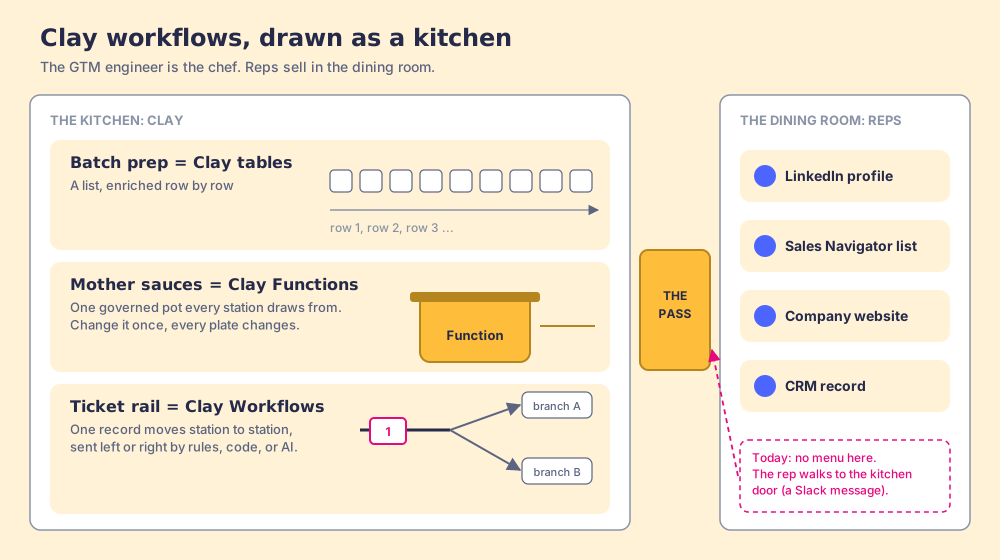
In one respect most Clay companies are not like a restaurant at all. In a restaurant the diner orders from a menu at the table, and the menu was printed before she sat down. In most Clay companies there is no menu in the dining room. The rep walks to the kitchen door and shouts, which is the Slack message, and the chef stops cooking to answer.
How do Clay tables, Functions, and Workflows compare?
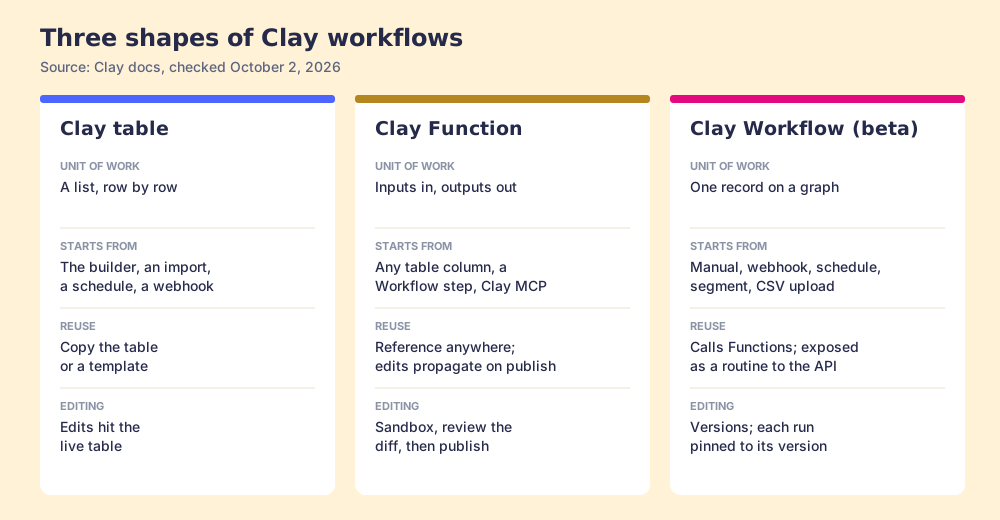
Each shape is good at a different job, and Clay’s own docs draw the lines clearly. Here they are side by side, all from Clay’s docs and pricing page, checked October 2, 2026.
| Clay table | Clay Function | Clay Workflow (open beta) | |
|---|---|---|---|
| Unit of work | A list, row by row | One set of inputs, returning outputs | One record moving along a graph |
| What starts it | The builder, an import, a schedule, a webhook | Any table column, a Workflow step, or Clay MCP | Run manually, webhook, schedule, segment, CSV upload |
| Reuse | Copy the table or a template | Reference it anywhere; edits propagate on publish | Call Functions as steps; expose as a routine to the API or a Claygent |
| Safe editing | Edits hit the live table | Sandboxed edit mode, then publish | Versions; each run pinned to the version it started on |
| Logic | Formulas, conditional runs | Whatever the columns inside do, including nested Functions | Rules, Python code, or AI branches; Claygent steps |
| Cost | Per enrichment | No added cost; the steps inside charge as usual | Same as a table for the same work |
| Plan | Free and up | All paid plans | Launch, Growth, Enterprise; free and trial with limits |
Two rows deserve a closer look.
The cost row settles an argument teams have about migrating. Clay’s Workflows docs say “There’s no difference in cost to run the same work through a workflow or a table,” and the Functions docs say a Function adds no credit or action cost of its own: the credits are charged by the enrichments inside it, to the table that called it. So the choice of shape is a design choice, never a budget one. The meter is the same two lines on Clay’s pricing page: Data Credits, which “start at $0.05 each,” and Actions, which “start at less than $0.01 each” (clay.com/pricing).
The safe-editing row is where Functions and Workflows earn their keep. A table you edit is a table you edit live. A Function has a sandbox: you change it, test it on real rows, review the diff, and publish, and the docs promise “any updates you make to the function automatically apply everywhere it’s used.” Workflows go further and pin each run to the version it started on, so “editing a workflow never changes a run already in flight.” One caution from the same docs: Functions do not keep a version history yet, so the diff you review at publish is the record you have.
How do Clay Functions work, and how should you design one?
Christian Haskins, a senior outbound growth manager at Rippling, is quoted on Clay’s Functions page with the clearest description of why builders like them: “Functions let me treat enrichments like code,” as modular blocks of logic he can reuse (clay.com/functions). The mechanics, from Clay’s docs:
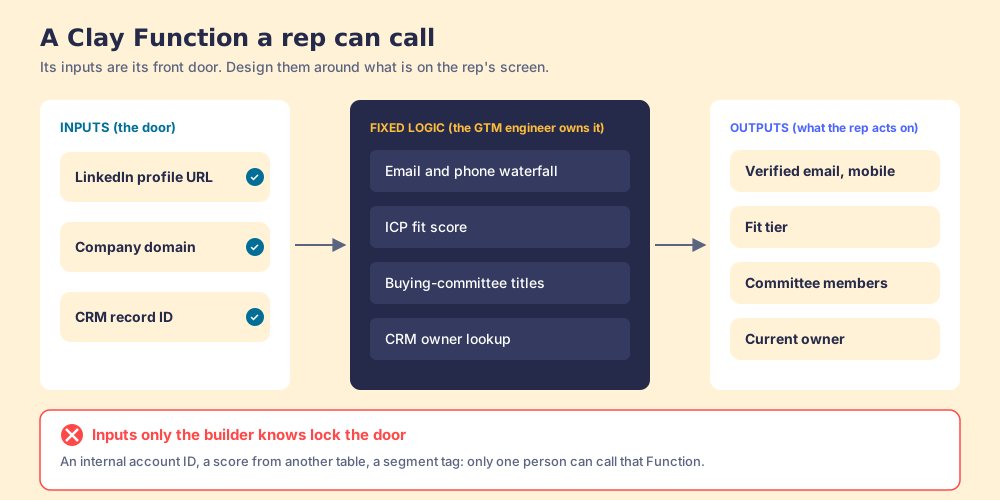
- Inputs. The values that change from table to table, “typically identifiers like a company domain, a person’s full name, or a LinkedIn URL.” Everything else inside is fixed logic.
- Outputs. The fields the Function hands back to the calling table or step.
- Nesting. “A function can call another function,” so a buying-committee Function can call your email-and-phone waterfall Function rather than carrying its own copy.
- Scale. No row limit since general availability; the docs say Functions had a 50,000-row limit before it.
- Permissions. Any workspace member can use a Function; editing can be restricted to “Admins and invited collaborators only.”
- Reach. A Function can be enabled for MCP, “which makes it accessible via connected AI tools,” with admin budgets and per-user limits.
The design rule that follows from those mechanics is short. The inputs of a Function are its front door, and they decide who can walk through it. Clay’s docs warn that “every column you include becomes a required input,” and a Function that needs an internal account ID, a score from another table, and a segment tag can only be called by the person who knows where those live. A Function whose inputs are a LinkedIn URL, a company domain, or a CRM record ID can be called by anyone looking at a LinkedIn profile, a company website, or a HubSpot record, which is to say by any rep.
There is a second reason to design Functions this way, and it comes from Clay’s own description of the job. Clay’s GTM engineering guide says its GTM engineers “act like an internal product team that serves our GTM organization,” measuring success “by metrics like meetings booked and hours saved” (clay.com/blog/gtm-engineering). A product team ships an interface, and a Function’s inputs and outputs are that interface. Hours saved come from other people pressing Run.
What can start a Clay workflow?
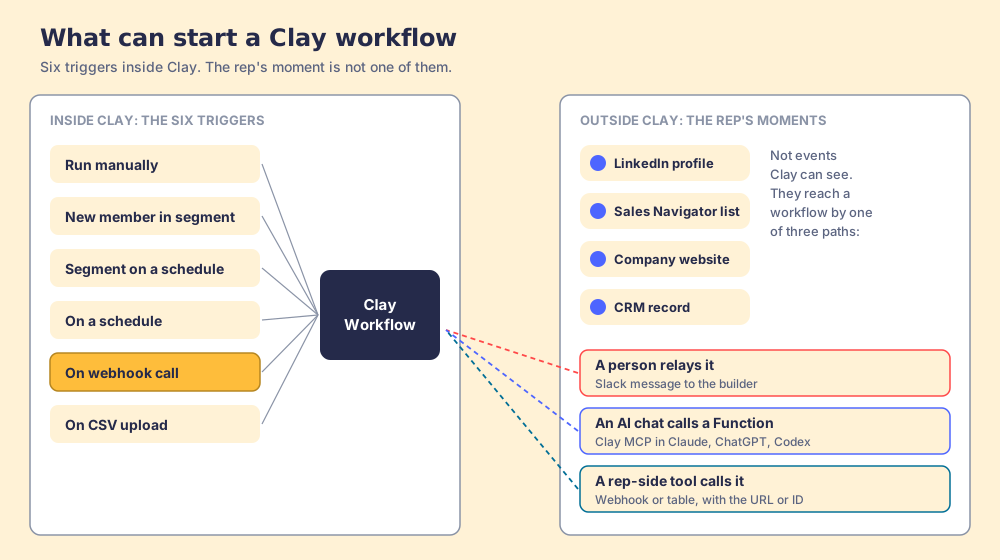
The template galleries skip this part, and it is where the list desk comes from. Clay’s Workflows docs list six triggers, checked October 2, 2026:
- Run manually. “You click Run workflow and supply the input.” Also the trigger behind a workflow called from the CLI or from a Clay table.
- New member in segment. One run for each record that joins an audience segment, and optionally each time it changes.
- Segment on a schedule. Reruns the workflow for every member of a segment, for recurring passes like “a nightly re-score.”
- On a schedule. A standalone recurring job, like a daily digest.
- On webhook call. “Clay generates a URL, and each POST to it becomes a run. Best when the event starts outside Clay, like a form submission.”
- On CSV upload. A run for each row of a file you upload.
Read the list as a rep would. Four triggers are clocks or data conditions: a segment changes, a schedule fires. One is a person inside Clay pressing Run. One is a URL waiting for another system to call it. None of them is “a rep is looking at the VP of Sales on LinkedIn and wants her mobile,” and none is “a rep has an account open in Salesforce and wants the buying committee.” The two moments where a rep’s intent is highest are not events Clay can see.
That leaves three ways for the rep’s moment to reach a workflow. A person relays it (the Slack message, the list desk). An AI tool calls a Function through Clay MCP, which Clay pitches as a way to “Give reps pre-built workflows and trusted outputs” inside Claude, ChatGPT, or Codex (clay.com/mcp). Or a tool on the rep’s screen calls the webhook, or the table behind it, with the profile URL or record ID as the input. Clay’s pricing page lists “webhook automation” and “CRM auto-sync and enrichment” on Growth, from $495 a month, $446 a month billed yearly; Launch, from $185 a month, does not list them (clay.com/pricing, checked October 2, 2026).
None of this is a flaw in Clay. A workflow engine has to start on something it can observe, and a segment or a webhook is observable while a rep’s glance at a profile is not. The design question for a sales team is which of the three paths it wants carrying that glance. The Bridge Group’s 2025 SDR report, 351 B2B companies, puts the median SDR at 112 activities a day, 19 of them on LinkedIn (Bridge Group). Salesforce’s 2026 State of Sales survey of 4,050 sales professionals found the average seller spends 40% of their time selling (Salesforce). A path that adds a Slack thread or a second window to each of those LinkedIn touches spends time from a budget that is already short.
Which Clay workflows should a sales team build first?
The published menus sort Clay workflows by motion. FullFunnel’s “Menu of Use Cases & Workflows with Clay” groups them into six motions, outbound to RevOps orchestration, with four or five workflows each (FullFunnel), and our own Clay use cases page sorts six builds by what sets each one running. Both are useful maps. This page sorts by one more column: who presses Run, and what they have on screen when they do. On that sort, five plays come first for a B2B sales team, because each starts from something a rep is already looking at.
- Account research. Input: a company domain from the site the rep is on. The table checks ICP fit and returns the buying committee you defined, by title and seniority. Shape: a Function (the committee lookup) called by a table. The deeper method is in mapping the B2B buying committee.
- New logos. Input: a LinkedIn profile URL or a prospect list the rep built. The table enriches, scores, and loads the right sequence. Shape: a table or Workflow that calls your waterfall Function.
- Expansion. Input: a customer’s CRM account ID. The table finds the rest of the team at that customer and writes them to the CRM with the account owner. Shape: a table calling the committee Function.
- Job changers. Input: a past champion’s LinkedIn URL. Clay’s job-change signal checks it on a schedule, and Clay University prices each check at “1 action plus 0.2 data credits” (Clay docs); when she moves, the Workflow finds her new team and queues a sequence. Shape: a Workflow on a segment trigger. The full play is in job change tracking.
- Stalled deals. Input: an opportunity record. The table adds the economic buyer and two peers before the forecast call. Shape: a table calling the committee Function. Why one contact is never enough is in multithreading in sales.
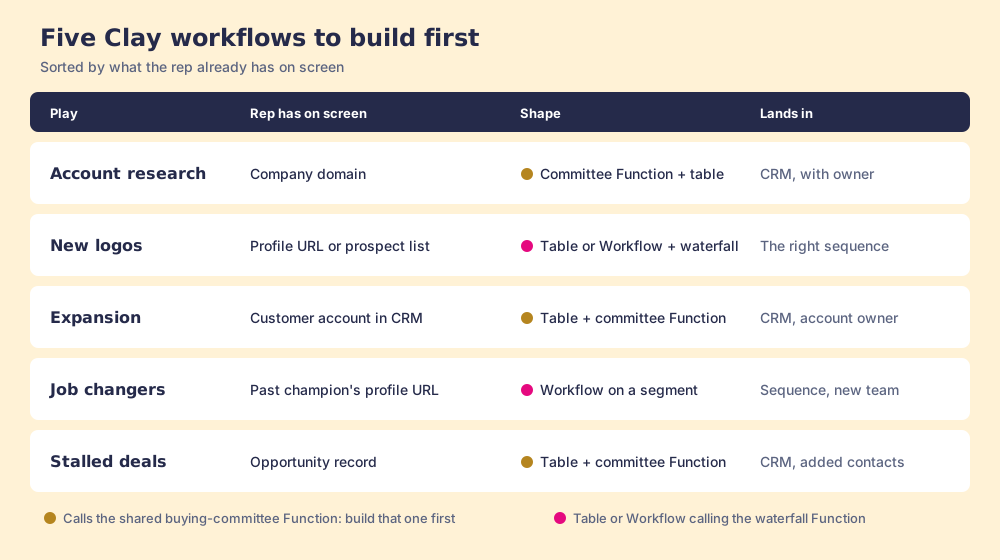
Three of the five plays call the buying-committee lookup, and all five call the waterfall. Build in that order. Make the email-and-phone waterfall a Function (Clay’s Claybook “Find Anyone’s Contact Info” is a sound starting point, in Clay’s GTM use case templates), make the buying-committee lookup a Function that calls it, then build the five plays as thin tables and Workflows on top. When legal asks you to drop a provider, or sales leadership changes the ICP, you change one pot and every plate changes. If you want starting points for the tables themselves, Clay templates collects them, and the method behind the waterfall is in waterfall enrichment.
How do reps run Clay workflows without opening Clay?
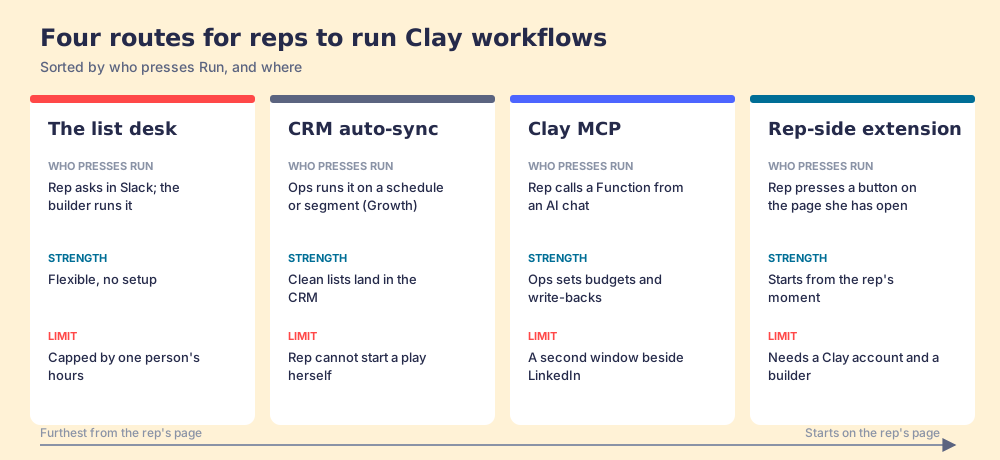
Four routes are in use today. Each is the right one for some team.
- The list desk. Reps message the builder, the builder runs the table. Free, flexible, and capped by one person’s hours. Fine while a team has three reps; the first route to retire as it grows.
- CRM auto-sync. Ops runs the workflows on a schedule or segment and writes results into HubSpot or Salesforce, on Clay’s Growth plan. Strong for lists Ops owns, like territories and inbound. The rep works what lands and cannot start a play from a profile she found herself. The Clay HubSpot integration covers the setup.
- Clay MCP. Ops enables Functions for MCP; reps call them from Claude, ChatGPT, or Codex. Clay’s MCP page says Ops can “centrally control CRM write-backs, compliance logic, and enrichment spend” (clay.com/mcp). Strong for reps who already spend the day in an AI chat; the chat is a second window beside the LinkedIn tab.
- A rep-side extension. A button on the LinkedIn profile, the Sales Navigator list, the company website, or the CRM record calls the team’s Clay table with what is on screen. In the kitchen picture, it puts the menu in the dining room. The Clay Chrome extension guide sets out what to ask any extension before you trust it with LinkedIn, and Clay prospecting grades six routes for rep-led prospecting.
Why trust this page?
I started RevPartners, a HubSpot partner that did only sales implementations; it sold roughly twice as much Sales Hub as any other partner and reached Elite tier in 13 months. Supered came out of that work and holds 4.9 out of 5 from 81 reviews on G2 and 5.0 from 122 reviews on the HubSpot App Marketplace (both checked October 1, 2026). The disclosure that matters here: we make Supered Prospector, the rep-side route in the next section. Every Clay mechanic above comes from Clay’s own docs and pages, linked and dated, so you can check it without trusting us.
Where does Supered Prospector fit?
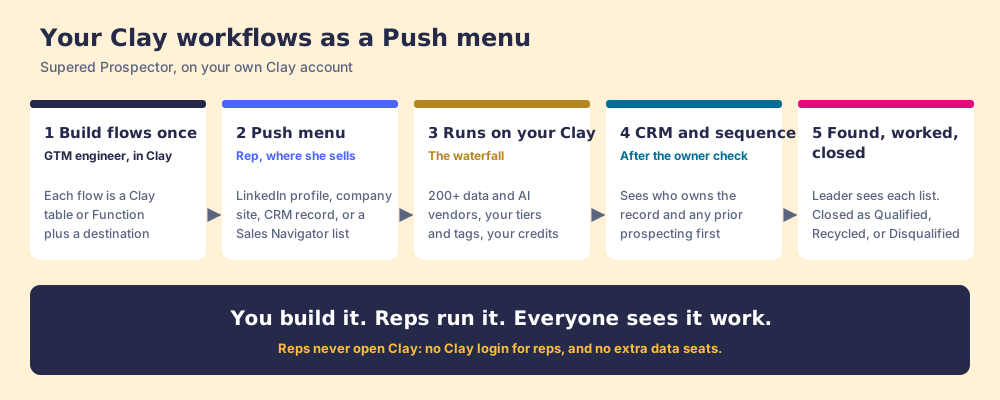
Clay plus Supered is the best way for a sales team to prospect: GTM engineers build in Clay, reps never open Clay. Prospector runs inside the Supered Chrome extension on your own Clay account. It brings no database of its own; it runs Clay’s waterfall across 200+ data and AI vendors (clay.com, checked October 2, 2026), which is every database in Clay’s marketplace, routed. Clay governs the data. Supered governs the motion.
In kitchen terms, Prospector prints the menu and puts it at the rep’s table. The mechanics:
- Flows, built once. The GTM engineer builds named flows. Each maps to a Clay table or Function (person enrichment, buying committee) and a destination (a sequence in your sales engagement tool, or the CRM on the account). Any custom Clay workflow can run from Supered. Your logic stays yours: waterfalls, tiers, tags, and sequence variables.
- A Push menu where reps work. The rep picks the flow from a Push menu on a LinkedIn profile, a company website, or a HubSpot, Salesforce, or Pipedrive record. From Sales Navigator, the rep adds leads to a prospect list and pushes the list to a Clay table. The table runs, then sends to the CRM and sequences.
- Ownership before the push. The rep sees whether the person is already in the CRM, who owns the record, and a flag when someone was already prospected, so there is no duplicate work across reps.
- Found, worked, closed. Found: reps use your tables. Worked: you see who is working their list, and who is not. Closed: every lead ends the way your process says, as Qualified, Recycled, or Disqualified. The leader sees each list found, worked, and closed, which is how a Clay budget grows.
- A starting point. Use the Supered Clay template, or bring your own tables.
On LinkedIn, in Supered’s own words: Prospector works within LinkedIn’s terms and does not copy search results in bulk; the contact data comes from Clay’s waterfall on the customer’s Clay account.
The price, since a menu has one. Prospector is $45 per rep per month, billed annually, from one rep, and it needs your own Clay account (Prospector). Ten reps add $5,400 a year to a Clay Growth plan of $5,352 billed yearly ($446 a month), for $10,752 in all. If your reps are asking for Apollo seats to build their own lists, skip the extra seats and get more out of the Clay you already pay for. How Prospector fits the rest of the sourcing motion is on sourcing with Supered, and what it changes for the person who builds the tables is on Prospector for GTM engineers.
Choose something else if you do not run Clay: Prospector does nothing without your Clay account, and a single database with its own extension is simpler (the Apollo alternatives page grades those). Choose something else if your reps work all day in an AI chat (Clay MCP is the closer fit), or if every list your reps need is one Ops builds on a schedule (CRM auto-sync is enough). And if you have Clay but no one to build the tables, get a builder before you get a menu: the GTM engineer post covers the role, and choosing a Clay agency covers outside help. One of those agencies, RevPartners, is a Clay Elite Studio Partner, and it is the company I founded.
What should a GTM engineer build first?
Three ways forward, in the order we would take them.
- Functions before plays. Package the waterfall and the buying-committee lookup as Functions with inputs a rep can see: a LinkedIn URL, a domain, a record ID. Clay’s docs say Functions add no cost of their own and propagate edits on publish, so this costs nothing and saves the rebuilds.
- Workflows for the events Clay can see. Inbound form fills on a webhook, job changers on a segment, nightly re-scores on a schedule. These run without anyone pressing anything, which is the Workflows product’s strength.
- A rep-side route for the moments Clay cannot see. The profile, the Navigator list, the company site, the CRM record. Pick the route that matches where your reps spend the day, and retire the list desk.
Our recommendation, grounded in what this page has shown: build Functions first, let Workflows carry the events, and put a menu in the dining room for everything else. Clay’s trigger list has no entry for a rep’s moment of intent, and the median SDR touches LinkedIn 19 times a day, so the route you choose for that moment decides how many of your workflows run without you.
The GTM engineer from the opening built a good table. It ran all week because people kept asking her to run it. Give the reps a menu and she can get back to the kitchen. For what each Clay plan costs on your own account, see Clay pricing; for the full list-building method, see the sales prospecting guide.
Frequently asked questions
What is a Clay workflow?+
What are Clay Functions?+
What is the difference between a Clay table and a Clay Workflow?+
Which Clay plan do I need for workflows?+
Can sales reps run Clay workflows without a Clay login?+
What Clay workflows should a sales team build first?+
Your process, running itself.