Clay Salesforce Integration: Two Doors In, One Tag Out, and the Step After the Sync That Nobody Owns
Clay's Salesforce integration imports list views and reports, enriches them across the waterfall, and writes back by record ID or external ID with your duplicate rules in the way. Each action, both doors in, the picklist trap, and the step after the sync where reps drop out.
The Clay Salesforce integration is Clay's native Salesforce connector: Sources that import records from a list view or a report into a Clay table, and Actions that look up, create, update, upsert, and convert records, on Clay's Growth plan and above, in your own Salesforce org.
A Salesforce admin builds a report called “Leads, no mobile,” schedules it to Clay, and the waterfall fills the column overnight. In the morning the report is shorter, and a rep opening one of those leads sees a mobile number in a field that was empty yesterday. Nothing on the record says it is new. Nothing tells the rep to dial it. The sync worked, and the pipeline review three weeks later will ask a question the sync cannot answer.
The Clay Salesforce integration is Clay’s native Salesforce connector: Sources that import records from a list view or a report into a Clay table, and Actions that look up, create, update, upsert, and convert records, on Clay’s Growth plan and above, through your own Salesforce org (clay.com/integrations/data-provider/salesforce, opened September 25, 2026). Clay’s copy says the GTM engineer builds and “any rep” runs, and the Salesforce sync is how the build reaches the rep: on the record they already have open. We run on our customers’ own Clay accounts and read these docs as a customer does. The integration handles delivery, with more switches than the HubSpot connector because Salesforce has more rules. The step after delivery has no owner, and it decides whether the Clay bill turns into pipeline.
What does the Clay Salesforce integration do, action by action?
Picture an airport baggage system, because that is what a Salesforce org is to an incoming record: a building full of rules about which bag belongs to which passenger, with a checkpoint that stops bags it cannot match. Clay’s nine entries are the stations a bag passes through. Each is marked “Bring Your Own Account Required,” so the bag moves under your credentials, not Clay’s.
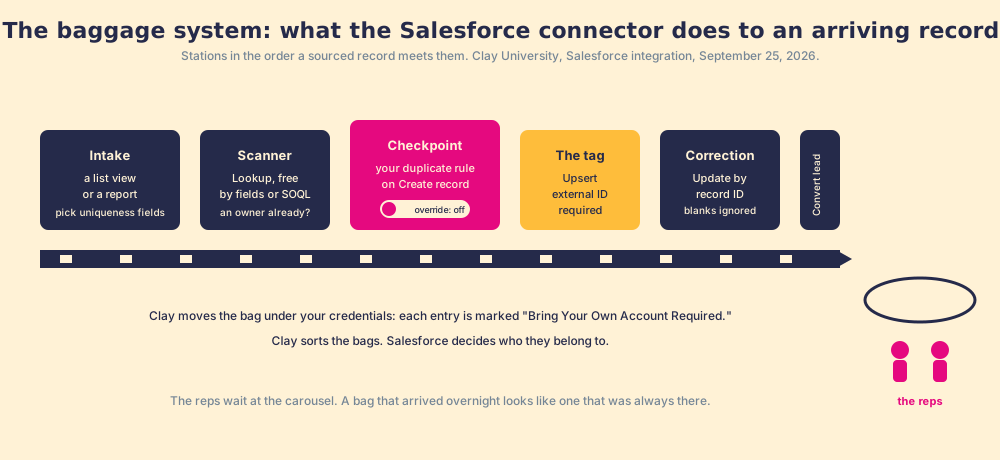
- Import from a list view, or from a report (the Sources). The list view is the belt for standard objects; views “that cannot be generated from a SOQL query” carry a 2,000-record limit. Reports must be tabular or matrix, Salesforce caps them at 2,000 records, and the docs make a point that matters: reports have no unique ID, so you pick uniqueness fields, and “If you don’t select any fields, Clay will use the entire row content as the unique identifier. This can result in many duplicate entries in your Clay table.”
- Lookup record, and Lookup records via SOQL. The scanner. Match on fields, with an “Exact match?” switch, or write the SOQL yourself. Clay’s best-practices list says to “Use the free Lookup records action first to check for duplicates, enhance data, and screen against suppression lists.”
- Create record. Prints a new tag. It carries a “Duplicate rule override” input: “When enabled and you have a duplicate rule, Clay will bypass the rule and create a new record, even if it duplicates an existing one.”
- Upsert object. Insert or update in one motion, and the docs are blunt about the condition: “In order for upsert to work, you need to have an external ID on the object.”
- Update record. By record ID. “Ignore blank values,” when enabled, keeps a blank from Clay from overwriting a Salesforce value, and the docs add a detail: that switch “applies to text fields only,” because a blank number column is dropped before it reaches Salesforce either way.
- Convert lead, and Count records in a list view. The transfer desk (lead to account, contact, and optionally an opportunity, with a converted status you choose) and a tally of the belt.
The airport picture has an edge. Bags arrive one at a time; Clay’s create, update, and upsert actions switch to batch mode on their own across many rows, using Salesforce’s Composite API, with “Individual error handling: Each record in the batch is processed independently,” so one bad row does not stop the belt (Clay University, Salesforce integration, opened September 25, 2026).
Which door does the Clay to Salesforce connection come through?
Two doors, and the choice is a Salesforce-admin decision before it is a Clay one.
The front door is “User Sign In,” an OAuth prompt in the browser where a person signs in as a Salesforce user. It is the default and the fastest. It also carries the trap Clay’s troubleshooting section names first: “Integration User or API Only license: These licenses cannot complete the OAuth flow.” Orgs that enforce SSO, require pre-approval of connected apps, or withhold the “Approve uninstalled connected apps” permission hit the same wall.
The service entrance is “Client Credentials,” server-to-server with no browser sign-in. In Salesforce Setup you create an external client app, enable the Client Credentials flow at the app level and again at the org level, and the docs flag the second toggle as “the setting most commonly missed,” because if it is off “the flow is blocked regardless of the Settings toggle.” You name the integration user in the Run As field, copy the consumer key and secret, and paste them into Clay with your My Domain URL.
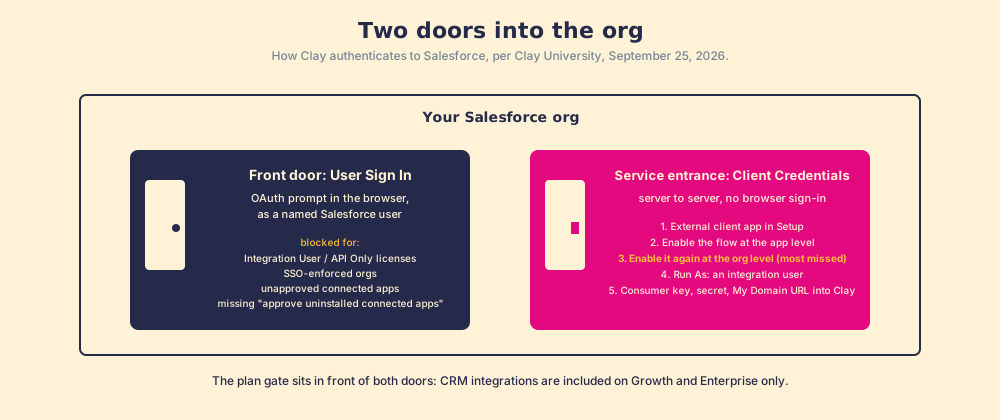
Read the doors as a sales leader and the second one is the better habit. A table that writes to Salesforce as a rep writes under that rep’s name; a table that writes as an integration user leaves an audit trail that says what it is. The same logic runs through each connected tool in the org, from Einstein Activity Capture to the admin’s own Salesforce Inspector sessions: know which identity is doing the writing.
The plan gate sits in front of both doors. Clay’s pricing compare table marks CRM integrations “Not included” on Free and Launch and “Included” on Growth and Enterprise; Growth lists “Auto-sync & enrich CRM” first under “Everything in Launch, plus” and starts at $495 a month, $446 on annual billing (clay.com/pricing, opened September 25, 2026). The Clay pricing page covers the meter.
How does the Salesforce Clay integration run in both directions, and what stops the duplicates?
Salesforce to Clay is enrichment, and it starts from a view or a report the admin already runs. Import “Leads, no mobile,” add the waterfall as an enrichment across Clay’s 200+ vendors (clay.com, September 25, 2026), and update by record ID with blank values ignored. Clay’s CRM enrichment page describes the scheduled form, “Trigger enrichments automatically when new leads enter your CRM,” which is the auto-sync line on the Growth card.
Clay to Salesforce is the sourced contact, and this is where Salesforce’s rules earn their keep. The order is look up, branch, then write, and the write has three shapes. Create, which respects your duplicate rule unless the override is on. Upsert, which needs an external ID field on the object and is the reason a GTM engineer adds one before building anything. Update, which needs the record ID the lookup returned. Clay’s own MCP page describes the same sequence, “Check against your CRM for duplicates, keep only net-new and validated contacts, then draft outreach and push straight to your sequencer and CRM” (clay.com/mcp).
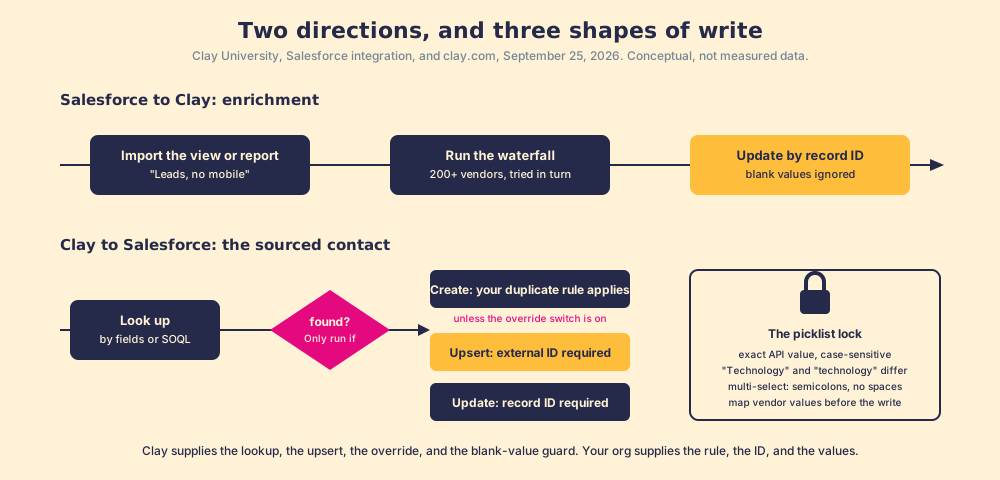
Then the picklists. Salesforce dropdown fields take the API value, case-sensitive, so Clay’s docs warn that “Technology” and “technology” are different, that an unrestricted picklist will accept a wrong value by creating an inactive option, and that a restricted one will error. Multi-select picklists take semicolons with no spaces, “NOT commas!” in the docs’ own capitals. This is the lock that takes only the exactly cut key, and it is where a first Clay to Salesforce sync tends to fail, on a field like Industry that a data vendor returns in its own spelling. The fix belongs to the builder: a formula column that maps vendor values to your API names before the write.
Both conclusions are about ownership. Clay supplies the lookup, the upsert, the override switch, and the blank-value guard. Your org supplies the duplicate rule, the external ID, and the picklist values. Clay sorts the bags; Salesforce decides who they belong to.
Where does the rep fall out of the Clay Salesforce sync?
At the carousel. The Bridge Group’s 2025 SDR report, across 351 B2B companies, puts the median rep’s day at 112 activities: 44 phone, 41 email, 19 LinkedIn, 8 text or other (Bridge Group, 2025). For a Salesforce team those happen on the lead and contact records, in the inbox, and on LinkedIn, the ground the Salesforce Chrome extension guide maps. None of the 112 is “open Clay.” The integration delivers to the right place and does not announce itself when it gets there.
Two of our convictions say why that gap belongs to the sales leader. The answer has to reach the rep in the moment of the work; any detour to get it is a failure. And enablement that adds a tab or a login has already lost. A Salesforce lead with a fresh mobile honors both, and still nothing happens, because the number arrived without an expectation attached. The rep did not source it, was not told it is new, and has a page of leads that look identical.
Our field data measures the gap. Across 198 sales leaders, 89% have a defined process and 36% see reps run it (The State of Sales Enablement). Teams whose reps get guidance in the flow of work report 49% quota attainment against 15% for teams whose reps have to go somewhere else for it, and teams that inspect deals against the process consistently hit quota at 6.3x the rate of teams that rarely do.
You might say a Salesforce flow closes this: field updated, task created, done. Fair, and a good admin builds it the same afternoon. It creates the task. It cannot tell the manager a month on how many of the leads Clay sourced were worked, advanced, and closed against the number the manager expected, and it says nothing about the rep on a LinkedIn profile right now who wants the number before the lead exists.
What closes the loop after the Clay Salesforce sync?
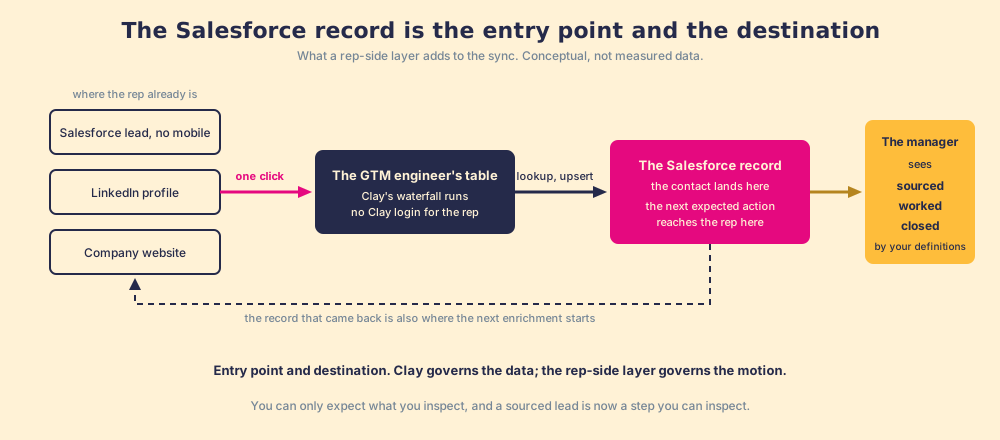
Reason it through. The GTM engineer built the table. The integration puts its output on the Salesforce record, and it can also pull a record out to be completed. So the record is both an entry point and a destination, and the rep-side layer has to treat it as both. Entry point: a rep on a lead with no mobile, or on a LinkedIn profile, or on a company website, runs the GTM engineer’s table from there, one click, no Clay login, field mapping set once by Ops, the CRM status visible before they add a duplicate or step on a teammate. Destination: the sourced contact lands in Salesforce as the first step of a process, the next expected action reaches the rep on the record, and the manager sees sourced, worked, closed, with “worked” and “closed” defined by the customer, against the expectation the manager set.
That second half is where Supered sits. No database on purpose, the customer’s own Clay account, and the surfaces a Salesforce rep already works in. Clay governs the data. Supered governs the motion.
What we recommend
Three ways to run this, for a Salesforce team with a Clay account on Growth.
- The sync alone. Connect through the service entrance, add an external ID, enrich the no-mobile report, upsert back. The report gets shorter. Whether the numbers were dialed stays unknown.
- The sync plus a flow. A task on each updated lead. The manager gets a task-completion count, which records boxes checked while the buyer’s position stays unrecorded.
- The sync plus a rep-side front end and a standard. The rep runs the table from the record or the profile, the contact enters a process with an expectation attached, and the manager reads sourced, worked, closed against it.
We recommend the third, on the evidence above: Clay says one builds and any rep runs; the Bridge Group says the running happens on the record and in the inbox; our data says in-flow guidance runs at 49% against 15% and consistent inspection at 6.3x. The sync fixes delivery. Only the standard touches the second number. The Clay integrations hub sets this connector beside the rest of the directory, the Clay HubSpot integration page does the same walk for a HubSpot portal, and what is Clay draws the workshop the table was built in.
Frequently asked questions
What does the Clay Salesforce integration do?+
Which Clay plan includes the Salesforce integration?+
How do you connect Clay to Salesforce?+
How does Clay handle Salesforce duplicate rules?+
Why do Clay updates to Salesforce picklist fields fail?+
Do reps need a Clay login to use the Salesforce sync?+
Your process, running itself.