ZoomInfo HubSpot Integration (2026): Setup, Plans, Limits, and What It Reads Back
The ZoomInfo HubSpot integration, checked October 2, 2026, from ZoomInfo's own admin guides: the pieces it comes in, the plans it needs, setup step by step, what it reads from your HubSpot, how it compares to HubSpot's own enrichment, and the alternative for teams with Clay.
The ZoomInfo HubSpot integration is a set of connections, set up in ZoomInfo's Admin Portal, that exports ZoomInfo contacts to HubSpot for one credit each, enriches HubSpot records, and by default imports your HubSpot data into ZoomInfo every hour.
How to set up the ZoomInfo HubSpot integration
1 hr- 1
Set HubSpot permissions
In HubSpot settings, open Users & Teams and give each ZoomInfo user view, edit and delete rights on contacts and companies (their own at minimum, all recommended), turn Marketing Access on, and turn App Marketplace access on.
- 2
Connect from ZoomInfo's Admin Portal
In ZoomInfo, go to Admin Portal > Integrations > Connections, find the HubSpot tile, click Connect, sign in with a HubSpot Super Admin account, and choose the HubSpot account to connect.
- 3
Choose a service account or individual connections
The default is a service account that runs every export. Check the user mapping so each ZoomInfo user's email matches their HubSpot user; otherwise new records are owned by the primary connected admin. Choose individual user connections if that ownership rule is a problem.
- 4
Pick what users can export
On the Export tab, select the object types users may export to HubSpot and the maximum records per user for each.
- 5
Map fields and test
On the Export Mapping tab, map ZoomInfo fields to HubSpot properties, set each to Complete if missing or Overwrite field, click Test Mapping, then Save Changes.
- 6
Review the HubSpot Import
Import is on by default and reads HubSpot companies, contacts, deals, deal history, deal stages, products, tasks and users hourly. Set Import Rules to exclude records you do not want stored in ZoomInfo, and check the Data Sharing page under Privacy & Security.
- 7
Turn it on for users
Return to the Connected tab and switch the integration on. With a service account, every user can export; with individual connections, each user signs in to HubSpot first.
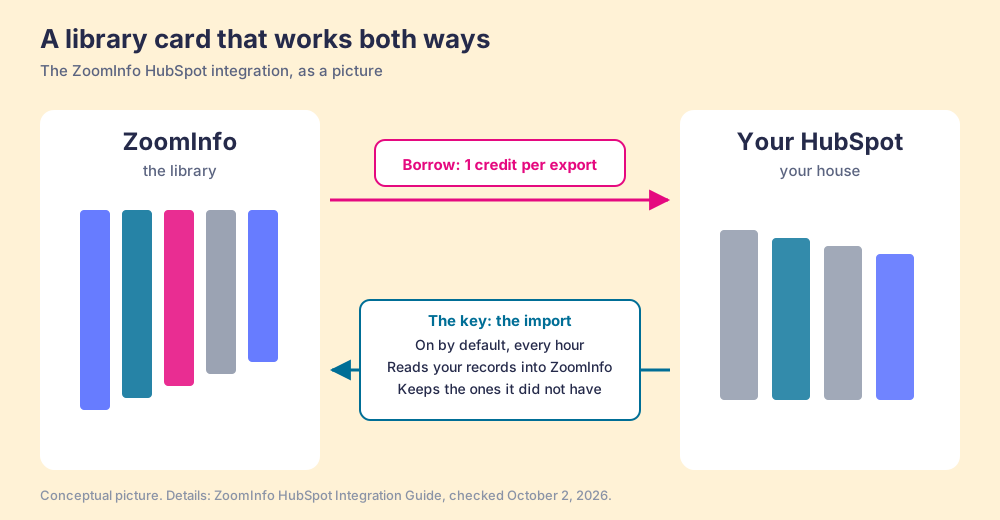
A library card looks like a one-way pass. You show it, the librarian hands you a book, you carry the book home. Now suppose the card also gave the librarian a key to your house, and once an hour she let herself in to count the books on your shelves, including the ones you bought somewhere else, and wrote them all into her catalogue.
The ZoomInfo HubSpot integration is a set of connections, configured mostly from ZoomInfo’s Admin Portal, that exports ZoomInfo contacts and companies into HubSpot for one credit each, enriches HubSpot records through ZoomInfo Enrich, and by default imports your HubSpot companies, contacts, deals, tasks and users into ZoomInfo every hour. The export is the book you borrow. The import is the key. ZoomInfo’s own HubSpot Integration Guide documents both, and only one of them shows up on the marketing page.
The quick answer for a HubSpot team in October 2026:
- The ZoomInfo HubSpot integration. The pick if you already pay for ZoomInfo seats. Connect it, map your fields, and decide on purpose what the import may read.
- Supered Prospector on Clay. The pick if your team has Clay and wants new contacts, with emails and phones, landing in HubSpot from wherever reps work. $45 per rep per month, billed annually.
- HubSpot’s own data enrichment. The pick if the job is filling company and job data on records you already have. Included from Starter, no credits.
We make the second one, so check our arithmetic; every source below links to the page or PDF we opened on October 2, 2026.
What is the ZoomInfo HubSpot integration, exactly?
Four pipes share the name, and the people searching “hubspot zoominfo integration” usually mean the first one without knowing the other three exist.
- The Admin Portal connector. Set up inside ZoomInfo, not installed from the HubSpot Marketplace. It exports contacts and companies to HubSpot (“seller or automation initiated pushes,” in ZoomInfo’s words on its HubSpot integration page), checks for duplicates, and imports HubSpot data back. ZoomInfo Copilot customers can also write calls, emails and meetings back to HubSpot as tasks or events.
- ZoomInfo Enrich for HubSpot. Instant Enrich appends ZoomInfo data “as they are created in your HubSpot environment”; Scheduled Enrich runs jobs on a cadence you choose. Its HubSpot Marketplace app is called ZoomInfo Inbound Enrich.
- The ZoomInfo Chrome extension. ZoomInfo says it will “automatically match the side pane content to your prospects and customers within HubSpot.” Our ZoomInfo Chrome extension breakdown covers its install, its July 2026 redesign and its 3.5-star store rating.
- The Breeze Prospecting Agent connector. On July 9, 2026, ZoomInfo’s CMO wrote that “ZoomInfo was selected as a third-party data provider for HubSpot’s Breeze Prospecting Agent, now in public beta,” and that you activate it when you “connect ZoomInfo in HubSpot” (ZoomInfo’s announcement). Our HubSpot prospecting agent page covers how that agent bills.
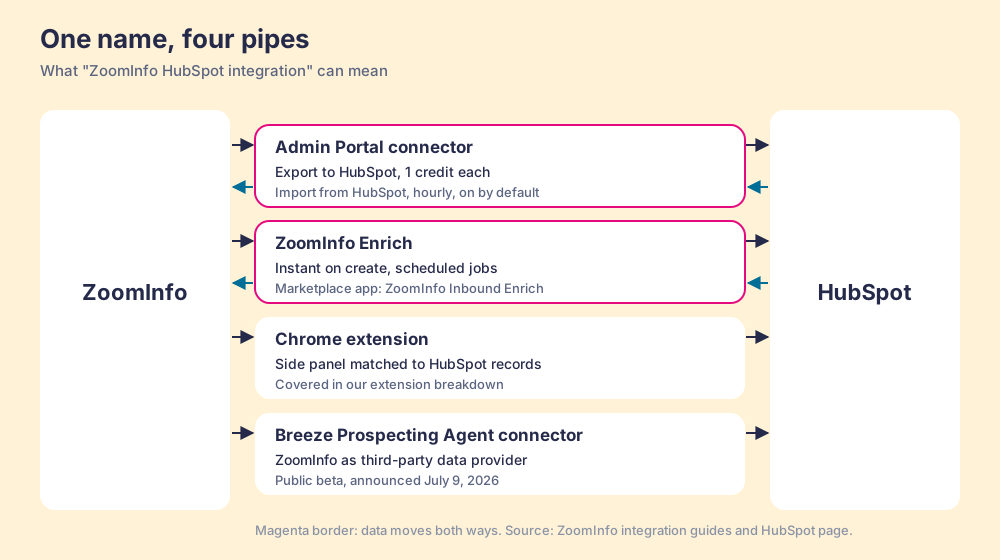
The HubSpot Marketplace has one ZoomInfo data app, and it is the Enrich one. On October 2, 2026, the ZoomInfo Inbound Enrich listing showed 3.2 stars from 12 reviews and 2K installs, a HubSpot Certified App badge, consumption-based pricing, a 7-day free trial with 100 free data credits, and a requirement of a ZoomInfo Inbound Enrich subscription. ZoomInfo’s other HubSpot app on the marketplace is Chorus, its call recorder.
Which plans do you need for ZoomInfo for HubSpot?
On the HubSpot side, almost any. ZoomInfo’s guide lists “Free, Basic, Professional, Enterprise” as supported plans, which is unusually generous next to HubSpot’s own LinkedIn Sales Navigator integration, which needs Sales Hub Professional or Enterprise (see our HubSpot LinkedIn integration guide).
On the ZoomInfo side, it depends on the pipe:
- Exports. Included with a ZoomInfo sales seat. ZoomInfo’s pricing page says “Credit usage occurs only when a user exports a contact or company profile from the platform to a CSV file or an application, most commonly an Excel file or internal CRM,” and each export costs one credit.
- Enrich. The Enrich for HubSpot guide calls Enrich “a feature available for ZoomInfo Sales,” and the marketplace listing requires its own Inbound Enrich subscription. Scheduled jobs can be capped: “Limit credits used per job run,” or “Only Enrich records currently owned,” which “does not incur any credit charges.”
- CRM writeback. For “ZoomInfo Copilot organizations” only.
ZoomInfo publishes no prices. Vendr’s ZoomInfo page shows a median contract of $33,500 a year across 1,574 purchases, in a range from $7,220 to $155,730, with buyers saving 22% on average off the first quote. Our ZoomInfo pricing breakdown walks through that contract.
How do you set up the ZoomInfo HubSpot integration?
About an hour for an admin who holds both keys, a ZoomInfo Admin Portal seat and a HubSpot Super Admin login. The steps come from ZoomInfo’s guide, in its order.
- HubSpot permissions. In HubSpot settings, Users & Teams, give each ZoomInfo user view, edit and delete on contacts and companies (“Contacts they own” at minimum, “All contacts” recommended), turn Marketing Access on, and turn App Marketplace access on.
- The connection. In ZoomInfo, Admin Portal > Integrations > Connections, find HubSpot, click Connect, and sign in. “This account must be a Super Admin in HubSpot.” The ZoomInfo admin who does this becomes the primary connected admin, and only that person can disconnect it.
- The account model. The default is a service account that runs every export. If a rep’s ZoomInfo email does not match their HubSpot email, “The record Owner fields will reflect the primary connected admin.” Fix the user mapping now, or choose individual connections and have each rep sign in.
- The export settings. Pick the objects users may export and the maximum records per user for each.
- The field mapping. Map each ZoomInfo field to a HubSpot property and choose “Complete if missing (default)” or “Overwrite field.” Click Test Mapping, which exports and deletes a test record, then Save Changes.
- The import. It is already on. Read the next section before you leave it that way.
- The switch. Toggle the integration on for your organization.
How do you set up ZoomInfo Enrich for HubSpot?
Enrich connects separately, under Admin Portal > Integrations > Connect Enrich, with its own HubSpot sign-in.
- The tracking properties. Create “ZoomInfo Contact ID” and “ZoomInfo Company ID” as single-line text properties on contacts, and “ZoomInfo Company ID” on companies. ZoomInfo “strongly recommends creating custom properties for all ZoomInfo fields,” so its data never overwrites yours.
- A list. Build a HubSpot list of the contacts a scheduled job should enrich, or let the job run on all contacts.
- Scheduled jobs. Pick the object, the frequency (jobs start at midnight Eastern on the scheduled day), a credit cap, a minimum Accuracy Score, and the Person Has Moved setting.
- Instant Enrich. Toggle it on for contacts, companies or both, and map fields the same way.
- The dashboard. Admin Portal > Usage > Enrich Dashboard shows credits used, API calls used, match rate, and records that need attention.
What does ZoomInfo read from your HubSpot?
Back to the library card. The guide says “When you connect the HubSpot integration, the Import toggle is enabled by default.” The librarian counts these, in ZoomInfo’s words:
- The objects. Company, Contact, Deal, Deal History, Deal Stage, Product, Task and User.
- The fields. “ZoomInfo will import all fields within that object to which the connected user has access.”
- The records ZoomInfo does not have. “ZoomInfo stores both matched and non-matched data from these HubSpot objects and fields,” and non-matched data “is used to create rich signals.”
- The cadence. Incremental syncs that “currently runs hourly,” plus full backfills on first connection and after mapping or rule changes.
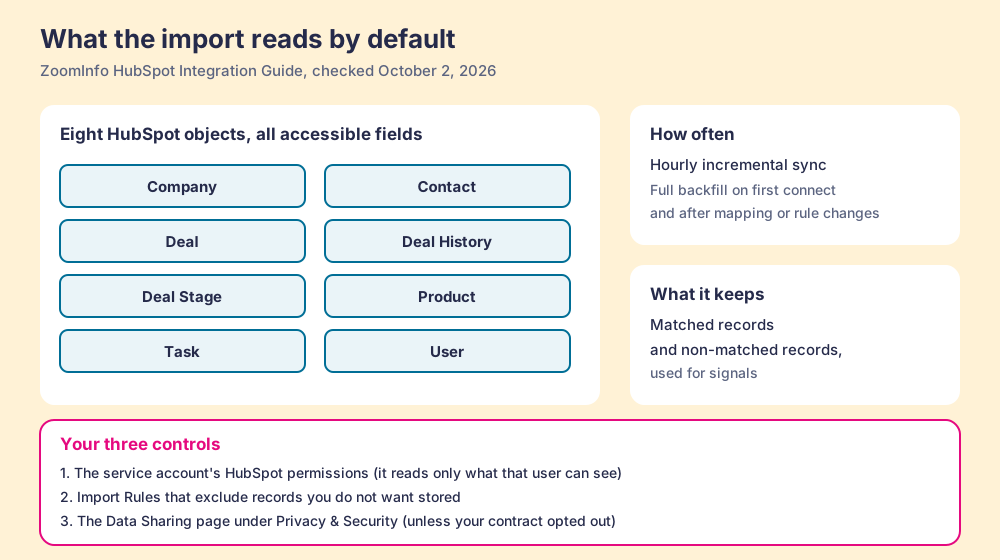
None of this is hidden. ZoomInfo writes it down plainly and gives you three controls: the import reads only what the connected HubSpot user can see, Import Rules exclude records you choose, and a Data Sharing page under Privacy & Security governs whether your usage data helps “improve the ZoomInfo service,” unless your contract opted out. The import also does useful work: it powers HubSpot owner filters in ZoomInfo search, a “My Target Accounts” list, and flags on records already in your CRM so reps stop exporting people you own.
The library card is only a picture, and it stops being true in one place: ZoomInfo is not the only vendor with a key. HubSpot’s own enrichment has a small key of its own: its knowledge base says “limited business contact data from that enrichment may also be contributed back to the commercial dataset,” though “If you’re only using continuous enrichment, no data is added.” Data vendors learn from their customers; that is how the catalogue grows. The difference is scope. One reads your deals, products and tasks hourly by default; the other may contribute limited contact data when it verifies a record.
So the setup step that matters most is a meeting, not a click. Before the toggle goes on, RevOps and whoever owns your data agreements decide which HubSpot user the service account runs as, and what that user can see. Ask the same question of any tool you connect to HubSpot, ours included.
What are the limits of the HubSpot ZoomInfo integration?
The guides list them in passing. Gathered in one place:
- Unassociated contacts. “ZoomInfo does not natively associate contacts with contacts in your HubSpot” (the guide means companies). Exported contacts arrive as independent records until HubSpot’s automatic company association does the linking.
- Ownership by email match. With the default service account, a rep whose ZoomInfo and HubSpot emails differ creates records owned by the admin.
- Duplicate logic. Contacts are matched on email address, then first name plus last name plus exact company name; companies on domain. A rep can still choose “create a duplicate record” if the admin allows it.
- API calls. “With Instant Enrich, ZoomInfo will use two (2) API calls per record enriched,” which counts against your HubSpot API limit.
- Job size. Scheduled company jobs built on criteria enrich “up to 10,000 companies per job.”
- Filter refresh. HubSpot filters inside ZoomInfo search refresh “every 24 hours,” with a 20 million record limit per object.
- Moved people. Person Has Moved flags a contact who changed jobs, but “Enrich does not associate contacts with their new companies.”
- Intent fields. Mapping all five Intent data points takes five custom fields per topic: six topics means 30 custom properties.
The reviews line up with that list. On the marketplace listing, Bahri S. (3 stars, February 25, 2026) wanted “a way to send a predefined value,” and Yver B. (1 star, September 1, 2026) wrote that it “does not work.” Twelve reviews is a thin sample; ZoomInfo’s data itself fares better, with “GTM Workspace - Powered by ZoomInfo” at 4.5 from 9,170 reviews on G2 (October 1, 2026).
How does ZoomInfo compare to HubSpot’s own Breeze Intelligence enrichment?
HubSpot bought Clearbit in 2023, launched Breeze Intelligence on September 18, 2024 on “a dataset of over 200 million company and buyer profiles,” and today folds enrichment into the core plans (the history is in our Clearbit alternatives page). For a HubSpot team, it is the obvious comparison.
| ZoomInfo Enrich + connector | HubSpot data enrichment | |
|---|---|---|
| Plan | ZoomInfo Sales seat; Inbound Enrich subscription | Starter, Professional or Enterprise hubs |
| Cost | Credits per export and per enrichment; Vendr median contract $33,500 a year | ”Does not consume HubSpot Credits” |
| Matches on | ZoomInfo match inputs, customizable | First name, last name and work email; company domain |
| Finds a new person | Yes, from ZoomInfo search or the extension, one credit each | No |
| Runs | Instant on create; scheduled jobs | Automatic, manual, continuous (off by default) |
| Reads back | Eight HubSpot objects hourly, on by default | Limited contact data, except continuous-only |
| Setup | ZoomInfo Admin Portal and HubSpot Super Admin | Super Admin turns settings on |
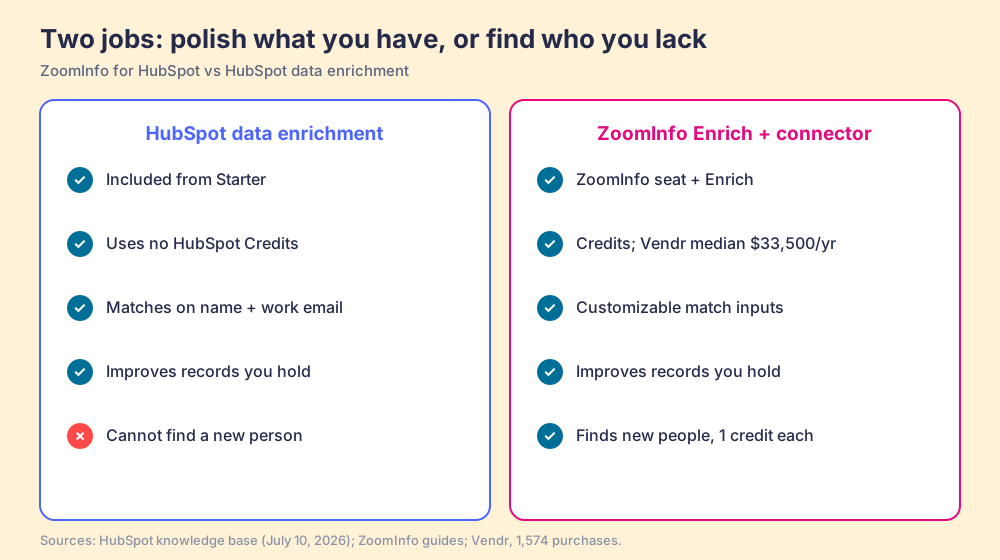
The line that decides it sits in HubSpot’s own article: contacts are matched on “first name, last name, and work email address.” HubSpot enrichment improves a contact you can already email. If your gap is firmographics on inbound leads, HubSpot’s native tool does that job for no extra money, and paying ZoomInfo to do it again is a second invoice for the same shelf. If your gap is people you have never met, with the direct dial ZoomInfo’s Enrich promises, HubSpot’s enrichment does not reach them.
Why trust this guide?
Supered started inside RevPartners, the HubSpot partner I founded, which sold roughly twice as much Sales Hub as any other partner and reached HubSpot’s Elite tier in 13 months. Supered is the #1 sales enablement app on the HubSpot marketplace, with 5.0 stars from 122 reviews there and 4.9 out of 5 from 81 reviews on G2, both checked October 1, 2026. We sell no contact data, and the ZoomInfo facts above come from ZoomInfo’s own admin PDFs, which you can open and check.
Which ZoomInfo HubSpot integration alternative fits your team?
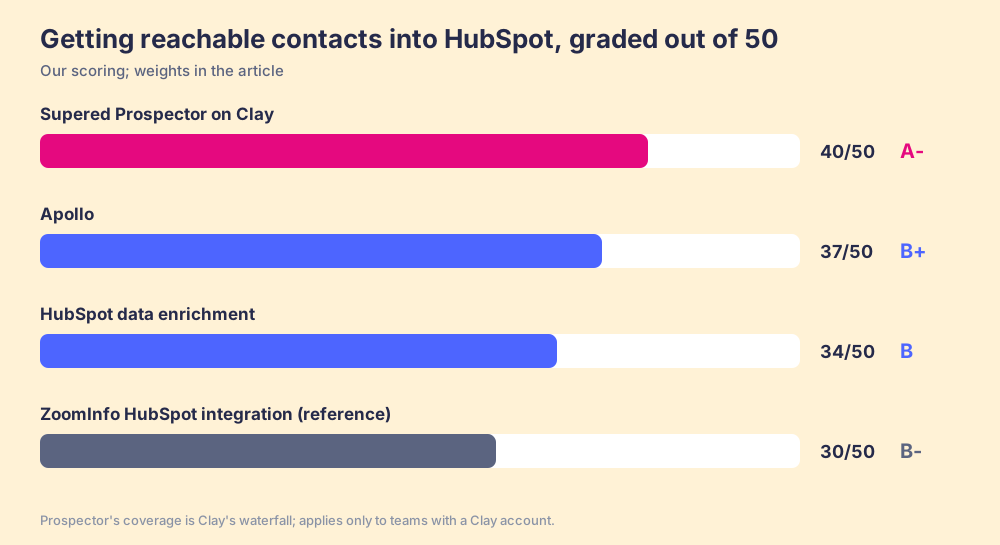
The job we graded: a 10 to 50 rep HubSpot team gets reachable contacts into HubSpot and keeps them complete. Five criteria, out of 50: a new person lands in HubSpot with an email and phone (x3), existing records get filled (x2), cost you can predict (x2), setup effort (x2), and how little of your CRM the tool needs to read (x1).
| Rank | Option | Grade | Best fit | HubSpot integration | Setup effort | Pricing | Reason to switch |
|---|---|---|---|---|---|---|---|
| 1 | Supered Prospector on Clay | A- (40) | Teams already paying for Clay | Native: one click to HubSpot, fields mapped once | Demo, then live on your Clay account | $45 a rep a month, billed annually, plus your Clay plan | Clay’s waterfall across 200+ providers from the rep’s screen; ZoomInfo can stay as one step |
| 2 | Apollo | B+ (37) | Small teams wanting data and sequencing in one seat | Native; Apollo Enrichment app on the marketplace | Self-serve | Free tier; Basic $49 a seat a month, annual | Published prices and a free start |
| 3 | HubSpot data enrichment | B (34) | Filling records you already have | Built in | Settings toggle | Included from Starter, no credits | No second contract for firmographics |
| ref | ZoomInfo HubSpot integration | B- (30) | Companies that already own ZoomInfo | Admin Portal connector plus Enrich app | Admin in both systems | ZoomInfo seat plus Enrich; Vendr median $33,500 a year | The reference: deep data, the widest import |
Scores, in criterion order: Prospector 5, 4, 4, 3, 3. Apollo 4, 3, 4, 4, 3. HubSpot enrichment 1, 4, 5, 5, 3. ZoomInfo 4, 5, 1, 2, 2. Bands: A- from 38, B+ 35 to 37, B 32 to 34, B- 28 to 31. Flip the weights toward “deepest single database, budget no object” and ZoomInfo climbs. Apollo’s marketplace app, Apollo Enrichment, showed 2.6 stars from 25 reviews and 7K installs on October 2, 2026; our Apollo HubSpot integration page covers it.
Ten reps, one year: ZoomInfo’s median contract is $33,500. HubSpot enrichment adds $0 to a Starter or higher plan. Ten Apollo Basic seats are $5,880. Prospector for ten reps is $5,400, or $11,340 with Clay Growth at $5,940 for a team new to Clay. The ZoomInfo median is about three times the Clay-plus-Prospector total.
Supered Prospector: the switchboard for a team with Clay
The old telephone switchboard did one job well. You asked for a number, and the operator tried one line, then the next, until someone picked up. You paid for the call that connected.
Clay is that switchboard for contact data. Its marketplace lets you “Buy data from 200+ providers in one place,” and its waterfall asks provider after provider until one returns a verified email or phone; Clay’s pricing page adds, “If an enrichment returns no result, you’re not charged Data Credits or Actions.” Supered does not bring its own database. It brings Clay’s waterfall, which is every database, routed, and Prospector puts the switchboard in the rep’s hands on the page they already have open.
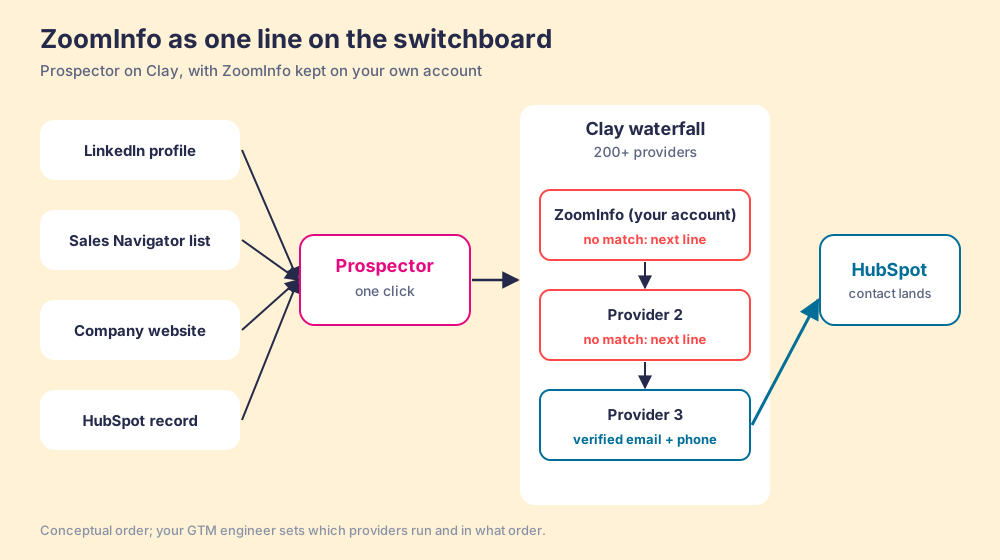
What the rep gets, in the order the work happens:
- The starting page. A LinkedIn profile, a Sales Navigator list, a company’s website, or a HubSpot, Salesforce or Pipedrive record. One click runs the waterfall, and reps never log in to Clay.
- The duplicate check. On a LinkedIn profile the rep sees whether the person already has a matching HubSpot record, and whether the prospect was worked in the past.
- The GTM engineer’s tables, on a button. Any custom Clay workflow runs from Prospector, a whole list can be pushed into a Clay workflow, and the buying-committee lookup is tuned by title, department and seniority.
- The list after the export. The contact lands in HubSpot with your process applied to it, and the manager sees which lists get worked and which ones close, then coaches from what converts.
The useful part for a ZoomInfo customer mid-contract: you do not have to choose. ZoomInfo is a Clay integration, “Enrich Contact with ZoomInfo,” marked “Bring Your Own Account Required” on Clay’s ZoomInfo page, and Clay’s pricing page says bringing your own keys means you “skip Data Credit costs entirely.” Put ZoomInfo first on the switchboard, let the next line answer when it misses, and at renewal you will know how often ZoomInfo was the one that picked up. The clay-hubspot-integration page covers Clay’s own HubSpot sync, and waterfall enrichment covers the mechanism.
Prospector costs $45 per rep per month, billed annually, from one user (Prospector, Supered pricing). It runs inside the Supered Chrome extension, on your Clay account and your Clay credits. Clay governs the data. Supered governs the motion.
Choose something else if any of these is true:
- No Clay account. Prospector needs one. Without Clay, Apollo or HubSpot’s own enrichment is the nearer fit.
- A ZoomInfo contract with years left and a happy team. Keep the integration, fix the user mapping, and write Import Rules.
- No waterfall owner. If no one on the team will decide which providers run in which order, one database with one contract is less work.
Which ZoomInfo HubSpot integration setup should you choose?
Three ways forward, and our view on each.
- A company that already owns ZoomInfo. Use the integration. It supports every HubSpot plan, its duplicate check and field hierarchy are thoughtful, and Enrich keeps records current. Before you toggle it on, pick the service account’s HubSpot permissions on purpose and write Import Rules; then bring the Vendr median ($33,500) to your renewal. Salesforce shops can compare notes in our ZoomInfo Salesforce integration guide.
- A team with Clay, or one weighing ZoomInfo against Clay. Run Clay’s waterfall from where reps already work with Supered Prospector, keep ZoomInfo as one line on the switchboard if you are mid-contract, and watch which sourced lists turn into pipeline. The sourcing use case shows the rep’s side.
- A HubSpot team that only needs cleaner records. Turn on HubSpot’s own enrichment first. It costs nothing extra from Starter, and you may find you were buying a second library card for books already on your shelf.
A library card is a fine thing to carry. Read the back of it before you sign. Our Clay Chrome extension guide sets out what a rep-side tool should do on LinkedIn and in HubSpot, ZoomInfo competitors grades the wider field, and Exportly alternatives covers the Clay-powered extensions that came before Prospector.
Frequently asked questions
Can ZoomInfo integrate with HubSpot?+
Does the ZoomInfo HubSpot integration cost extra?+
Does ZoomInfo pull data out of HubSpot?+
Do ZoomInfo exports associate contacts with companies in HubSpot?+
Is HubSpot's own data enrichment a replacement for ZoomInfo Enrich?+
What is the best way to get new contacts into HubSpot if my team already has Clay?+
Your process, running itself.