HubSpot LinkedIn Integration (2026): What the Native Sync Does, What It Costs, and the Gap It Leaves
The HubSpot LinkedIn integration, checked October 1, 2026: what the Sales Navigator card and CRM Sync show, the plans each needs, setup step by step, and how teams get LinkedIn people into HubSpot with an email and phone.
The HubSpot LinkedIn integration is HubSpot's native connection to LinkedIn Sales Navigator, which shows LinkedIn profile and company context on HubSpot records for Sales Hub Professional or Enterprise users on Sales Navigator Advanced Plus, without importing contacts.
How to set up the HubSpot LinkedIn Sales Navigator integration
- 1
Confirm both licenses
Check that each user has an assigned Sales Hub Professional or Enterprise seat in HubSpot and a LinkedIn Sales Navigator Advanced Plus seat. HubSpot's knowledge base lists both as requirements.
- 2
Install the app
In HubSpot, click the Marketplace icon in the top navigation, select HubSpot Marketplace, search for LinkedIn Sales Navigator, and click Install.
- 3
Add the card to record layouts
For installs after October 7, 2025, a Super Admin or a user with the Customize record page layout permission adds the LinkedIn Sales Navigator card to the right sidebar of contact and company records.
- 4
Connect each user
Each user connects the LinkedIn Sales Navigator app from the HubSpot Marketplace while signed in to HubSpot with their own login.
- 5
Optional: turn on CRM Sync
An admin with access to both systems installs the LinkedIn CRM Sync package from the HubSpot App Marketplace, connects it under Connected Apps, signs in with Sales Navigator, picks Production or Sandbox, and accepts the permissions. Users who want activity writeback authenticate separately in their CRM settings.
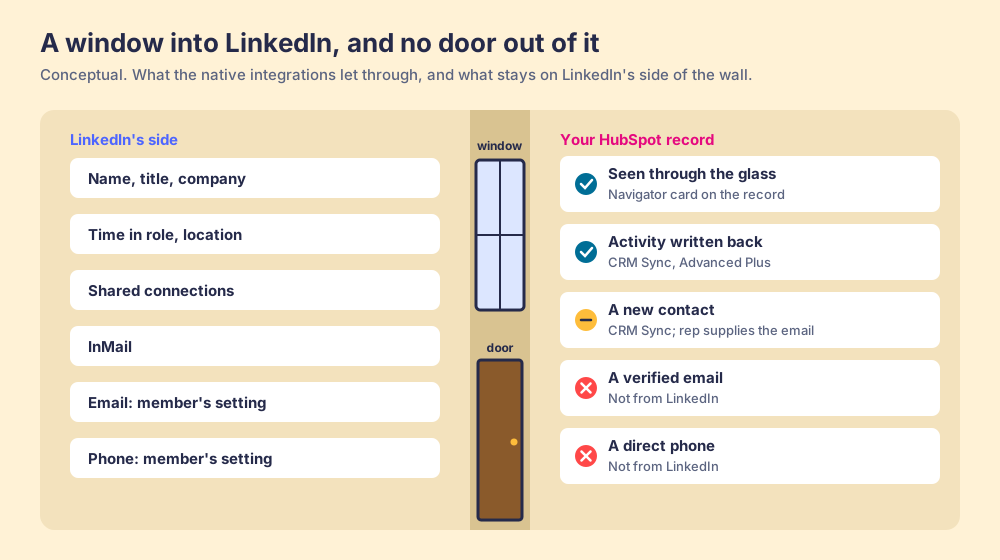
A window and a door both go in a wall, and from inside the house they can look much alike. Through a window you can see the person on the other side, read their name tag, and wave. Through a door they can come in and sit down. The HubSpot LinkedIn integration is a window. It puts a LinkedIn profile on the HubSpot record so a rep can see title, tenure, and shared connections without leaving the CRM. What it does not do, in HubSpot’s own words, is import the person.
The quick answer for a HubSpot team in October 2026:
- LinkedIn Sales Navigator integration, for context. The pick when your contacts are already in HubSpot and reps want LinkedIn detail on the record. Needs Sales Hub Professional or Enterprise plus Sales Navigator Advanced Plus.
- Supered Prospector on Clay, for new contacts with emails and phones. The pick when your team has Clay and reps need the LinkedIn person in HubSpot, ready to call. $45 per rep per month, billed annually.
- Hublead, for HubSpot teams without Clay. The pick for a one-click LinkedIn-to-HubSpot extension with its own enrichment credits. From $32 per seat per month, annual.
We make the second one, so check our arithmetic; every price below links to the page we opened.
Which HubSpot LinkedIn integration route fits your team?
“HubSpot LinkedIn integration” names three different pipes, and the people searching it, often phrased as “linkedin to hubspot,” usually want a fourth thing none of them do. The table grades six routes on one job: the person you found on LinkedIn becomes a HubSpot contact a rep can call or email.
| Route | Best fit | HubSpot integration | Setup effort | Pricing (plan that includes it) | Email and phone in HubSpot | Grade | Rank |
|---|---|---|---|---|---|---|---|
| Supered Prospector on Clay | Teams with Clay whose reps source on LinkedIn | Native app; one click to HubSpot, fields mapped once | Medium: Clay tables built once | $45 per rep per month, billed annually, plus your Clay plan | Yes, from Clay’s waterfall | A (42/50) | 1 |
| Hublead | HubSpot teams without Clay | Chrome extension to HubSpot | Low | $32 to $112 per seat per month, annual; 50 to 2,000 credits | Yes, on credits | B+ (38/50) | 2 |
| Sales Navigator CRM Sync | Teams already on Advanced Plus | LinkedIn package in HubSpot Marketplace | Medium: admin in both systems | Advanced Plus (quoted) + Sales Hub Pro | Creates the contact; rep supplies the email | B- (31/50) | 3 |
| Sales Navigator integration card | LinkedIn context on existing records | Native HubSpot Marketplace app | Low | Advanced Plus + Sales Hub Pro or Enterprise seat | No: cannot import contacts | C+ (27/50) | 4 |
| LinkedIn Ads Lead Gen Forms | Inbound from paid LinkedIn ads | Native HubSpot ads tool | Low | All HubSpot plans; you pay for the ads | Email from people who submit the form | C+ (27/50) | 5 |
| CSV export or Zapier | One-off moves, small volume | Manual import | Low per file, high over time | Free | Only 1st-degree emails members allow | C (23/50) | 6 |
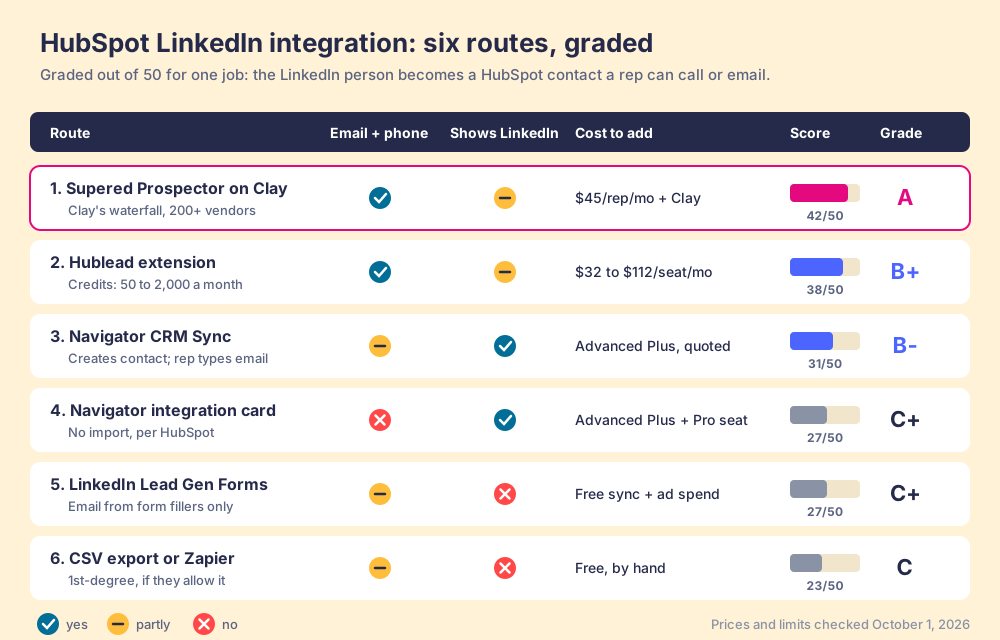
How we graded. Five criteria out of 50, weighted for a 10 to 50 rep HubSpot team that sources new people on LinkedIn: an email and phone land in HubSpot (x3), the rep does it from where they already work (x2), LinkedIn context shows on the record (x2), cost you can predict (x2), and setup effort (x1). Prospector scores 5, 5, 3, 4, 3. Hublead 4, 4, 3, 4, 4. CRM Sync 2, 4, 5, 2, 3. The Navigator card 1, 3, 5, 2, 4. Lead Gen Forms 3, 2, 1, 4, 4. CSV or Zapier 2, 1, 1, 5, 3. Bands: A from 40, B+ from 36, B- from 29, C+ from 25, C from 20. If your contacts are already in HubSpot and all you want is LinkedIn detail beside them, move the context weight to x3 and the email weight to x1, and the native card climbs to the top. That flip is the decision on this page.
Why trust this guide?
Supered started inside RevPartners, the HubSpot partner I founded, which sold roughly twice as much Sales Hub as any other partner and reached Elite tier in 13 months. Supered is the top-ranked sales enablement app on the HubSpot marketplace, with 6,000 installs and 5.0 stars from 122 reviews there, and 4.9 on G2 from 81 reviews (checked October 1, 2026). We sell one of the options in the table, which is a good reason to check each link.
What is the HubSpot LinkedIn integration, exactly?
Three pipes run between HubSpot and LinkedIn, and they carry different things.
- The Sales Navigator integration card. A HubSpot Marketplace app that puts a LinkedIn Sales Navigator panel in the right sidebar of contact and company records (HubSpot Knowledge Base, updated August 31, 2026). Searches for the hubspot sales navigator integration usually mean this one.
- LinkedIn’s CRM Sync for HubSpot. A separate LinkedIn package, on Sales Navigator Advanced Plus, that matches HubSpot contacts to Sales Navigator leads, writes activity back, and can create or update contacts (LinkedIn, CRM Sync for HubSpot enablement guide).
- The LinkedIn Ads connection. Part of HubSpot’s ads tool on every plan. It reports on campaigns and syncs leads from LinkedIn Lead Gen Forms (HubSpot, updated June 12, 2026).
The first two are sales tools. The third is a marketing tool that happens to create contacts, and it only creates the ones who fill in your form.
How do you set up the HubSpot Sales Navigator integration?
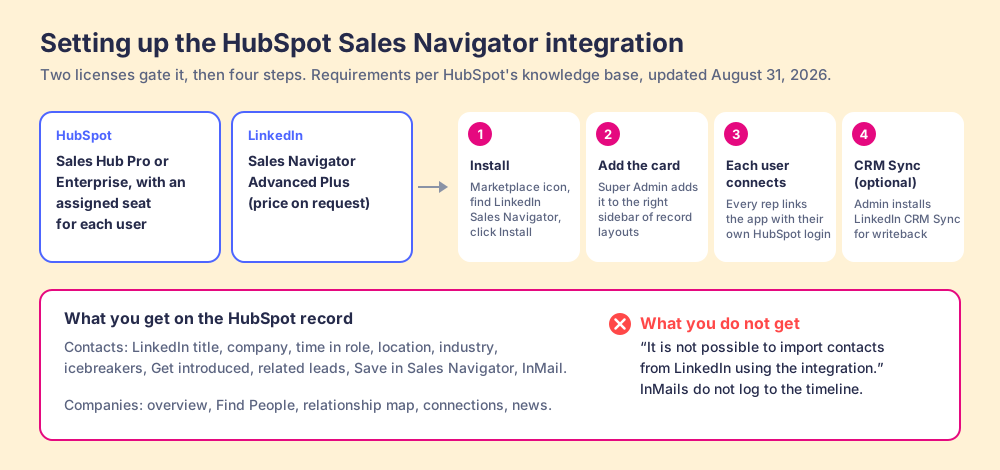
Two licenses gate it. HubSpot’s article lists “Sales Hub Professional, Enterprise,” says “you must have an assigned Sales Hub Professional or Enterprise seat to use the LinkedIn Sales Navigator integration,” and requires a “LinkedIn Sales Navigator Advanced Plus account.” HubSpot’s pricing page lists Sales Hub Professional from $90 per seat per month on annual billing ($100 monthly), with a one-time onboarding fee of $1,500 (HubSpot Sales Hub pricing). LinkedIn prices Advanced Plus on request, “customized based on your sales team’s size, CRM integration, and onboarding/training needs” (LinkedIn compare plans).
With both in hand, setup runs in four steps:
- The install. In HubSpot, click the Marketplace icon, select HubSpot Marketplace, search for LinkedIn Sales Navigator, and click Install.
- The card on the layout. For installs after October 7, 2025, “a Super Admin or a user with the Customize record page layout permission must add the integration card to the right sidebar.”
- A connection per user. “Each user will need to connect the LinkedIn Sales Navigator app from the HubSpot Marketplace while signed in to HubSpot with their unique login.” A rep who skips this sees an empty card.
- CRM Sync, if you want writeback. An admin installs LinkedIn’s CRM Sync package from the HubSpot App Marketplace, clicks Connect under Connected Apps, signs in with Sales Navigator, chooses Production or Sandbox, and accepts the permissions. Users who want their activity logged authenticate again in their own CRM settings.
What does the LinkedIn Sales Navigator HubSpot integration show?
Once the card is live, a contact record shows the person’s LinkedIn job title, company, time in the current role, location, and industry, plus icebreakers (shared connections, experiences, interests), a Get introduced option, and a related-leads tab. A company record shows industry, size, and location with tabs for Overview, Find People, Relationship Map, Connections, and News. A rep can save the person in Sales Navigator and send InMail from the record.
That is a good window. A rep about to call a contact sees that she moved into the role four months ago and shares two connections with the AE, and the opener writes itself. CRM Sync widens it: LinkedIn’s guide lists activity writeback of “InMails, Messages sent, Notes logged, connection requests sent, SmartLink views,” data validation that flags “when CRM contacts are out-of-date using LinkedIn data,” and badges that show a rep whether a Sales Navigator lead already exists in HubSpot.
Two limits sit in HubSpot’s own text. InMail sent from the card “will not automatically save to the record’s timeline,” so without CRM Sync a rep logs it by hand. And the sentence that decides most purchases: “It is not possible to import contacts from LinkedIn using the integration.”
Can you import LinkedIn contacts to HubSpot natively?
Partly, and the part that is missing is the part a rep dials.
CRM Sync can create a HubSpot contact from Sales Navigator; LinkedIn’s guide says so plainly (“Create new or update existing CRM contacts using Sales Navigator data”). Then the same guide adds the condition: “You will need to provide an email address and attach the contact to an account, if the setting is enabled.” The door opens a crack, and the rep has to carry the email through it themselves.
The other native paths are narrower. LinkedIn’s own data export gives you 1st-degree connections only, and LinkedIn warns “you will only see email addresses for connections who have allowed their connections to see or download their email address” (LinkedIn Help). Sales Navigator itself “doesn’t offer the option to export account and lead information” to CSV (LinkedIn Sales Navigator Help). Lead Gen Forms do bring an email into HubSpot, because HubSpot requires “the Email field is included and marked required so HubSpot can create contacts” (HubSpot, updated September 8, 2026), but only for people who clicked your ad and typed it in. And the LinkedIn app on Zapier’s HubSpot page, opened October 1, 2026, lists one action, Create Company Update, and no trigger that fires on a profile a rep is viewing (Zapier).
Why LinkedIn keeps the door shut
You could read this as a feature HubSpot or LinkedIn has not built yet. It is closer to the opposite: the wall is the product. A LinkedIn member decides who sees their email; by default “the primary email address you’ve registered with LinkedIn is only visible to your direct connections” (LinkedIn Help, email visibility). LinkedIn’s User Agreement forbids using “browser plugins and add-ons or any other technology to scrape or copy the Services, including profiles” (LinkedIn User Agreement, section 8.2). A network that handed members’ contact details to any CRM that asked would stop being a place people keep their profiles accurate. So LinkedIn sells sight, Sales Navigator sells better sight, and the contact data has to come from outside the wall.
Buyers feel the wall. One G2 reviewer of Sales Navigator titled their April 2026 review “The Walled Garden Problem” and wrote, “LinkedIn makes it notoriously difficult to move your data off their platform”; another, an owner at a mid-market firm, did not like “the inability to download lead lists to CSV or to CRMs without a third-party add-on” (G2, Sales Navigator reviews). On the HubSpot Community the question is put more plainly: “I’m trying to figure out a way to get my LinkedIn contacts into the CRM” (HubSpot Community, April 2025). A reply in February 2026 pointed to “chrome extensions that let you push contacts from linkedin profiles directly into hubspot.”
Why the missing email matters more than the missing card
Look at what a prospecting rep spends the day doing. The Bridge Group’s 2025 SDR report, built on 351 B2B companies, puts the median SDR at 112 activities a day: 44 phone calls, 41 emails, 19 LinkedIn touches, and 8 texts and others (Bridge Group, SDR Metrics Report).
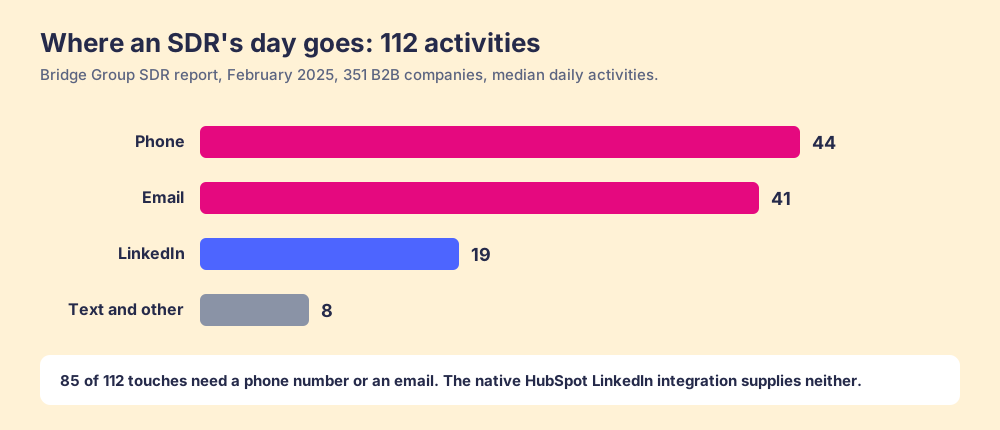
Eighty-five of the 112 need a phone number or an email address. The native integration improves the 19 and the context for all of them, and supplies the raw material for none of the 85. A rep with a beautiful LinkedIn card and no number is a person standing at the window with a phone in hand and no number to dial.
What does the native LinkedIn route cost per rep?
Add the two licenses. A Sales Hub Professional seat lists at $90 a month on annual billing, $1,080 a year. Sales Navigator Advanced Plus is quoted, and LinkedIn’s published ladder puts Advanced, the tier below it, at $1,799.88 per seat per year, with Core at $1,079.88. So the floor for one rep on the native route is more than $2,879.88 a year, plus the $1,500 Professional onboarding fee once. That buys excellent context and, with CRM Sync, tidy writeback. The email and phone are still typed by the rep.
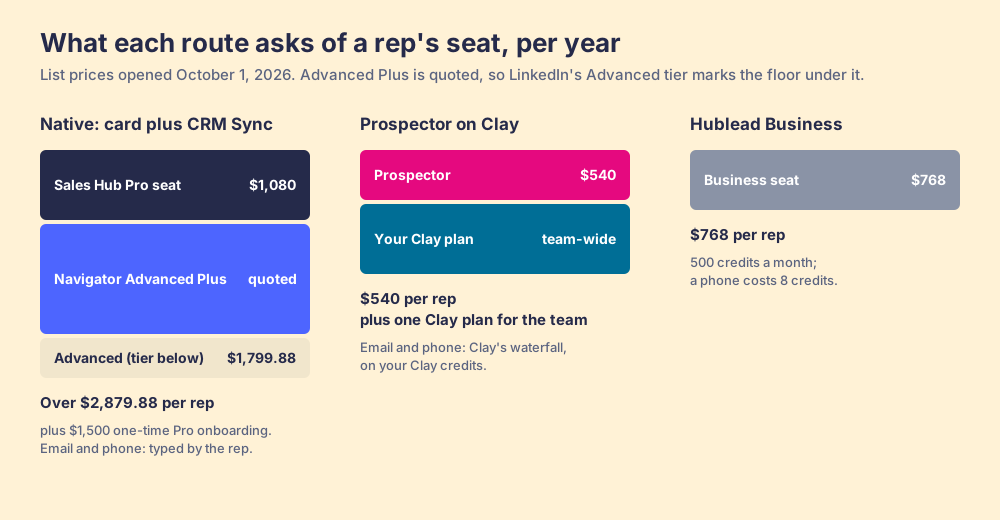
Two cautions keep that comparison fair. Many HubSpot teams already pay for Sales Hub Professional for sequences and pipeline rules, so the seat is not new money for them. And Sales Navigator does a job no extension replaces: search across LinkedIn with 50+ advanced filters. If the Navigator bill itself is the question, the Sales Navigator alternatives guide prices the options. The fair question is narrower. If the reason to move from Core to Advanced Plus is to get contacts into HubSpot, the upgrade buys the window and still leaves the door shut.
How do teams get LinkedIn contacts into HubSpot with an email and phone?
They add something that goes around the wall: a tool that takes the LinkedIn profile as the starting point, finds the person’s email and phone from data sources outside LinkedIn, and writes the contact to HubSpot. The native integration hands that job to someone else.
Supered Prospector on Clay
Prospector is our answer for teams that already have Clay. Clay is the waterfall across 200+ data and AI vendors (clay.com, checked October 1, 2026): a Clay table asks provider after provider until one returns a verified email or phone. Supered does not bring its own database. It brings Clay’s waterfall, which is every database, routed, and we chose Clay as our only data provider for that reason.
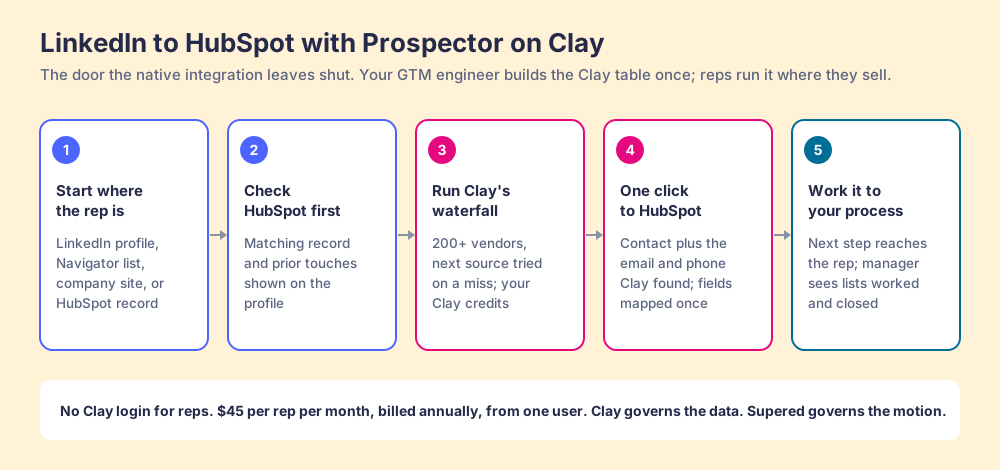
What a rep does with it:
- A start from wherever the rep is. A LinkedIn profile, a Sales Navigator list, a company’s website (with company research pulled while they are on it), or a HubSpot record that is missing a phone or a champion. The buying-committee lookup takes the titles, departments, and seniority your team sets.
- A HubSpot check before the add. On a LinkedIn profile the rep sees the matching HubSpot record and whether someone already worked this person, so they do not create a duplicate or step on a teammate. LinkedIn’s CRM badges do the same job on the Advanced Plus tier; here it comes without that tier.
- One click to HubSpot. The contact lands in HubSpot with the email and phone Clay found, with field mapping set once by your admin. Reps never log into Clay; Prospector runs on your own Clay account and credits. It also works with Salesforce and Pipedrive if part of your team lives there.
- Your process on the worked prospect. From there the next step in your process reaches the rep while they work, and the manager sees which lists got worked and which closed, so coaching starts from what is converting.
Clay governs the data. Supered governs the motion.
Prospector costs $45 per rep per month, billed annually ($540 a year), from one user, as its own plan (Prospector). It requires your own Clay account, priced by Clay; with Clay’s Growth plan at its $495 monthly list price, ten reps come to $11,340 a year all in. The broader use case is on the sourcing page, and the same idea for Salesforce teams is in the Salesforce LinkedIn integration guide.
Choose something else in three cases:
- No Clay account. Prospector runs only on Clay. Without it, Hublead below is the shorter path.
- Context as the whole need. If your contacts already live in HubSpot and reps want LinkedIn detail beside them, the native card does that inside the record, and Prospector’s job is the contact, not the icebreakers panel.
- Activity logging as the gap. If the pain is InMails that never reach the timeline, LinkedIn’s CRM Sync on Advanced Plus is the direct fix.
Hublead, for HubSpot teams without Clay
Hublead is a Chrome extension built around LinkedIn and HubSpot (it now covers Salesforce too). On October 1, 2026 its Chrome Web Store listing showed 6,000 users and 4.8 stars from 151 ratings (Chrome Web Store). Its pricing page lists a free Starter plan with “basic LinkedIn-to-HubSpot visibility,” Professional at $32 per seat per month annual ($40 monthly) with 50 credits a month, Business at $64 ($80) with 500 credits and message sync, and Scale at $112 ($140) with 2,000 credits; an email lookup costs 1 credit and a phone 8 (Hublead pricing). The strength is focus: one extension, one CRM, messages synced. The tradeoff is the meter: its data comes from its own credits, so 500 credits buy 62 phone numbers a month on Business, and a rep who runs short waits for next month.
LinkedIn Lead Gen Forms, for inbound
If your team runs LinkedIn ads, connect the ads account in HubSpot and choose which accounts sync leads. It works on all HubSpot plans, and HubSpot says new leads can take “up to two hours” to sync. It is a guest book by the door: the people who sign it come in with an email, and the rest stay outside.
CSV export or Zapier, for one-offs
LinkedIn’s connection export plus a HubSpot import covers a founder moving a few hundred 1st-degree contacts once. It brings only the emails members chose to share, and it ages the day you download it. For a team sourcing daily, it is a weekly chore that never finishes. A wider look at the export routes is in how to export Sales Navigator leads.
Which HubSpot LinkedIn integration should you choose?
- The native Sales Navigator card, for context on contacts you already hold. If your HubSpot already has the people and your reps want LinkedIn detail before they call, it is the cleanest window there is, and it sits inside the record.
- CRM Sync, for teams already paying for Advanced Plus. Turn it on for writeback and out-of-date flags. Budget for reps typing emails when they create contacts.
- Prospector, for HubSpot teams with Clay who source on LinkedIn. The door the native route leaves shut, with Clay’s waterfall behind it, at $45 per rep per month, billed annually.
- Hublead, for HubSpot teams without Clay. A focused extension with its own credits, from $32 per seat per month annual.
- Lead Gen Forms, for paid inbound. Free to connect on any HubSpot plan.
Our recommendation, on this page’s weights: if you have Clay, keep the window and add the door. Leave Sales Navigator on the tier your reps need for search, put Prospector on the profile, and let the contact arrive in HubSpot with the email and phone that 85 of a rep’s 112 daily touches depend on. If you do not have Clay, Hublead is the simpler buy, and the Advanced Plus upgrade earns its price only if writeback is the problem you are solving.
The next question after this one is where the extension lives in the browser and what else it should do; our guide to the LinkedIn Chrome extension options sorts them by job, the Clay Chrome extension guide covers running Clay from the profile, and if you used Exportly for this job before it became Frontier, the Exportly alternatives list is the short version. Already paying a data vendor? The Lusha HubSpot integration and the ZoomInfo HubSpot integration show what each one writes to the record, and HubSpot’s prospecting agent covers what HubSpot now does on its own.
Frequently asked questions
Does HubSpot integrate with LinkedIn?+
What do I need for the HubSpot Sales Navigator integration?+
Can I import LinkedIn contacts to HubSpot with the native integration?+
Does the LinkedIn Sales Navigator HubSpot integration log InMails?+
What is the fastest way to get someone from LinkedIn to HubSpot with an email and phone?+
Do I still need Sales Navigator if I use Prospector?+
Your process, running itself.