How to Get Emails From LinkedIn Sales Navigator (2026): The Badge Is Free, the Business Card Is Not
Sales Navigator shows you who the person is and almost never how to reach them. What its contact info really holds, the manual routes and their ceilings, the tools that find the email and phone outside LinkedIn, and the line its terms draw.
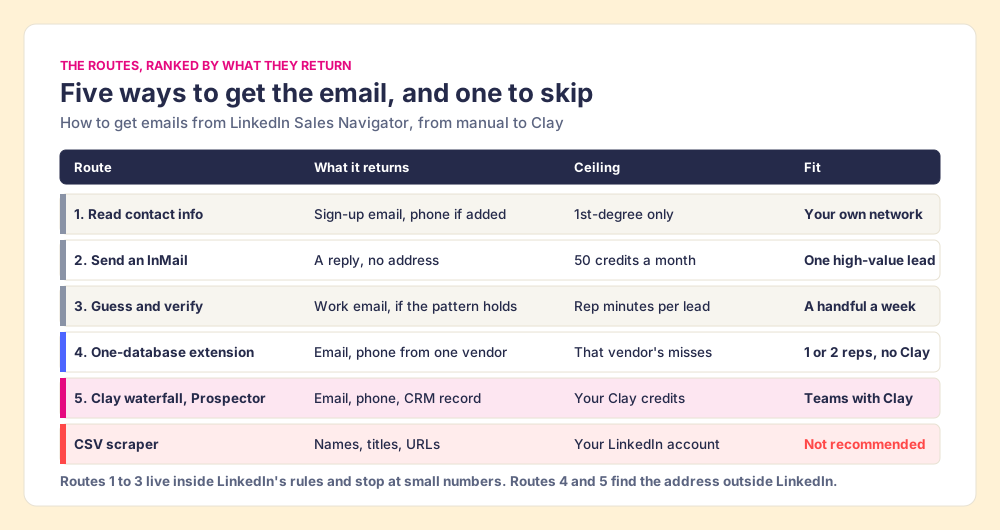
To get emails from LinkedIn Sales Navigator, read the contact info of leads who are your connections, and take every other lead's name and company to a tool that finds the work email and phone outside LinkedIn.
How to get emails and phone numbers from LinkedIn Sales Navigator
30 min- 1
Read the contact info Sales Navigator already shows
For leads who are first-degree connections, open their LinkedIn profile and click See contact info. You will see the email they signed up with, and a phone only if they added one and chose to share it. Leads who are not connections show no email or phone.
- 2
Use InMail when you need a reply, not an address
Every Sales Navigator plan includes 50 InMail credits a month, up to 150 banked. A reply within 90 days returns the credit. Use InMail to start the conversation with a high-value lead; it does not reveal the address.
- 3
Find the work email outside LinkedIn
Take the lead's name and company domain to an email finder. One or two reps without Clay can use a single-database extension that works on top of Sales Navigator. Teams with Clay run the lead or the saved list through Clay's waterfall with Supered Prospector.
- 4
Get the phone number the same way
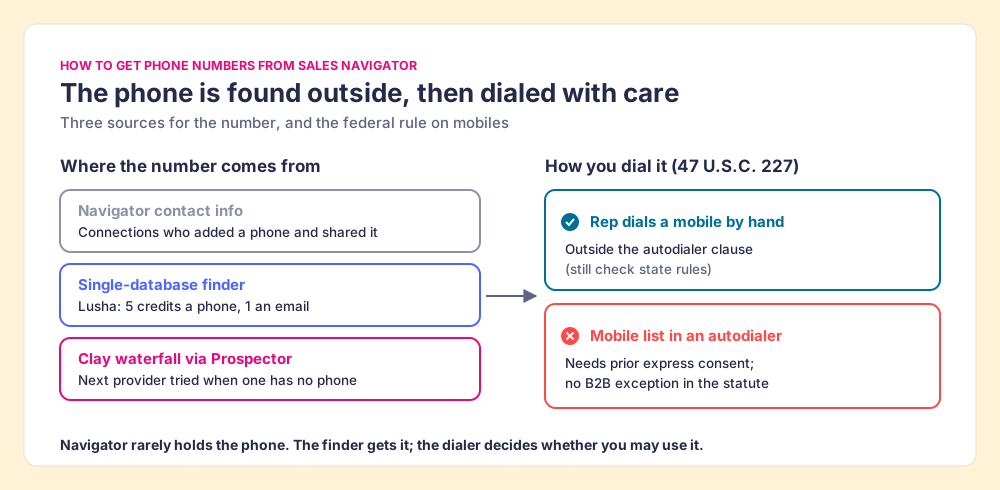
Phones follow the same rule: Sales Navigator shows one only for connections who added it. Run the lead through the same finder for a direct dial or mobile, and check your dialer's consent rules before calling mobiles.
- 5
Re-check emails when leads change jobs
Save a Sales Navigator search with the filter for people who changed jobs in the last 90 days, re-run the email and phone lookup for those leads, and update the CRM record before the old address bounces.
To get emails from LinkedIn Sales Navigator, you read the contact info of leads who are already your connections, and for any other lead you take the name and company to a tool that finds the work email and phone outside LinkedIn. Sales Navigator does not sell contact data on any plan. The routes, with who each fits:
- Contact info and InMail inside Navigator. For your own network and a few high-value leads a month. Free with the seat, small ceilings.
- Supered Prospector on Clay. For teams that already pay for Clay. One click on a Navigator lead or list runs Clay’s waterfall across 200+ providers and syncs the contact to HubSpot, Salesforce, or Pipedrive.
- A single-database extension. For one or two reps without Clay: Kaspr or Lusha on top of Navigator.
The rest of this guide is the why behind each route, step by step, plus phones and the line LinkedIn’s terms draw.
What contact info does Sales Navigator show?
A Sales Navigator search is a conference hall full of name badges. You can walk the floor, read any badge, see the title and the company, watch who someone talks to, and stop anyone for a chat. What you cannot do is take their business card. A card changes hands only between people who know each other, and even then the person holding it decides what is printed on it.
LinkedIn’s help center says almost exactly this in its own words. A connection’s contact details show on their profile “if they opt to share those details” (LinkedIn Help, viewing contact information of a connection, checked October 2, 2026). By default, “the primary email address you’ve registered with LinkedIn is only visible to your direct connections” (LinkedIn Help, email visibility, page updated two days before our October 2, 2026 check). For a lead you are not connected to, the Sales Navigator contact info panel has nothing to hand you, on Core, Advanced, or Advanced Plus.
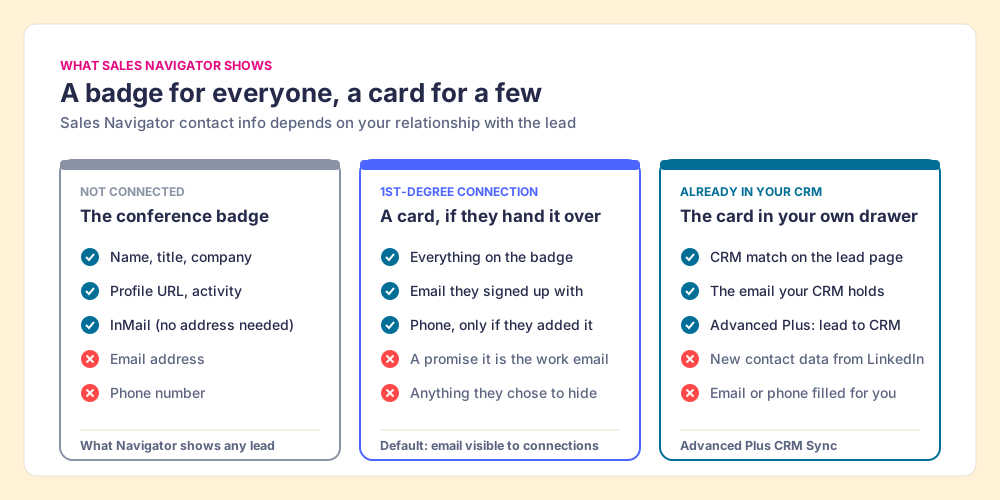
Two details make the card less useful than it looks. First, the email on it is the address the member registered with: LinkedIn says the Contact Info email is “pre-filled, based on what you entered as your primary email address during sign up” (LinkedIn Help, Contact Info section, checked September 25, 2026). People sign up for LinkedIn once, often years and two employers ago, so that address can be a personal inbox or a dead work account. Second, the phone field exists, alongside website and birthday, but only if the member typed a number in.
Advanced Plus adds a third column. On that plan a lead page can show your CRM match, and LinkedIn’s lead-creation form will create the record in Salesforce or Dynamics, with first and last name required and email and phone left as optional fields for the rep to fill (LinkedIn Help, lead creation in CRM, checked October 1, 2026). The card in that column came from your own drawer. LinkedIn did not print it.
How to get emails from LinkedIn Sales Navigator, step by step
The steps run from free and small to paid and scalable. Start at the top, and stop at the step that covers your volume.
Step 1: Read the contact info Navigator already shows
Start with the leads you already know. For a first-degree connection, open their regular LinkedIn profile and click See contact info in the introduction section; LinkedIn’s steps run through My Network, then your connections list, then the person’s name (LinkedIn Help). Your account’s data archive can also include connections’ emails, with the same catch: you “will only see email addresses for connections who have allowed their connections to see or download their email address,” a route covered in full in how to export LinkedIn contacts.
- The yield. Whatever your connections chose to share, which for a rep who connects with buyers after meetings can be a useful list.
- The ceiling. First-degree only. A Navigator search of 2,500 strangers returns zero emails this way.
- The check. Treat the address as a lead, not a fact. If the domain is gmail.com or a former employer, it is the sign-up email, and it goes in a personal-email field, if anywhere.
Sending a connection request to get the card is the slow version of the same route. It works when the person accepts and shares, and it spends a social favor to learn one line.
Step 2: Use InMail when you need a reply, not an address
InMail is LinkedIn’s answer to the missing card, and it is a different kind of answer. LinkedIn describes InMail as private messages that let you “connect with any LinkedIn user without requiring an introduction or contact details” (LinkedIn Help, InMail crediting, checked October 2, 2026). You can reach the person. You still do not have their address.
InMail works like a book of stamps for the conference’s internal mail. LinkedIn’s rules for the book, from the same page:
- Fifty stamps a month. “Sales Navigator Core, Advanced, and Advanced Plus” all get 50 InMail credits a month; “you can’t purchase additional InMail credits.”
- A cap of 150. Unused credits roll over up to 150 and “must be used within 90 days.”
- A stamp back for a reply. You get a credit “for every InMail message that receives a response within 90 days,” and auto-replies count, including “Not interested.”
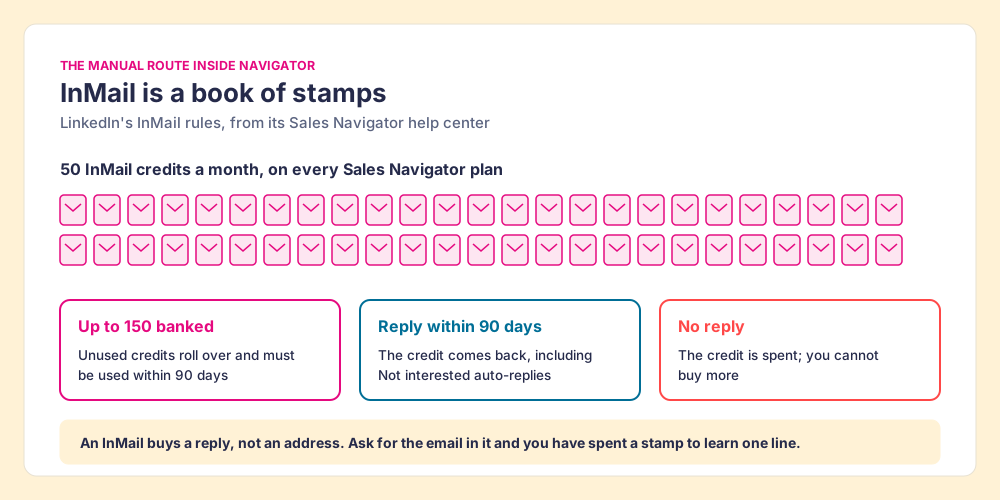
Fifty a month comes to about two and a half InMails a working day: a fine budget for the account you most want this month and a poor one for a list. The Bridge Group’s 2025 SDR study of 351 companies put the median SDR at 41 emails a day (Bridge Group), which a month of InMail covers in under two days. Asking for the email inside an InMail works now and then, and costs a stamp to learn one line.
Step 3: Find the work email outside LinkedIn
At this step the rep leaves the conference hall. Navigator gives you the two things every email lookup needs, a full name and a current company, and the address itself lives somewhere else: on the company’s website, in its email pattern, or in a data vendor’s database.
The manual version is guess and verify. Find the company’s domain, try the common patterns (first.last, first initial plus last name), and run the guess through a verifier before sending. It works for a handful of leads a week, and it fails on companies whose mail servers accept every address, because the verifier cannot tell a real inbox from a catch-all. The full manual playbook, including searching the company’s site and press pages, sits in how to find someone’s email on LinkedIn.
Past a handful a week, a rep needs a tool, and the tool choice decides how often the lookup comes back empty.
Which Sales Navigator email finder should you use?
A Sales Navigator email finder is any tool that takes the lead on your screen and looks up the work email and phone outside LinkedIn. They come in two shapes, and the difference is easiest to see as phone books.
A single-database extension is one phone book. Kaspr’s pricing page invites reps to “Use Kaspr on top of Sales Navigator” (Kaspr pricing, checked October 2, 2026). Lusha works the same way on credits: its pricing page charges 1 credit to “Reveal verified email address” and 5 to “Reveal a phone number” (Lusha pricing, checked October 2, 2026). When the person is in that book, the rep has the address in a click. When they are not, the rep has nowhere to turn without a second contract.
A waterfall is the whole shelf of phone books, opened in order. Clay’s waterfall checks “multiple providers to return the most verified emails (lower bounce rate) and phone numbers (higher connect rate)” (Clay), across what Clay’s homepage calls “200+ providers in one place” (checked October 2, 2026). Clay’s pricing page adds the rule that makes asking many sources affordable: “If an enrichment returns no result, you’re not charged Data Credits or Actions” (Clay pricing, checked October 2, 2026).
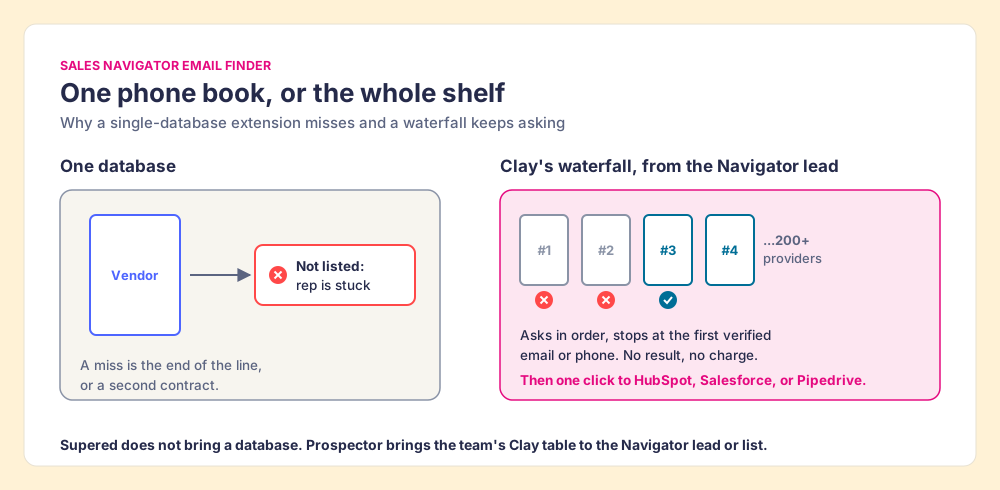
The extensions themselves, with store ratings, free tiers, and prices, are graded side by side in the LinkedIn email finder Chrome extension guide, and the wider field of tools that sit on or replace Navigator is in Sales Navigator alternatives. The short version: one database is the least setup for one rep, and a waterfall finds more for a team, because it asks every source instead of one.
Step 4: Run the Navigator lead or list through Clay with Supered Prospector
If your team already pays for Clay, the GTM engineer has probably built the tables and the waterfall. Supered Prospector puts them one click from the Navigator lead, on the team’s own Clay account, with no Clay login for reps. Prospector runs inside the Supered Chrome extension. What a rep does on a Sales Navigator lead or saved list:
- The CRM check first. The rep sees the matching HubSpot, Salesforce, or Pipedrive record and whether the person was already worked in the past, before adding a duplicate or stepping on a teammate.
- One button on the lead. The rep runs the team’s Clay table, and Clay’s waterfall returns the verified email and phone.
- Whole lists, not one lead at a time. A rep can push a saved Navigator list into a Clay workflow, run any custom Clay workflow the GTM engineer built, and pull a buying committee tuned to the team’s titles and seniority.
- One click to the CRM. Ops sets the field mapping once; after that the contact syncs to HubSpot, Salesforce, or Pipedrive with the email and phone filled in.
Supered does not bring its own database. It brings Clay’s waterfall, which is every database, routed, and that is why we chose Clay as our only data provider. Clay governs the data. Supered governs the motion: in Prospector, the team’s process applies to worked prospects, so a manager watches which sourced lists turn into meetings and coaches from the ones that convert.
Prospector is $45 per user per month, billed annually, from one user (Prospector); Clay’s Growth plan is $446 a month on annual billing or $495 monthly (Clay pricing, October 2, 2026), and the Clay credits are yours. The same button works away from Navigator, on a plain LinkedIn profile, a company’s website, and a CRM record, so the full rep loop is on the sourcing use case.
Choose something else if:
- No Clay account. Prospector needs one. Kaspr or Lusha is less setup for a rep without Clay.
- A few leads a month. Steps 1 to 3 cost nothing beyond the Navigator seat.
- Outreach drafted by AI. Prospector does not write or send emails; it hands the contact to your CRM and sequencer.
How do you get phone numbers from Sales Navigator?
The answer to how to get phone numbers from Sales Navigator is the same as for emails, with one more step of care. LinkedIn’s Contact Info section has a phone field next to email, website, and birthday, and “some of your information is only visible to your connections” (LinkedIn Help, Contact Info section). So a connection who typed in a number and shared it hands you a phone; any other lead hands you nothing. Navigator has no phone search, and no plan sells one.
Phones are the scarcer find. Lusha prices a phone at 5 credits against 1 for a verified email (October 2, 2026), and Clay frames the waterfall’s phone result around “higher connect rate,” the measure that matters once you dial. In practice the tool route is the phone route: the same extension or Clay table that finds the email returns a direct dial or mobile when a provider has one.
One rule before a mobile number goes into a power dialer. The Telephone Consumer Protection Act bars calls “using any automatic telephone dialing system or an artificial or prerecorded voice” to a number assigned to “cellular telephone service” without “the prior express consent of the called party,” and the statute has no business-to-business exception (47 U.S.C. 227(b)(1)(A)). The Supreme Court narrowed what counts as an autodialer in Facebook v. Duguid in 2021 (opinion), so whether your dialer qualifies is a question for your counsel, not for this page. A rep dialing a mobile by hand is a different case from a list loaded into a dialer. State laws can add their own telemarketing rules on top, so the same counsel conversation covers those.
Is it against LinkedIn’s terms to get emails from Sales Navigator?
Reading a connection’s shared contact info and sending InMail are LinkedIn features. Copying the site is where the terms bite. Section 8.2 of the LinkedIn User Agreement, effective November 3, 2025, has members agree not to “develop, support or use software, devices, scripts, robots or any other means or processes (such as crawlers, browser plugins and add-ons or any other technology) to scrape or copy the Services, including profiles and other data from the Services” (LinkedIn User Agreement, checked October 2, 2026).
LinkedIn’s prohibited-software page goes further. It says LinkedIn does not permit “browser plug-ins, or browser extensions that scrape, modify the appearance of, or automate activity on LinkedIn’s website,” and that members who use them “risk having their accounts restricted or shut down” (LinkedIn Help, prohibited software, checked October 2, 2026). The CSV scrapers that rank for this search sit squarely inside that sentence, and they return names and titles, not emails, so the rep still needs a finder afterward. We do not recommend them.
The badge image holds here too. Reading a badge is the point of the hall. Photographing every badge in the room and selling the album is what the organizers wrote rules against. Between the two sits every tool that runs on a Navigator page, ours included, and this page does not rule on any single vendor’s compliance. Our answer for Prospector: it works within LinkedIn’s terms and does not copy search results in bulk, and the contact data comes from Clay’s waterfall on your own Clay account. Ask any vendor three questions: what does it read from the LinkedIn page, where does the email and phone come from, and does anything get copied in bulk.
Step 5: Re-check emails when leads change jobs
A business card has an expiry date that is not printed on it. A work email is good for exactly as long as the job lasts, and the median US wage and salary worker had been with their current employer 4.1 years in January 2026, up from 3.9 in January 2024 (Bureau of Labor Statistics, Employee Tenure, released September 24, 2026). The address you found for a champion two years ago may now bounce, and the champion may now be a buyer somewhere else.
If you pay for Navigator, you already own the best alarm clock for this. Its “Changed jobs” filter shows “people who changed jobs in the last 90 days,” and LinkedIn’s sales blog quotes one of its account managers saying new decision-makers are “62% more likely to respond to InMails” (LinkedIn Sales Blog, checked October 2, 2026). The filters that pair well with it are in our Sales Navigator search filters guide.
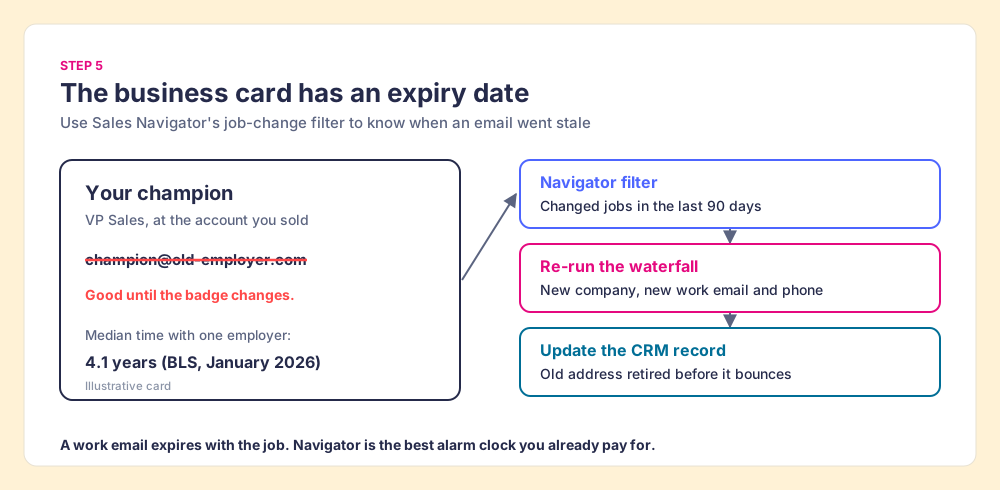
- The saved search. Your customers and closed-lost champions, filtered to changed jobs in the last 90 days.
- The re-run. The same finder that found the first email finds the new one at the new company. Clay’s homepage lists job-change tracking among its signals, so a Clay team can automate the trigger.
- The record. Update the contact, retire the old address, and open the new account while the relationship is warm.
Why trust this guide?
Before Supered I started RevPartners, a HubSpot partner that did only sales implementations and reached HubSpot’s Elite tier in 13 months, so I have watched a lot of reps copy names from LinkedIn into a CRM by hand. Supered is rated 5.0 from 122 reviews on the HubSpot App Marketplace and 4.9 from 81 reviews on G2 (October 1, 2026). The disclosure: we make Prospector, and it appears above as one of the routes, with the cases where something else fits better.
Which way should you get emails from LinkedIn Sales Navigator?
The facts on LinkedIn’s own pages decide most of it. Navigator shows a badge for any lead and a card only to connections, the card carries the sign-up email, InMail reaches people without revealing them, and the terms rule out copying the site. So the address has to come from outside LinkedIn, and the only real choice is how many sources you ask.
- Contact info and InMail. The pick for your own network and the few accounts that earn a stamp this month.
- Guess and verify. The pick for a handful of leads a week, with no data budget.
- Kaspr or Lusha on top of Navigator. The pick for one or two reps without Clay.
- Supered Prospector on Clay. The pick for a team with Clay: email, phone, and CRM record from one click on the Navigator lead or list, across 200+ providers.
- CSV scrapers. Not recommended: LinkedIn’s terms name them, the account at risk is the rep’s network, and the file still has no emails.
Our recommendation: keep Navigator for what it does best, finding the right person and noticing when they move, and send the lookup to the widest set of sources you can afford. If you have Clay, that is Prospector. If your next question is how the lead gets from Navigator into the CRM at all, our guide to exporting Sales Navigator leads walks through CRM Sync, and the HubSpot LinkedIn integration and the Salesforce LinkedIn integration cover what each native sync shows. Reps who reach Clay from the browser should also read the Clay Chrome extension guide and our take on Exportly alternatives.
Frequently asked questions
Can you see emails in LinkedIn Sales Navigator?+
Is there a Sales Navigator email finder built into LinkedIn?+
How do you get phone numbers from Sales Navigator?+
Is it against LinkedIn's terms to get emails from Sales Navigator?+
How much do 50 InMails a month get you?+
Do I need Clay to use Supered Prospector on Sales Navigator?+
Your process, running itself.