How to Use LinkedIn Sales Navigator: A Rep's Operating Manual for 2026
Sales Navigator is a radar screen: it finds the buyer, watches them move, and shows who on your team knows them. The setup, lists, alerts, TeamLink, InMail and weekly routine that make it pay, checked against LinkedIn's help center on October 2, 2026.
To use LinkedIn Sales Navigator well, save your book of business and Personas, build lists under its limits, turn on the alerts it hides, work warm paths and InMail weekly, and hand each lead to your CRM with an email and phone found outside LinkedIn.
How to use LinkedIn Sales Navigator, from setup to the CRM
2 hr- 1
Set up Personas and your book of business
Create up to five Personas by function, seniority, title, and geography. Save at least 25 target accounts, by hand, by CSV upload on Advanced or Advanced Plus, or by CRM Auto-Save on Advanced Plus, and mark the list as your book of business on the homepage.
- 2
Turn on the alerts that are off
In Sales Navigator Settings, turn on Top Weekly Notifications under Email notifications, and turn on 'A lead started a position at a new company' and 'A lead started a position at the same company' under In-product notifications.
- 3
Find accounts, then leads, in slices under 2,500
Search accounts first and save them. Then run Lead filters with a Persona and your account list. Narrow any search that shows more than 2,500 lead results or 1,000 account results until the whole set fits on screen, and save it to get weekly alerts on new matches.
- 4
Build lists inside the limits
Keep each custom list under 1,000 leads and your total saved leads under 10,000. Name lists by source and next action so they can be worked and reviewed.
- 5
Work signals, warm paths, and InMail each week
Clear the alerts feed daily, ask colleagues for TeamLink introductions on Advanced or Advanced Plus, and send InMail with a clear, easy-to-decline ask, since any reply within 90 days returns the credit.
- 6
Hand each lead to the CRM with an email and phone
Check whether the person is already in the CRM, find the verified email and phone outside LinkedIn, and create the record in HubSpot, Salesforce, or Pipedrive before the first call or email.
To use LinkedIn Sales Navigator well, save your book of business and Personas, build lists under its limits, turn on the alerts it hides, work warm paths and InMail weekly, and hand each lead to your CRM with an email and phone found outside LinkedIn. I checked every feature name below against LinkedIn’s help center on October 2, 2026, and four of the answers differ from what the popular guides still teach:
- Sales Preferences is gone. LinkedIn’s own FAQ says it “is no longer available” and “was never connected to lead or account recommendations.” Personas replaced it.
- The job-change alert needs you. LinkedIn’s alerts article says you “must enable” two lead toggles and a weekly email toggle in Settings before it fires.
- A “no thanks” refunds your InMail. Any reply within 90 days returns the credit, including the “Not interested” auto-reply.
- The search window has a hard edge. You see 2,500 lead results at most, so a bigger search hides the rest without telling you.
The rest of this manual is the setup, the daily and weekly moves, and the hand-off into the CRM, in the order a rep meets them.
What is Sales Navigator for, and what does it leave to you?
Sales Navigator is the radar screen in a harbor control tower. It shows you every ship in the water, lets you draw a sector and watch only the ships inside it, beeps when a ship you marked changes course, and tells you which of your crew has sailed with the captain. It even gives you a radio, with fifty calls a month. What a radar screen cannot do is bring a ship to the dock. It has no berth, no harbor ledger, and no phone number for the captain’s home.
The screen is good. LinkedIn says Navigator is “trusted by 1.5M+ sellers,” its compare-plans page lists “50+ advanced search filters” (LinkedIn, compare plans, opened October 2, 2026), and the profiles on it are written by the people themselves, which no bought database can claim. G2 reviewers rate it 4.4 out of 5 from 2,211 reviews, and the complaint that recurs is the dock. Tim P., an owner and CEO, wrote in February 2026: “I don’t like the inability to download lead lists to CSV or to CRMs without a third-party add-on” (G2, read October 1, 2026).
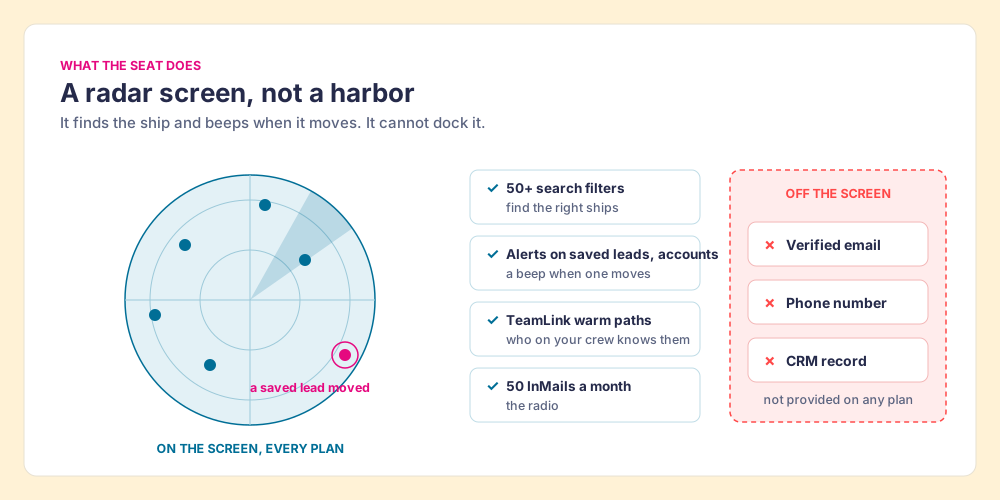
The off-screen half is most of a rep’s day. The Bridge Group’s 2025 SDR report, 351 B2B companies, puts the median SDR at 112 activities a day: 44 phone, 41 email, 19 LinkedIn, and 8 text or other (Bridge Group). Navigator serves the 19 LinkedIn touches in place. The 85 calls and emails need a number and an address from somewhere else, which is why the last section of this manual is the hand-off.
Which Sales Navigator plan do you need for each feature?
Check your plan before you read the steps, because three of them stop at a plan line. From LinkedIn’s account-types article, updated a week before I read it, and the compare-plans page, both opened October 2, 2026 (LinkedIn Help):
| Feature in this manual | Core | Advanced | Advanced Plus |
|---|---|---|---|
| List price per license | US$119.99 a month or US$1,079.88 a year | US$159.99 a month or US$1,799.88 a year | ”Request demo for pricing” |
| Search, Personas, saved searches, alerts, custom lists | Yes | Yes | Yes |
| InMail credits a month | 50 | 50 | 50 |
| Saved leads per user | 10,000 | 10,000 | 10,000 |
| Upload book of business by CSV | No | Yes | Yes |
| TeamLink and TeamLink Extend | No | Yes | Yes |
| Buyer Intent signals, Smart Links, shared lists | No | Yes | Yes |
| CRM Sync, Champions lists, CRM Auto-Save | No | No | Yes |
LinkedIn calls the prices estimates that may exclude tax and promotions. The full price breakdown, including how Advanced Plus gets quoted, is in our Sales Navigator pricing guide. The short read: Core is a solo seat with the whole radar. Advanced adds the crew (TeamLink, shared lists) and the intent beeps. Advanced Plus adds a cable to the CRM.
Step 1: Set up Personas, your book of business, and the alerts that are off
Setup takes about twenty minutes and decides whether the screen shows you anything useful for the next year.
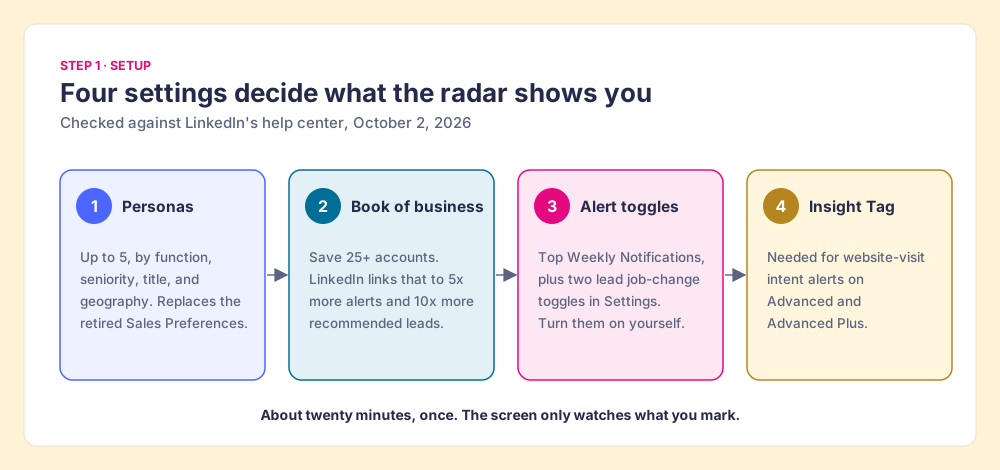
Personas, in place of Sales Preferences. Many guides, including Evaboot’s ranking how-to, still open by telling you to “configure your Sales Navigator preferences so the tool can recommend relevant leads” (Evaboot, read October 2, 2026). LinkedIn’s Personas FAQ, updated last week, says otherwise: “Sales Preferences is no longer available in Sales Navigator. Also, Sales Preferences was never connected to lead or account recommendations” (LinkedIn Help). Personas took the job. You define one by function, seniority, job title, and geography, and you can hold up to five. Click Personas on the homepage, then Create new persona, and build one per buying role you sell to (the economic buyer, the user, the technical evaluator). The same FAQ is plain that Personas do not change recommendations either; they filter search, Account pages, the homepage, and Relationship Explorer.
A book of business with 25 or more accounts. LinkedIn’s own numbers put the biggest payoff in this step: “People who save at least 25 accounts to Sales Navigator engage with five times more alerts and connect with ten times more recommended leads, compared to those who do not” (LinkedIn Help). That is LinkedIn’s correlation, not a controlled test, and the direction is still clear: the radar only watches ships you have marked. Three ways to mark them:
- Manual saves. Search the account, click Save, create a list, then select it as your book of business on the homepage. LinkedIn recommends this only for 15 or fewer accounts.
- CSV upload (Advanced and Advanced Plus). Accounts, then Upload accounts, map the columns, and review the match report for anything scored 0. Lists cap at 1,000 accounts, and CSV works for account lists only, never lead lists (LinkedIn Help).
- CRM Auto-Save (Advanced Plus). Pick My CRM Accounts in the book-of-business section and the list follows your CRM.
The alert toggles. The lead job-change alert, the most useful signal in the product, does not fire unless you switch it on. LinkedIn’s alerts article, updated a week ago, spells it out: in Settings, under Email notifications, turn on Top Weekly Notifications; under In-product notifications, in “Activity about saved leads,” turn on “A lead started a position at a new company” and “A lead started a position at the same company” (LinkedIn Help). If your company sells to website visitors, the Buyer Intent alert for company-site visits also needs the LinkedIn Insight Tag installed on your site, which is a ticket for marketing, not a setting for you.
Step 2: Find accounts first, then leads, in slices the screen can show
Search accounts before people. An account list gives every later lead search a boundary, and it is the list that feeds alerts.
- Account search. Click Account filters, set industry, headcount, geography, and any growth signals you care about, and save the ones that fit to your book of business.
- Lead search inside those accounts. Click Lead filters, apply your Persona, then the Account Lists filter, and the result is the buying committee at the companies you chose. LinkedIn’s how-to page describes this exact order: Persona, Function, or Seniority first, then Current Company, Account Lists, Company Headcount, or Region (LinkedIn, how to use Sales Navigator).
- Spotlights. The toggles above the results narrow to people with a reason to talk: recently changed jobs, shared experiences, TeamLink connections, and who viewed your profile. LinkedIn’s how-to page claims decision-makers are “62% more receptive to outreach” after a job change; it does not publish the study behind the figure, so treat it as LinkedIn’s claim.
- Account IQ. A generated summary on the Account page (priorities, likely pain points, financials, headcount trends) that saves a tab of research per account. It is on all three plans, admins can switch it off, and LinkedIn notes it “isn’t currently available for all companies” (LinkedIn Help).
The filter-by-filter reference, with which filters are worth your clicks and which return noise, lives in the Sales Navigator search filters guide, so this manual does not repeat it.
One rule from the help center changes how you search. “You can view up to 2,500 lead results across 100 pages or 1,000 account results across 40 pages,” and the limit applies “both in Sales Navigator as well as LinkedIn.com” (LinkedIn Help, checked October 2, 2026). A radar that only paints 2,500 blips does not warn you about the 2,501st ship. So treat the count at the top of the results as a gauge. If it reads above 2,500, split the sector, by region, by headcount band, or by seniority, until each slice fits on one screen, and save each slice as its own search.
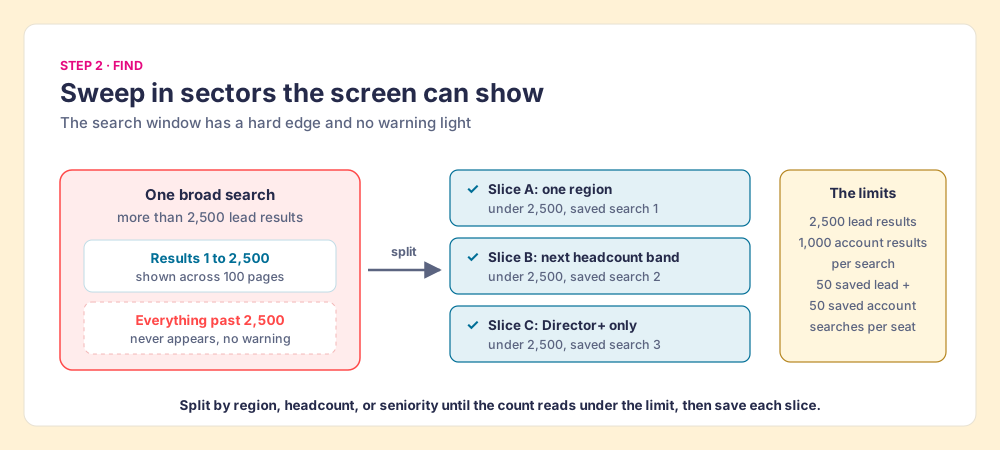
Saved searches are the second half of that move. Turn on “Save search to get notified of new results” in the filter pane and Navigator sends a weekly email and homepage alert when a new person matches. You can keep 50 lead searches and 50 account searches, and share them with teammates on Advanced and Advanced Plus (LinkedIn Help). A saved slice is a tripwire on one sector of the water.
Step 3: Build lists inside the limits
Lists are where found people become a work queue. Navigator’s limits are generous for one rep and tight for a team that never cleans up:
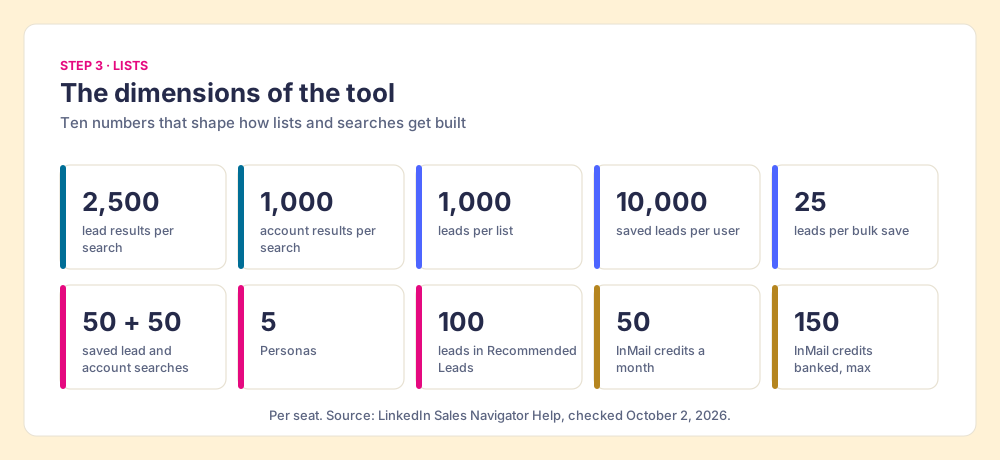
- Leads per list. “You can save up to 1,000 leads in each list and 10,000 total leads” (LinkedIn Help).
- Bulk saves. Select the box above the results and Save to list, 25 leads at a time.
- Accounts per list. 1,000, the same cap the CSV upload enforces.
- Recommended Leads. A list Navigator builds for you from your activity and buyer-intent signals, refreshed every Monday and capped at 100 leads; past 100, it drops the least relevant (LinkedIn Help).
- Past Customers at New Companies. On Advanced Plus with CRM Sync, a system list of contacts from closed-won opportunities in the last five years who now work at an account you own or saved, refreshed every 24 hours (LinkedIn Help). For a team with a decent customer base, it is the warmest list in the product.
Name lists by source and next action (“Ohio logistics VPs, call first”), never by date alone. When the list leaves Navigator, the name is the only thing that tells the CRM, and your manager, where those people came from. How to build a lead list covers list design beyond Navigator.
Step 4: How do you use LinkedIn Sales Navigator alerts effectively?
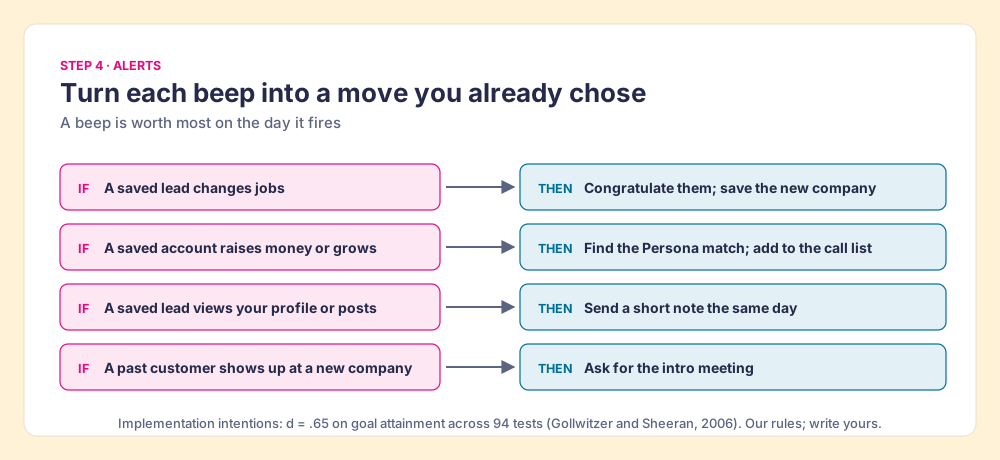
Alerts are the beeps on the radar, and they arrive only for ships you marked: “To receive alerts, you must save your leads and accounts” (LinkedIn Help). The ones worth acting on, from LinkedIn’s alert list:
- Lead changed jobs or roles. The champion who moved is the shortest path into a new account.
- Account growth and risk. Accounts preparing to grow (more jobs posted in 90 days), accelerated growth, a raise, a merger, or slowing growth.
- Lead shares and profile views. A saved lead posted or viewed your profile.
- Buyer Intent (Advanced and Advanced Plus). Including website visits, if the Insight Tag is installed.
A beep is perishable. In the study HBR published as “The Short Life of Online Sales Leads,” Oldroyd, McElheran, and Elkington looked at 2,241 U.S. companies and found firms that answered a lead within an hour were nearly seven times as likely to qualify it as firms that waited an hour longer, and more than 60 times as likely as firms that waited 24 hours or more (HBR, March 2011). Those were inbound web leads, not job-change alerts, so the multiples do not transfer. The shape does: a signal is worth most on the day it fires.
The habit that makes a rep act on the day is an if-then plan. Peter Gollwitzer’s research on implementation intentions, plans written as “if situation X, then I do Y,” found across 94 independent tests a medium-to-large effect on goal attainment, d = .65 (Gollwitzer and Sheeran, 2006). A rep with “check alerts” on a to-do list has a goal. A rep with four written if-then rules has a reflex.
Step 5: Ask for warm paths with TeamLink
TeamLink is the crew roster on the radar: it shows when someone at your company is a first-degree connection of a lead. It is on Advanced and Advanced Plus only (LinkedIn Help, updated six months ago). Three lead filters under “Best path in” do the work: TeamLink connections, Executive TeamLink connections (Director and above), and “TeamLink connections of,” where you type a lead’s name to see which colleagues know them.
Two settings widen the roster. TeamLink Extend adds colleagues who do not have a Navigator seat, which matters because your CEO and your customer-success team often know more buyers than your SDRs do. TeamLink Groups combines networks across contracts, for Advanced or Advanced Plus seats bought through a LinkedIn rep. An introduction from a colleague moves a stranger into a conversation, so a weekly TeamLink pass on your top 25 accounts is worth more than a fresh search.
Step 6: Send InMail like a prepaid reply envelope
InMail is the radio, and its billing has a feature that changes how to write one. LinkedIn gives every plan 50 credits a month, lets you bank up to 150, expires unused credits after 90 days, and does not sell extras (LinkedIn Help, checked October 2, 2026). The same article adds: “you will also receive an InMail credit for every InMail message that receives a response within 90 days,” and the auto-replies count. “Interested” and “Maybe later” are accepted, “Not interested” is declined, and “all three responses are eligible for a credit back.”
So an InMail works like a letter with a prepaid reply envelope. If the reader writes back at all, even to say no, the postage comes back to you. The only InMail that costs a credit is the one that gets no answer. That changes the writing. A short note with one clear question, easy to decline, is cheaper than a clever one, because a polite “Not interested” refunds the stamp and tells you to move on.
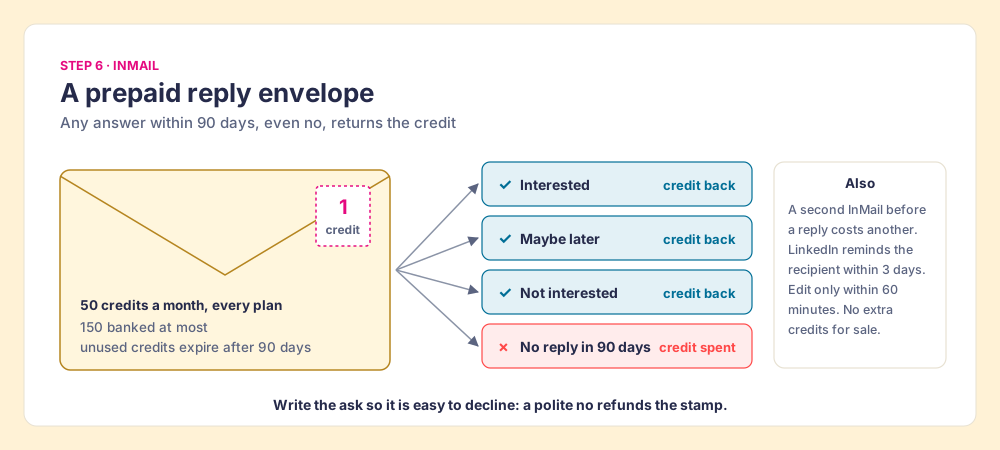
Three more rules from the same article. A second InMail to the same person before they answer uses another credit. LinkedIn sends the recipient a reminder within three days on its own, so a manual follow-up InMail is mostly wasted postage. You can edit or delete a message only within 60 minutes, and deleting an unanswered one does not refund it.
How do you use Sales Navigator in a weekly routine?
A Navigator seat that gets opened when a rep feels like prospecting is a radar that gets switched on when someone hears a foghorn. The routine below is ours, built from the features above; the durations are our suggestion, not LinkedIn’s.
- Daily alert sweep. Ten minutes. Clear the alerts feed against your if-then rules, and act on job changes and profile views the same day.
- Weekly saved-search pass. Open the weekly email of new matches for each saved slice, save the right people into a named list, and drop the rest.
- Weekly Recommended Leads review. The list refreshes every Monday; keep the good ones, ignore the rest.
- Weekly TeamLink pass. On your top 25 accounts, ask one colleague for one introduction.
- Weekly hand-off. Move the week’s saved leads into the CRM with an email and phone, so the calls and emails can start (next section).
- Monthly InMail check. Count credits against the 150 cap so none expire unused.
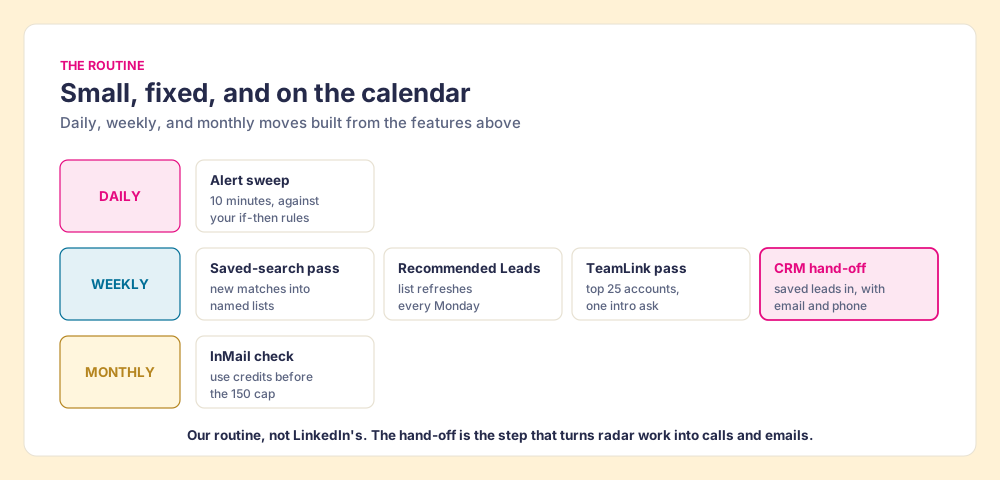
The fifth line is the one most routines leave out, and it is the one that turns radar work into pipeline.
How do you get Sales Navigator leads into your CRM with an email and phone?
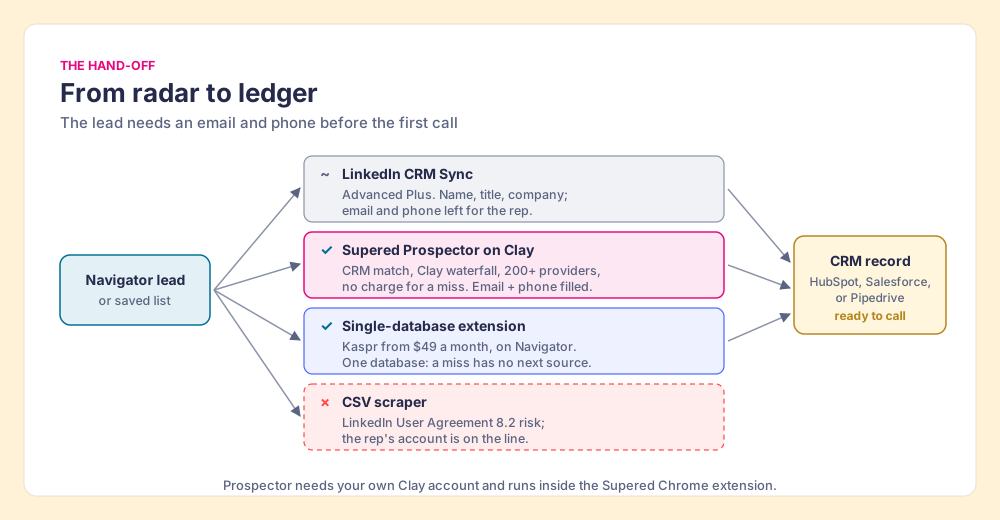
The radar spots the ship; the harbor ledger is where it gets a berth. In sales terms, the person has to become a CRM record with an email and phone before the 85 calls and emails can happen. Sales Navigator has no CSV export on any plan; LinkedIn’s help center says it “currently doesn’t offer the option to export account and lead information from Sales Navigator into a CSV or XLS file” (LinkedIn Help, checked October 2, 2026). Three routes work.
LinkedIn’s own cable (Advanced Plus). CRM Sync links Navigator with Salesforce, HubSpot, and Microsoft Dynamics, and a rep can click Add to CRM on a lead page. The lead-creation form lists first and last name as required and email and phone as optional, filled by the rep (LinkedIn Help). On HubSpot it also needs a Sales Hub Professional or Enterprise seat (HubSpot Knowledge Base). The record arrives; the address lines arrive blank. The setup per CRM is in the Sales Navigator CRM sync guide, with more depth for HubSpot, Salesforce, and Pipedrive.
Supered Prospector on Clay, for teams that have Clay. Prospector runs inside the Supered Chrome extension and puts your Clay tables one click from the Navigator lead or saved list. Clay’s waterfall checks provider after provider, across what Clay’s homepage calls “200+ providers in one place,” until one returns a verified email or phone, and Clay’s pricing page says “If an enrichment returns no result, you’re not charged Data Credits or Actions” (Clay pricing, both opened October 2, 2026). What a rep does, on the team’s own Clay account and with no Clay login:
- The CRM check first. On the profile, the rep sees the matching HubSpot, Salesforce, or Pipedrive record and whether the person was worked in the past, before adding a duplicate.
- One button on the lead or list. The rep runs the team’s Clay table, or pushes a whole saved list into a Clay workflow, and gets the verified email and phone back.
- One click to the CRM. Ops sets the field mapping once; the lead lands in HubSpot, Salesforce, or Pipedrive with the contact data filled.
- Lists a leader can follow. The team’s process applies to worked prospects, so a leader sees which sourced lists got worked and which closed, and coaches from the lists that convert.
Supered does not bring its own database. It brings Clay’s waterfall, which is every database, routed, and that is why we chose Clay as our only data provider. Clay governs the data; Supered governs the motion. Prospector is $45 per rep per month, billed annually, from one rep (Prospector), on your Clay account and your Clay credits. The full rep loop, from the profile to the closed deal, is on the sourcing use case, and every route to an email is compared in how to get emails from LinkedIn Sales Navigator.
Choose something else if:
- No Clay account. Prospector needs one. Kaspr’s Starter plan says “Use Kaspr on top of Sales Navigator,” from $49 per user per month (Kaspr pricing, opened October 2, 2026); it is one database, so a miss has no next source. More options are graded in Sales Navigator alternatives.
- Advanced Plus already paid for, email only. CRM Sync plus a light email finder may be enough.
- Outreach drafted by AI. Prospector does not write or send emails; it hands the lead to your CRM and sequencer.
The route to skip is the CSV scraper. LinkedIn’s User Agreement, section 8.2 (effective November 3, 2025), has members agree not to use “crawlers, browser plugins and add-ons or any other technology” to “scrape or copy the Services, including profiles and other data” (LinkedIn User Agreement), and its prohibited-software page says members who use such tools “risk having their accounts restricted or shut down” (LinkedIn Help). The account at risk holds the rep’s network. This page does not rule on any vendor; ask each one, ours included, what it reads from the page, where the contact data comes from, and whether anything is copied in bulk. Our answer for Prospector: it works within LinkedIn’s terms and does not copy search results in bulk, and the contact data comes from Clay’s waterfall on your own Clay account. Export Sales Navigator leads walks through that test.
Is LinkedIn Sales Navigator training worth the time?
LinkedIn’s own training is free with the seat and short. The Sales Navigator Essentials Certificate Course asks for a quick start guide, one video, the self-led Essentials course (45 minutes), and a completion survey, with live and recorded webinars on the side (LinkedIn Sales Solutions training, opened October 2, 2026). Take it in the first week; it teaches where the buttons are.
It will not build the habit, and the habit is where the seat earns its US$1,079.88 to US$1,799.88 a year. Knowing better is not doing better. The cheapest Navigator training a manager can run is output-based: one saved list per rep per week, named by source, handed to the CRM with contact data, and a look at which lists turned into meetings. That review takes minutes and teaches more than a second course.
Why trust this manual?
Before Supered I started RevPartners, a HubSpot partner that did only sales implementations and reached HubSpot’s Elite tier in 13 months, which meant years of watching reps build lists in Navigator and lose them on the way to the CRM. Supered is the #1 sales enablement app on the HubSpot marketplace, rated 5.0 from 122 reviews there and 4.9 out of 5 from 81 reviews on G2 (October 1, 2026). The disclosure: we make Prospector, and it appears above as one of three hand-off routes.
What we recommend
Run Navigator as a radar with a weekly hand-off: Personas and 25+ saved accounts, sliced saved searches, written if-then rules for alerts, a TeamLink pass, InMail with an easy-to-decline ask, and the week’s saved leads moved into the CRM with a verified email and phone before the week ends.
The evidence for each part is already above. LinkedIn’s own figures tie the marked ships to the beeps (25 saved accounts, five times the alerts). Gollwitzer’s 94 tests say written if-then rules get acted on. The Bridge Group’s 112-activity day says 85 of the touches happen off the screen, so a found lead with no email or phone is a ship that never docks.
Two lighter ways to run the seat exist, and both cost more than they look. Opening Navigator only when inspired, with no saved accounts and no alerts, uses the radar as a telescope. Running the full radar with no hand-off produces beautiful lists that sit in Navigator while the dialer waits. Mark the ships, write the rules, give each find a berth the same week. If you have Clay, Prospector is that berth in one click.
Next, tighten the sweep itself with the Sales Navigator search filters guide, or, if the seat price is the question, read Sales Navigator pricing before your renewal.
Frequently asked questions
How do you use LinkedIn Sales Navigator for the first time?+
Where did Sales Preferences go in Sales Navigator?+
How many leads can you save in Sales Navigator?+
How do InMail credits work in Sales Navigator?+
Is there official LinkedIn Sales Navigator training?+
Can Sales Navigator give you a prospect's email and phone number?+
Your process, running itself.