How to Export LinkedIn Contacts: What LinkedIn Hands Over, What Sales Navigator Keeps, and the Rep's Path to the CRM
LinkedIn will give you a CSV of your connections, with most of the email column blank. Sales Navigator will give you no file at all. The way a rep gets a LinkedIn contact into the CRM without breaking the terms, and what should happen to that contact the day after.
To export LinkedIn contacts, request a data archive from Settings and Privacy; the CSV lists your connections with emails only where the member allowed it, and Sales Navigator leads, which have no CSV export, reach the CRM by CRM Sync or a tool that reads the profile URL.
How to export LinkedIn contacts and get them into the CRM
30 min- 1
Request your LinkedIn data archive
Click the Me icon, open Settings and Privacy, choose Data privacy, then Get a copy of your data. Select the larger archive that includes connections, and click Request archive. LinkedIn emails a download link to your primary address.
- 2
Open the connections CSV and read the email column
The file lists your 1st-degree connections. Email addresses appear only for connections who allowed their connections to see or download them, so expect blanks. Contacts beyond your 1st degree are not in the file at all.
- 3
Decide what Sales Navigator can and cannot give you
Sales Navigator has no CSV or XLS export. On the Advanced Plus plan, CRM Sync links leads and accounts with Salesforce, Microsoft Dynamics, or HubSpot, and a rep can create a CRM lead from a Navigator lead page. On every other plan, a lead stays inside Navigator until you carry it out.
- 4
Enrich from the profile or the Navigator list, by URL, not by scrape
On the profile or list you already have open, run an enrichment that reads the page URL and asks Clay's waterfall across 200+ providers for the verified email and phone. LinkedIn's User Agreement bars scraping the site with plugins or bots, so choose a tool that pushes the URL to the data providers instead of copying the page.
- 5
Sync to the CRM in one click
Check whether the person already exists in HubSpot or Salesforce, who owns them, and where the deal stands. Then push the enriched record with field mapping Ops set once, and into the sequencer if the team runs one.
- 6
Attach an expectation to the sourced contact
A contact in the CRM is sourced, not worked. Set the standard for what happens next (first touch within a set window, a defined next action), and inspect it deal by deal, so the manager sees sourced, worked, and closed by the team's own definitions.
A new rep gets the territory and wants her LinkedIn network in the CRM. She searches for how to export LinkedIn contacts, follows the steps, and a day later opens a CSV in which the email column is mostly air. Then she tries Sales Navigator, where the good leads are, and finds no export button at all. To export LinkedIn contacts, you request a data archive from Settings and Privacy; the CSV lists your 1st-degree connections with emails only where the member allowed it, and Sales Navigator leads, which have no CSV export, reach the CRM by CRM Sync on Advanced Plus or a tool that reads the profile URL. That sentence is the map. The rest of this page walks it, then covers the part the map leaves out: what should happen to the contact once it lands.
What can you export from LinkedIn natively?
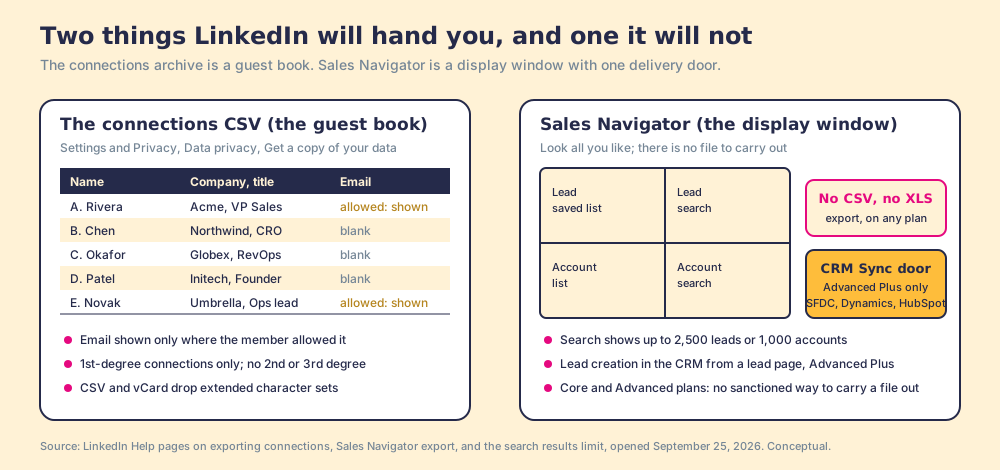
Start with what LinkedIn hands over, in its own words. The help page “Export connections from LinkedIn” says you can export a list of your connections at any time: click the Me icon, choose Settings and Privacy, click Data privacy, then under How LinkedIn uses your data click Get a copy of your data, select the larger archive that includes connections, and click Request archive. A link arrives by email (LinkedIn Help, opened September 25, 2026).
Three notes on the same page decide what the file is worth to a seller.
- Missing emails. “You will only see email addresses for connections who have allowed their connections to see or download their email address.” The visibility page explains why: by default a member’s primary email is visible only to direct connections, and a second, separate setting controls whether it can be downloaded in someone else’s data export (Email visibility).
- First degree only. “You currently can’t export a list of your contacts that aren’t 1st-degree connections.” The 2nd-degree VP you have been meaning to reach is not in the file.
- Character limits. The CSV and vCard formats do not support extended character sets, so names in Chinese, Japanese, or Hebrew do not survive the trip.
Picture the file you get when you export LinkedIn connections as the guest book from a wedding. The guests all signed it, so the names are complete. A few also wrote an address under their name, and most did not, because the book never asked and they were there for the cake. That is your connections CSV: a full list of who you know, a thin list of how to reach them, and no guest who was not invited.
Can you export Sales Navigator leads?
Not as a file. LinkedIn’s Sales Navigator help is blunt: “LinkedIn currently doesn’t offer the option to export account and lead information from Sales Navigator into a CSV or XLS file” (Sales Navigator Help, opened September 25, 2026). What it offers instead sits behind one plan.
- CRM Sync. On Advanced Plus, leads and accounts link with Salesforce, Microsoft Dynamics, and HubSpot, with information updated in real time between the two systems.
- Embedded Profiles. Navigator information shown inside those three CRMs, so the rep reads LinkedIn data from the CRM record.
- Lead creation. On Advanced Plus, a rep can add a record for a new lead to the CRM directly from a Navigator lead page.
The search has a ceiling too. LinkedIn caps the results page at 2,500 lead results across 100 pages, or 1,000 account results across 40 pages, in Navigator and on LinkedIn.com alike (Search results limit). A saved search that matches 9,000 people shows you the first 2,500, and the filters are how you slice the rest into searches small enough to see.
So the display window has one delivery door, it opens on the top plan, and it delivers to three CRMs. A team on Core or Advanced has a list of leads it can look at and no sanctioned file to carry out. That gap is where a decade of Chrome extensions grew, and where the compliance question lives.
What do LinkedIn’s terms say about scraping?
Say what the contract says, and no more. LinkedIn’s User Agreement, effective November 3, 2025, section 8.2 (“Don’ts”), lists among the things a member agrees not to do (User Agreement):
- Scraping. Develop, support or use “software, devices, scripts, robots or any other means or processes (such as crawlers, browser plugins and add-ons or any other technology) to scrape or copy the Services, including profiles and other data from the Services.”
- Use limits. Override any security feature or bypass “access controls or use limits of the Services (such as search results, profiles, or videos).”
- Automated contact downloads. Use “bots or other unauthorized automated methods to access the Services, add or download contacts, send or redirect messages,” or otherwise drive inauthentic engagement.
- Redistribution. Copy, use, display or distribute information obtained from the Services, “whether directly or through third parties (such as search tools or data aggregators or brokers), without the consent of the content owner.”
Read those lines against the tools on offer and a distinction appears. A tool that copies the profile in the tab, name, title, company, whatever it can read, is doing what the first line describes. A tool that reads the URL of the page you are on and asks outside data providers who that person is, then returns an email those providers hold, never copies the page. Members of Clay’s own community argued this in July 2025, when one built a LinkedIn extension and another warned that page-interacting extensions get accounts banned; the builder’s answer was that his tool pushes the URL of the page to Clay and “doesn’t scrape [LinkedIn] at all” (community.clay.com). Two members in a forum are not a ruling. The mechanism they disagree over is the question to ask any vendor before a rep installs anything.
How does a rep export LinkedIn contacts into the CRM?
Three routes from LinkedIn to CRM, and the rep’s day decides between them. The Bridge Group’s 2025 SDR report, 351 B2B companies, puts the median rep at 112 activities a day: 44 phone, 41 email, 19 LinkedIn, 8 text or other (Bridge Group, 2025). The same report puts the median share of SDRs at quota at 60%, the lowest in its history. Whatever route you pick competes with those 112.
- Copy by hand. Open the profile, type the name and title into HubSpot, guess the email from the company’s pattern, save. It breaks no rule and costs the minutes a call would have taken, per contact, every time.
- Scrape the page. A plugin reads the profile and writes it to a sheet. Fast, and it is the mechanism section 8.2 names.
- Push the URL to the waterfall. The rep stays on the profile or the Navigator list. One click sends the page URL to Clay, whose waterfall asks provider after provider (“If one source misses, it tries the next,” clay.com/use-cases/rep-prospecting) across 200+ data vendors (clay.com, September 25, 2026) until one returns a verified email or phone, and the result comes back to the page the rep never left.
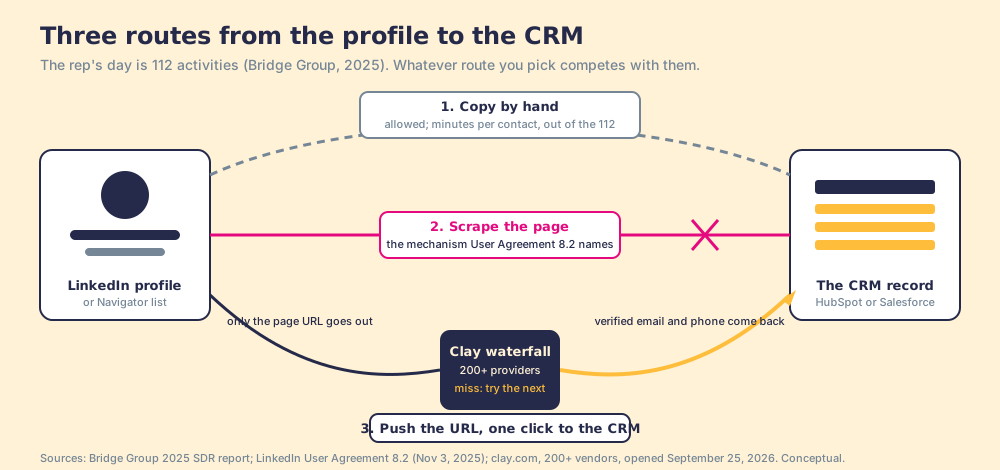
The third route is the one Clay’s own site points reps to: its rep-prospecting page describes a Chrome-extension partner that “lets reps enrich with Clay and sync prospects to your CRM anywhere on the web,” and cites a sales team that put 110 reps on it with no Clay login required. In the five-move loop we hold any rep-side tool to, that is moves one through three. From the rep’s chair:
- The profile or the list. Open the LinkedIn profile, or the Navigator search or saved list, as you already do. Nothing new to open.
- The enrichment. Run it from the page. The URL goes to your team’s own Clay account; the waterfall fills the email and phone; Clay does not charge when a provider returns nothing (clay.com/pricing).
- The CRM check. Before syncing, see whether the person is already in HubSpot or Salesforce, who owns them, and where the deal stands, so you do not create a duplicate or step on a teammate.
- The sync. One click, with field mapping Ops set once, and into the sequencer if the team runs one. The record now exists where the work happens.
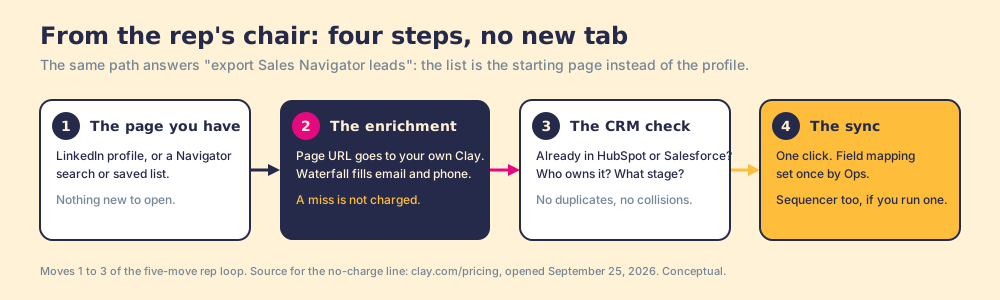
That is the rep-side answer to “export LinkedIn contacts.” It is also where every tool in the category stops, and stopping there is the mistake.
What happens after the export?
An exported contact is a parcel on the loading dock. It has arrived; it has not been delivered. The CRM knows it exists, the export log counts it, and neither can say whether anyone picked it up. Our field research measured that gap for the sales process as a whole. Across 198 sales leaders, 89% have a defined process and 36% see reps run it, a 53-point gap between built and run, and teams that inspect deals against the process consistently hit quota at 6.3x the rate of teams that rarely do (The State of Sales Enablement). The same survey found that reps who get the next step in the flow of work report 49% quota attainment against 15% for reps who have to go somewhere else for it.
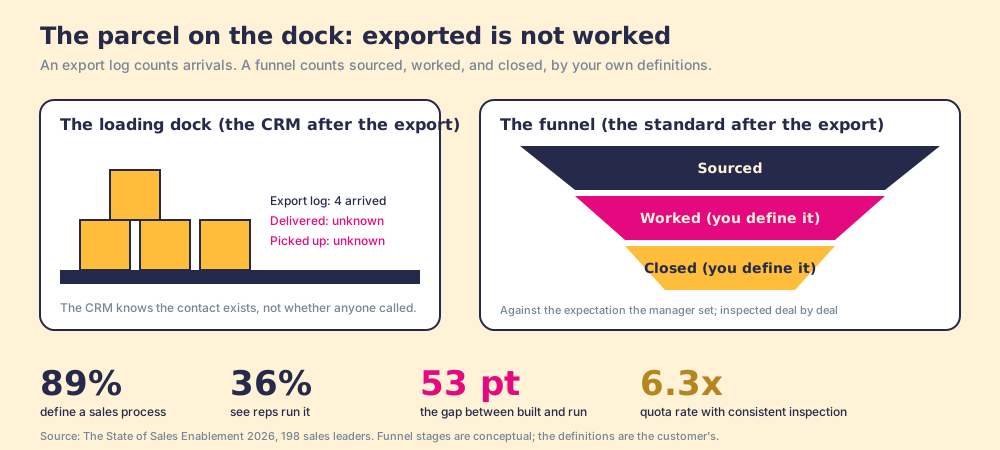
You might say a rep who bothered to source a contact will call it. Fair, and often true for the first ten. It stops being true at the four-hundredth, in a week with three deals open and a buyer waiting, and when it stops the cause is the system, not the rep: no expectation attached to the contact, no signal to the manager, nothing in the flow of work to say what comes next. Sourcing a contact is the first step of a process, and a process exists only to the degree adherence to it is inspected. So the two moves after the export are:
- The standard. An expectation attached to the sourced contact: first touch within a set window, the next action named, “worked” and “closed” defined by your team and not by a vendor’s dashboard.
- The inspection. The next expected action reaching the rep in the CRM while the work is in motion, adherence measured deal by deal, and a manager who sees sourced, worked, and closed against the standard and spends the time coaching off it rather than chasing it.
This is the one place Supered belongs on a page about exporting LinkedIn contacts, so here it is plainly. Supered is a rep-side front end on the customer’s own Clay account: a rep on a LinkedIn profile, a Sales Navigator list, a company site, or a HubSpot or Salesforce record runs Clay’s waterfall in one click, no Clay login, and syncs to the CRM with field mapping Ops set once. It brings no database of its own; it brings Clay’s waterfall, which is every database, routed. Then the part the export tools never had: the sourced contact enters a motion the Behavior Layer guides and inspects, sourced, worked, closed, by the customer’s own definitions. Clay governs the data. Supered governs the motion.
What we recommend
Three ways to move a LinkedIn contact into the CRM, sorted by who they fit.
- The data archive. For a rep who wants their own network in the CRM once, and can live with a thin email column and no one beyond the 1st degree. Free, sanctioned, and slow to be useful.
- CRM Sync on Advanced Plus. For a team already on Navigator’s top plan and on Salesforce, Dynamics, or HubSpot. LinkedIn’s own delivery door, and it delivers LinkedIn’s fields, not a verified email or a mobile.
- URL-push enrichment plus a standard. For a team that has Clay, reps on LinkedIn and in the CRM, and a manager who wants to see sourced, worked, and closed. The waterfall fills what the archive leaves blank, the URL-push stays clear of the mechanism section 8.2 names, and the standard turns the export into a process.
We recommend the third, and the numbers are the reason. A 112-activity day leaves no room for copy-paste, section 8.2 leaves no room for scraping, and 89% against 36% is the gap a contact falls into once it lands in the CRM, unless someone inspects what happens next. What the three things called a “Clay Chrome extension” each do is sorted in Clay Chrome extension; how the waterfall itself works, and what it costs on your own account, is in what is Clay and Clay pricing. And the process the sourced contact should enter, from list to first conversation, is laid out in the sales prospecting guide.
Frequently asked questions
Can I export my LinkedIn connections with their email addresses?+
Can I export Sales Navigator leads to a CSV?+
Is it against LinkedIn's terms to scrape contacts with a Chrome extension?+
What is the fastest way to get a LinkedIn contact into HubSpot or Salesforce?+
What should happen after I export a contact to the CRM?+
Does Supered export LinkedIn contacts?+
Your process, running itself.