LinkedIn Sales Navigator CRM Integration: Which CRMs Get a Bridge, and What Never Crosses It
The LinkedIn Sales Navigator CRM integration, checked October 2, 2026: which CRMs LinkedIn supports, what CRM Sync writes back, what it never creates, what Pipedrive teams get, and how teams add the missing email and phone.
The LinkedIn Sales Navigator CRM integration is LinkedIn's CRM Sync plus Embedded Profiles: on Advanced Plus it links Sales Navigator to HubSpot, Dynamics 365, Oracle Sales, or Salesforce and writes rep activity back, but never fills in an email or phone.
How to turn on CRM Sync between Sales Navigator and your CRM
- 1
Install the Sales Navigator package in the CRM
Install LinkedIn's app package for your CRM first: the LinkedIn CRM Sync app from the HubSpot App Marketplace, the managed package for Salesforce, or the Sales Navigator solution for Dynamics 365. LinkedIn's integration overview names the package as step one.
- 2
Open CRM settings in Sales Navigator
Sign in to Sales Navigator as an admin, click Admin, then Admin Settings, then Production or Sandbox under CRM in the left menu.
- 3
Connect the CRM
Select your CRM, click Log In, then click Start to be guided through the connection. LinkedIn supports a Sandbox connection for testing first.
- 4
Choose what syncs
Turn on the toggles you want: auto-save of leads, contacts and accounts, Validate CRM Data, Create and Update Contacts (and whether an email is required), Create and Update Leads where your CRM supports leads, and logging for Smart Links, messages and InMails, calls, connection requests, and notes.
- 5
Have each rep authenticate for writeback
Activity writeback is on by default, but each user authenticates with the CRM before their InMails and notes log. Check the last synced date under Admin Settings after the first import, which LinkedIn says takes a couple of days to a week.
A bridge between two islands can carry a lot of traffic. Lorries go one way, buses the other, and a clerk at the toll booth writes down who crossed. What no bridge can do is carry something that does not exist on the bank it leaves from. If the far island grows no wheat, the most beautiful bridge in the world delivers no bread.
The LinkedIn Sales Navigator CRM integration is that bridge. On the LinkedIn bank sit names, titles, companies, connections, and everything your reps do in Navigator. On the CRM bank sit your accounts, deals, and the email and phone your reps dial. LinkedIn’s CRM Sync carries records and activity both ways, on the Advanced Plus plan, for four CRMs. It does not carry a work email or a mobile number, because LinkedIn does not grow them.
The quick answer, October 2026:
- LinkedIn CRM Sync, for activity and context. The pick for HubSpot, Dynamics 365, Oracle Sales, or Salesforce teams already on Advanced Plus who want InMails logged and stale contacts flagged.
- Supered Prospector on Clay, for the email and phone. The pick for teams with Clay whose reps source in Navigator and need the contact in HubSpot, Salesforce, or Pipedrive, ready to call. $45 per rep per month, billed annually.
- Lusha on top of Navigator, for teams without Clay. A single-database extension that works on Sales Navigator and pushes to the same three CRMs on credits.
We make the second one; every price below links to the page we opened.
Which CRMs does the LinkedIn Sales Navigator CRM integration support?
Four get the full bridge. LinkedIn’s own partner table, on its help page “Integration between Sales Navigator and your CRM,” lists HubSpot, Microsoft Dynamics, Oracle Sales, and Salesforce as the CRMs “supporting CRM Sync (data ingestion and writeback), Embedded Profiles and Embedded Experiences” (LinkedIn Sales Navigator Help, a106005, opened October 2, 2026). The same page lists Pega, SAP, and SugarCRM for Embedded Profiles only and Freshworks for Embedded Experiences only. An embedded profile is a window: it shows LinkedIn data inside the CRM and syncs nothing.
The toll is the same on every lane: “Integration between Sales Navigator and your CRM is only available for Sales Navigator Advanced Plus users.”
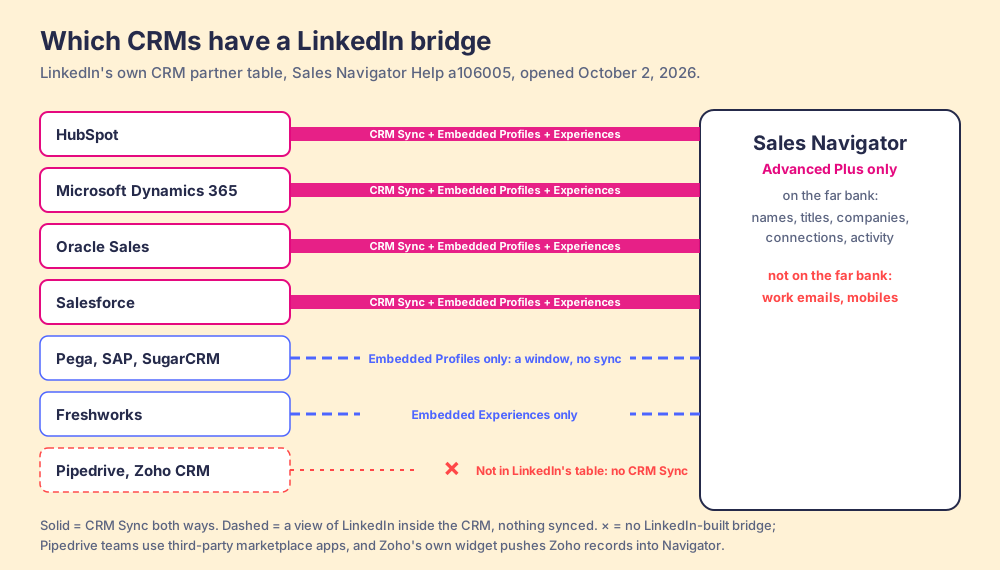
The finer print differs by CRM, and it is spread across LinkedIn’s help pages and the CRM vendors’ docs. On one table, as LinkedIn and the CRM vendors describe it today:
| CRM | CRM Sync and writeback | Embedded Profiles | Create contacts from Navigator | Create leads from Navigator | Where to go next |
|---|---|---|---|---|---|
| Salesforce | Yes | Yes | Yes | Yes | Salesforce LinkedIn integration |
| Microsoft Dynamics 365 | Yes | Yes | Yes | Yes | Microsoft’s Relationship Sales bundle includes Advanced Plus |
| HubSpot | Yes | Yes | Yes | No: “HubSpot doesn’t support saving Leads” | HubSpot LinkedIn integration |
| Oracle Sales | Yes, without phone-call writeback | Yes | Yes | Not listed | LinkedIn’s Oracle enablement guide |
| Pega, SAP, SugarCRM | No | Yes | No | No | A window only |
| Freshworks | No | Embedded Experiences only | No | No | A window only |
| Zoho CRM | No | Zoho’s own widget | No | No | Pushes Zoho records into Navigator |
| Pipedrive | No | No | No | No | Pipedrive LinkedIn integration |
Sources for the rows: lead creation “is available to Salesforce and Microsoft Dynamics 365 Sales users who are on Sales Navigator Advanced Plus edition” (a455540); contact creation covers “HubSpot, Microsoft Dynamics 365, Oracle Sales, and Salesforce” (a131108); LinkedIn’s HubSpot and Oracle technical page says “HubSpot doesn’t support saving Leads” and “Oracle currently doesn’t support the writeback of phone calls” (a8637051). Microsoft lists two ways to license it for Dynamics: a “Microsoft Relationship Sales subscription,” which “includes Dynamics Sales Enterprise and LinkedIn Sales Navigator Advanced Plus licenses,” or an Advanced Plus license on its own (Microsoft Learn, updated April 30, 2026). Zoho’s integration needs Advanced Plus and lets you “push leads, contacts and accounts to your Sales Navigator account,” which is the CRM-to-LinkedIn direction only (Zoho help).
What does a Pipedrive team get?
No LinkedIn bridge at all. Pipedrive is absent from LinkedIn’s CRM partner table and from LinkedIn’s sales-integrations partner page (LinkedIn Sales Integrations, opened October 2, 2026), so there is no CRM Sync, no activity writeback, and no embedded profile for a Pipedrive record.
What Pipedrive teams use instead are ferries run by other companies. The Pipedrive Marketplace lists third-party LinkedIn apps such as LeadCRM by Intricare Technologies, rated 4.5 from 20 reviews (Pipedrive Marketplace). Read them with care: LeadCRM’s copy promises to “Bulk Export Leads from Sales Navigator Search,” and LinkedIn’s terms forbid tools that scrape or copy its pages. Prospector on Clay and Lusha, graded below, both write to Pipedrive without exporting Navigator searches. The Pipedrive-specific setup is in the Pipedrive LinkedIn integration guide, and what Supered does inside Pipedrive is on Supered for Pipedrive.
What does CRM Sync write back, and what does it never create?
The bridge keeps a cargo manifest, and the CRM Sync Sales Navigator admin settings are where you read it: LinkedIn’s Manage CRM Sync page lists the toggles an admin turns on, and they divide into two lanes (a107066).
- The lane into Navigator. Your CRM sends accounts, contacts, leads, opportunities, and users, which LinkedIn matches to members and companies. Records tied to open opportunities auto-save to Navigator lists for their owners, and CRM badges show a rep whether a lead is already in the CRM.
- The lane into the CRM. Navigator logs InMails, messages, notes, calls, connection requests, and Smart Link views as activities. Data validation flags contacts who have left their company. And a rep can create a contact, or a lead in Salesforce and Dynamics, from a Navigator lead page.
The manifest also has a list of goods refused at the border, and LinkedIn writes most of it down itself. Its Salesforce FAQ, updated September 30, 2026, says “Existing data is never overwritten or merged. Only new information is appended within new activities or notes”; “Displayed LinkedIn data is not stored in the CRM record and doesn’t update it automatically”; and writeback “doesn’t push, update, or create LinkedIn Company data in the CRM” (a16669154). A LinkedIn member can match only “a single CRM record,” so deliberate duplicates collapse to one (a8637051). And “You can only sync one instance of Salesforce per Sales Navigator contract” (a107066).
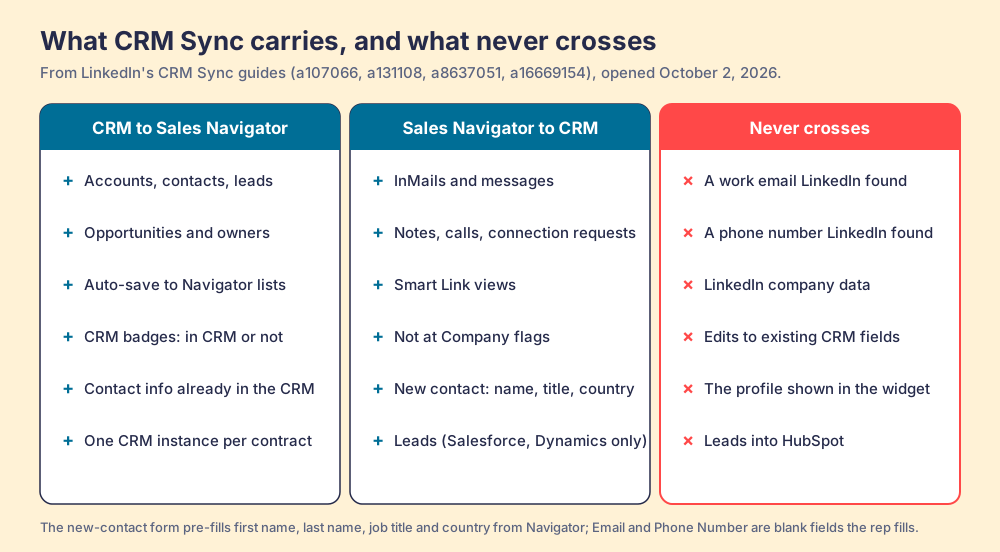
The one line on the manifest that decides most purchases is the contact-creation form. LinkedIn lists ten standard fields and marks four as “pre-populated from Sales Navigator”: First Name, Last Name, Job Title, Country. Email and Phone Number sit on the form with no such note (a131108). LinkedIn’s admin page lets you “specify if an email address is required while creating a contact from Sales Navigator,” a setting for how hard to ask the rep. It supplies no address. The same blank lines show up whichever CRM you connect; the export guide walks through the Salesforce lead form, where the email and phone are optional fields the rep fills by hand.
How often does CRM Sync run?
The schedule is where the bridge gets odd. Ask LinkedIn how often the lorries cross and you get three timetables.
- “Real time.” The help page on exporting from Sales Navigator says CRM Sync “ensures that information is updated in real time between your CRM and Sales Navigator” (a102031, last updated a year ago).
- “Every 12 hours.” The Salesforce admin guide says Sales Navigator “ingests CRM data every 12 hours using the Bulk API,” and the Salesforce FAQ says that after the initial import “Sales Navigator pulls updates every 12 hours” (a16260001; a16669154; both updated September 30, 2026).
- “Once per day.” The Manage CRM Sync page says “Data is synced daily, once per day” (a107066).
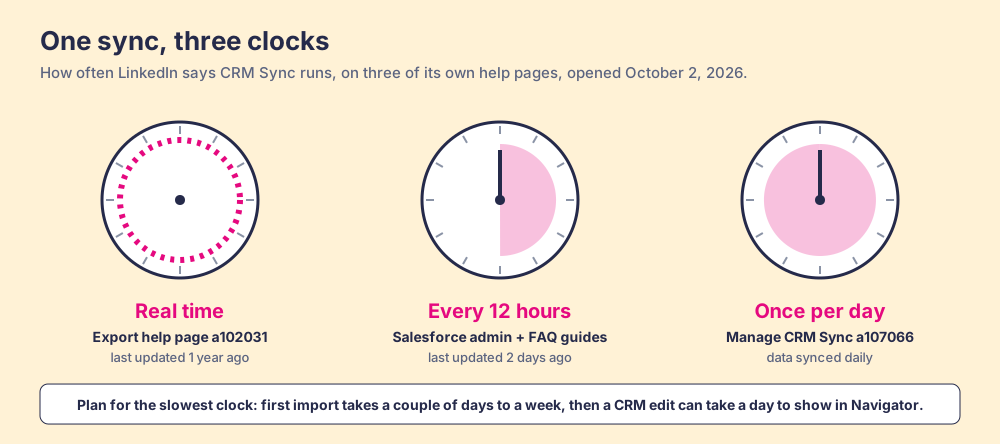
The newest pages say 12 hours, the older ones disagree, and LinkedIn reconciles them nowhere, so plan for the slowest clock. A contact added to the CRM at lunch may not show a CRM badge in Navigator until tomorrow, and the first import takes “anywhere from a couple of days to a week.”
Do you need Advanced Plus for Sales Navigator to CRM sync?
Yes, for every lane on the bridge. LinkedIn’s compare-plans page, opened October 2, 2026, lists Core at US$119.99 per month or US$1,079.88 per year per license and Advanced at US$159.99 per month or US$1,799.88 per year; Advanced Plus says “Request demo for pricing,” and only that tier carries “Advanced CRM Integrations,” described as “Integrates with Salesforce, HubSpot, Microsoft Dynamics, Oracle, and more” (LinkedIn compare plans). Plan detail is in LinkedIn Sales Navigator pricing.
The one public number for Advanced Plus comes from a marketplace field, not LinkedIn’s price list: the Salesforce AppExchange listing for LinkedIn Sales Navigator for Salesforce shows “Starting at $125/User/Month,” and its 30 reviews average 3.6 out of 5 (re-opened October 2, 2026, AppExchange). Treat the $125 as a listing field and the quote as the price. On G2, where Sales Navigator rates 4.4 from 2,211 reviews, one reviewer did not like “the inability to download lead lists to CSV or to CRMs without a third-party add-on” (G2, October 1, 2026).
Why does LinkedIn leave the email and phone out?
Because the far bank belongs to the members. By default a member’s email “is only visible to your direct connections on LinkedIn” (LinkedIn Help, email visibility). LinkedIn’s User Agreement, section 8.2, forbids software, “browser plugins and add-ons” included, that scrapes or copies “profiles and other data from the Services” (LinkedIn User Agreement, effective November 3, 2025). And its prohibited-software page says members who use such tools “risk having their accounts restricted or shut down” (LinkedIn Help, a1341387). So LinkedIn sells sight, Advanced Plus sells a bridge for what you can see, and the email and phone have to come from somewhere else.
The cost of leaving that gap open shows up in the CRM. Validity’s State of CRM Data Management in 2025, a survey of 602 CRM users, found 76% said less than half of their organization’s CRM data is accurate and complete, and 37% reported losing revenue as a direct result of poor data quality (Validity). CRM Sync’s Not at Company flag treats one cause of that, the contact who moved jobs. A contact created with a blank email field is the other cause, and the bridge creates it.
A last caution on the far bank, for any tool that sits on a Navigator page, ours included. Prospector works within LinkedIn’s terms. Ask the vendor three things: what it reads from the page, where its contact data comes from, and whether anything is copied in bulk. LinkedIn’s terms draw the line around scraping and automation, and the account at risk is your rep’s.
How do teams fill the gap, CRM by CRM?
They keep LinkedIn for finding people and add a lane that fetches contact data from outside LinkedIn. We graded four routes for one job: the person a rep found in Navigator becomes a CRM record they can call or email.
| Route | Best fit | CRMs it writes to | Email and phone | Setup effort | Pricing | Grade | Rank |
|---|---|---|---|---|---|---|---|
| Supered Prospector on Clay | Teams with Clay whose reps source in Navigator | HubSpot, Salesforce, Pipedrive | Yes, Clay’s waterfall across 200+ providers | Medium: Clay tables built once | $45 per rep per month, billed annually, plus your Clay plan | A (40/50) | 1 |
| Lusha on top of Navigator | Small teams without Clay | HubSpot, Salesforce, Pipedrive | Yes, from one database, on credits | Low | Starter $449.10 a year, 4,800 credits; phone 5 credits | B+ (36/50) | 2 |
| LinkedIn CRM Sync | Advanced Plus teams on the four supported CRMs | HubSpot, Dynamics 365, Oracle Sales, Salesforce | No: the rep types them | Medium: admin in both systems | Advanced Plus, by quote | B- (29/50) | 3 |
| Rep copies it by hand | One-offs | Any | Only if the rep finds them elsewhere | None | Rep hours | C+ (26/50) | 4 |
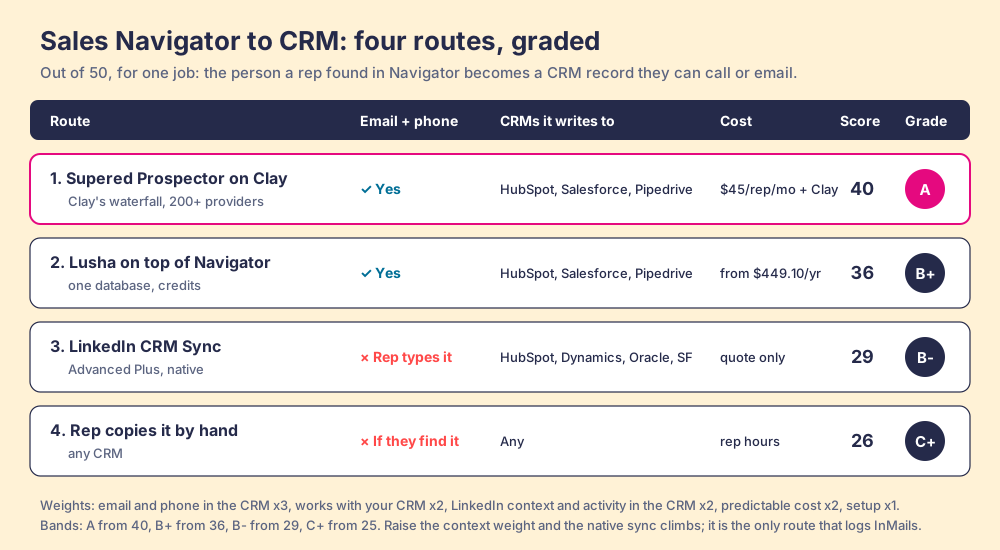
How we graded. Five criteria, out of 50, weighted for a 10 to 50 rep team that sources new people in Navigator: the email and phone land in the CRM (x3), it works with the CRM you run (x2), LinkedIn context and activity show in the CRM (x2), cost you can predict (x2), and setup effort (x1). Prospector scores 5, 4, 3, 4, 3; it loses a point on CRM coverage because it does not write to Dynamics or Oracle. Lusha scores 4, 4, 2, 4, 4. CRM Sync scores 2, 3, 5, 2, 3. Copying by hand scores 1, 5, 1, 5, 1. Bands: A from 40, B+ from 36, B- from 29, C+ from 25. Move the context weight to x3 and the email weight to x1, and CRM Sync climbs to the top, because it is the only route here that logs InMails and flags job changes. That flip is the decision.
Supered Prospector on Clay
Prospector builds the lane the bridge leaves out, for teams that already have Clay. Clay is the waterfall: a Clay table asks provider after provider until one returns a verified email or phone, across what Clay’s homepage calls “200+ providers in one place” (opened October 2, 2026, clay.com). Supered does not bring its own database. It brings Clay’s waterfall, which is every database, routed, and that is why Clay is our only data provider.
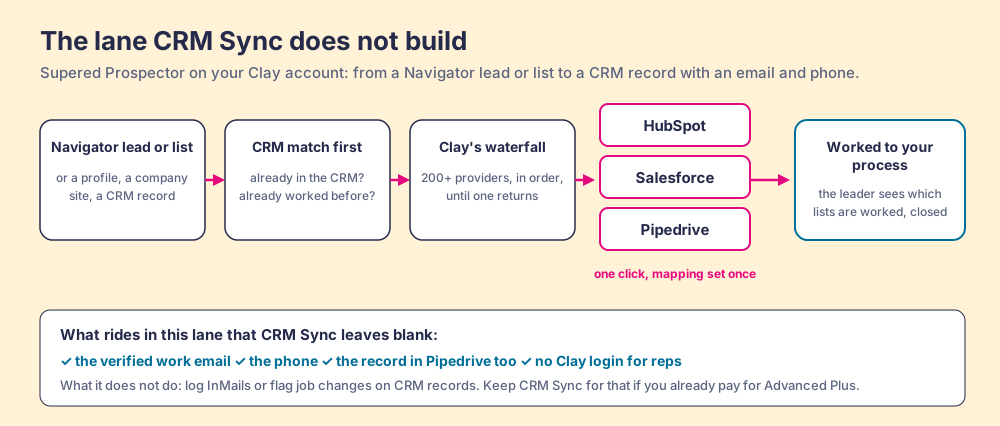
What the rep does, on the team’s own Clay account and with no Clay login:
- A CRM check before the add. On the profile the rep sees the matching HubSpot, Salesforce, or Pipedrive record and whether someone already worked this person, the job CRM badges do on Advanced Plus.
- One button on the Navigator lead or list. The rep runs the team’s Clay table from a lead, or pushes a saved list into a Clay workflow; the same button works on a plain LinkedIn profile, a company website, and a CRM record.
- One click into the CRM. Ops sets the field mapping once. The contact lands in HubSpot, Salesforce, or Pipedrive with the email and phone Clay found, which makes Prospector the one route on this page that brings Pipedrive teams a LinkedIn-to-CRM path from the vendor itself.
- The team’s process on the worked prospect. The next step in your process reaches the rep while they work, and the leader sees which sourced lists got worked and which closed, so coaching starts from the lists that convert.
Clay governs the data. Supered governs the motion. Prospector runs inside the Supered Chrome extension and costs $45 per rep per month, billed annually ($540 a year), from one rep, as its own plan (Prospector). On list prices, ten reps on Navigator Core ($10,798.80) plus Clay Growth ($5,940) plus Prospector ($5,400) come to $22,138.80 a year, with no Advanced Plus in the stack. The full loop is on the sourcing use case.
Choose something else in these cases:
- Dynamics 365 or Oracle Sales as the CRM. Prospector writes to HubSpot, Salesforce, and Pipedrive. On Dynamics, Microsoft’s Relationship Sales bundle with CRM Sync is the native fit.
- Activity logging as the whole need. If the problem is InMails that never reach the CRM, CRM Sync on Advanced Plus is the direct fix, and Prospector does not log InMails.
- No Clay account. Prospector runs only on Clay. Lusha, below, is less setup.
Lusha on top of Navigator, without Clay
Lusha’s extension “lets you reveal verified contact details directly from LinkedIn profiles, Sales Navigator, company websites, and your CRM,” and works in Salesforce, HubSpot, and Pipedrive (Lusha docs). Its Pipedrive integration pushes “enriched contact and organization data from Lusha directly into Pipedrive,” up to 1,000 contacts per export job (Lusha docs, Pipedrive, opened October 2, 2026). Starter costs $449.10 a year for 4,800 credits; an email costs 1 credit and a phone 5 (Lusha pricing, October 1, 2026). G2 rates it 4.3 from 1,668 reviews, and the complaints are about the meter (G2). When Lusha misses, the rep has no next source. The full field of Navigator add-ons is graded in Sales Navigator alternatives and the LinkedIn Chrome extension guide.
How do you set up CRM sync with Sales Navigator?
The steps are the same shape on all four supported CRMs; the per-CRM screens are in the HubSpot and Salesforce guides above.
- The package in the CRM. LinkedIn’s overview says to start “by installing the Sales Navigator app package for your CRM” (a106005): LinkedIn CRM Sync from the HubSpot App Marketplace, the managed package in Salesforce, or the Sales Navigator solution in Dynamics 365.
- Admin settings in Navigator. Sign in as an admin, then Admin, Admin Settings, and Production or Sandbox under CRM.
- The connection. Select the CRM, click Log In, then Start. Test in a Sandbox first if you have one.
- The toggles. Auto-save; Validate CRM Data; Create and Update Contacts, with the email-required option; Create and Update Leads where your CRM has leads; logging for Smart Links, messages and InMails, calls, connection requests, and notes; and Restricted data mode if opportunity data is sensitive.
- A login per rep. Writeback is on by default, but each user authenticates with the CRM before their activity logs, and the Salesforce guide says reps re-authenticate every 90 days.
Then add the lane for the email and phone, so the contacts the bridge creates arrive with something to dial.
Why trust this guide?
Before Supered I founded RevPartners, a HubSpot partner that did only sales implementations and reached HubSpot’s Elite tier in 13 months, where I watched reps carry contacts from LinkedIn into a CRM by hand for years. Supered is the #1 sales enablement app on the HubSpot marketplace, rated 5.0 from 122 reviews there and 4.9 from 81 reviews on G2 (October 1, 2026). We sell one of the routes above, so check each link.
Which LinkedIn Sales Navigator CRM integration should you choose?
- CRM Sync, for teams on Advanced Plus with a supported CRM. It logs the work reps do in Navigator, flags contacts who left, and badges who is already in the CRM. Budget for reps typing every email and phone.
- Prospector on Clay, for teams with Clay on HubSpot, Salesforce, or Pipedrive. The email and phone, in the CRM, from the Navigator lead, at $45 per rep per month, billed annually.
- Lusha, for small teams without Clay. A single database on credits, from $449.10 a year.
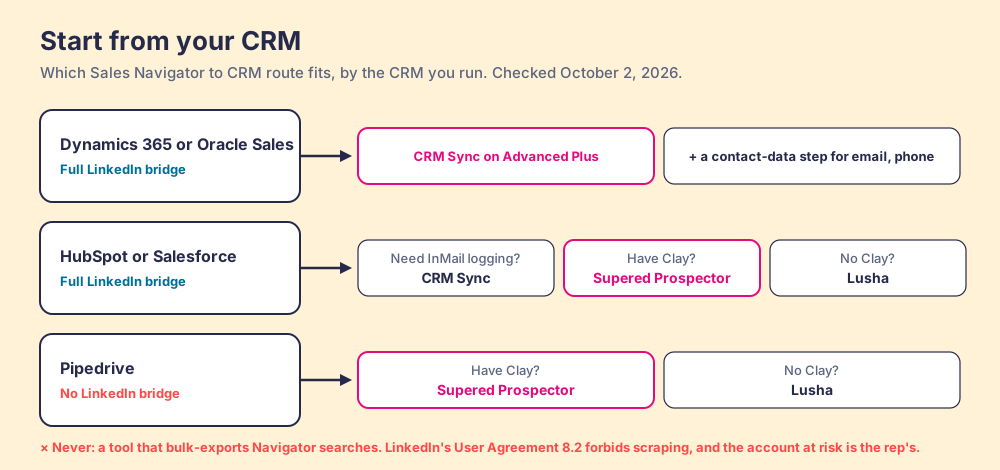
Our recommendation, on these weights: buy Advanced Plus for the bridge only if logging and job-change flags are the problem you are solving. If the problem is that new contacts arrive without an email or phone, no tier of Sales Navigator fixes it, because LinkedIn does not hold that cargo. Keep Navigator on the tier your reps need for search, and if you have Clay, put Prospector on the lead so the contact reaches HubSpot, Salesforce, or Pipedrive ready to call.
The next question is where those emails and phones come from and how to judge a finder; how to get emails from LinkedIn Sales Navigator takes it from there. If your team reaches Clay from the browser already, the Clay Chrome extension guide covers the options, and if you used Exportly for this job before it became Frontier, our Exportly alternatives list is the short version.
Frequently asked questions
Which CRMs does the LinkedIn Sales Navigator CRM integration support?+
Does Sales Navigator integrate with Pipedrive?+
Does CRM Sync add emails and phone numbers to my CRM?+
Do I need Advanced Plus for CRM sync with Sales Navigator?+
How often does Sales Navigator CRM Sync update?+
What is the fastest way to get a Sales Navigator lead into the CRM with an email and phone?+
Your process, running itself.