Export Sales Navigator Leads in 2026: A Reference Library With No Lending Desk
LinkedIn lets you read every lead in Sales Navigator and carry none of them out as a file. What LinkedIn allows in 2026, what CSV scrapers put at risk, and the routes that get a lead into HubSpot or Salesforce with an email and a phone.
To export Sales Navigator leads, you either sync them to your CRM with LinkedIn's CRM Sync on the Advanced Plus plan, which creates the record without an email or phone, or carry each lead's name and profile into a tool that finds the contact data outside LinkedIn.
How to export Sales Navigator leads to HubSpot or Salesforce with emails and phones
45 min- 1
Check your Sales Navigator plan and your CRM
Open Sales Navigator's plan page and confirm whether you are on Core, Advanced, or Advanced Plus. Only Advanced Plus includes CRM Sync and lead or contact creation. HubSpot's integration also needs a Sales Hub Professional or Enterprise seat.
- 2
Pick one route per team
Advanced Plus teams can sync with CRM Sync. Teams with Clay can run Navigator leads through their Clay tables with Supered Prospector. Teams without either use a contact-data extension that works on top of Navigator. Skip tools that copy a whole Navigator search into a CSV.
- 3
Route A: connect LinkedIn CRM Sync
In HubSpot, open the Marketplace, install LinkedIn CRM Sync, connect it to your Sales Navigator environment, accept the requirements, then start all syncs. In Salesforce, enable CRM Sync, then use Add to CRM on a Navigator lead page to create the lead. Each rep authenticates once.
- 4
Route B: run the Navigator lead through Clay with Prospector
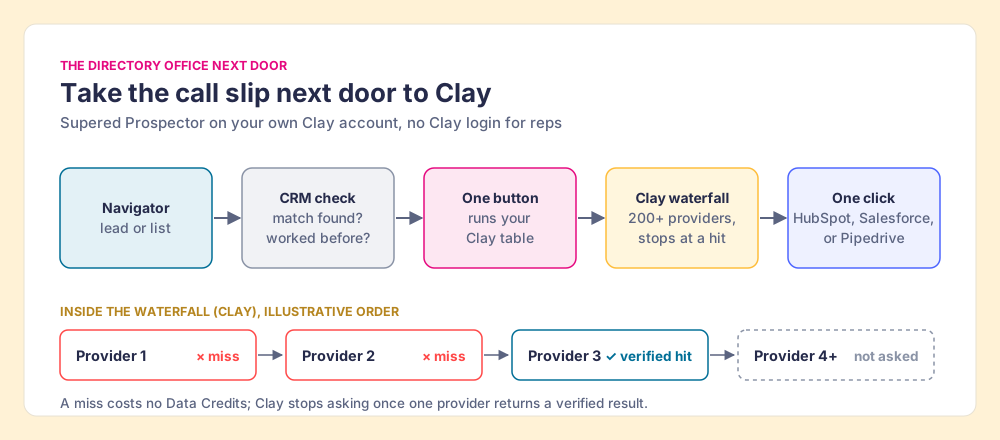
Connect Clay inside Supered once. A rep on a Navigator lead or list checks the CRM match, presses one button to run the team's Clay table, gets the verified email and phone from Clay's waterfall, and sends the lead to HubSpot, Salesforce, or Pipedrive in one click.
- 5
Fill the email and phone before the first touch
Whatever the route, a lead with a name and no email or phone is not ready to work. Confirm the contact data landed in the CRM fields your sequences and dialer read.
- 6
Follow each list from sourced to closed
Tag or name each list by its source, then review which lists were worked and which ones closed, and coach from the lists that convert.
You can export Sales Navigator leads into a CRM, but never as a file from LinkedIn, and the email and phone always come from somewhere outside Sales Navigator. LinkedIn’s help center puts the first half plainly: it “currently doesn’t offer the option to export account and lead information from Sales Navigator into a CSV or XLS file” (LinkedIn Help, checked October 1, 2026). The routes that work, with who each one fits:
- LinkedIn CRM Sync. For teams already paying for Advanced Plus. It creates the lead in Salesforce, HubSpot, or Dynamics, without the email or phone.
- Supered Prospector on Clay. For teams with Clay. One click runs Clay’s waterfall across 200+ providers on the Navigator lead and syncs it to HubSpot, Salesforce, or Pipedrive.
- A contact-data extension. For one or two reps without Clay: Kaspr or Lusha on top of Navigator.
The route that does not appear above is the CSV scraper, and the reasons sit in LinkedIn’s own words further down.
Can you export leads from Sales Navigator?
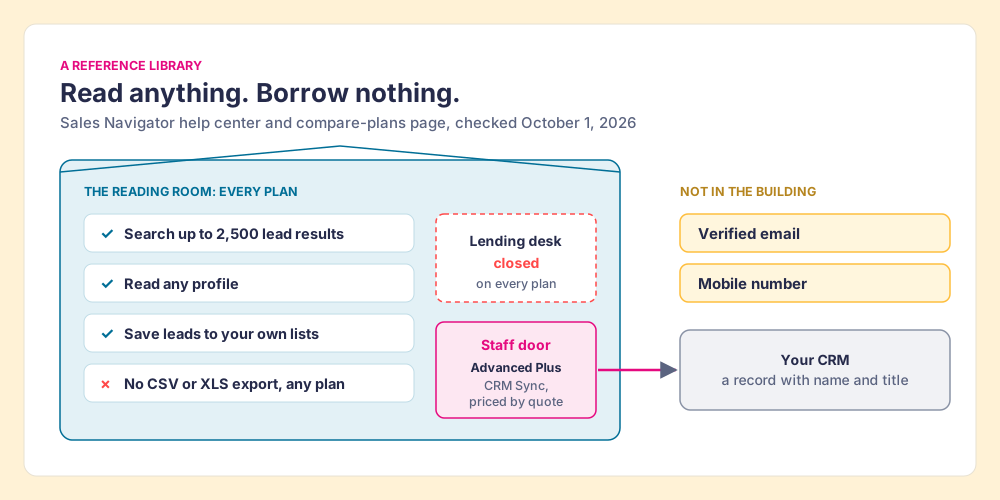
Sales Navigator is a reference library. You can walk the stacks, pull any book, read it at the table, take notes, and save it to a shelf with your name on it. What you cannot do is check it out. There is no lending desk on any plan, and the card catalog is the library’s, not yours.
The rules on the door are short. LinkedIn’s export article says there is no CSV or XLS export, then points to “alternative solutions” that exist “if you’re using the Sales Navigator Advanced Plus plan”: CRM Sync, which links leads and accounts with Salesforce, Microsoft Dynamics, and HubSpot, Embedded Profiles, which show Navigator data inside the CRM, and lead creation in the CRM from a Navigator lead page (LinkedIn Help). The reading room has a size limit too: a search shows “up to 2,500 lead results across 100 pages or 1,000 account results across 40 pages,” and the limit applies “both in Sales Navigator as well as LinkedIn.com” (LinkedIn Help, checked October 1, 2026).
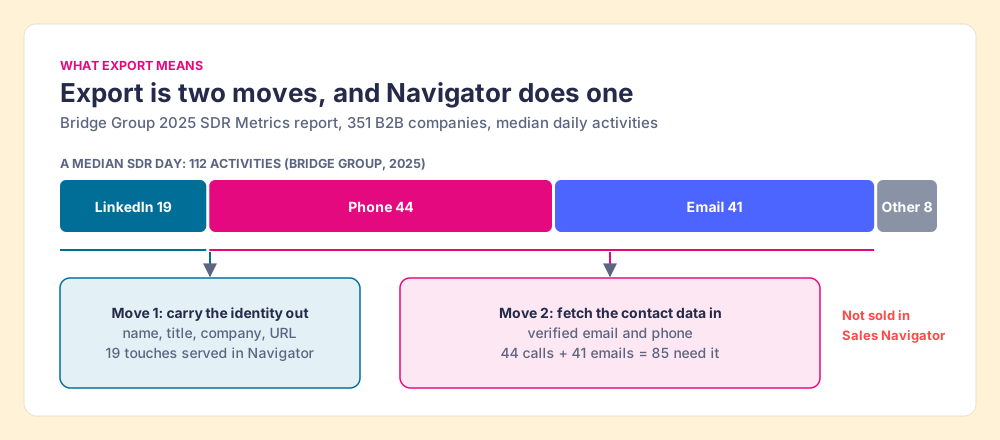
What a rep means by “export” is two separate moves, and the library only helps with one. The first move carries the lead’s identity out: name, title, company, profile URL. The second fetches the email address and phone number a rep needs, which Sales Navigator does not hold for sale at all. A G2 reviewer, Tim P., an owner and CEO, named both in February 2026: “I don’t like the inability to download lead lists to CSV or to CRMs without a third-party add-on” (G2, read October 1, 2026).
The second move is most of the work. The Bridge Group’s 2025 SDR report, 351 B2B companies, puts the median SDR at 112 activities a day: 44 phone, 41 email, 19 LinkedIn, and 8 text or other (Bridge Group). Navigator serves the 19 LinkedIn touches in place. The other 85 calls and emails need a number or an address that no Navigator export, native or scraped, carries out of the building.
What do LinkedIn’s three plans allow?
Prices from LinkedIn’s compare-plans page, opened October 1, 2026, which calls them estimates that may exclude tax and promotions (LinkedIn, compare plans):
| Plan | Price per license | CSV or XLS export | CRM Sync and lead creation | Email and phone |
|---|---|---|---|---|
| Core | US$119.99 a month or US$1,079.88 a year | No | No | Not sold |
| Advanced | US$159.99 a month or US$1,799.88 a year | No | No | Not sold |
| Advanced Plus | ”Request demo for pricing” | No | Yes: Salesforce, HubSpot, Microsoft Dynamics, Oracle, and more | Not sold |
The Advanced Plus row on that page reads “Add leads and accounts to your CRM directly from Sales Navigator, no manual entry required.” The phrase carries more weight than the feature behind it, as the next section shows.
What does Advanced Plus CRM Sync put in your CRM?
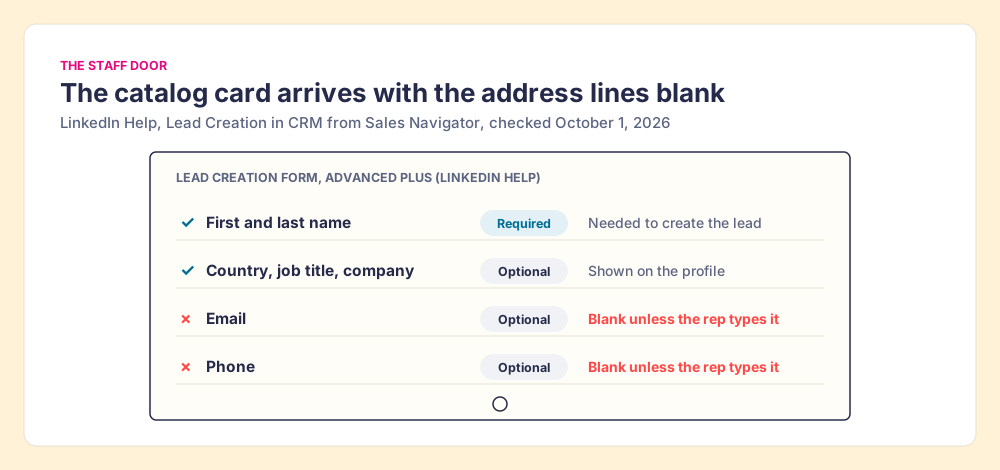
The library does have a staff door. On Advanced Plus, a librarian will fill out a catalog card for any book you choose and file it in your own cabinet. The card arrives with the title, the author, and the shelf mark. The author’s home address and phone number are lines left blank, because the library never had them.
LinkedIn’s lead-creation article spells the card out. “Lead creation is available to Salesforce and Microsoft Dynamics 365 Sales users who are on Sales Navigator Advanced Plus edition,” CRM Sync must be enabled, and the rep clicks Add to CRM, then Add new lead, signs in to the CRM, and fills a form that lists first and last name as required and country, job title, email, phone, and company as optional (LinkedIn Help, page marked “last updated 5 years ago,” checked October 1, 2026). Email and phone sit in the optional column, filled by the rep or left blank.
HubSpot’s side has two apps, and they do different jobs. The LinkedIn Sales Navigator app needs “an assigned Sales Hub Professional or Enterprise seat” and “a LinkedIn Sales Navigator Advanced Plus account,” each rep connects it under their own login, and HubSpot states the limit flatly: “It is not possible to import contacts from LinkedIn using the integration” (HubSpot Knowledge Base, updated August 31, 2026). That app shows LinkedIn data on HubSpot records. The second app, LinkedIn CRM Sync, is the one that can “create and update HubSpot contacts from Sales Navigator,” with the same seat and plan requirements (HubSpot Knowledge Base, updated June 21, 2026).
So the native answer is a good catalog with blank address lines. For a team that already pays for Advanced Plus, it is the cleanest identity sync on the market, with LinkedIn activity logged to the record. For a team on Core or Advanced, it is a quote-priced upgrade that still leaves the rep looking up the number.
Why are Sales Navigator scrapers a risk to your LinkedIn account?
The other way out of a library with no lending desk is under your coat. Sales Navigator scrapers do that: a browser extension or cloud tool reads your search results page by page and writes the rows to a spreadsheet. The Chrome Web Store listing for one of them, SalesNav Exporter (1,000 users, checked October 1, 2026), promises “With one click, export your lead lists straight to a CSV file,” and adds “No fluff, no enrichment.” The scrape carries out what was on the shelf. The phone number was never on the shelf.
LinkedIn’s terms on this are not ambiguous. Section 8.2 of the User Agreement, effective November 3, 2025, has members agree not to “develop, support or use software, devices, scripts, robots or any other means or processes (such as crawlers, browser plugins and add-ons or any other technology) to scrape or copy the Services, including profiles and other data from the Services,” and not to “use bots or other unauthorized automated methods to access the Services, add or download contacts” (LinkedIn User Agreement). LinkedIn’s help page on prohibited software names the consequence: members who use such tools “risk having their accounts restricted or shut down,” and the tools “may become non-operational without notice” (LinkedIn Help, checked October 1, 2026).
The scraper vendors price the risk in themselves. Evaboot, which calls itself “the smartest LinkedIn scraper,” tells readers of its export guide “We export at a pace LinkedIn won’t red-flag as a bot,” advises “Use a dedicated prospecting seat, not the profile your network lives on,” and concedes “you can’t rely on scraping only to find emails from LinkedIn” (Evaboot, checked October 1, 2026). And the risk reaches past individual reps: in March 2025 the company pages of Apollo and Seamless.AI disappeared from LinkedIn, and MarTech reported that scraping via Chrome extensions “appears to be against LinkedIn’s terms of service” (MarTech, May 8, 2025).
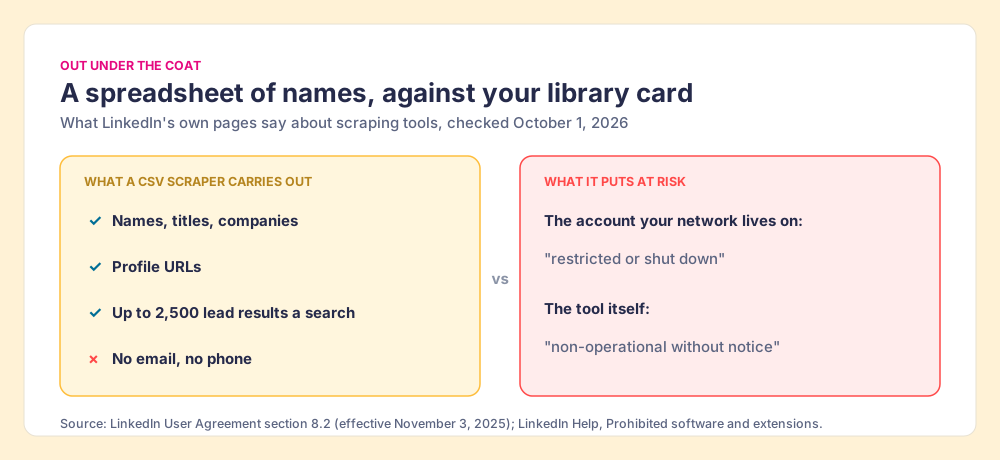
The library card is the part that hurts. A rep’s LinkedIn account holds years of connections, the network a sales team hires them partly for. Risking it to carry out a spreadsheet of names that still needs a second tool to become callable is a poor trade even before the terms come into it. This page does not rule on any single vendor’s compliance. The fair test for any tool that touches a Navigator page, ours included, is three questions: what does it read from the page, where does the contact data come from, and does anything get copied in bulk. Our answer for Prospector: it works within LinkedIn’s terms and does not copy search results in bulk, and the contact data comes from Clay’s waterfall on your own Clay account.
Step 1: Pick the route that fits your plan and your CRM
With the coat ruled out, three doors remain, and two questions choose between them. Are you already on Advanced Plus? Do you have Clay?
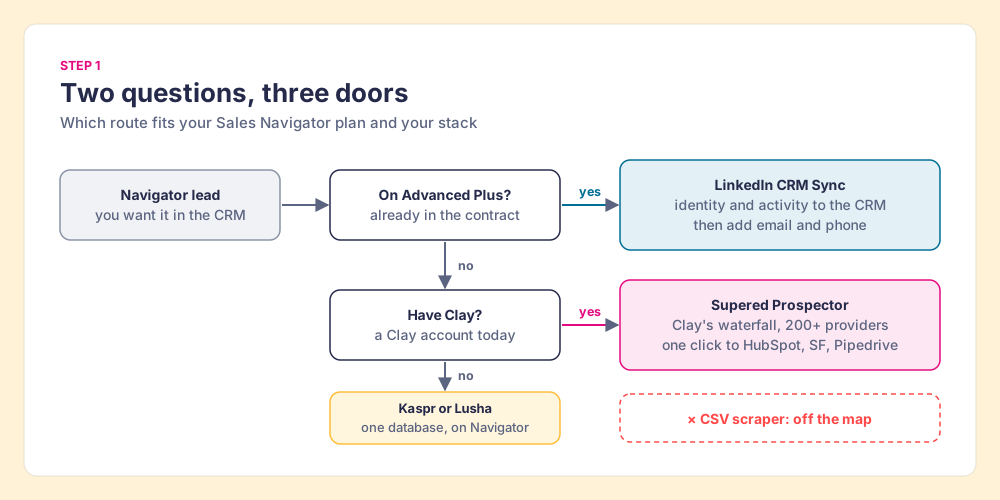
- Advanced Plus already in the contract. Use CRM Sync for the identity and the activity log, and add a contact-data step for the email and phone.
- Clay already in the stack. Use Prospector: the email, the phone, and the CRM record come from one click on the Navigator lead.
- Neither, and one or two reps. A single-database extension on top of Navigator is the least setup.
Step 2: Sync Sales Navigator to HubSpot or Salesforce with CRM Sync
For Advanced Plus teams, the setup is a few clicks per system, with requirements worth checking first.
Sales Navigator to HubSpot. You need a Super Admin or App Marketplace access, a Sales Hub Professional or Enterprise seat, and Advanced Plus. Per HubSpot’s article: open the Marketplace, find LinkedIn CRM Sync, click Install, then Connect to LinkedIn CRM Sync, choose the Sales Navigator environment, click Accept & Continue, and in Connected Apps click Start all syncs. HubSpot contacts map to LinkedIn leads, companies to accounts, deals to opportunities. Three limits to know before you start: “You can only connect one HubSpot account with one Sales Navigator environment at a time”; “Only new and updated data will sync” after the sync is on; and “Editing the data sync is not possible,” so mapped fields sync all or nothing. Each rep then connects Sales Navigator to the CRM from their own Navigator settings for the writebacks.
Sales Navigator to Salesforce. A Sales Navigator administrator enables CRM Sync in Sales Navigator’s admin settings (Microsoft Learn, LinkedIn CRM Sync). A rep then opens a Navigator lead page, clicks Add to CRM, then Add new lead, signs in to Salesforce when prompted, and fills the form, with first and last name required. If the lead is already in Salesforce, the More icon on the lead page shows the CRM match, so check it before adding a new one.
Then fill the blank lines. CRM Sync leaves email and phone to the rep, so the record needs a contact-data step before it goes into a sequence. The deeper setup for each CRM, including what the embedded profile shows, lives in the HubSpot LinkedIn integration guide and the Salesforce LinkedIn integration guide.
Step 3: Run Navigator leads through Clay with Supered Prospector
The third door goes to a different building. Instead of asking the library for an address it never had, the rep takes the call slip (name, company, profile URL) to the city directory office next door, where 200+ directories are cross-checked in order until one has a verified listing.
That office is Clay. Clay’s waterfall checks “multiple providers to return the most verified emails (lower bounce rate) and phone numbers (higher connect rate)” (Clay), across what Clay’s homepage calls “200+ providers in one place” (opened October 1, 2026). The order is cost-aware: “Once Clay finds what it needs from one provider, it won’t check the others. This helps save your credits” (Clay University), and Clay’s pricing page says “If an enrichment returns no result, you’re not charged Data Credits or Actions” (Clay pricing, October 1, 2026).
Supered Prospector puts that office one click from the Navigator lead. What the rep does, on the team’s own Clay account and with no Clay login:
- The CRM check first. On the profile, the rep sees the matching HubSpot, Salesforce or Pipedrive record and whether the person was already worked in the past, before adding a duplicate or stepping on a teammate.
- One button on the lead. The rep runs the team’s Clay table from the Navigator lead or saved list; Clay’s waterfall returns the verified email and phone.
- Whole lists and custom workflows. A rep can push a saved list into a Clay workflow, run any custom Clay workflow the GTM engineer built, and pull a buying committee tuned to the team’s titles and seniority.
- One click to the CRM. Ops sets the field mapping once; after that, a lead syncs to HubSpot, Salesforce, or Pipedrive in one click, email and phone included.
Supered does not bring its own database. It brings Clay’s waterfall, which is every database, routed, and that is why we chose Clay as our only data provider. Clay governs the data. Supered governs the motion. The same button works away from Navigator too, on a plain LinkedIn profile, a company’s website, and a HubSpot, Salesforce or Pipedrive record, so a rep working a named account list may not need the Navigator search to start.
Prospector is $45 per rep per month, billed annually, from one rep, on its own plan (Prospector); it runs on your Clay account and credits. On list prices for ten reps: Navigator Core $10,798.80, plus Clay Growth $5,940, plus Prospector $5,400, comes to $22,138.80 a year for LinkedIn’s search with contact data and a one-click CRM path behind it. The full rep loop, from the profile to the closed deal, is on the sourcing use case.
Choose something else if:
- No Clay account. Prospector needs one. Kaspr or Lusha is less setup for a rep without Clay.
- Advanced Plus already paid for, and email only. CRM Sync plus a light email finder may be enough.
- Outreach drafted by AI. Prospector does not write or send emails; it hands the lead to your CRM and sequencer.
Step 4: Without Clay, add a contact-data extension on top of Navigator
For one or two reps with neither Advanced Plus nor Clay, a single-database extension is the shortest path. Kaspr’s pricing page says “Use Kaspr on top of Sales Navigator” on its Starter plan, from $49 per user per month, with up to 12,000 exports a year (Kaspr pricing, October 1, 2026). Lusha charges 1 credit for a verified email and 5 for a phone, with a free plan of up to 40 credits a month (Lusha pricing, October 1, 2026). Each is one database: when it misses, the rep has no next source. The full field is graded in Sales Navigator alternatives and the LinkedIn Chrome extension guide.
Step 5: Follow each Navigator list from sourced to closed
A lead in the CRM with an email and phone is the start of the work. Name each list by its source when you build it (the Navigator search, the event, the account plan), so the CRM can tell you later which lists were worked and which ones closed. In Prospector, the team’s process applies to worked prospects, so a leader sees which sourced lists got worked and which closed, and coaches from the lists that convert instead of chasing the ones that stalled.
Why trust this guide?
Before Supered I started RevPartners, a HubSpot partner that did only sales implementations and reached HubSpot’s Elite tier in 13 months, which meant years of watching reps carry contacts from LinkedIn into a CRM by hand. Supered is the #1 sales enablement app on the HubSpot marketplace, rated 5.0 from 122 reviews there and 4.9 out of 5 from 81 reviews on G2 (October 1, 2026). The disclosure: we make Prospector, and it appears above as one of three routes.
Which way should you export Sales Navigator leads?
The library rules decide most of it. LinkedIn sells no file export and no contact data on any plan, its one door to the CRM is quote-priced and leaves the address lines blank, and the coat costs more than it carries.
- CRM Sync on Advanced Plus. The pick when the contract already includes it: the cleanest identity sync, with a contact-data step added.
- Supered Prospector on Clay. The pick for a team with Clay: email, phone, and CRM record from one click on the Navigator lead, across 200+ providers.
- Kaspr or Lusha. The pick for one or two reps without Clay.
- CSV scrapers. Not recommended: LinkedIn’s terms bar them, the account at risk is the rep’s network, and the file still has no phone numbers.
Our recommendation, given those facts: do not pay for the upgrade or risk the account to move a name. Move the name, fetch the contact data from outside LinkedIn, and land both in the CRM in one step. If you have Clay, that step is Prospector.
Your own first-degree connections are the one LinkedIn list you can download as a file, and how to export LinkedIn contacts covers what that archive includes and what it leaves out. If your team runs Clay already, the Clay Chrome extension guide and our take on Exportly alternatives cover the other ways reps reach Clay from the browser. If someone on the team is pushing a scraper or an API instead, the Sales Navigator scraper guide covers what LinkedIn bans and the Sales Navigator API guide covers who can actually get access. New to the tool itself? Start with how to use LinkedIn Sales Navigator.
Frequently asked questions
Can you export leads from Sales Navigator to a CSV?+
How do I get Sales Navigator leads into HubSpot?+
How do I get Sales Navigator leads into Salesforce?+
Is it against LinkedIn's rules to scrape Sales Navigator?+
Does Advanced Plus CRM Sync add emails and phone numbers?+
Do I need Clay to use Supered Prospector on Sales Navigator?+
Your process, running itself.