Sales Navigator Search Filters in 2026: All 54, Boolean That Parses, and the 2,500 Cup
LinkedIn's help center lists 38 lead filters and 16 account filters. All 54 are below, with the Boolean rules that rewrite careless strings, the 2,500-result cap and how to slice around it, saved searches that refill, and the step after the list.
Sales Navigator search filters are the 54 lead and account criteria in LinkedIn's help center, from company, role and geography to buyer intent and network paths, that narrow LinkedIn's data to a list you can save, with Boolean strings in the keyword, title and company fields.
How to build a lead list with Sales Navigator search filters
40 min- 1
Start from accounts when you know your market
Build an account search with Company attributes (headcount, industry, headquarters location, headcount growth) and save the matches to an account list. On Advanced or Advanced Plus you can upload up to 1,000 accounts from a CSV instead.
- 2
Search leads inside that account list
Open a lead search and set the Account lists filter to the list you built. Add Function and Seniority level for the buying roles, then Geography if territory matters.
- 3
Add a Boolean title or keyword string for what filters miss
Type the string in a plain-text editor with straight quotes, wrap OR groups in parentheses, write AND, OR and NOT in capitals, and stay under about 15 operators. Paste it into the Current job title or keyword field.
- 4
Slice the search under 2,500 results
Sales Navigator shows at most 2,500 lead results per search. If the count is higher, add one slicing filter (a region, a headcount band, a seniority level) and save each slice as its own search.
- 5
Save each slice and turn on alerts
Turn on the Save search to get notified of new results toggle and rename the search by its slice. New matches arrive by weekly email and in the All alerts tab. A seat holds 50 saved lead searches and 50 saved account searches.
- 6
Save leads to a list named by its source
Save the leads to a custom lead list named for the search that found them, so you can tell later which source produced worked and closed leads.
- 7
Get the email and phone before the first touch
The list holds no email or phone on any plan and cannot be exported as a CSV. Teams with Clay push the list to a Clay workflow with Supered Prospector and sync it to HubSpot, Salesforce, or Pipedrive; Advanced Plus teams can use CRM Sync for the record and add contact data separately.
A rep opens Sales Navigator, picks a title, a region and a company size, and watches the count at the top of the results settle somewhere in the tens of thousands. She saves the best-looking leads from page one, then page two. Around page 100 the results stop. The market did not end there. The page did.
Sales Navigator search filters are the 54 lead and account criteria in LinkedIn’s help center, from company, role and geography to buyer intent and network paths, that narrow LinkedIn’s data to a list you can save, with Boolean strings in the keyword, title and company fields. The filters are the easy half. The hard half is four facts spread across six LinkedIn help articles: one search shows at most 2,500 leads, Boolean has an order of operations that rewrites careless strings, the search will loosen your words or a filter without being asked, and the finished list holds no email or phone. Build for those four and the list you make is the list you work.
What are the Sales Navigator search filters?
LinkedIn’s definitions page, marked “Last updated: 1 week ago” when I opened it, groups 38 lead filters into seven families and 16 account filters into three, 54 in all (LinkedIn Help, filter definitions, checked October 2, 2026). The count squares with the “50+ advanced search filters” the compare-plans page lists on all three plans (LinkedIn, compare plans). Each filter takes Include or Exclude, results refresh live as you add them, and you can pin the ones you use so they open first (LinkedIn Help).
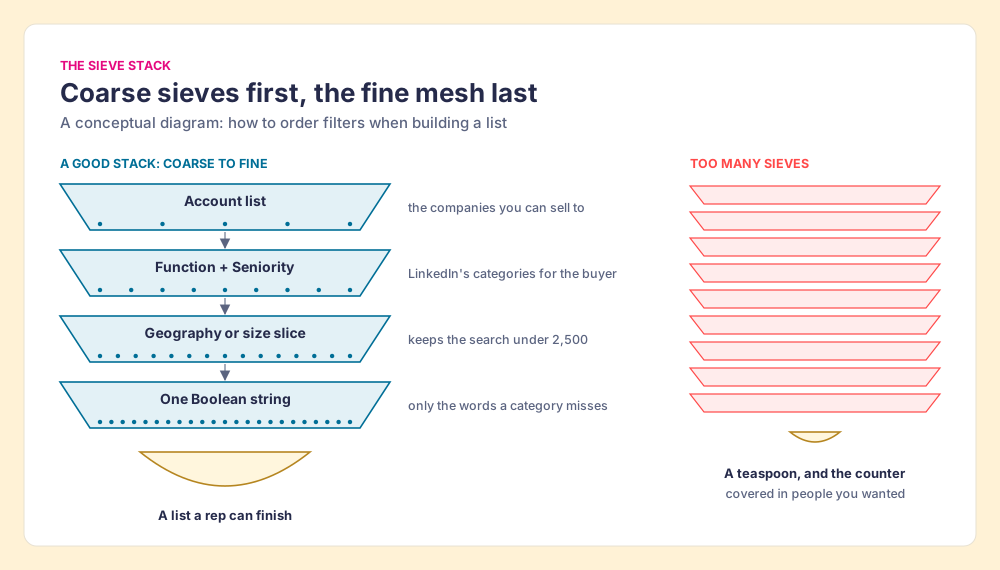
The filters work like a stack of kitchen sieves. Each one you add is a finer mesh, and what reaches the bottom is the list. Two sieves with sensible holes give you a bowl of good flour. Nine sieves give you a teaspoon and a counter covered in what you threw away, including some of the people you wanted.
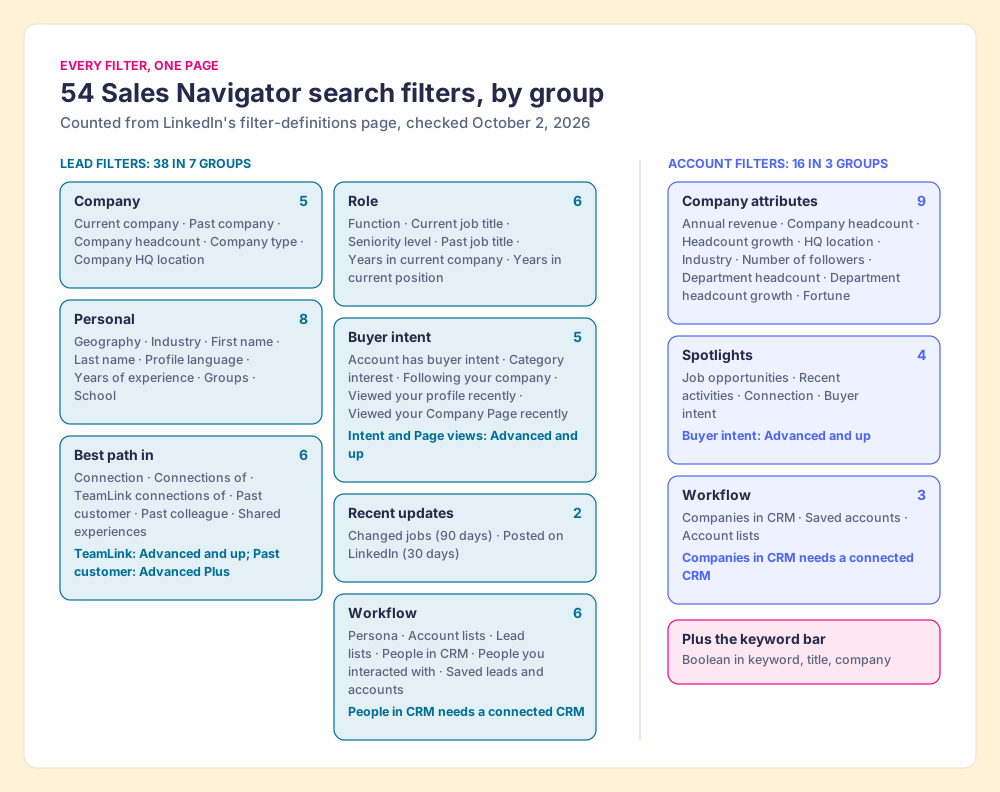
Lead filters (38)
| Group | Filters | Plan or setup note |
|---|---|---|
| Company (5) | Current company, Past company, Company headcount, Company type, Company headquarters location | All plans |
| Role (6) | Function, Current job title, Seniority level, Past job title, Years in current company, Years in current position | All plans |
| Personal (8) | Geography (region or postal code), Industry, First name, Last name, Profile language, Years of experience, Groups, School | All plans |
| Buyer intent (5) | Account has buyer intent, Category interest, Following your company, Viewed your profile recently, Viewed your Company Page recently | Buyer intent, Category interest and Company Page views: Advanced and Advanced Plus |
| Best path in (6) | Connection (1st, 2nd, Group, 3rd+, TeamLink), Connections of, TeamLink connections of, Past customer, Past colleague, Shared experiences | TeamLink: Advanced and Advanced Plus. Past customer: Advanced Plus |
| Recent updates (2) | Changed jobs (last 90 days), Posted on LinkedIn (last 30 days) | All plans |
| Workflow (6) | Persona, Account lists, Lead lists, People in CRM, People you interacted with, Saved leads and accounts | People in CRM needs a connected CRM |
Account filters (16)
| Group | Filters | Plan or setup note |
|---|---|---|
| Company attributes (9) | Annual revenue, Company headcount, Company headcount growth, Headquarters location, Industry, Number of followers, Department headcount, Department headcount growth, Fortune | All plans |
| Spotlights (4) | Job opportunities, Recent activities, Connection, Buyer intent | Buyer intent: Advanced and Advanced Plus |
| Workflow (3) | Companies in CRM, Saved accounts, Account lists | Companies in CRM needs a connected CRM |
Plan notes come from the definitions page, LinkedIn’s “Search in Sales Navigator” article (LinkedIn Help, updated four months ago), and the compare-plans grid, which marks Buyer Intent and TeamLink for Advanced and Advanced Plus only. CRM integration itself is an Advanced Plus feature, so the two CRM filters assume that plan.
Which LinkedIn Sales Navigator search filters build the best lists?
For a list a rep will call and email, six filters do most of the work, and the rest are tie-breakers.
- Account lists, inside a lead search. Build the account list first (the companies you can sell to), then search for people only inside it. The list of companies is the coarse sieve; the people search is the fine one.
- Function plus Seniority level. These are LinkedIn’s own categories, so a rep picks a role family and a level instead of guessing every spelling of a title. LinkedIn’s search article says Seniority now includes “Experienced manager,” “Entry-level manager” and “Strategic” levels.
- Company headcount and Geography. The two slicing filters, more on them below.
- Changed jobs in the last 90 days. LinkedIn describes the filter as a way to spot “new contacts at your accounts, new business opportunities.”
- Past colleague and Past customer. Leads who once worked at your company, and leads who worked at a company that was your customer (Past customer is Advanced Plus only).
- People in CRM, set to Exclude. On Advanced Plus, this keeps the search from re-finding people your team already owns.
Use a title string only for words a category cannot hold, such as a product name in a title (“Salesforce Administrator”) or a role LinkedIn files under a broad function.
How does Sales Navigator Boolean search work?
Sales Navigator Boolean search combines keywords with AND, OR and NOT, straight quotes and parentheses, and LinkedIn says it works “in the Company, title, and keyword field (with a limit of about 15 search operators) in Sales Navigator” (LinkedIn Help, Boolean on Sales Navigator, checked October 2, 2026). The rules LinkedIn prints, in one place:
- Capital operators. Type AND, OR and NOT in capitals; LinkedIn says lowercase operators will not work correctly.
- Straight quotes for phrases. “Curly quotation marks… aren’t supported.”
- Parentheses as the only grouping. Brackets and braces “are treated as ordinary characters” (LinkedIn Help).
- No wildcards. “We don’t support wildcard ’*’ searches,” so write the variants out: manager OR management.
- Implied AND. Two plain terms already mean both; you can drop the AND.
- Stop words dropped. Words such as “by,” “in” and “with” are ignored for speed.
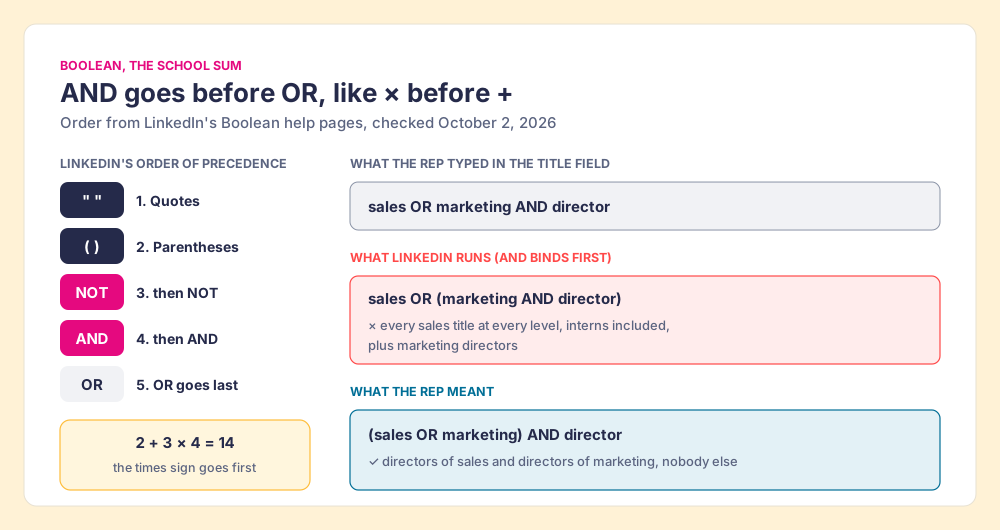
Then the rule that breaks the most strings. LinkedIn evaluates quotes first, then parentheses, then NOT, then AND, and OR last. It is the order of operations from school, where 2 + 3 × 4 is 14 because the times sign goes first. AND is the times sign. A rep who types sales OR marketing AND director into the title field means directors of either team. LinkedIn reads sales OR (marketing AND director), which is every sales title at every level, interns included, plus marketing directors.
The Stanford information-retrieval textbook by Manning, Raghavan and Schütze describes the trade Boolean asks you to make: “using AND operators tends to produce high precision but low recall searches, while using OR operators gives low precision but high recall searches, and it is difficult or impossible to find a satisfactory middle ground” (Introduction to Information Retrieval, Cambridge University Press). The same book notes that professionals prefer Boolean because “a document either matches the query or it does not,” and that expert queries are “incrementally developed.” In list terms: OR widens the net, AND tightens it, and you build the string one clause at a time while you watch the count.
Worked Boolean strings
| Field | String | What it returns | Operators |
|---|---|---|---|
| Current job title | (VP OR “Vice President” OR “Head of”) AND (sales OR revenue) NOT (assistant OR intern) | Sales and revenue leaders, minus assistants and interns | 6 |
| Keyword | HubSpot NOT (partner OR agency OR consultant) | People who mention HubSpot and are not selling HubSpot services | 3 |
| Company | ”credit union” OR bank NOT “investment bank” | Credit unions, plus banks that are not investment banks (NOT binds to the term after it before OR runs) | 2 |
| Current job title | (manager OR management OR managing) AND operations | The wildcard you cannot type, written out | 3 |
| Current job title | (sales OR marketing) AND director | The fixed version of the string that went wrong above | 2 |
The operator counts tally AND, OR and NOT. LinkedIn says “about 15” without saying whether quotes or parentheses count, so leave a margin. Draft strings in a plain-text editor: word processors and phone keyboards turn straight quotes into curly ones, and a curly quote is not a quote to Sales Navigator.
Why does a Sales Navigator search stop at 2,500 results?
LinkedIn caps the results page: “You can view up to 2,500 lead results across 100 pages or 1,000 account results across 40 pages,” in Sales Navigator and on LinkedIn.com alike (LinkedIn Help, search results limit, checked October 2, 2026). The matches past that line still exist. The page will not pour them.
A search, then, is a cup dipped in a pot. The pot holds everything your filters match, at any size. The cup holds 2,500. Dip a 2,500 cup into a pot that holds far more and you see the top of the pot, in whatever order LinkedIn ranks it, and nothing beneath. The fix is the cook’s fix: dip in different places. Slice the search until each slice fits in one cup, and save each slice.
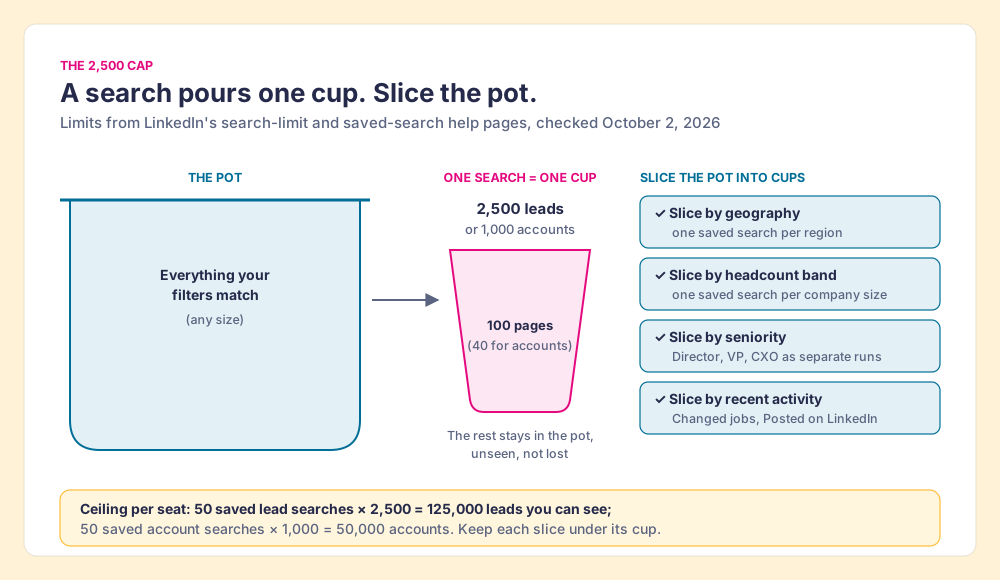
Good slicing filters split the pot cleanly with no overlap:
- Geography. One saved search per region, state or postal code, which also matches how territories are drawn.
- Company headcount. One search per size band, so the small-company slice does not crowd out the large accounts.
- Seniority level. Directors, VPs and CXOs as separate runs, each with its own message.
- Recent updates. Changed jobs and Posted on LinkedIn as their own small, time-sensitive slices.
The arithmetic gives the true ceiling. LinkedIn allows “a total of 50 lead searches and 50 account searches” (LinkedIn Help, saved searches, checked October 2, 2026). Fifty slices of 2,500 is 125,000 leads one seat can see through saved searches. The cap is a reason to slice, and slicing produces lists a rep can finish.
What changes your search without asking?
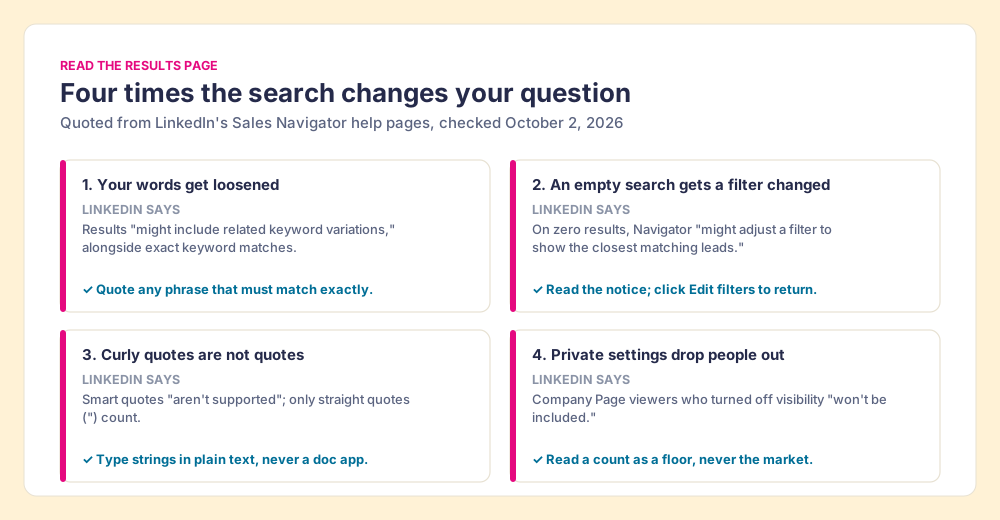
Four lines in LinkedIn’s own help pages describe a results page that edits your question. None of them is a bug. All of them change the list.
- Loosened words. Search results “might include related keyword variations,” alongside exact matches (LinkedIn Help, marked updated one week before October 2, 2026). Quote any phrase that has to match.
- A filter adjusted on an empty search. “If a lead search returns no results, Sales Navigator might adjust a filter to show the closest matching leads while preserving your search intent.” It names the filter it changed. A rep who skims past that notice saves leads that do not fit the brief. Click Edit filters to return to the original criteria.
- Curly quotes ignored. Covered above, and an easy way for a pasted string to go wrong without any error message.
- Private settings that drop people. For Viewed your Company Page recently, “members who turned off their Page visit visibility settings won’t be included.” A filter built on member data counts only members who share it, so read every count as a floor.
How do saved searches and alerts work?
A saved search keeps “your search criteria, including keyword strings and filter refinements,” and when new people or companies match, LinkedIn sends “weekly emails and alerts on your Sales Navigator homepage” (LinkedIn Help). To save one, run the search, then turn on the toggle “Save search to get notified of new results” near the top of the filter pane, and rename it by its slice. Run it again from Saved Searches on the homepage (LinkedIn Help).
That changes what a list is. A list of saved leads is a photograph. A saved search is a window: the slice you defined in March shows you the director who joined a target account in May, without anyone rebuilding the string. Save the search first and the leads second.
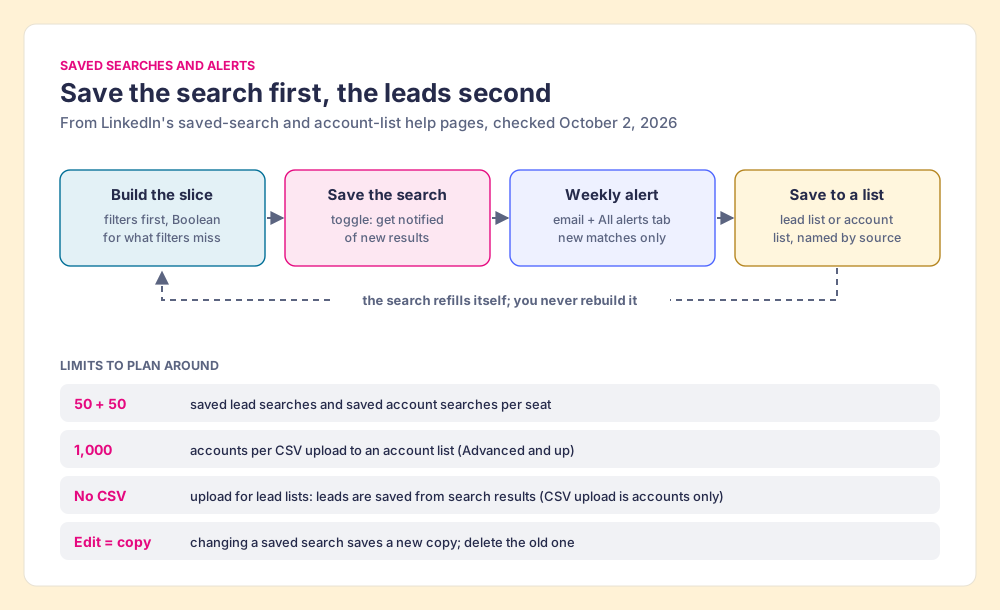
Three details catch teams out. Editing a saved search means “saving the new search as a copy,” then deleting the original. Searches can be shared with colleagues, which is how a manager hands a territory’s slices to a new rep. And the free trial is not the full product: LinkedIn’s usage page says “certain features may be more limited than with a paid subscription” (LinkedIn Help).
How do you build lead lists and account lists?
Create a list from the Lists menu (Lead Lists or Account Lists, then Create), or press Save beside a result and pick or create a list from there (LinkedIn Help, custom lists, updated last month). Account lists have a shortcut lead lists lack: on Advanced and Advanced Plus you can upload a CSV of companies, “no more than 1,000 accounts” per file and under 20 MB, and “CSV uploads can only be used for account lists, not lead lists” (LinkedIn Help, checked October 2, 2026). The 1,000-account file limit matches the 1,000-account cap on the results page, so the same number governs both doors.
The order that works for a mid-market team, and the HowTo steps at the end of this page, run account first:
- Account list from your ICP. Company attributes, or a CSV of your target accounts.
- Lead search inside it. The Account lists filter, then Function and Seniority.
- One Boolean string, if needed. For the titles the categories miss.
- Slices under 2,500, each saved with alerts. Named by region, size or seniority.
- Leads saved to a list named for its source. “Q4 Southeast VP Sales,” never “List 7.”
LinkedIn’s own lists help article adds two system lists worth checking weekly: Recommended Leads, “up to 100 recommended leads” from your activity and buyer intent, and New Executives at Saved Accounts, CXOs and VPs who joined a saved account in the past three months (LinkedIn Help).
LinkedIn Sales Navigator search tips for list builders
- Filters before strings. Categories are maintained by LinkedIn; your spelling list is maintained by you. Start with Function and Seniority, then add Boolean for the gaps.
- One change at a time. Watch the count after each filter. The Stanford authors’ “incrementally developed” query is a list-builder’s habit too.
- Exclusions as often as inclusions. People you interacted with, set to Exclude, keeps a rep from re-contacting last month’s leads.
- Persona for repeat roles. LinkedIn’s best-practice note points sellers to the Persona filter, defined by function, seniority, title and geography, so a team shares one definition of the buyer.
- Browser extensions with care. LinkedIn’s search article warns that “using browser plugins and extensions may limit your ability to conduct searches in Sales Navigator and may result in limitations and restrictions to usage,” and its usage page tells members to remove extensions “that may be scraping profile data or causing a high number of profile views.”
What happens after the list is built?
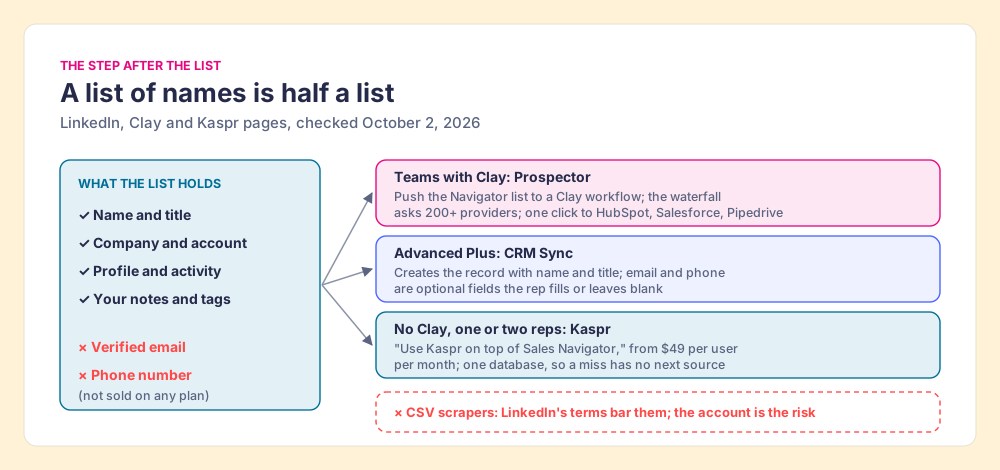
The list is the half of the work Sales Navigator does well, and the half it stops at. LinkedIn’s help center says Sales Navigator “currently doesn’t offer the option to export account and lead information from Sales Navigator into a CSV or XLS file” (LinkedIn Help), and no plan sells an email address or a phone number. The Bridge Group’s 2025 SDR report, from 351 B2B companies, puts the median SDR day at 112 activities: 44 phone, 41 email, 19 LinkedIn and 8 other (Bridge Group). The list serves the 19 LinkedIn touches where it sits. The other 85 calls and emails need contact data from outside it.
Copying the list out with a scraper is the route LinkedIn’s terms close. Section 8.2 of the User Agreement bars using “crawlers, browser plugins and add-ons or any other technology” to “scrape or copy the Services, including profiles and other data” (LinkedIn User Agreement, effective November 3, 2025), and members who use such tools “risk having their accounts restricted or shut down” (LinkedIn Help). The full map of what LinkedIn allows is in how to export Sales Navigator leads.
Teams with Clay: Supered Prospector on the Navigator list
Clay checks “multiple providers to return the most verified emails (lower bounce rate) and phone numbers (higher connect rate)” (Clay), across what its homepage calls “200+ providers in one place” (checked October 2, 2026), and its pricing page says “If an enrichment returns no result, you’re not charged Data Credits or Actions” (Clay pricing). Supered does not bring its own database. It brings Clay’s waterfall, which is every database, routed. Clay governs the data. Supered governs the motion.
Prospector runs inside the Supered Chrome extension, on your team’s own Clay account, with no Clay login for reps. From a Navigator lead or saved list:
- The whole list, pushed to a Clay workflow. The slice you saved goes into the team’s Clay table or any custom workflow the GTM engineer built.
- The CRM check first. The rep sees the matching HubSpot, Salesforce or Pipedrive record and whether the person was already worked in the past.
- A buying committee on demand. Tuned to the team’s titles, departments and seniority.
- One click to the CRM. Ops sets field mapping once; leads land with the verified email and phone.
Then the list keeps its name. The team’s process applies to worked prospects, so a leader sees which saved slices were worked and which closed, and coaches from the slices that convert. The full rep loop is on the sourcing use case, and the product is on the Prospector page.
The fair test for any tool that touches a Navigator page, ours included, is three questions: what does it read from the page, where does the contact data come from, and does anything get copied in bulk. Our answer for Prospector: it works within LinkedIn’s terms and does not copy search results in bulk, and the contact data comes from Clay’s waterfall on your own Clay account. Ask every vendor. Prospector is $45 per rep per month, billed annually, from one rep, and needs a Clay account.
Choose something else if:
- No Clay account. Kaspr’s pricing page says “Use Kaspr on top of Sales Navigator,” from $49 per user per month, with 12,000 exports a year on Starter (Kaspr pricing, checked October 2, 2026). It is one database, so a miss has no next source.
- Advanced Plus already in the contract, email only. CRM Sync creates the record with name and title; a light email finder may cover the rest. The HubSpot LinkedIn integration guide and the Salesforce LinkedIn integration guide cover setup.
- AI-written outreach. Prospector does not draft or send email; it hands the lead to your CRM and sequencer.
Why trust this guide?
Before Supered I ran RevPartners, a HubSpot partner that did only sales implementations and reached HubSpot’s Elite tier in 13 months, which meant years of building territories and lead lists with sales teams. Supered is rated 5.0 from 122 reviews on the HubSpot marketplace and 4.9 from 81 reviews on G2 (checked October 1, 2026). I opened each filter, limit and quote above on LinkedIn’s help center on October 2, 2026. The disclosure: we make Prospector, and it appears once, after the list is built.
How should you build lists with Sales Navigator search filters?
The filters are generous: 54 of them, most on every plan. The limits are where list-building succeeds or fails, and they are all printed in LinkedIn’s help center.
- Account first, then people. The Account lists filter turns a market into a short list of the right companies before the people search begins.
- Categories, then Boolean. Function and Seniority do the broad work; a parenthesized, straight-quoted string under about 15 operators does the rest.
- Slices under the cup. 2,500 leads per search, 50 saved searches per seat, each slice named and alerting weekly.
- A results page read with care. Quoted phrases, a glance at any “filter adjusted” notice, counts read as floors.
- A step after the list. The email and phone come from outside Navigator, in one step to the CRM.
Our recommendation, given those facts: save searches, not snapshots, and never let a list sit in Navigator without a route to contact data. If you have Clay, that route is Prospector. If you are still deciding whether the seat is worth it, Sales Navigator pricing and Sales Navigator alternatives lay out the plans and the field, and how to get emails from LinkedIn Sales Navigator goes deeper on the contact-data step. Teams that already run Clay can see the other browser routes in the Clay Chrome extension guide and our take on Exportly alternatives.
Frequently asked questions
How many search filters does Sales Navigator have?+
Which fields support Sales Navigator Boolean search?+
Why does Sales Navigator only show 2,500 results?+
How many saved searches can you have in Sales Navigator?+
Can you export a Sales Navigator lead list?+
Why did my Sales Navigator search show results that do not match my filters?+
Your process, running itself.