LinkedIn Sales Navigator Salesforce Integration: The Window, the Logbook, and the Blank Line
What the LinkedIn Sales Navigator Salesforce integration does in 2026, the Advanced Plus requirement, the setup steps from LinkedIn's own admin guide, what writes back to Salesforce, and the email and phone it leaves blank.
The LinkedIn Sales Navigator Salesforce integration is LinkedIn's managed package plus CRM Sync: on Advanced Plus it shows LinkedIn profiles in Salesforce records, imports accounts into Sales Navigator, and writes rep activity back as Salesforce tasks.
How to set up the LinkedIn Sales Navigator Salesforce integration
- 1
Check the prerequisites
Confirm Sales Navigator Advanced Plus, a Salesforce edition with API access (Enterprise, Performance, Unlimited, or Developer; Professional needs API Access and Chatter turned on), My Domain turned on, and a dedicated Salesforce integration user.
- 2
Install the LinkedIn Sales Navigator package
In Salesforce Setup, search Quick Find for LinkedIn Sales Navigator, open the AppExchange Package tab, click Install, and choose All Users or Specific Profiles. LinkedIn recommends the AppExchange Package over the Native Integration because only the package carries data validation and Classic components.
- 3
Place the components and assign permissions
Open the LinkedIn Sales Navigator Assistant from the App Launcher, place the profile components on Lead, Contact, Account, and Opportunity pages, and assign the LinkedIn Sales Navigator Standard User permission set to non-admin users.
- 4
Connect CRM Sync
In Sales Navigator go to Admin, Admin Settings, CRM, Production, choose Salesforce, sign in with the integration user, select Business account, and choose what imports from Salesforce and what exports to it.
- 5
Turn on data validation and activity writeback
Under Exported to CRM, turn on Validate CRM Data and the Log Messages and InMails, Log notes, Log calls, and Log Smart Links toggles. Each rep authenticates to Salesforce on their first writeback and again about every 90 days.
- 6
Verify
Check that profiles appear on the four record pages, the CRM Sync timestamp is recent, a test InMail sent with Add to CRM shows up as a Salesforce task, and the Not at Company flag starts populating. The first import can take a few days to a week.
The LinkedIn Sales Navigator Salesforce integration comes up for one of two reasons: a sales leader wants LinkedIn inside Salesforce so reps stop flipping tabs, or Ops wants the people reps find on LinkedIn to arrive in Salesforce as contacts somebody can call. The native integration does the first well. It does part of the second. The short answer, with the detail below:
- LinkedIn Sales Navigator for Salesforce, on Advanced Plus. For teams that want LinkedIn profiles on Salesforce records, Salesforce accounts imported into Sales Navigator, and InMails logged as tasks. Advanced Plus is quote-only.
- Supered Prospector, on your Clay account. For teams that already have Clay and need LinkedIn people to land in Salesforce with an email and a phone. $45 per rep per month, billed annually.
- Apollo. For a team without Clay that wants one database and a LinkedIn extension pushing to Salesforce, from $49 a seat on annual billing.
A window is a fine thing to have in an office. Through it you can see the man across the street, what he is wearing, which building he walked out of, and whether he has changed jobs since Tuesday. What you cannot do is hand him a letter through the glass. LinkedIn’s Salesforce integration is mostly window. LinkedIn’s own FAQ, updated September 30, 2026, puts it in one line: “Displayed LinkedIn data is not stored in the CRM record and doesn’t update it automatically” (LinkedIn, Salesforce integration FAQ).
The LinkedIn Sales Navigator Salesforce integration is LinkedIn’s managed package plus CRM Sync for Salesforce. On the Advanced Plus plan it shows LinkedIn profiles inside Salesforce records, imports your Salesforce accounts and leads into Sales Navigator every 12 hours, flags contacts who have left their company, and writes rep activity back to Salesforce as tasks. What follows is the LinkedIn Salesforce integration as LinkedIn documents it this week (it rewrote its Salesforce guides on September 30, 2026), the setup in order, what crosses the wire in each direction, and the one field it leaves for the rep to fill.
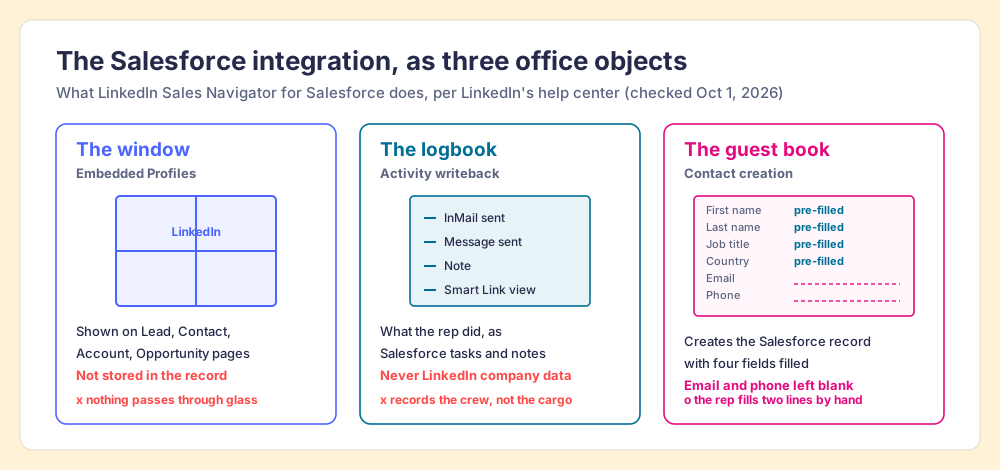
What does the LinkedIn Sales Navigator Salesforce integration do?
It does five jobs, and LinkedIn’s new “Get started with Sales Navigator and Salesforce” page lists them plainly (LinkedIn Help, updated September 30, 2026).
- Embedded Profiles, the window. LinkedIn member and company information on the Lead, Contact, Account, and Opportunity pages in Salesforce. It works without CRM Sync, and LinkedIn’s FAQ says it stores no CRM credentials or record data, only a mapping of LinkedIn ID to Salesforce record ID.
- CRM Sync, the import half. Sales Navigator pulls the accounts, contacts, and leads tied to your open opportunities, auto-saves them for the rep who owns them, and puts a CRM badge on records that already exist in Salesforce. The first import takes “anywhere from a couple of days to a week,” then updates every 12 hours.
- Activity writeback, the logbook. InMails, messages, connection requests, Smart Link views, and calls land in Salesforce as standard tasks; notes land as Notes and Attachments. It records what the crew did and never the cargo: “Activity writeback only writes the activities users take, so it doesn’t push, update, or create LinkedIn Company data in the CRM.” Call logging works only for calls placed from the Sales Navigator mobile app.
- Data validation. A daily or weekly job compares Salesforce contacts with LinkedIn and sets a Not at Company flag on people who left, which feeds six LinkedIn reports, including past customers who moved to new companies. This one is the best thing in the box for a team with a big book of business.
- Contact and lead creation, the guest book. A rep on a Sales Navigator lead page can create the Salesforce contact or lead without leaving LinkedIn. Its blank lines get their own section below.
Embedded Experiences add Find Key People, Relationship Map, Account IQ, and Lead IQ inside Salesforce for Advanced Plus users (LinkedIn Help). Salesforce’s own integration page describes the same package from its side: import “any accounts, contacts and lead records that your team is actively working on,” log InMails and notes, and “view LinkedIn information right in the Lead and Contact Record” (Salesforce + LinkedIn, checked October 1, 2026). The page calls the marketplace AgentExchange now; Salesforce’s marketplace carries the banner “Salesforce AppExchange is now AgentExchange.”
Which Sales Navigator plan do you need for the Salesforce integration?
Advanced Plus, for nearly all of it. LinkedIn’s integration page is blunt: “Integration between Sales Navigator and your CRM is only available for Sales Navigator Advanced Plus users” (LinkedIn Help). The admin guide lists Advanced Plus as required for CRM Sync, Embedded Profiles, and data validation, and the troubleshooting guide’s checklist for a profile that will not load ends with “Confirm the user has an active Sales Navigator Advanced Plus license.” The marketplace listing for the package says the same in capitals: “Data Validation is SALES NAVIGATOR ADVANCED PLUS ONLY.”
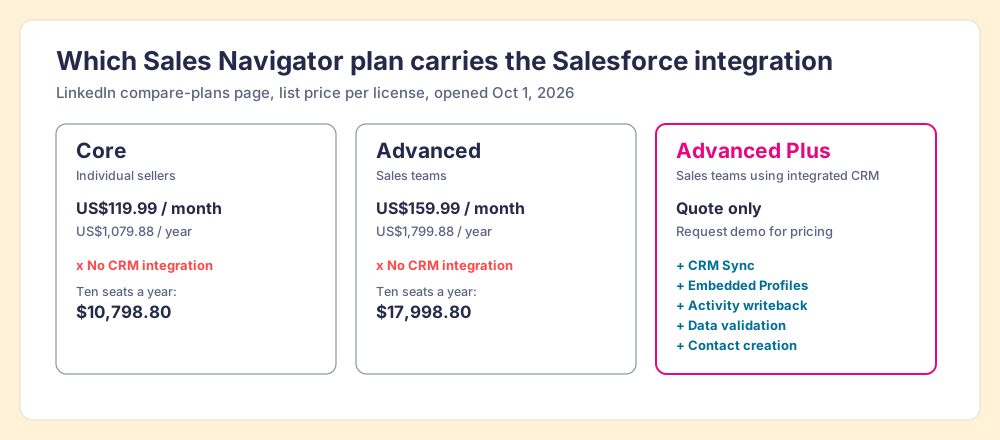
LinkedIn’s compare-plans page, opened October 1, 2026, gives two of the three prices (LinkedIn, compare plans):
| Plan | Best for (LinkedIn’s words) | List price per license | Salesforce integration |
|---|---|---|---|
| Core | Individual sellers | US$119.99 a month or US$1,079.88 a year | None |
| Advanced | Sales teams | US$159.99 a month or US$1,799.88 a year | None |
| Advanced Plus | Sales teams using integrated CRM | ”Request demo for pricing” | CRM Sync, Embedded Profiles, writeback, data validation, contact creation |
The package’s own listing on Salesforce’s marketplace shows a price field of “Starting at $125/User/Month,” 3.6 stars from 30 reviews, version 3.64.0, last modified March 13, 2025 (LinkedIn Sales Navigator for Salesforce listing). LinkedIn’s plan page sells Advanced Plus only by quote, “customized based on your sales team’s size, CRM integration, and onboarding/training needs,” so treat the listing figure as a place to start the conversation, and ask for the per-seat number in writing. For scale, ten Core seats on annual billing list at $10,798.80 a year and ten Advanced seats at $17,998.80, before the plan that carries the integration.
The Salesforce side has its own gate. The admin guide lists Enterprise, Performance, Unlimited, or Developer editions; Professional “requires API Access and Chatter to be turned on, but this might incur an additional Salesforce fee.” The troubleshooting guide adds that Salesforce “doesn’t support the API package for Contact edition or Group edition.” And one contract syncs one org: “You can only sync one instance of Salesforce per Sales Navigator contract” (LinkedIn Help).
How do you set up the Salesforce Sales Navigator integration?
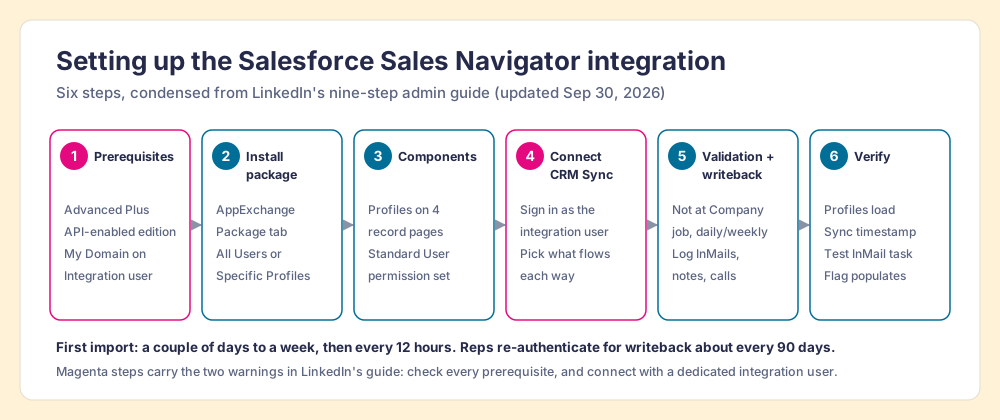
LinkedIn’s admin setup guide, rewritten September 30, 2026, runs nine steps (LinkedIn, admin setup guide). Here they are in six, in the order a Salesforce admin does them.
- Prerequisites. Advanced Plus with both admin and user access (“An admin-only license can configure but can’t verify end-user functionality”), a Salesforce edition with API access, My Domain turned on, and a dedicated integration user. LinkedIn is firm on that last one: personal admin credentials “can be revoked when that user leaves the company or their role changes,” and a revoked token disconnects the sync.
- The package. In Setup, Quick Find, search “LinkedIn Sales Navigator,” open the AppExchange Package tab, click Install, and install for All Users or Specific Profiles. Salesforce offers a second route, the Native Integration toggle. The guide recommends the package because only it carries data validation and Classic components; the Native Integration is the one to add if your reps need InMail or connection-request steps inside Salesforce sales cadences.
- Components and permissions. Open the LinkedIn Sales Navigator Assistant from the App Launcher, drop the profile components onto the Lead, Contact, Account, and Opportunity layouts, and assign the “LinkedIn Sales Navigator Standard User” permission set to anyone who is not a system admin. If users still see “insufficient access,” clone the set and add Website, Industry, and address fields, which the package reads as URL parameters.
- CRM Sync. In Sales Navigator, Admin, Admin Settings, CRM, Production, choose Salesforce, sign in as the integration user, pick Business account, and choose what flows each way: auto-save from your pipeline stage, and create or update contacts and leads, log messages, notes, calls, connection requests, and Smart Links.
- Validation and writeback. Turn on Validate CRM Data and schedule the job from the Assistant (daily or weekly, in 15-minute slots). Check your Contact validation rules first, since “Validation rules can cause bulk API updates to fail.” Writeback is on by default once sync is configured; each rep signs in to Salesforce on their first logged activity and again about every 90 days.
- Verification. Profiles show on the four record pages, the CRM Sync timestamp is recent, a test InMail sent with Add to CRM appears as a task, and the Not at Company flag starts filling within two validation cycles. Optional: turn on ROI Reporting so your LinkedIn representative can report influenced and sourced opportunities.
Two notes from the troubleshooting guide save an afternoon. An authentication error on connect usually means the LinkedIn Sales Navigator OAuth app is not installed or enabled in Salesforce. And if the integration hits an error, the contract sits in a three-day buffer where nothing syncs, then disconnects itself if the error is not fixed (LinkedIn, troubleshooting guide).
What writes back to Salesforce, and what does not?
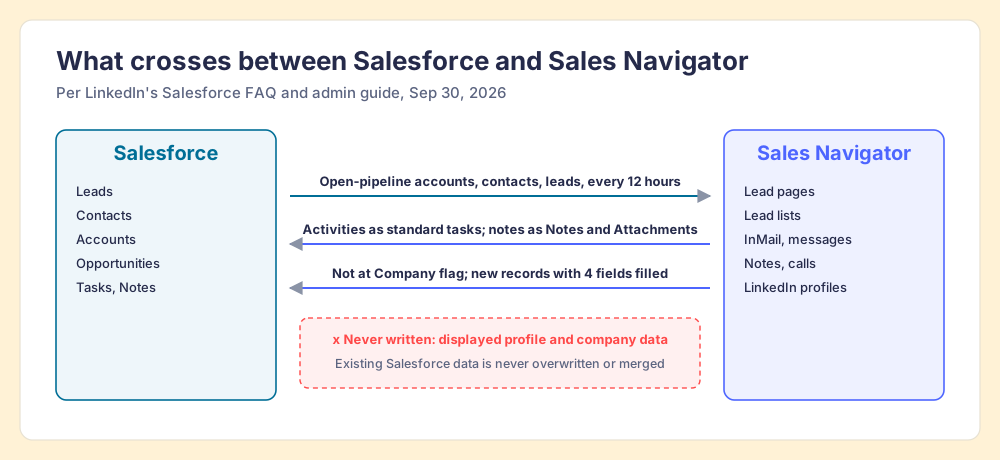
The integration moves different things in different directions, and the table below is the part to show your Salesforce admin before the purchase, because it settles most of the arguments in advance.
| Data | Direction | How it lands | Source |
|---|---|---|---|
| Accounts, contacts, leads tied to open opportunities | Salesforce to Sales Navigator | Auto-saved for the owner, refreshed every 12 hours | Admin guide, FAQ |
| InMails, messages, connection requests, Smart Link views, calls | Sales Navigator to Salesforce | Standard Task record type | FAQ |
| Notes | Sales Navigator to Salesforce | Notes and Attachments | FAQ |
| Not at Company flag | LinkedIn to Salesforce | A flag field on Contact, daily or weekly | Admin guide |
| A new contact or lead from a lead page | Sales Navigator to Salesforce | Record with four fields pre-filled | Contact creation article |
| Profile and company data shown in Salesforce | Displayed only | ”not stored in the CRM record” | FAQ |
| LinkedIn company data | Never written | ”doesn’t push, update, or create LinkedIn Company data” | FAQ |
LinkedIn also promises the thing an admin worries about most: “Existing data is never overwritten or merged. Only new information is appended within new activities or notes.” For a Salesforce org that has been cleaned at some expense, that line is worth more than any feature.
Where does the native LinkedIn Salesforce integration stop?
At the guest book. LinkedIn’s contact-creation article lists the fields on the form: Account, Opportunity, Stakeholder Role, First Name, Last Name, Job Title, Country, Email, Phone Number, Contact Owner. Four of them carry the note “pre-populated from Sales Navigator.” Email and Phone Number do not (LinkedIn, contact creation). The pen is on the table, the name is written in, and the two lines a rep needs to reach the person are blank.
That is a fair design, and LinkedIn has its reasons. Sales Navigator sells access to people on LinkedIn, and LinkedIn’s help center says plainly that it “currently doesn’t offer the option to export account and lead information from Sales Navigator into a CSV or XLS file,” pointing Advanced Plus users to CRM Sync instead (LinkedIn Help). Sales Navigator users notice the wall. “I don’t like the inability to download lead lists to CSV or to CRMs without a third-party add-on,” an owner at a mid-market company wrote in a February 2026 G2 review of Sales Navigator, which holds 4.4 out of 5 from 2,211 reviews (G2, October 1, 2026).
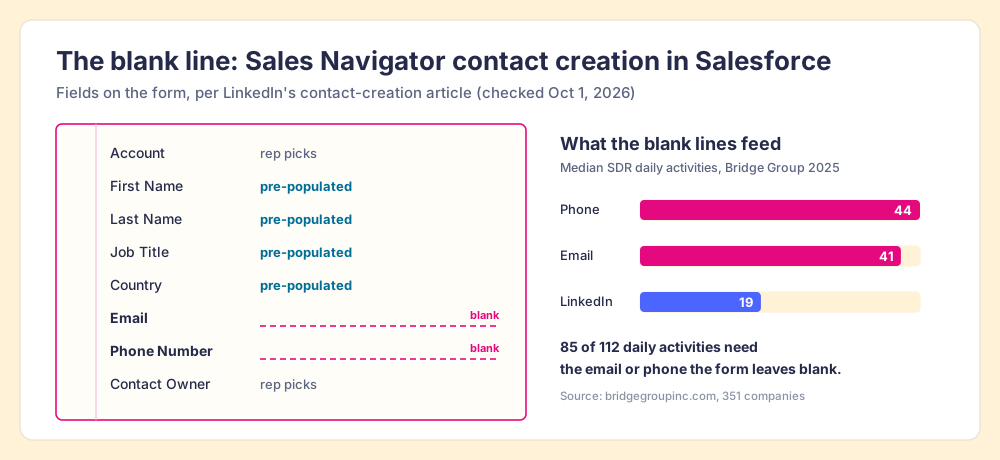
Why the blank line costs more than it looks. The Bridge Group’s 2025 SDR report, 351 companies, puts a median SDR at 112 activities a day: 44 phone, 41 email, 19 LinkedIn (Bridge Group, 2025). A contact who arrives in Salesforce with a name, title, and country and no email or phone feeds the 19 and starves the 85. The rep then fills the line by hand, on a day Salesforce’s own State of Sales research says is already short: “Reps spend just 28% of their week actually selling, with the majority of their time consumed by other tasks like deal management and data entry,” from 7,775 sales professionals surveyed in 2022 (Salesforce, State of Sales). So the integration moves the person into Salesforce, and the work of making them reachable stays with the rep.
How do teams fill the LinkedIn to Salesforce gap?
Four ways, graded on one set of weights so you can flip them. The lens: a Salesforce team of ten to fifty reps that finds people on LinkedIn and needs them in Salesforce as contacts a rep can call and email, without wrecking the data Ops cleaned.
Why trust this guide?
I started RevPartners, a HubSpot partner that did only sales implementations, sold roughly twice as much Sales Hub as any other partner, and reached Elite tier in 13 months. Supered came out of that work, runs in Salesforce and HubSpot, and is the #1 sales enablement app on the HubSpot marketplace, with 4.9 out of 5 from 81 reviews on G2 (October 1, 2026). That is also the disclosure: we make Supered Prospector, and it ranks first below for teams that have Clay. The weights are printed so you can disagree with them.
| Criterion | Weight | What it rewards |
|---|---|---|
| Reachable contact | x3 | The Salesforce contact arrives with a verified email and phone |
| Where the rep works | x2 | Runs from LinkedIn, Sales Navigator, a company site, or the Salesforce record |
| Clean Salesforce | x2 | Checks for an existing record first; mapping set by Ops |
| Price you can predict | x2 | Published per seat or per result, no quote-only tier |
| LinkedIn inside Salesforce | x1 | Profiles, activity logging, job-change flags in the record |
| Rank | Option | Grade | Score /50 | Best fit | Salesforce integration | Setup effort | Pricing (plan with the feature) | Reason to choose it |
|---|---|---|---|---|---|---|---|---|
| 1 | Supered Prospector on Clay | A | 42 | Teams that already have Clay | Native, one-click sync, mapping set once | Under a week on an existing Clay account | $45 per rep per month, billed annually, plus your Clay plan | Clay’s waterfall across 200+ vendors from any page the rep is on |
| 2 | Sales Navigator Advanced Plus, native | B+ | 33 | Teams that want LinkedIn context and activity logs in Salesforce | Native managed package plus CRM Sync | Days, plus up to a week of first import | Quote only | Profiles, writeback, Not at Company flags |
| 3 | Apollo extension | B | 32 | Teams without Clay wanting one database plus outreach | Native | A day | $49 or $79 per seat per month, billed annually | Reveal and push from LinkedIn, sequencer included |
| 4 | Clay’s Salesforce integration, run by Ops | B | 30 | Ops-built enrichment of records already in Salesforce | Native (Growth plan and up) | Ops builds each table | Clay Growth, $495 a month | Bulk upserts and lookups, no rep tool at all |
| 5 | Rep types it in | C+ | 22 | Five or so new contacts a week | Native form in Sales Navigator | None | The rep’s time | No new vendor |
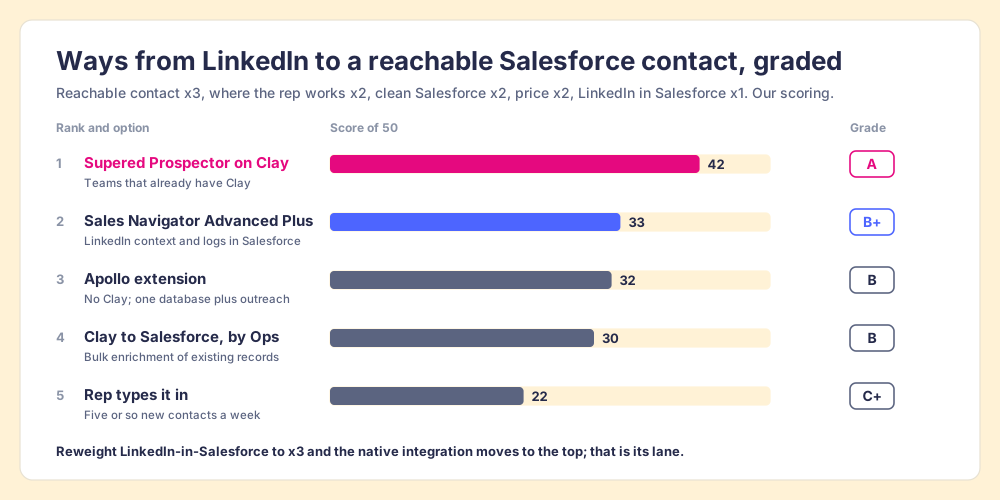
The native integration’s 33 breaks down as reachable contact 2, where the rep works 5, clean Salesforce 4, price 2, LinkedIn inside Salesforce 5. The 5s are earned: no tool on this page puts LinkedIn on the Opportunity page or flags a champion who left, and the CRM badges stop a rep from re-adding a contact who exists. The 2 on price is the quote. Prospector’s 1 on LinkedIn-inside-Salesforce is on purpose, since it logs no InMails and draws no profile in the record. If that is the job, LinkedIn wins this page.
Where does Supered Prospector fit with Salesforce?
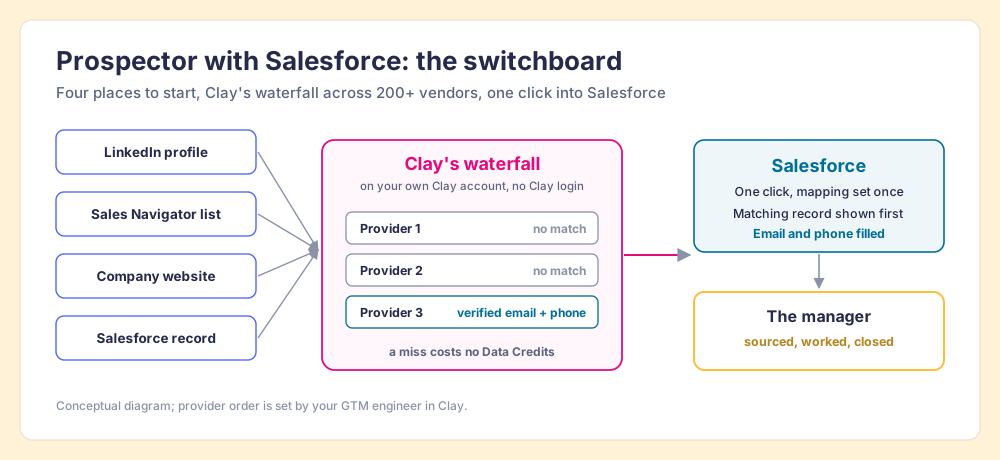
Each single database is one directory. When the person you want is unlisted, the rep calls a second directory, and the company signs a second contract. Clay is the switchboard operator who rings directory after directory until one answers. “Clay’s signature data waterfalls check multiple providers to return the most verified emails (lower bounce rate) and phone numbers (higher connect rate),” across 200+ data and AI vendors under one contract (Clay, rep prospecting, September 25, 2026), and “If an enrichment returns no result, you’re not charged Data Credits or Actions” (clay.com/pricing). Prospector does not bring its own database. It brings Clay’s waterfall, which is every database, routed, and it is why Clay is not a row in the table above. Clay governs the data. Supered governs the motion.
What a Salesforce rep gets, on the team’s own Clay account and with no Clay login:
- Lookups from the page they are on. A LinkedIn profile, a Sales Navigator list, a company’s website with company research alongside, or the Salesforce record itself, where Prospector opens a contextual page for the account or contact.
- The blank lines, filled. Clay’s waterfall returns the email and phone the guest book left empty, and a buying-committee lookup returns the titles, departments, and seniority your team set.
- A check before the add. On a LinkedIn profile the rep sees the matching Salesforce record and whether the person was already worked in the past, before creating a duplicate or stepping on a teammate.
- One click into Salesforce. Your admin sets the field mapping once; each sync after that is one click, and a whole list can be pushed into any custom Clay workflow your GTM engineer built.
- Lists a manager can follow. The team’s process applies to worked prospects, so the leader sees which sourced lists got worked and which closed, and coaches from what converts.
The arithmetic for ten reps. Clay’s Growth plan lists at $495 a month, or $5,940 a year, with CRM sync built in (Clay pricing, checked October 1, 2026). Prospector is $45 per rep per month billed annually, from one rep (Prospector), so ten reps on Clay Growth plus Prospector run $11,340 a year. Prospector and the native integration do different jobs and sit happily side by side: LinkedIn’s window and logbook in the record, Prospector’s switchboard filling the blank lines. Reps who still want Sales Navigator for search keep it; ten Core seats and ten Prospector seats on Clay Growth list at $22,138.80 a year.
Choose something else if you do not have Clay. Prospector runs on your Clay account and does nothing without one, and a team that has never built a waterfall needs someone to build it; Clay’s homepage says it plainly, “GTM engineers build on Clay.” Choose something else, too, if what your leaders want is LinkedIn on the Opportunity page and every InMail logged as a task. That is LinkedIn’s job, and Advanced Plus does it.
The other ways from LinkedIn to Salesforce
- Apollo. One database with a LinkedIn extension, a Salesforce integration, a sequencer, and a dialer, at $49 or $79 a seat per month on annual billing; an email costs 1 credit and a phone 8 (apollo.io/pricing, checked October 1, 2026). Apollo’s pricing page shows 4.7 out of 5 from 9,690 G2 reviews. It is one directory, so a person it misses stays missed. Sales Navigator alternatives grades it further.
- Clay’s own Salesforce integration. Clay’s Growth plan includes CRM integrations, and its Salesforce actions include Lookup Record, Upsert Object, and Convert Lead. It is the right tool for Ops enriching records already in Salesforce in bulk. Reps never touch it, which is the point and the limit; the Clay Salesforce integration guide walks the setup.
- The rep fills the blank. The contact-creation form keeps Salesforce clean, and at five new contacts a week it is fine. At fifty, the 28% gets smaller.
Which LinkedIn to Salesforce setup should you choose?
Name the job first, and the setup picks itself.
- LinkedIn context inside Salesforce. Buy Advanced Plus and install the AppExchange package, not the Native Integration alone, so you get data validation. The Not at Company flag and the past-customers-at-new-companies report earn the seat for a team with a large book.
- Reachable contacts from LinkedIn, with Clay. Prospector on your Clay account, one click into Salesforce with the mapping your admin set, and a list a manager can follow.
- Reachable contacts from LinkedIn, without Clay. A single-database extension. Size the credits before the seats.
- Both. Run them together. The window and the switchboard do not compete for the same wall.
What we recommend: if you already pay for Clay, do not ask the native integration to do a job LinkedIn never designed it for. Use LinkedIn’s package for what it does best, the profile on the record and the log of what the rep did, and give your reps a way to fill the email and phone from Clay’s waterfall wherever they found the person. The window shows you the man across the street. The switchboard gets him on the phone. For the HubSpot version of the same decision, the HubSpot LinkedIn integration guide runs the same test; for the extension side, the LinkedIn Chrome extension guide, the Clay Chrome extension guide, and Exportly alternatives cover the options; and the sourcing use case shows the list from the first lookup to closed. If a data vendor already feeds your org, the Apollo Salesforce integration and the ZoomInfo Salesforce integration show what each one writes back, and Agentforce pricing covers what Salesforce charges for its own agents.
Frequently asked questions
Does the LinkedIn Sales Navigator Salesforce integration need Advanced Plus?+
Does Sales Navigator create contacts in Salesforce with emails and phone numbers?+
What does Sales Navigator write back to Salesforce?+
Which Salesforce editions work with Sales Navigator?+
How do I get LinkedIn contacts into Salesforce with an email and phone?+
Do I need Advanced Plus to use Supered Prospector with Salesforce?+
Your process, running itself.