Lusha Salesforce Integration (2026): The Doorman, the Side Door, and the Seventh Credit
The Lusha Salesforce integration, checked October 2, 2026: what it pushes, setup step by step, the credit each record costs, the duplicate guard that switches off at your API limit, the lead-routing fix Lusha documents, and the alternatives.
The Lusha Salesforce integration is Lusha's one-way export that pushes contacts revealed in Lusha into Salesforce as Leads, Contacts, or Accounts through each rep's own OAuth connection, at 1 credit per record exported on top of the reveal.
How to set up the Lusha Salesforce integration
- 1
Check the Salesforce side first
Confirm your Salesforce edition includes REST API access and that the admin who will connect Lusha can connect third-party apps and has full read, write, edit and import access to Lead, Contact and Account objects. If your org blocks third-party apps, unblock Lusha Push to Salesforce under Connected Apps OAuth Usage.
- 2
Connect Salesforce from Lusha
In Lusha go to Settings, then Integrations, then Salesforce. Choose Production or Sandbox, click Connect, sign in to Salesforce as an admin, and click Continue to field mapping.
- 3
Map Lead, Contact and Account fields
Review the default mapping on each of the three tabs, change any Salesforce field from the dropdown, turn on Allow Override only for fields where Lusha's value should replace yours, and set a default Record Type in the Settings tab if your org requires one.
- 4
Run Test Mapping
Click Test Mapping. Lusha creates and immediately deletes a dummy Lead, Contact and Account in Salesforce. When the button turns green, click Save changes; if it fails, fix the Salesforce error it returns.
- 5
Set the guards
Decide whether reps may create new Accounts, turn on the Existing Salesforce indicator and Excluding Salesforce objects, set the API request limit Lusha may use each day, and turn on opt-out sync to the Email Opt Out field.
- 6
Connect every rep and check routing
Ask each rep to connect their own Lusha account to Salesforce. Then review Salesforce lead assignment rules and the Lusha connected app's session timeout so pushed leads land with the right owner and reps are not logged out repeatedly.
The Lusha Salesforce integration is Lusha’s one-way export that pushes contacts revealed in Lusha into Salesforce as Leads, Contacts, or Accounts through each rep’s own OAuth connection, at 1 credit per record exported on top of the reveal. I read every Salesforce page in Lusha’s docs this morning, plus its pricing data, and the setup is the easy part. Two settings decide whether it keeps Salesforce clean: a duplicate guard that runs on your Salesforce API allowance and switches off when the allowance runs out, and a lead-routing fix in Lusha’s own docs that sends Lusha leads around your assignment rules. The short answer:
- Lusha’s own Salesforce integration. The right buy for a few reps who already prospect in Lusha and want verified contacts in Salesforce without a spreadsheet. On every plan, Free included.
- Supered Prospector, on your Clay account. The right buy for a Salesforce team that already pays for Clay: reps run the GTM engineer’s tables from the record, LinkedIn, or a company site, and sync in one click. $45 per rep per month, billed annually.
- Apollo’s Salesforce integration. The non-Clay pick when reps run sequences and dials inside Apollo and want a two-way sync. From $49 a seat a month, billed annually.
What is the Lusha Salesforce integration, exactly?
Lusha’s guide opens with the job in one line: “The Salesforce integration lets you push contacts revealed in Lusha directly into Salesforce as Leads, Contacts, or Accounts” (Lusha, Salesforce integration, read October 2, 2026). Push is the verb. Records travel one way, from Lusha into Salesforce, and they can start from three places: Lusha Search in the web app, a Workspace table, or the Lusha extension on LinkedIn, Sales Navigator, or inside a Salesforce record.
The pipe has a size, and Lusha prints it.
- Real time. Up to 150 records per push complete at once.
- Background jobs. Up to 10,000 contacts per job, run “in 20 batches.” Select more and Lusha exports the first 10,000 and marks the rest “Not exported” for the next run. Lusha calls the cap “a Salesforce platform limit” that “cannot be changed.”
- Companies. Background export is “available for contacts export only,” so Account exports stop at the real-time 150 (Lusha, available integrations).
- One lane per rep. “Only one CRM export can run at a time per user.”
Salesforce gets a bigger pipe than any other CRM Lusha supports. HubSpot, Pipedrive, Zoho, Dynamics, and Bullhorn all stop at 1,000 per background job, and Pipedrive’s real-time limit is 25. The Lusha HubSpot integration page covers the HubSpot version, whose guide describes no per-rep connection.
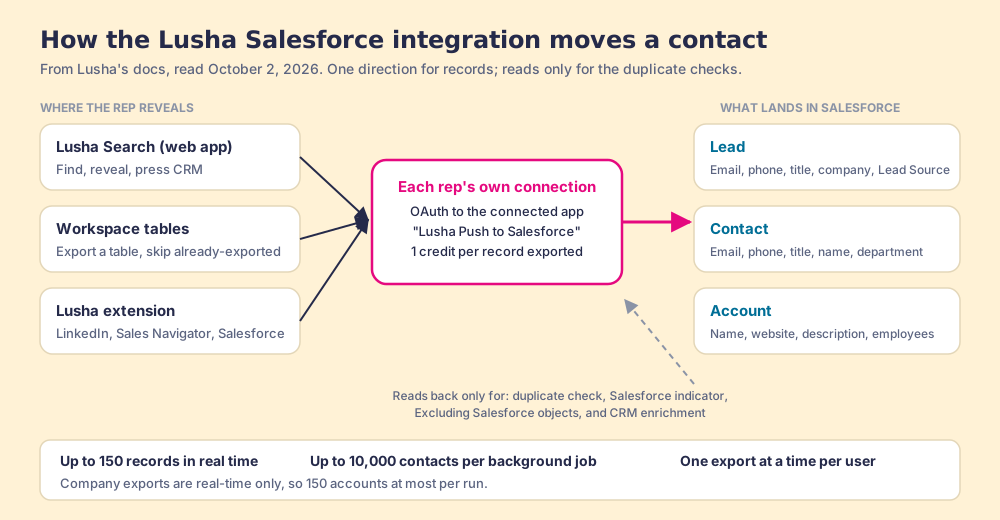
There is no AgentExchange (formerly AppExchange) listing to check. Lusha connects through a connected app its error guide names “Lusha Push to Salesforce,” set up from Lusha’s side. When I searched AgentExchange’s public listing API for “lusha” on October 2, 2026, none of the top 50 results was a Lusha app, while the same search for “zoominfo” and “apollo” put each vendor’s own listing first. So there is no Salesforce-side rating to quote. The nearest public proof is Lusha’s G2 page: 4.3 out of 5 from 1,667 reviews (G2, October 2, 2026).
Why trust this page?
I started RevPartners, a HubSpot partner that did only sales implementations, sold roughly twice as much Sales Hub as any other partner, and reached Elite tier in 13 months. Supered came out of that work and runs in HubSpot, Salesforce, and Pipedrive, with 4.9 out of 5 from 81 reviews on G2 and 5.0 from 122 on the HubSpot marketplace (both checked October 1, 2026). The disclosure: we make Supered Prospector, which sits first among the alternatives below for teams with Clay. The Lusha facts here come from Lusha’s docs and pricing data, read October 2, 2026.
Which route into Salesforce fits your team?
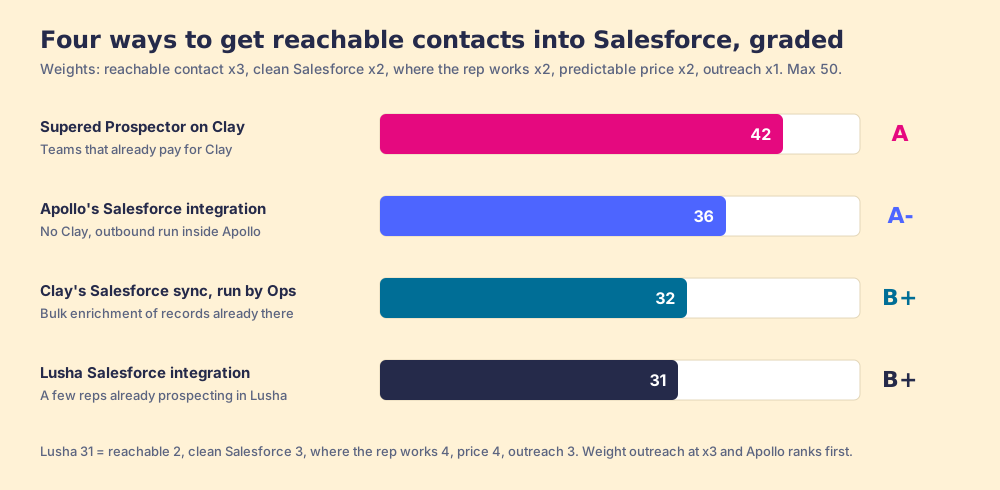
The lens is a mid-market Salesforce team of ten to fifty reps. The weights match the Apollo Salesforce integration page and the ZoomInfo Salesforce integration page: reachable contact (x3), clean Salesforce (x2), where the rep works (x2), a price you can predict (x2), outreach in the same tool (x1), out of 50.
| Rank | Route | Grade | Score | Best fit | Salesforce integration | Setup effort | Pricing (plan that includes it) | Reason to choose it |
|---|---|---|---|---|---|---|---|---|
| 1 | Supered Prospector on Clay | A | 42 | Teams that already pay for Clay | Native, one click from the record or profile, mapping set once | Under a week on an existing Clay account | $45 per rep per month, billed annually, plus your Clay plan | The GTM engineer’s Clay tables, run from any page the rep is on |
| 2 | Apollo’s Salesforce integration | A- | 36 | No Clay, outbound run inside Apollo | Native managed package, two-way | A day, plus the first pull | $49 per seat per month, billed annually | Data, sequences, dialer, and sync in one plan |
| 3 | Clay’s Salesforce sync, run by Ops | B+ | 32 | Bulk enrichment of records already in Salesforce | Native, Clay Growth and up | Ops builds each table | Clay Growth, $495 a month | Waterfall enrichment in bulk, no rep tool |
| ref | Lusha Salesforce integration | B+ | 31 | A few reps already prospecting in Lusha | Native export, one-way, per-rep OAuth | An hour for an admin, then each rep | Every plan from Free; 1 credit per record pushed | Low entry price and a well-documented export |
Lusha’s 31 is reachable contact 2, clean Salesforce 3, where the rep works 4, price 4, outreach 3. The 2 is the single database. Weight outreach at x3 and Apollo ranks first; Prospector scores lowest on that row because it has no dialer or sequencer of its own.
How do you set up the Lusha Salesforce integration?
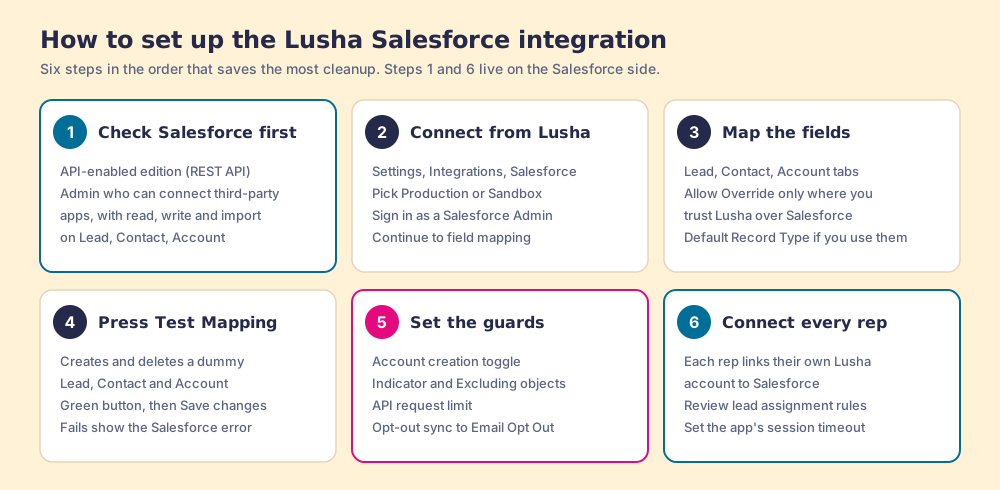
Lusha runs the setup from its side, and Salesforce’s side asks for an admin and a sign-in. Two requirements sit on the Salesforce side, and Lusha’s error guide has an entry for each. Your edition needs REST API access: Lusha’s common-errors page answers “The REST API is not enabled for this organization” with “upgrade to a Salesforce edition that includes API access” (Lusha, Salesforce common errors). Professional edition is the one to check: LinkedIn’s Salesforce admin guide notes that Professional needs API access turned on, which “might incur an additional Salesforce fee” (LinkedIn help). And the connecting admin needs “permission to connect and interact with third-party applications” plus “full read, write, and edit access” and “import permissions” on Leads, Contacts, and Accounts (Lusha, CRM permissions).
- Check the Salesforce side first. API-enabled edition, the right admin, and, if your org blocks third-party apps, unblock “Lusha Push to Salesforce” under Connected Apps OAuth Usage.
- Connect from Lusha. Settings, then Integrations, then Salesforce. Pick Production or Sandbox, click Connect, sign in, then Continue to field mapping.
- Map the fields. Three tabs: Lead, Contact, Account. Turn on Allow Override only where Lusha’s value should replace yours, because it lets Lusha “update fields that already have data in Salesforce.” If your org requires a Record Type on new Leads and Contacts, set a default in the Settings tab; it is “global across your account.”
- Press Test Mapping. Lusha “will create and immediately delete a dummy Lead, Contact, and Account” and returns the Salesforce error if anything fails. Save only when the button turns green.
- Set the guards. The Account creation toggle (off means reps can only attach contacts to existing Accounts), the Existing Salesforce indicator, Excluding Salesforce objects, the API request limit, and opt-out sync to Email Opt Out or a custom field.
- Connect every rep. “Each team member needs to connect their own Lusha account to Salesforce to enable export.” Then check lead assignment rules and session timeout, both covered below.
The default mapping is lean. A Lead carries Email 1, Phone 1, Job title, Company Name, Website, First and Last Name, and a predefined Lead Source. A Contact carries email, phone, title, name, and Department. An Account carries Name, Website, Description, and Number of Employees. LinkedIn URL, country, city, industry, and revenue are not in the defaults; Lusha’s own troubleshooting tells you to add them with ”+ Add field” if you want them.
Why does Lusha charge for contacts already in Salesforce?
A good doorman keeps a club from paying twice for the same guest. He stands at the door with the list, and anyone already inside gets waved past. Lusha has two of these doormen for Salesforce. The Existing Salesforce indicator puts a Salesforce icon next to people already in the CRM, and Excluding Salesforce objects skips them during bulk reveals, with “no credits charged for those contacts” (Lusha, exclude Salesforce contacts).
The doorman’s wages come from you. “The Salesforce indicator uses your company’s Salesforce API quota, not Lusha’s credits” (Lusha, Salesforce identifier). Each check is a call against the same allowance your other Salesforce apps draw from, capped by an API request limit you set inside Lusha. And Lusha’s exclusion page says what happens at the end of the shift: “Once the quota is reached, both the Salesforce indicator and the exclusion feature will be disabled until the next day when the quota resets.”
Follow it one step further. A rep runs a big bulk reveal late in the day, after a morning of reveals has used up the limit. The doorman has gone home. The icons stop appearing, the exclusion stops excluding, and Lusha charges full price for people who were already in Salesforce. None of the Lusha pages I read describes a warning when it happens.
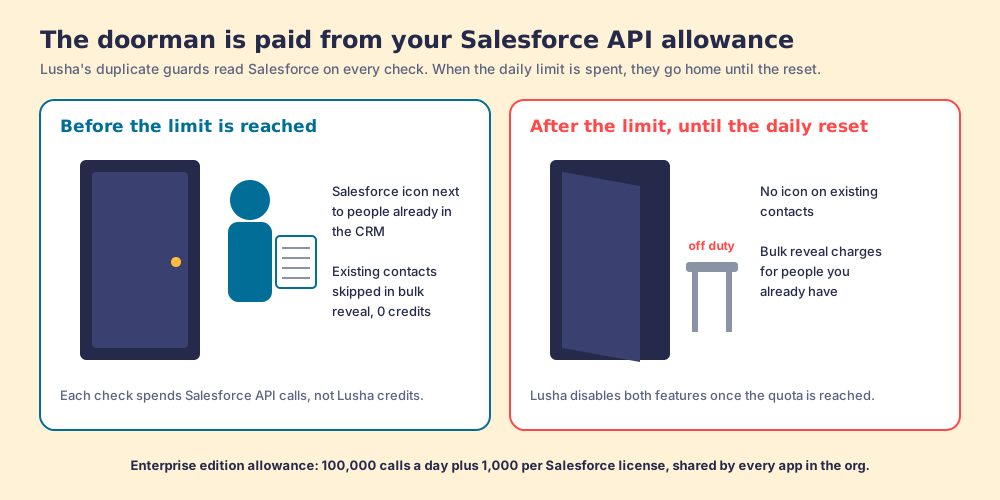
How big is the allowance? Salesforce gives Enterprise edition 100,000 API calls per 24 hours plus 1,000 per Salesforce license, “enforced against the aggregate of all API calls made to the org” (Salesforce developer limits). A 20-license org has 120,000 a day for Lusha, your marketing automation, your sync tools, and anything else connected. The doorman image stops short in one place, to be fair to Lusha: his going home is a safety valve, since letting one tool drain the org’s allowance would break the others. The fix is a setting, not a rewrite.
- A limit sized on purpose. Set Lusha’s API request limit high enough for a day of reveals, and ask your Salesforce admin how much of the org’s allowance the other apps use.
- Bulk reveals early. Run large bulk reveals before the limit is spent, not after.
- Lusha’s own error. “Reached CRM API limit” is the signal. Lusha’s answer is to raise the limit, then “disconnect and reconnect” for it to take effect, or wait 24 hours.
What does each Salesforce push cost?
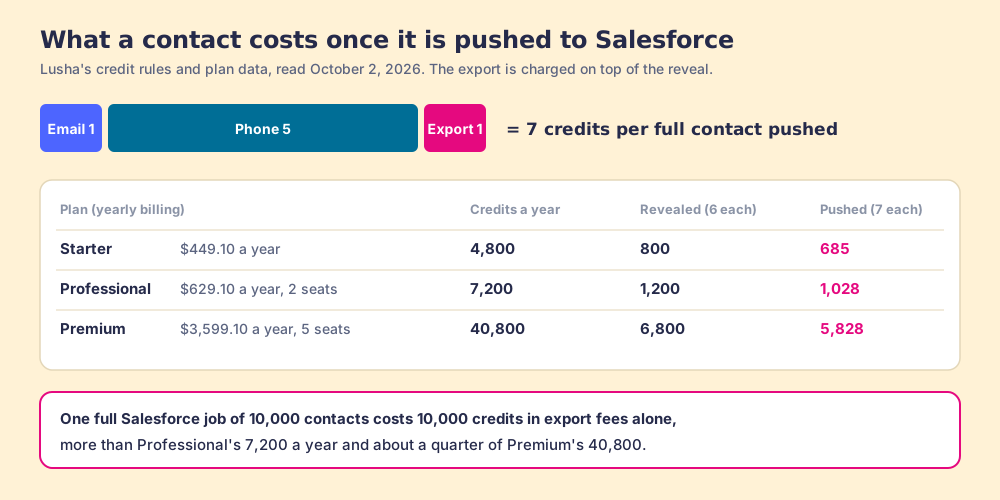
Lusha’s export guide puts it plainly: “Each CRM export costs 1 credit, charged at the time of export and separate from the original reveal cost” (Lusha, export to CRM). The price book inside lusha.com/pricing agrees: export_crm is 1 credit per 1 record on every plan, against 1 credit per 25 rows for a CSV (lusha.com/pricing, October 2, 2026). An email reveal is 1 credit and a phone 5, so a full contact pushed to Salesforce costs 7.
| Plan (yearly billing) | Price | Credits a year | Revealed at 6 each | Pushed at 7 each |
|---|---|---|---|---|
| Starter | $449.10, 1 seat | 4,800 | 800 | 685 |
| Professional | $629.10, 2 seats | 7,200 | 1,200 | 1,028 |
| Premium | $3,599.10, 5 seats | 40,800 | 6,800 | 5,828 |
Salesforce’s bigger pipe makes the seventh credit bigger too. One full 10,000-contact background job costs 10,000 credits in export fees alone, more than Professional’s 7,200 a year and about a quarter of Premium’s 40,800. The 10,000 cap is generous, and filling it is expensive.
One inconsistency to check in your own dashboard: Lusha’s guide to prospecting inside Salesforce says clicking Show contact on a record reveals “direct dial, work number, and email” and “uses one credit,” while the credit reference prices a phone at 5 (Lusha, prospecting on Salesforce). The credit reference and the price book agree with each other. Budget on 5.
Reviewers describe the meter in their own words. Khwaish A., a small-business reviewer, wrote in April 2026 that “credits can run out quickly, making it costly at scale,” and Frederick S., a mid-market customer success manager, that “the credit system can sometimes feel limiting for high-volume outbound teams” (G2). The praise is for the connection itself: a financial-services reviewer wrote in April 2026 that “syncing with our CRM and sales tools is straightforward.” The Lusha review page weighs the rest of that evidence.
Who owns the leads Lusha creates in Salesforce?
The rep who pushed them, until your routing gets a say. Because each rep connects their own Lusha account, records arrive under the person who exported them. Of Lusha’s two CRM guides, Salesforce’s has the better default; the HubSpot one defaults every record to whoever connected the integration.
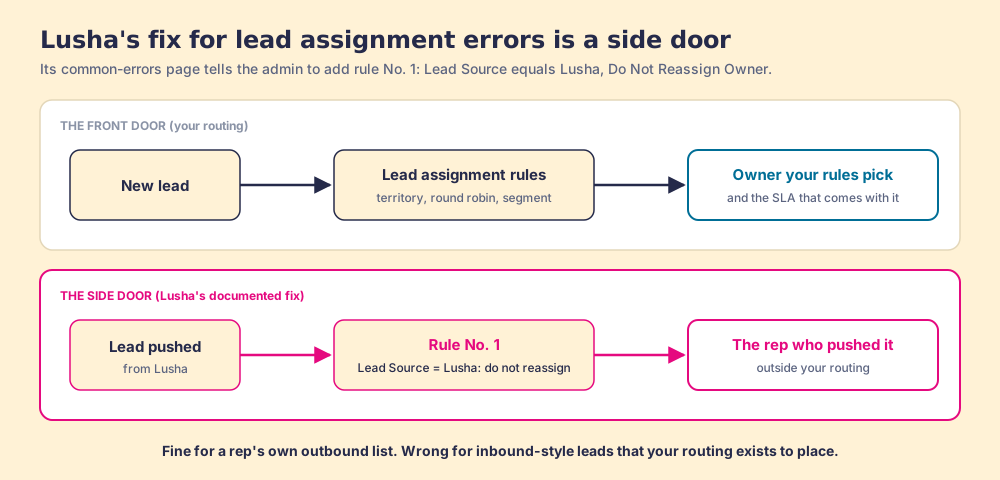
Then Salesforce’s lead assignment rules run, and here Lusha’s docs make a choice for you if you let them. The common-errors page lists “Lead assignment rules issue” for when “a saved lead is automatically reassigned to another owner,” and the fix it gives the admin is a new rule at sort order No. 1: “when Lead Source equals Lusha, then select Do Not Reassign Owner.”
A building with a front desk works like this. Visitors check in, the desk sends each to the right floor, and the right person knows to expect them. Lusha’s fix is a side door with a sign that says “Lusha visitors, go straight up to whoever invited you.” For a rep’s own outbound list, that is correct: the rep found the person and should own them. For anything your routing exists to place (a named account owned by someone else, a territory, a round robin with a response-time promise), the side door walks the lead past the desk that knew where it belonged. The lead routing page covers what that desk is for.
Three more ownership traps from the same page, each with Lusha’s fix:
- Inactive owners. “Cannot reference converted lead” and “Owner is inactive” appear when Lusha tries to update a record owned by a deactivated user. Reassign those records, or grant Update Records with Inactive Owners.
- Record Types a rep cannot use. “This ID value isn’t valid for the user” means the default Record Type is one the rep’s profile cannot see. Pick one all users can access.
- Session drops. “Each user on your team manages their own Salesforce connection,” and a short org session policy can log reps out of the integration repeatedly. The fix is to set the Lusha connected app’s session timeout to 24 hours, or the longest your policy allows, and to check profile-level overrides, since “the shorter timeout takes precedence.”
Does Lusha keep Salesforce records up to date?
Not through the export. The export writes what the rep pushed, when they pushed it; a buyer who changes jobs keeps the old title in Salesforce until someone reveals and pushes again. Allow Override updates fields on the next export of that person, not on a schedule.
Lusha offers two other routes for that job. Its Workspace has a CRM enrichment workflow, which is one of the four reasons it says it reads Salesforce (Lusha, read and write permissions). And its developer docs publish a record-triggered Salesforce Flow that calls the Lusha v3 API on every new Lead, “no Apex required” (Lusha, Salesforce Lead enrichment). If you built an older version of that Flow, the same page carries a date to put in the calendar: “v2 endpoints stop responding in November 2026.”
Two smaller syncs round it out. Lusha Engage sequence emails sync to Salesforce as Activity Tasks, with mappings that “are not currently customizable.” And opt-out sync writes Lusha’s suppression status to Email Opt Out or a custom field, which is the setting to turn on before anyone emails a pushed contact.
Where does Supered Prospector fit?
Look at where the work starts in everything above. The rep reveals in Lusha, then pushes into Salesforce, then the admin tunes the doorman, the side door, and the session timeout so the push lands well. A Salesforce team’s reps already stand at the far end of that pipe, inside the record. And if the team pays for Clay, someone has already built better tables than any single database: the GTM engineer, who has become the list desk, fielding Slack requests for every list.
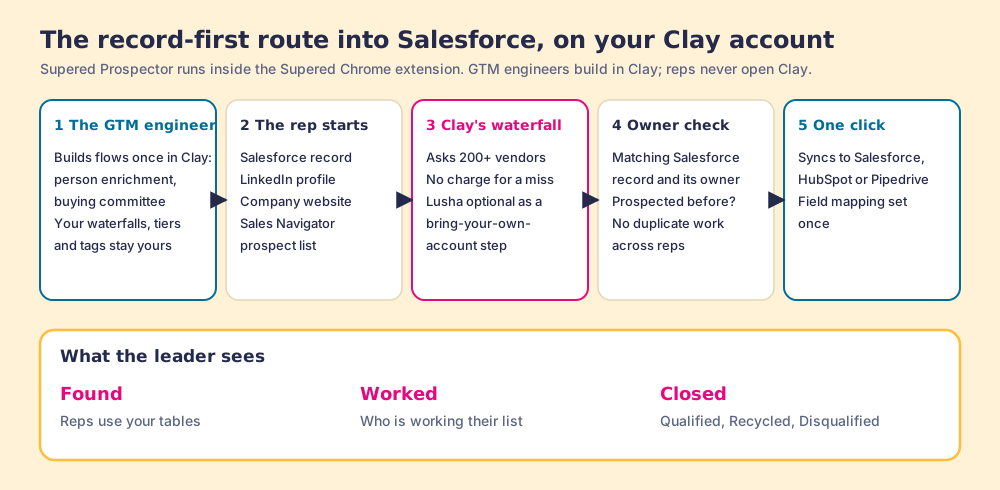
Prospector puts those tables where the rep stands. It runs inside the Supered Chrome extension, on the team’s own Clay account, and reps never open Clay. Clay plus Supered is the best way for a sales team to prospect: GTM engineers build in Clay, reps never open Clay. Supered does not bring its own database. It brings Clay’s waterfall, which is every database, routed, and that is why we chose Clay as our only data provider. Clay describes its waterfalls as checking “multiple providers to return the most verified emails (lower bounce rate) and phone numbers (higher connect rate)” across 200+ data and AI vendors (clay.com), and its pricing page adds a rule a single database cannot offer: “If an enrichment returns no result, you’re not charged Data Credits or Actions” (Clay pricing, October 2, 2026).
What a Salesforce rep gets:
- The table as a button. The GTM engineer builds flows once (person enrichment, buying committee) and each maps to a Clay table and a destination. The rep picks one from a Push menu on the Salesforce record, a LinkedIn profile, a company website, or a Sales Navigator prospect list pushed to a Clay table.
- Owner context before the push. On a LinkedIn profile the rep sees the matching Salesforce record, who owns it, and whether the person was prospected before, so two reps do not work the same buyer.
- One click into Salesforce. Field mapping is set once; the contact syncs to Salesforce, HubSpot, or Pipedrive.
- Found, worked, closed. The leader sees which lists reps found, who is working theirs, and how each lead ended: Qualified, Recycled, or Disqualified, the way your process says. A leader who can see lists turn into pipeline has a reason to grow the Clay budget.
On LinkedIn, Supered’s own statement: Prospector works within LinkedIn’s terms and does not copy search results in bulk; the contact data comes from Clay’s waterfall on the customer’s Clay account.
Lusha can still ride along. Lusha joined Clay’s marketplace on March 10, 2026, and Clay marks “Enrich Person with Lusha” and “Enrich Company with Lusha” as “Bring Your Own Account Required” (Clay, Lusha integration, checked October 2, 2026). A team that values Lusha’s numbers keeps its Lusha account as one step in the waterfall. The Clay vs Lusha page compares the two in full.
The arithmetic, at list price. Ten reps on Prospector plus Clay Growth ($495 a month, $5,940 a year) cost $11,340 a year (Prospector). Ten reps on Lusha would be two Premium plans at $7,198.20 a year for 81,600 credits, which pushes 11,657 full contacts at 7 credits each. Lusha is cheaper for the same headcount. On our reading of Clay’s pricing calculator, an email plus a phone is roughly six data credits, about 12,000 contacts a year on Growth, a supposition labelled as one. The volumes land close; the difference is how many sources stand behind each lookup and where the rep starts.
Choose something else if you do not have Clay. Prospector runs on the customer’s Clay account and does nothing without one, and someone has to build the tables; Clay’s own copy says “GTM engineers build on Clay.” (RevPartners, a Clay Elite Studio Partner, builds them for teams that want help; I founded it, so weigh that.) Choose something else, too, if two reps push a few dozen contacts a month, because Lusha’s Starter at $449.10 a year is hard to undercut for that job. The sourcing use case shows the setup when Clay is in place, the Clay workflows page covers what the GTM engineer builds, and the Clay Chrome extension page explains why a rep-side layer on Clay has been hard to find.
What is the non-Clay alternative in Salesforce?
Apollo, for a team that wants the data, the sequences, the dialer, and a two-way Salesforce sync in one plan. Its integration installs as a managed package with a dedicated integration user, pulls leads, contacts, accounts, and opportunities into Apollo, and pushes contacts, accounts, deals, and activities back. CRM Integrations start on Basic at $49 per seat per month billed annually, so ten seats are $5,880 a year; a phone costs 8 credits and an email 1. Two things to know before you switch: records belong to the integration user by default, and every existing Apollo connection must move to the new managed package by December 31, 2026. The Apollo Salesforce integration page walks the setup, and the Kaspr vs Lusha page weighs another single-database option against Lusha.
Which should you choose?
Two questions decide it: does your team pay for Clay, and do your reps run outreach inside the data tool.
- Lusha’s integration, kept. The pick for a few reps already prospecting in Lusha. Before the first bulk reveal, size the API request limit, turn on the indicator and exclusion, decide whether Lusha leads go through your assignment rules or around them, and set the session timeout.
- Apollo’s integration. The pick without Clay when reps sequence and dial in the same tool and want activity flowing both ways.
- Supered Prospector. The pick when the team already pays for Clay and the reps live in Salesforce and LinkedIn: the GTM engineer’s tables one click from the record, every source behind each lookup, Lusha kept only if its data earns a step.
What I recommend: if you keep Lusha, do the routing decision on purpose. The side door is fine for a rep’s own list and costly for a lead that belonged to someone else, and a thousand leads routed around the desk take longer to fix than to push. If your team has Clay, let reps start at the record and run the tables your GTM engineer already built, then watch each list move from found to closed. For the LinkedIn half of the same question, the Salesforce LinkedIn integration page shows what Sales Navigator’s native sync does and does not create, and the Lusha pricing page prices every plan. A Prospector demo on your own Clay account shows the record-first route in Salesforce.
Frequently asked questions
Does Lusha integrate with Salesforce?+
How much does the Lusha Salesforce integration cost?+
How many records can Lusha export to Salesforce at once?+
Why is Lusha charging me for contacts that are already in Salesforce?+
Does Lusha read or store my Salesforce data?+
What is the best alternative to the Lusha Salesforce integration for a team with Clay?+
Everything we have written on Lusha
More on Lusha
Supered Prospector vs Lusha: the side-by-side- Lusha Alternatives in 2026: The Corner Shop, the Credit Wall, and the Runner Who Checks Every Shelf
- Lusha Pricing in 2026: Five Credits a Phone, and the Jar That Empties on the Anniversary
- Lusha Review 2026: Rated by Its Buyers, Contested by Its Contacts
- The Lusha Chrome Extension in 2026: A Coin-Operated Viewer With One Lens
- Lusha HubSpot Integration (2026): Three Connections, One Credit per Push
- Apollo vs Lusha in 2026: Why the Eight-Ticket Phone Is the Cheaper Ride
- Clay vs Lusha in 2026: The Vending Machine and the Kitchen
- Kaspr vs Lusha in 2026: Unlimited Texts or a Prepaid Card
- Lusha vs Cognism in 2026: The Corner Shop and the Cash-and-Carry
- Lusha vs Seamless in 2026: The Price Tag and the Showroom
Your Clay waterfall, where reps already work.