Apollo Salesforce Integration: The Mail Room, the Clerk, and the Six-Hour Clock
How the Apollo Salesforce integration works in October 2026: the new managed package, what pulls and pushes, which plan you need, the setup steps in order, the six-hour clock, the pitfalls in Apollo's own docs, and when Clay plus Prospector fits better.
The Apollo Salesforce integration is Apollo's two-way sync with Salesforce, installed as a managed package with a dedicated integration user: it pulls leads, contacts, accounts and opportunities into Apollo and pushes contacts, accounts, deals and activities back.
How to set up the Apollo Salesforce integration
- 1
Clean Salesforce first
Merge or delete duplicate leads, contacts, and accounts in Salesforce before connecting. Apollo mirrors Salesforce, so duplicates there reappear in Apollo, and Apollo does not merge or delete them for you.
- 2
Install the Apollo managed package
In Apollo go to Settings, Integrations, Salesforce, click Connect, then Install Managed Package. Apollo sends you to AgentExchange (formerly AppExchange): click Get It Now, confirm the org, and install for all users or the profiles that include your Apollo users.
- 3
Create the integration user
In Salesforce open the App Launcher, search for the Apollo Setup app, click Get Started, and create a dedicated integration user with a shared or alias mailbox and a unique password. Keep the default permissions, and grant access to any custom fields you plan to map.
- 4
Connect Apollo as the integration user
Log out of Salesforce or use a private window, then in Apollo click Connect and log in with the integration user's credentials. The Apollo admin who completes this becomes the team sync user.
- 5
Map fields, stages, owner, and sync rules within six hours
On paid plans, syncing turns on automatically six hours after you connect. In that window, map each phone type to its own field, map stages, set data writing rules, choose leads or contacts for new records, set stage-based push rules, and decide who should own new records.
- 6
Verify with one record
Push one test contact, then check in Salesforce who owns it, which account it attached to, and that every phone type arrived. Review Settings, Integrations, Salesforce, Error Logs for rejected records before pushing in bulk.
The Apollo Salesforce integration is Apollo’s two-way sync with Salesforce, installed as a managed package with a dedicated integration user: it pulls leads, contacts, accounts and opportunities into Apollo and pushes contacts, accounts, deals and activities back. It works, it comes with Apollo’s paid plans, and most of what can go wrong with it is written down in Apollo’s own help center, which is where I read it this morning. Three things in those pages change how you should set it up: syncing turns itself on six hours after you connect, new records belong to the integration user unless you plan otherwise, and every existing connection has to move to the new managed package by December 31, 2026. The short answer, with the detail below:
- Apollo’s native Salesforce integration. For teams without Clay that run sequences and dials inside Apollo. Included from Basic at $49 a seat per month, billed annually.
- Supered Prospector, on your Clay account. For teams that already have Clay and want reps to add reachable contacts to Salesforce from wherever they found the person. $45 per rep per month, billed annually.
- Clay’s own Salesforce integration, run by Ops. For bulk enrichment of records already in Salesforce, with no rep tool at all. Clay Growth, $495 a month.
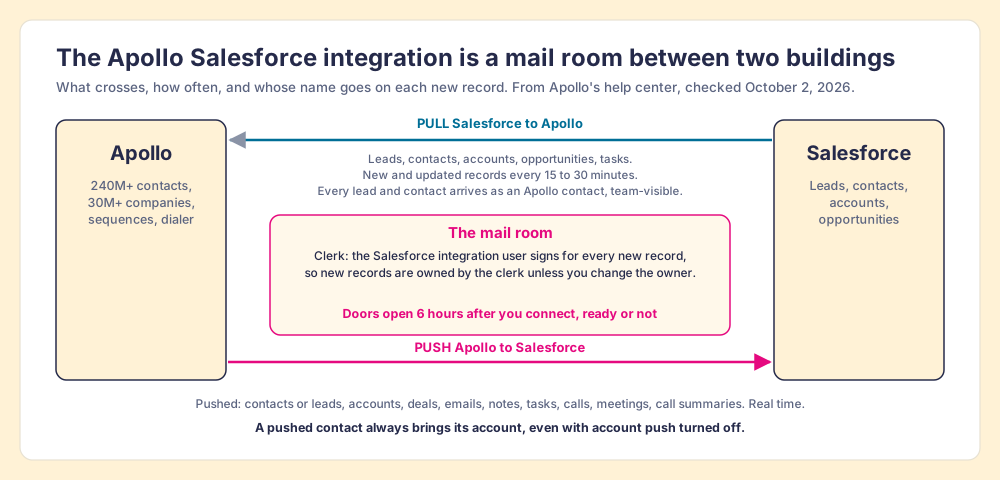
A mail room is a sensible thing for two office buildings to share. Parcels go out, parcels come in, and no one in either building has to cross the street. But a mail room has habits. It opens at a set hour whether or not anyone has labelled the pigeonholes, and the clerk signs for every parcel in his own name. Apollo’s Salesforce sync is a mail room of exactly that kind, and the clerk is a Salesforce user you create during setup.
What does the Apollo Salesforce integration sync?
More than most people expect, in both directions. Apollo’s Salesforce Integration Overview (updated September 2, 2026) says Apollo pulls “leads, contacts, accounts, and opportunities from Salesforce into Apollo,” and can push “contacts, leads, accounts, deals, and activities from Apollo to Salesforce,” where activities “can include emails, notes, tasks, calls, meetings, and conversation summaries.” Most contact and company syncs “complete within 15-30 minutes,” and Apollo’s push settings guide says pushes happen “in real-time.”
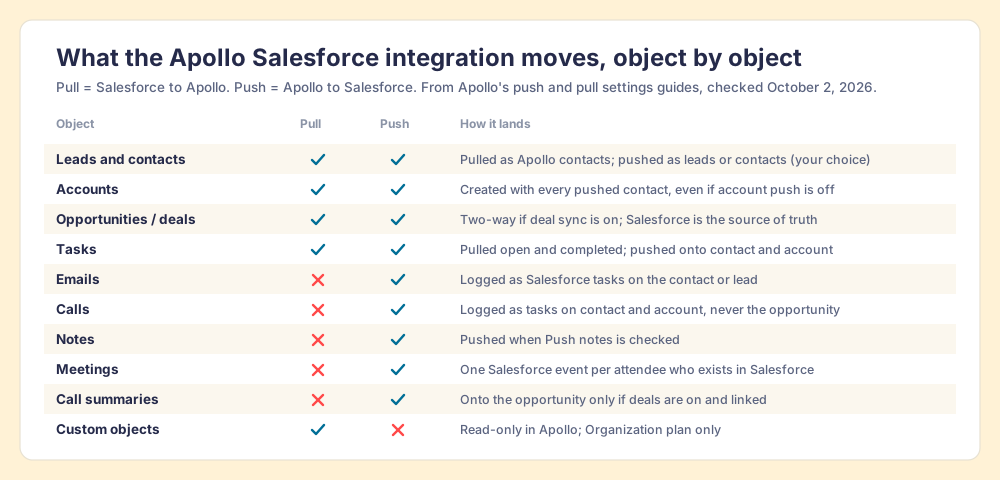
The details matter more than the list, so here they are object by object, from the push and pull guides.
| Object | Salesforce to Apollo | Apollo to Salesforce | How it lands |
|---|---|---|---|
| Leads and contacts | Yes | Yes | Pulled as Apollo contacts; pushed as leads or contacts, your choice |
| Accounts | Yes | Yes | Created with every pushed contact, even if account push is off |
| Opportunities / deals | Yes | Yes | Two-way only with deal sync on; Salesforce is the source of truth |
| Tasks | Yes | Yes | Open and completed tasks pulled; pushed onto contact and account |
| Emails | No | Yes | Logged as Salesforce tasks on the contact or lead |
| Calls | No | Yes | Logged as tasks on contact and account, not the opportunity |
| Notes | No | Yes | When Push notes is checked |
| Meetings | No | Yes | One Salesforce event per attendee who exists in Salesforce |
| Call summaries | No | Yes | Onto the opportunity only when deals are on and linked |
| Salesforce custom objects | Yes | No | Read-only in Apollo, Organization plan only |
Apollo’s marketing page for the integration also lists emails and calls among the things it pulls from Salesforce; the pull-settings guide offers only tasks under activities. If inbound email history matters to you, test it before you rely on it.
Two lines from the pull guide deserve a slow read. Apollo “automatically pulls all contacts and leads from Salesforce as contacts, then makes them visible to your team when prospecting,” and selective sync, the setting that limits which records come over, “is available on certain Apollo plans purchased after July 24, 2024” (Configure Salesforce Pull Settings, updated September 6, 2026). So the default is your whole Salesforce database, leads flattened into contacts, in front of every rep.
Which Apollo plan and Salesforce edition do you need?
On the Apollo side, a paid plan. Apollo’s pricing data, read on October 2, 2026, lists “CRM Integrations” on Basic, Professional, and Organization, and not on Free, which lists the Salesforce extension and “CRM Enrichment (100 per month)”; Apollo’s enrichment guide says free teams can connect Salesforce to enrich up to 100 records every 30 days.
| Apollo plan | Annual price per seat per month | Salesforce features listed |
|---|---|---|
| Free | $0 | Salesforce extension, CRM enrichment for 100 records a month |
| Basic | $49 ($65 monthly) | CRM Integrations, automated CRM enrichment |
| Professional | $79 ($99 monthly) | CRM Integrations, automated CRM enrichment |
| Organization | $119, annual only, three-seat minimum | Adds Salesforce Custom Objects and SSO |
Filling Salesforce fields from Apollo spends credits: 1 per email and 8 per phone number, from a pool of 30,000 credits per seat per year on Basic and 48,000 on Professional. Real-time enrichment “requires credits” (Use CRM Enrichment, updated September 27, 2026). The Apollo pricing breakdown covers the credit arithmetic in full.
On the Salesforce side, the edition. Apollo’s managed package is on Salesforce’s marketplace as “Apollo: AI GTM System,” published September 11, 2026, a managed second-generation package with the namespace apollo_sf, version 0.4, security review approved June 2, 2026, priced as freemium, with zero reviews so far (AgentExchange listing, checked October 2, 2026). Its editions field lists Enterprise, Unlimited, and Performance. Professional is not on the list, which fits Salesforce’s own rules: Professional Edition gets API calls only “with API access enabled” (Salesforce API request allocations, Summer ‘26). If you run Professional, ask Apollo before you buy seats.
How do you set up the Salesforce Apollo integration?
Apollo’s setup guide, rewritten September 30, 2026, runs to more than a dozen numbered steps. Here they are as six, in the order an admin should do them, with one step Apollo puts in a different article.
- Salesforce cleaned first. Apollo’s duplicates article is blunt: “When connected, Apollo mirrors your CRM. To minimize duplicate records in Apollo, clean and deduplicate Salesforce before connecting the integration.” Apollo “doesn’t automatically merge or delete duplicate records.”
- The managed package. In Apollo, Settings, Integrations, Salesforce, Connect (or Connect to Sandbox; you can link production or a sandbox, never both at once), then Install Managed Package. Apollo sends you to AgentExchange, where you click Get It Now and install for all users or for the profiles that include your Apollo users.
- The integration user. In Salesforce, open the Apollo Setup app from the App Launcher and create a dedicated user. Apollo recommends “a shared administrator mailbox or integration-specific alias that your organization can continue to access if individual employees leave,” and “keeping all default permissions as selected to prevent sync issues.” Grant this user access to any custom fields you plan to map.
- The connection. In Apollo, Connect, then log in as the integration user, not yourself. Apollo’s FAQ explains why your admin account sometimes gets authorized by mistake: “An active Salesforce admin session can cause the authorization flow to skip the login step.” Log out first or use a private window.
- Mappings and rules, inside six hours. This is the step with a clock. “On paid Apollo plans, after you first connect Salesforce, you have 6 hours to configure your field mapping and inbound / outbound sync settings before syncing is automatically enabled.” Map fields and stages, set data writing rules (auto-fill or overwrite), choose whether new records become leads or contacts, set stage-based push, and decide who should own new records.
- One test record. Push one contact. In Salesforce, check its owner, its account, and that its mobile and work numbers arrived. Then open Settings, Integrations, Salesforce, Error Logs; Apollo retries a failed push “up to five times” before it waits for you (error log guide).
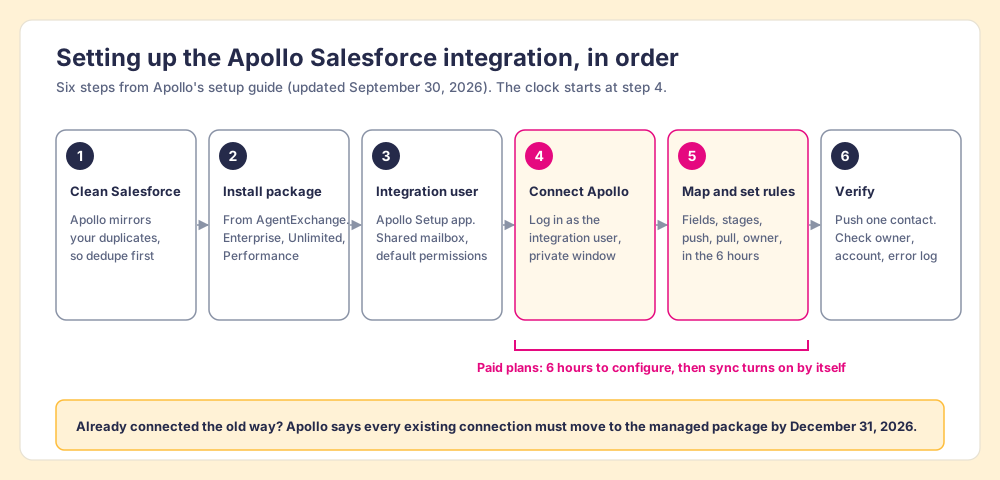
The six-hour window is the fact I would hand the admin first, and it is the reason to plan step 5 on paper before step 4. The pull guide adds the cost of missing it: records already imported “aren’t automatically re-pulled if you tighten conditions or add a new field or stage mapping,” so you run Pull all afterward, and on a large org the first pull “may take several hours to complete.” Apollo’s 2026 release notes say its parallel pull now finishes “multi-million-record pulls” within a day (Release Notes 2026).
Upgrading an existing connection
If your team connected Salesforce to Apollo before the package existed, you have a deadline. “All existing Salesforce connections must upgrade to the Apollo managed package by December 31, 2026.” Apollo is rolling out the Migrate Now button over time and emails admins when theirs is ready. Mappings and push and pull settings carry over. Two catches from the same page: to keep the same team sync credentials you must be the Apollo admin who set them up, and if you authenticate with a new integration user, new records show that user in Created By from then on. If you disconnect for any reason, you reconnect through the package.
Where does the Apollo io Salesforce integration go wrong?
Salesforce admins have been fighting this for years. In November 2022 an admin on Salesforce Stack Exchange described an org with “at least 4” managed packages, HubSpot, Apollo, Leadfeeder, and Calendly, each able to insert contacts: “Hubspot creates it’s own Contact when someones fills the form on the website, then Apollo also pushes record of the same person to Salesforce.” The question has no answers (Salesforce Stack Exchange). Apollo’s G2 profile shows 4.7 out of 5 from 9,839 reviews (G2, October 2, 2026), and the reviews G2 surfaced for a Salesforce search that day mostly praise the CRM sync. The sharp edges are in Apollo’s documentation, stated plainly by Apollo, and each one has a setting.
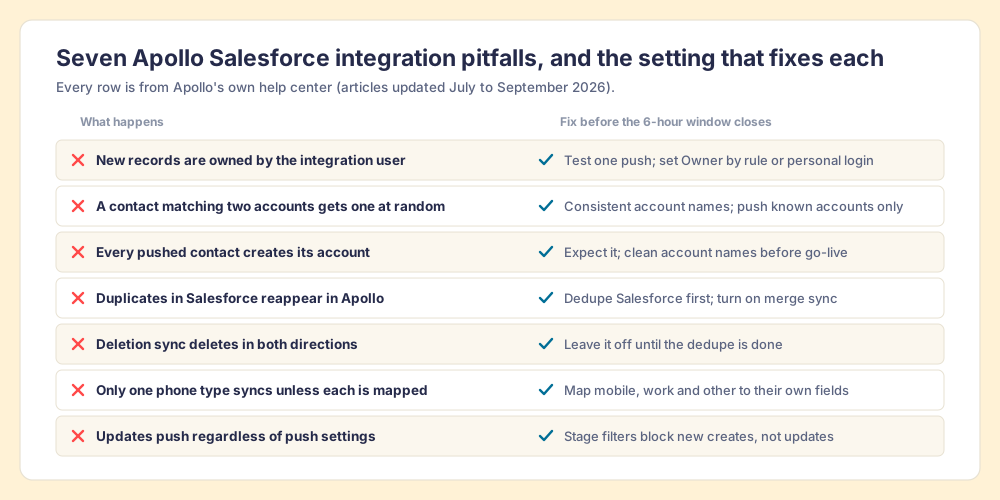
- The clerk owns the parcels. “When Apollo creates a new contact, lead, or account in Salesforce through this connection, the integration user owns the new Salesforce record by default” (ownership article, August 21, 2026). If your lead routing, territories, or commission reports read Owner, a rep’s new contacts land in a service account’s name. Apollo’s credentials article says reps who connect personal Salesforce logins get records “assigned to you,” and its Created By mapping preserves attribution without changing Owner. Test which behavior you get with one push before a hundred.
- The coin toss on accounts. “If the contact matches multiple existing accounts in Salesforce, Apollo randomly assigns an account.” Two Acme accounts in Salesforce turn every new Acme contact into a coin toss.
- The account that comes along. Salesforce needs every contact on an account, so “Apollo always creates or updates the linked account if it doesn’t already exist, even if Push accounts is off.” Inconsistent company names become duplicate accounts.
- The mirror. Duplicates in Salesforce appear in Apollo, and duplicates pushed from Apollo appear in Salesforce. Salesforce duplicate rules can block the create, and the error log shows DUPLICATES_DETECTED.
- The delete that travels. Deletion sync removes “any Apollo records linked to deleted Salesforce records, and vice versa.” Leave it off until the cleanup is done and you trust what each side deletes.
- The phone that stays behind. “Each phone type must be mapped to its own Salesforce field. If you only map one field like ‘phone,’ only that phone type is pushed” (field mapping guide). Map mobile on day one, or you paid 8 credits for a number Salesforce never saw.
- The unfiltered update. Push settings “only affect net new contacts”; “Apollo pushes any updates to your existing contacts automatically, regardless of push settings.” Stage filters “block new creates, not updates,” and push filtering supports nothing “beyond stage, like with custom field values.”
Two more, smaller. Apollo connects to one CRM at a time, so a Salesforce connection rules out HubSpot or Pipedrive on the same Apollo account (Bidirectional Sync Overview). And a setting called “Push emails even if sender or recipient doesn’t exist in Salesforce” carries Apollo’s own warning that it “may result in the creation of contacts in Salesforce that you don’t expect to see.”
What about Salesforce API limits?
Apollo’s help center does not publish how many Salesforce API calls its sync uses, and I could not find a number from Apollo. What Salesforce does publish: an Enterprise Edition org gets 100,000 API calls per 24 hours plus 1,000 per Salesforce license, and the allocation is “enforced against the aggregate of all API calls made to the org” (Salesforce). A 20-license Enterprise org has 120,000 calls a day, shared by Apollo’s 15-to-30-minute pulls, every other managed package, and your own automations. Before connecting, have your admin pull the API usage report in Setup and look at what the org already spends.
Why trust this page?
I started RevPartners, a HubSpot partner that did only sales implementations, sold roughly twice as much Sales Hub as any other partner, and reached Elite tier in 13 months. Supered came out of that work and runs in Salesforce, HubSpot, and Pipedrive; it has 4.9 out of 5 from 81 reviews on G2 and 5.0 from 122 on the HubSpot App Marketplace (checked October 1, 2026). That is also the disclosure: we make Supered Prospector, and it ranks first below for teams that already have Clay. The Apollo facts on this page come from Apollo’s help center, Apollo’s pricing data, and the AgentExchange listing, all read on October 2, 2026, and the grading prints its weights so you can change them.
How do you get reachable contacts into Salesforce: Apollo or Clay?
The integration is the mail room. The parcels still have to come from somewhere, and that is the part that decides the choice. Four ways, graded on one set of weights for a Salesforce team of ten to fifty reps that finds people on LinkedIn, Sales Navigator, and company sites and needs them in Salesforce with an email and a phone.
| Criterion | Weight | What it rewards |
|---|---|---|
| Reachable contact | x3 | The Salesforce record arrives with a verified email and phone |
| Clean Salesforce | x2 | Checks for an existing record first; mapping and owner set by Ops |
| Where the rep works | x2 | Runs from LinkedIn, Sales Navigator, a company site, or the Salesforce record |
| Price you can predict | x2 | Published per seat or per result |
| Outreach in the same tool | x1 | Sequences and dialing without another product |
| Rank | Option | Grade | Score /50 | Best fit | Salesforce integration | Setup effort | Pricing (plan with the feature) | Reason to choose it |
|---|---|---|---|---|---|---|---|---|
| 1 | Supered Prospector on Clay | A | 42 | Teams that already have Clay | Native, one-click sync, mapping set once | Under a week on an existing Clay account | $45 per rep per month, billed annually, plus your Clay plan | Clay’s waterfall across 200+ vendors from any page the rep is on |
| 2 | Apollo’s native Salesforce integration | A- | 36 | Teams without Clay running outbound in Apollo | Native managed package, two-way | A day, plus the first pull | $49 or $79 per seat per month, billed annually | Data, sequences, dialer, and sync in one plan |
| 3 | Clay’s Salesforce integration, run by Ops | B+ | 32 | Bulk enrichment of records already in Salesforce | Native (Clay Growth and up) | Ops builds each table | Clay Growth, $495 a month | Lookups, upserts, and lead conversion in bulk |
| 4 | The rep types it in | C+ | 24 | A handful of new contacts a week | None needed | None | The rep’s time | No new vendor |
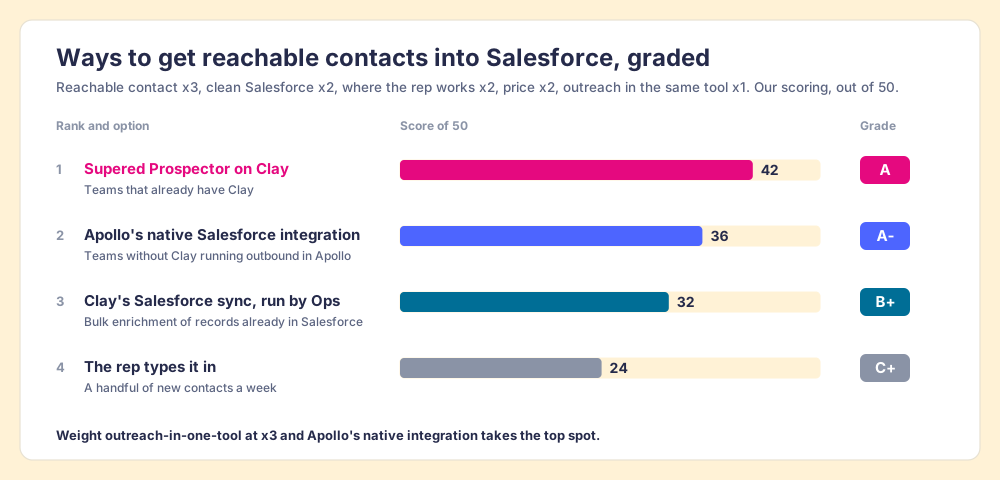
Apollo’s 36 breaks down as reachable contact 3, clean Salesforce 3, where the rep works 4, price 4, outreach 5. The 5 is earned: no other row sequences, dials, and syncs in one seat. The 3 on reachable contact comes from Apollo’s own credit calculator, which assumes 88 of 100 email lookups and 81 of 100 phone lookups find a match, so it plans for 12 and 19 misses per hundred. The 3 on clean Salesforce is the owner default and the account coin toss above. Prospector’s 1 on outreach is on purpose; it sends no email and dials no one.
Supered Prospector, for teams that already have Clay
Apollo is a library: 240M+ contacts and 30M+ companies on one set of shelves, with Waterfall Enrichment on paid plans that tries Apollo first and then 20+ partners. A book that is not on those shelves is not on them. Clay is interlibrary loan. “Clay’s signature data waterfalls check multiple providers to return the most verified emails (lower bounce rate) and phone numbers (higher connect rate),” across 200+ data and AI vendors under one contract (Clay, rep prospecting), and “If an enrichment returns no result, you’re not charged Data Credits or Actions” (Clay pricing, checked October 2, 2026). The picture has a limit: a loan desk only helps if somebody built it, and in Clay that is the GTM engineer.
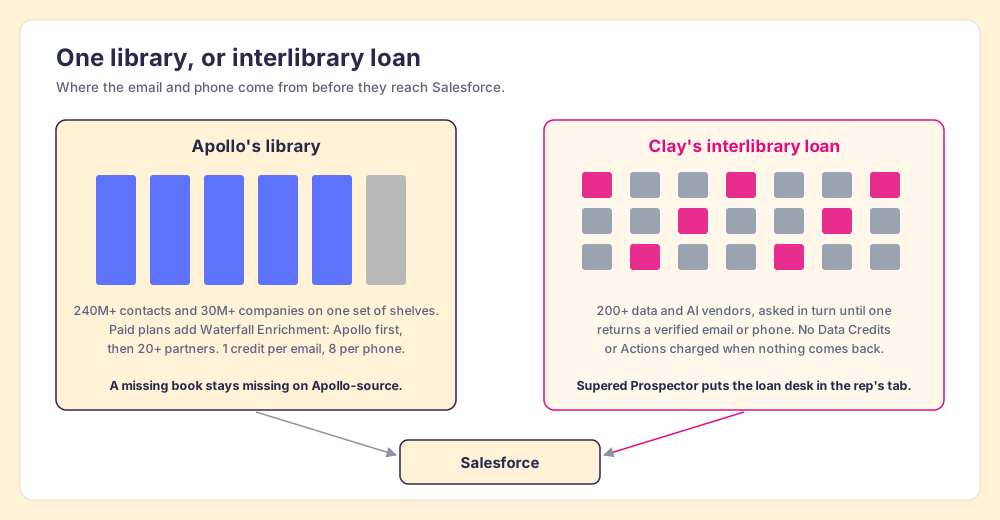
Prospector does not bring its own database. It brings Clay’s waterfall, which is every database, routed. We chose Clay as our only data provider for that reason, and it explains why Clay is not a row in the table above: it is the row that contains the other rows. Clay governs the data. Supered governs the motion.
What a Salesforce rep gets, on the team’s own Clay account, with no Clay login, from Prospector inside the Supered Chrome extension:
- Lookups from the page they are on. A LinkedIn profile, a Sales Navigator list, a company’s website with company research alongside, or the Salesforce record itself, where Prospector opens a contextual page for the account or contact.
- A check before the add. On a LinkedIn profile the rep sees the matching Salesforce record and whether the person was already worked, before creating a duplicate or stepping on a teammate. The Stack Exchange admin’s duplicate problem gets stopped at the door.
- The buying committee, on your terms. A lookup tuned to the titles, departments, and seniority your team sets.
- One click into Salesforce. Your admin sets the field mapping once, and a whole list can go into any custom Clay workflow your GTM engineer built.
- Lists a manager can follow. The team’s process applies to worked prospects, so a leader sees which sourced lists got worked and which closed, and coaches from what converts.
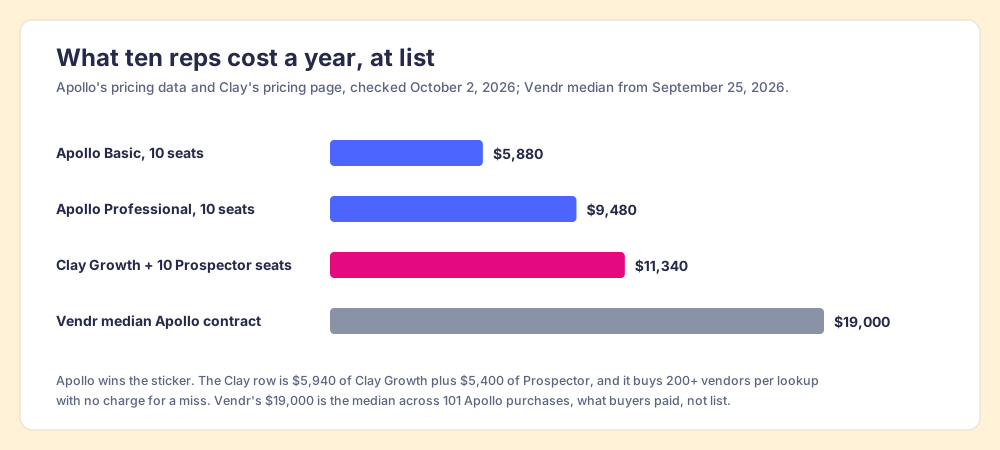
The arithmetic for ten reps, because Apollo is cheaper on a cold start and you should see by how much. Ten Apollo Basic seats list at $5,880 a year and ten Professional seats at $9,480. Clay Growth is $495 a month, $5,940 a year, with CRM sync built in, and Prospector is $45 per rep per month billed annually, so Clay plus ten Prospector seats is $11,340. Vendr’s median Apollo contract is $19,000 a year across 101 purchases (Vendr, September 25, 2026), which is what buyers report paying, against those list prices.
Choose something else if you do not have Clay. Prospector runs on your Clay account and does nothing without one, and Clay’s homepage says plainly who builds there: “GTM engineers build on Clay.” Choose something else, too, if your reps live in Apollo’s sequences and dialer all day. Prospector does not sequence or dial, and a team that wants data, outreach, and the Salesforce sync in one seat is Apollo’s customer.
When to keep Apollo, and when to run both
- Outbound inside Apollo. Sequences, the dialer, call recording, and the Salesforce sync in one plan. Keep it, set the owner rule, map every phone type, and size credits before seats; Apollo alternatives grades the field if you are reconsidering.
- Apollo for outreach, Clay for data. Apollo’s sequencer and Prospector’s lookups can sit side by side; Prospector writes to Salesforce through its own connection, so it is not a second CRM on Apollo’s one-CRM rule. Apollo’s own Waterfall Enrichment page lists a “bring your own vendor” option, which is worth asking Apollo about if you want one bill.
- Ops-only enrichment. Records already in Salesforce, refreshed in bulk, no rep involved. Clay’s Salesforce integration on the Growth plan does that; the Clay Salesforce integration guide walks it.
Which Salesforce setup should you choose?
Name the job and the choice follows.
- One tool for data, outreach, and sync, no Clay. Apollo’s native integration. Install the managed package now, ahead of the December 31, 2026 deadline, and do the mapping inside the six hours.
- Reachable contacts from wherever reps find people, with Clay. Prospector on your Clay account, one click into Salesforce, a duplicate check before the add.
- LinkedIn context inside Salesforce. Neither of the above; that is Sales Navigator Advanced Plus, covered in the Salesforce LinkedIn integration guide.
What we recommend: if you already pay for Clay, let Apollo’s sync do what it does well for the outreach you run in Apollo, and stop buying the same contact from one library when you hold a card to two hundred. If you do not have Clay, Apollo’s integration is a fair, well-documented mail room; give the clerk instructions before the doors open. For the HubSpot side of the same decision, read the Apollo HubSpot integration guide; for what the rep sees in the browser, the Apollo Chrome extension review and the Clay Chrome extension guide; for the extension that used to own the Clay-for-reps slot, Exportly alternatives; and the sourcing use case follows a list from the first lookup to closed.
Frequently asked questions
Is the Apollo Salesforce integration free?+
Does Apollo sync both ways with Salesforce?+
Who owns the records Apollo creates in Salesforce?+
Do existing Apollo Salesforce connections have to change?+
Can Apollo connect to Salesforce and HubSpot at the same time?+
What is the alternative to the Apollo Salesforce integration for teams with Clay?+
Your process, running itself.