Snov.io HubSpot Integration (2026): A Shared Ledger That Also Carries the Erasures
The Snov.io HubSpot integration, checked October 2, 2026: what syncs both ways, how to set it up, why deletions travel too, which plan includes it, the limits, the Salesforce and Pipedrive versions, and the alternatives.
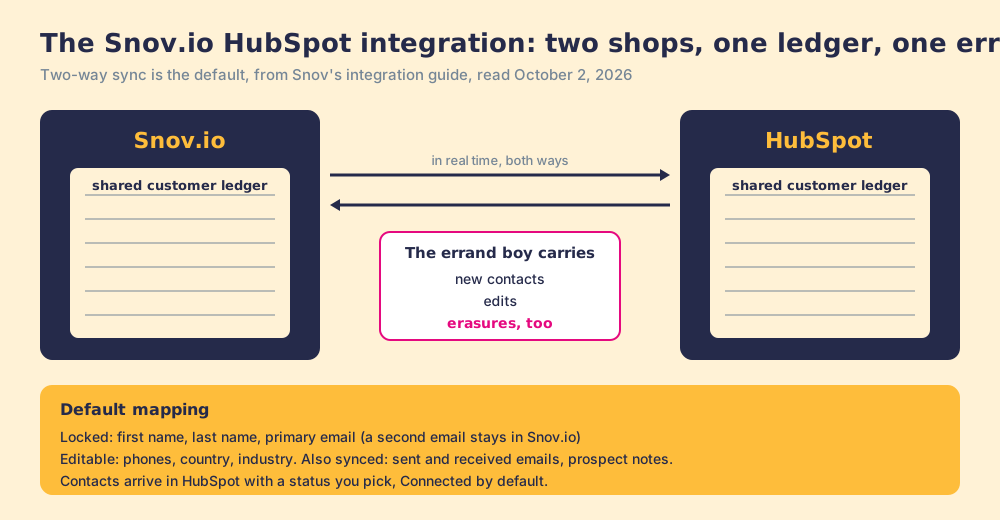
The Snov.io HubSpot integration is Snov.io's native, free connection that syncs Snov.io prospects and HubSpot contacts in real time, both ways by default, with field mapping, constant fields and a manual sync for older records, set up from Snov.io by a HubSpot Super Admin.
How to set up the Snov.io HubSpot integration
- 1
Connect HubSpot from Snov.io
In Snov.io, open account settings, then Integrations, click Connect on HubSpot, choose the HubSpot account, review the app permissions, and click Connect app.
- 2
Choose a sync direction
Under Synchronization type, pick two-way sync (the default), data syncs only to HubSpot, or data syncs only to Snov.io. Deletions follow the direction you choose.
- 3
Set the data sync settings
Pick the Snov.io list that receives HubSpot contacts, the Snov.io lists whose prospects go to HubSpot, the contact status they get in HubSpot (Connected by default), and the field mapping.
- 4
Add constant fields
Optionally stamp a fixed value, such as from Snov.io, into a custom HubSpot field on every synced prospect, and the reverse into a Snov.io field, so you can filter by source.
- 5
Launch, then decide on the manual sync
Click Launch. Snov.io offers to transfer records created before the integration; the default copies all existing HubSpot contacts into Snov.io. Choose the direction, or click Not now.
- 6
Pick the source app for conflicts
During a manual sync, duplicates are matched by email, and the source app's data overwrites the receiving app's data. Choose which tool wins before you click Start transfer.
Two shops on the same street once shared a customer ledger. Each kept a copy, and an errand boy ran between them all day carrying every change: a new customer here, a corrected address there, and, when one shopkeeper struck a name out, the boy carried the erasure too. The arrangement worked beautifully until the day one shopkeeper cleared out his old pages. The Snov.io HubSpot integration is that errand boy, and its default setting carries the erasures. The short version, checked October 2, 2026:
- Snov.io’s own integration. The right buy for a small HubSpot team that prospects and sends cold email in Snov.io and wants contacts, notes, and email history mirrored without exports. Included from Starter at $29.25 a month billed yearly.
- Supered Prospector. The right buy for a HubSpot team that already pays for Clay: start from the HubSpot record or the LinkedIn profile, run Clay’s waterfall across 200+ vendors, and sync in one click, at $45 per rep per month billed annually.
- Apollo Enrichment. The non-Clay pick when you want enrichment listed in HubSpot’s marketplace that refreshes existing records.
The Snov.io HubSpot integration is Snov.io’s native, free connection that syncs Snov.io prospects and HubSpot contacts in real time, both ways by default, with field mapping, constant fields and a manual sync for older records, set up from Snov.io by a HubSpot Super Admin. Snov’s guide puts the promise in one line: “Two-way sync keeps prospect lists constantly updated in real-time” (Snov.io, HubSpot integration guide, read October 2, 2026).
What does the Snov.io HubSpot integration sync?
Contacts, and the conversation around them. Snov.io prospects map to HubSpot contacts, and the guide adds that “synced data will also include sent/received emails and prospect notes.” Here is the default mapping from Snov’s FAQ:
| Snov.io prospect | HubSpot contact | Can you change it? |
|---|---|---|
| First name | First name | No |
| Last name | Last name | No |
| Email (primary only) | No | |
| Phones | Phone Number | Yes |
| Country | Country/Region | Yes |
| Industry | Industry | Yes |
Three details in the guide decide how clean the HubSpot side stays.
- One email per person. “If a prospect contains multiple emails, only the primary email will be synced.” A second address found later stays in Snov.io.
- A status stamp. Contacts arriving from Snov.io get a HubSpot contact status you choose, “Connected” by default.
- List boundaries. You pick which Snov.io lists feed HubSpot. The guide warns that prospects moved from other lists into the selected ones will not sync.
The guide describes contacts only. It says nothing about HubSpot companies or deals, even though Snov.io has its own CRM with deal pipelines, so plan on deals living in one tool, not both.
Is Snov.io on the HubSpot App Marketplace?
We could not find it. On October 2, 2026, we searched HubSpot’s public App Marketplace through the same search the storefront uses: “snov.io” returned 75 results, and none of them was Snov.io. The same search returned Apollo Enrichment, built by Apollo.io, at 6,949 installs and 2.7 stars from 34 reviews. So there is no public HubSpot rating or install count to quote for the snov io hubspot integration. You connect it from inside Snov.io, and HubSpot shows the permissions screen for you to approve.
Who can connect it matters more than where it is listed. Snov’s guide says the person setting it up must “either be a super admin or have App Marketplace permissions in your HubSpot account.” A HubSpot community answer about another prospecting tool put the same rule plainly: “Only Super Admins and users with App Marketplace access in admin permissions can connect apps to HubSpot” (HubSpot Community).
On plans, two Snov.io pages disagree. The help-center FAQ, last updated February 23, 2025, says “You can connect the integration free of charge on all plans, including the Trial plan.” The pricing page FAQ, read October 2, 2026, says “Premium features like integrations, bulk search, bulk verification, teamwork … and export are not available in Trial” (snov.io/pricing). The pricing page is newer. Budget on Starter, $39 a month or $29.25 billed yearly, the cheapest plan that lists “HubSpot 2-way integration,” and the Snov.io pricing page walks the rest of the ladder.
Why trust this page?
I started RevPartners, a HubSpot partner that did only sales implementations, sold roughly twice as much Sales Hub as any other partner, and reached Elite tier in 13 months. Supered came out of that work and is the #1 sales enablement app on the HubSpot marketplace, with 5.0 from 122 reviews there and 4.9 out of 5 from 81 reviews on G2 (both checked October 1, 2026). The disclosure: we make Supered Prospector, and it sits first below for HubSpot teams that have Clay. Everything about Snov.io on this page comes from Snov’s own guide, pricing page, and privacy policy, read October 2, 2026.
Which route into HubSpot fits your team?
The lens is a mid-market or SMB HubSpot team, ten to fifty reps. Scores match the Snov.io review and the Lusha HubSpot integration page: coverage of the contact you need (x3), rep-side delivery (x2), price structure for mid-market (x2), what the leader sees after the export (x2), bundled outreach (x1), out of 50.
| Rank | Route | Grade | Score | Best fit | HubSpot integration | Setup effort | Pricing (plan that includes it) | Reason to switch |
|---|---|---|---|---|---|---|---|---|
| ref | Snov.io HubSpot integration | B+ | 30 | Small teams prospecting and emailing from Snov.io | Native, two-way, contacts plus emails and notes | An hour for a HubSpot Super Admin | Starter $29.25 a month billed yearly, unlimited seats | Stay if Snov.io is where reps work and email is the job |
| 1 | Supered Prospector | A | 44 | HubSpot teams that already pay for Clay | Native, one click from the record or profile | Under a week on an existing Clay account | $45 per rep per month, billed annually, plus your Clay plan | 200+ vendors per lookup, start from the HubSpot record |
| 2 | Apollo Enrichment | A- | 36 | Teams wanting enrichment that refreshes HubSpot records | Listed HubSpot app, two-way sync | A day | Basic $49 per seat per month, billed annually | Listed and installable from HubSpot, phones at 8 credits |
| 3 | Lusha export | B+ | 29 | A few reps prospecting in Lusha | Native, one-way push | An hour for an admin of both tools | Every plan from Free; 1 credit per record pushed | Phones from Lusha’s own data at 5 credits |
Snov.io’s 30 is coverage 3, rep-side delivery 3, price 4, what the leader sees 1, outreach 5. The outreach 5 is earned: the sequencer, warm-up, and unlimited senders come in every paid plan. Prospector’s coverage score is Clay’s waterfall, credited to Clay, and its outreach score is the lowest on the card because it sends no email.
How do you set up the Snov.io HubSpot integration?
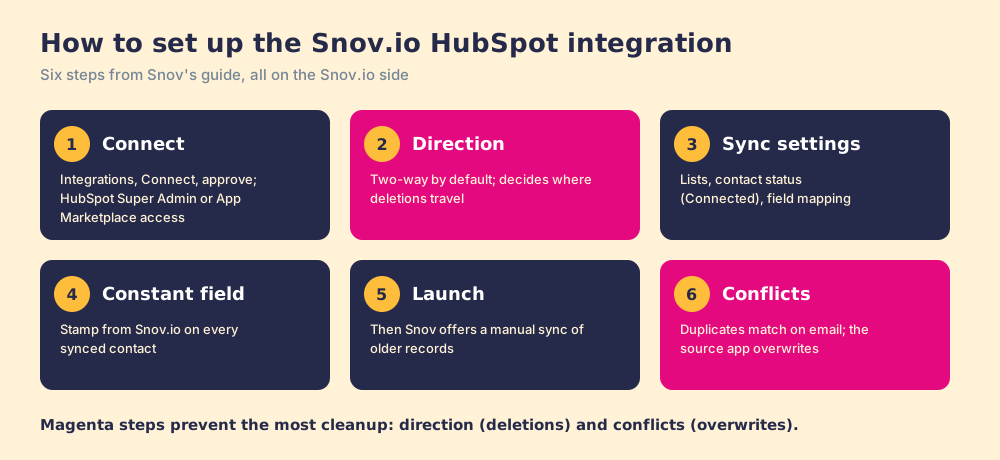
Snov’s guide runs six steps, all from Snov.io’s side (Snov.io guide).
- Connect. Account settings, then Integrations, then Connect on HubSpot. Pick the HubSpot account, review the permissions, click Connect app.
- Choose a sync direction. Two-way (the default), data syncs only to HubSpot, or data syncs only to Snov.io. The next section explains why this choice deserves ten minutes.
- Set the sync settings. The Snov.io list that receives HubSpot contacts, the Snov.io lists whose prospects go to HubSpot, the HubSpot contact status, and the field mapping. A custom mapping needs matching data types, “Text” to “Text.”
- Add constant fields. A fixed value, such as “from Snov.io,” written into a custom HubSpot field on every synced prospect. Turn this on; it is the only way to filter HubSpot later by where a contact came from.
- Launch. Snov.io then offers a manual sync of records created before you connected.
- Manage conflicts. During that manual sync, duplicates are matched by email, and “data from the source (sender) app will have a priority and will overwrite the data in the recipient (receiver) app.”
Which sync direction should you pick?
Back to the two shops. The errand boy is useful because he carries every change, and dangerous for the same reason. Snov’s guide is explicit: “Anytime you add, update, or delete a prospect record in one application, those changes will automatically be updated in the other application.” The HubSpot-only direction says the same: “Any new, updated, or deleted data in your Snov.io account will be synchronized with your HubSpot account.”
Suppose a rep tidies a Snov.io list after a campaign and deletes two hundred prospects who never replied. On two-way sync, the boy walks those erasures across the street. If some of those people were also customers, or sitting in an open HubSpot deal, the HubSpot contact goes with them, without anyone in sales ops approving it.
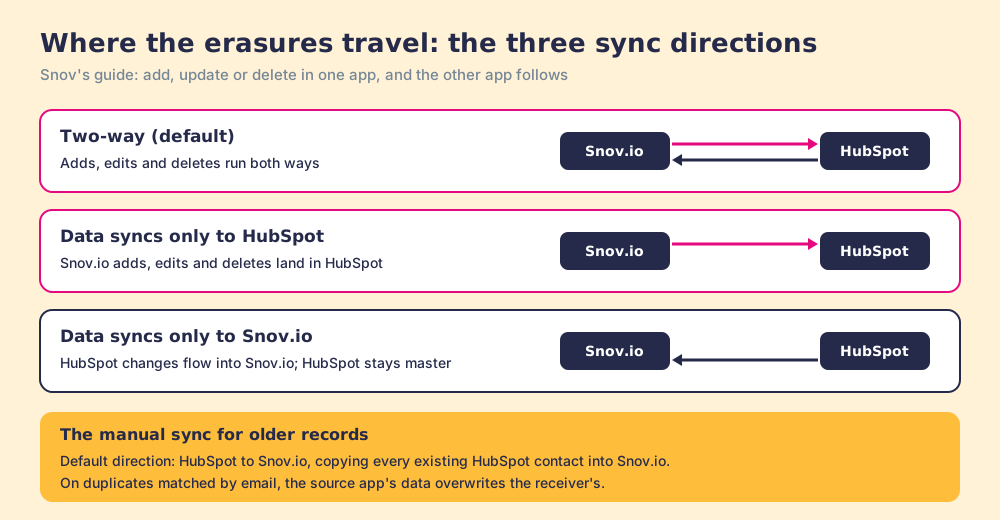
The manual sync has its own default worth reading twice. Its direction defaults to “from Hubspot to Snov.io,” which “copies all your existing Hubspot contacts into Snov.io.” For a team with a large customer base in HubSpot, that sends every customer into the prospecting tool. Snov’s privacy policy treats contacts arriving “within our integration with the Hubspot or Pipedrive platform” as data it processes, under its “Synchronized Data” and prospect definitions (Snov.io privacy policy, effective June 26, 2026).
The setup we would choose:
- HubSpot as the master copy. If HubSpot holds customers and open deals, choose “data syncs only to Snov.io,” or keep two-way and lock deletion rights in Snov.io to an admin.
- A narrow manual sync. Skip the default full copy with Not now, or run it from Snov.io to HubSpot with only the prospecting lists selected.
- A constant field on day one. Stamp “from Snov.io” so you can find, report on, and if needed bulk-fix every synced contact.
What are the limits of the Snov.io HubSpot integration?
All of these come from Snov’s own guide and pricing page, which is to Snov’s credit: the rules are written down.
- Reconnect for new fields. “If you create new custom fields in HubSpot after setting up the integration, you will need to reconnect it.” Reconnecting means deleting the integration and repeating setup.
- One mapping per field. “You can only map each field (default or custom) once.”
- Primary email only. Extra addresses stay in Snov.io.
- Paused means paused. A paused integration “won’t transfer any data in real-time”; you catch up with a manual sync.
- A deleted custom field stops its mapping. “Data synchronization for the mapping with this field will stop.”
- No HubSpot automations line. The pricing page lists “Pipedrive automations” next to the Pipedrive sync; HubSpot gets the 2-way sync only.
How do the Snov.io Salesforce and Pipedrive integrations compare?
The snov.io salesforce integration is not native. Snov.io’s pricing page lists native two-way sync for HubSpot and Pipedrive, and its integrations page sends Salesforce users to Zapier. A Salesforce team gets a trigger-and-action connection it builds and maintains in Zapier, with Zapier’s own pricing on top.
| Setting | HubSpot | Pipedrive | Salesforce |
|---|---|---|---|
| Connection | Native, two-way | Native, two-way (v2.0 guide, November 27, 2023) | Through Zapier |
| Automations listed on the pricing page | No | Yes, “Pipedrive automations” | Built in Zapier |
| Plan | Starter and above | Starter and above | Zapier integration, Starter and above |
For a Salesforce shop, that row decides more than any other on this page.
Where does Supered Prospector fit?
Turn the street around. Snov’s integration starts in Snov.io and mirrors into HubSpot, so a HubSpot rep works in one shop and the boy keeps the other in step. A HubSpot team’s reps already stand inside the record, and the useful question is what reaches them there.
Prospector starts where the rep stands. It runs inside the Supered Chrome extension and brings Clay’s waterfall, on the team’s own Clay account, to the HubSpot contact or company record, a LinkedIn profile, a Sales Navigator list, or the company’s website. Supered does not bring its own database. It brings Clay’s waterfall, which is every database, routed, and that is why we chose Clay as our only data provider. Clay describes its waterfalls as checking “multiple providers to return the most verified emails (lower bounce rate) and phone numbers (higher connect rate)” across 200+ data and AI vendors (Clay, rep prospecting), and “If an enrichment returns no result, you’re not charged Data Credits or Actions” (Clay pricing).
What a HubSpot rep gets, with no Clay login:
- Lookups from the record. Enrich and find the buying committee from inside the HubSpot record, tuned by the titles, departments, and seniority the team set.
- Context before a duplicate. On a LinkedIn profile the rep sees the matching HubSpot record, who owns it, and whether the prospect was already worked.
- One click into HubSpot. Field mapping is set once; the contact lands in HubSpot, Salesforce, or Pipedrive. Nothing deletes on the way.
- Lists the leader can follow. Found, Worked, Closed: which lists reps found, who is working theirs, and how each lead ended, Qualified, Recycled, or Disqualified.
Snov.io can still ride along. Its Clay page offers two ways in, “Use the Clay-managed Snov.io account (charges Clay credits)” or “Add your own Snov.io API key (uses your Snov.io credits),” the second on paid Clay plans (snov.io/clay-integration). A team that likes Snov’s email data keeps its account and plugs it into the waterfall as one step.
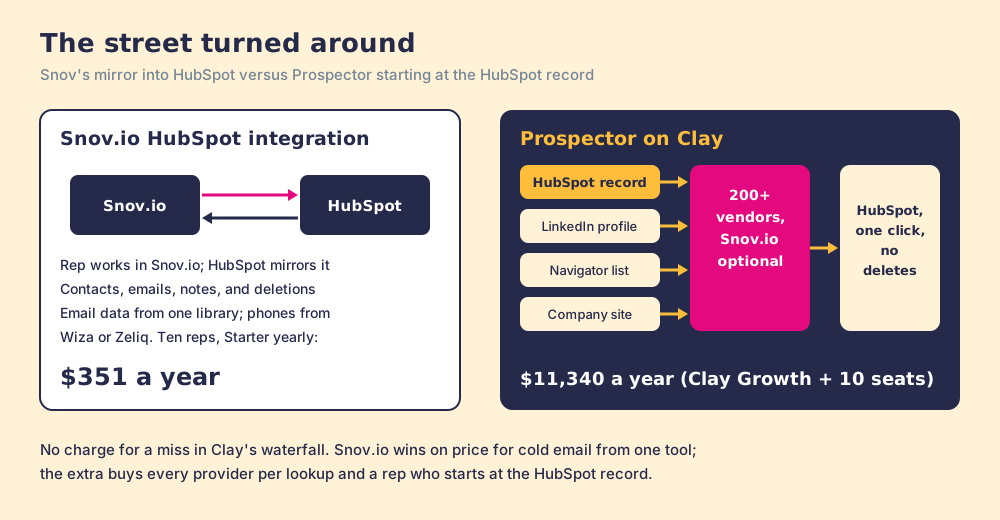
The arithmetic. Clay’s Growth plan lists at $495 a month, $5,940 a year, with CRM sync included. Prospector is $45 per rep per month, billed annually, from one rep (Prospector). Ten reps on Prospector plus Clay Growth come to $11,340 a year. Snov.io Starter billed yearly is $351 a year for the whole team with the HubSpot sync included. If the job is cold email from one tool, Snov.io wins on price by a wide margin. What the extra buys is every provider behind each lookup, a phone waterfall, a rep who starts at the HubSpot record, and lists you can follow to closed.
Choose something else if you do not have Clay. Prospector runs on the customer’s Clay account and does nothing without one, and somebody has to build the waterfall; Clay’s homepage says “GTM engineers build on Clay.” Choose something else, too, if your reps live in Snov.io’s sequencer and only need HubSpot to mirror it, because the native sync on a $351-a-year plan is hard to undercut. And Prospector does not send email; it hands the contact to HubSpot or your sales engagement tool. The sourcing use case shows the setup, and the Clay HubSpot integration page covers what Clay’s own HubSpot connection does.
Which should you choose?
Two questions decide it: does your team pay for Clay, and which tool should own the HubSpot contact.
- Snov.io’s integration, kept. The pick for a small team that prospects and emails from Snov.io. Set the direction with deletions in mind, stamp a constant field, and skip the full manual copy.
- Apollo Enrichment. The pick without Clay when existing HubSpot records should fill and refresh from a listed marketplace app, and phones matter.
- Supered Prospector. The pick when the team already pays for Clay and reps live in HubSpot and LinkedIn: one click from the record, every source behind it, Snov.io kept only if its data earns a step.
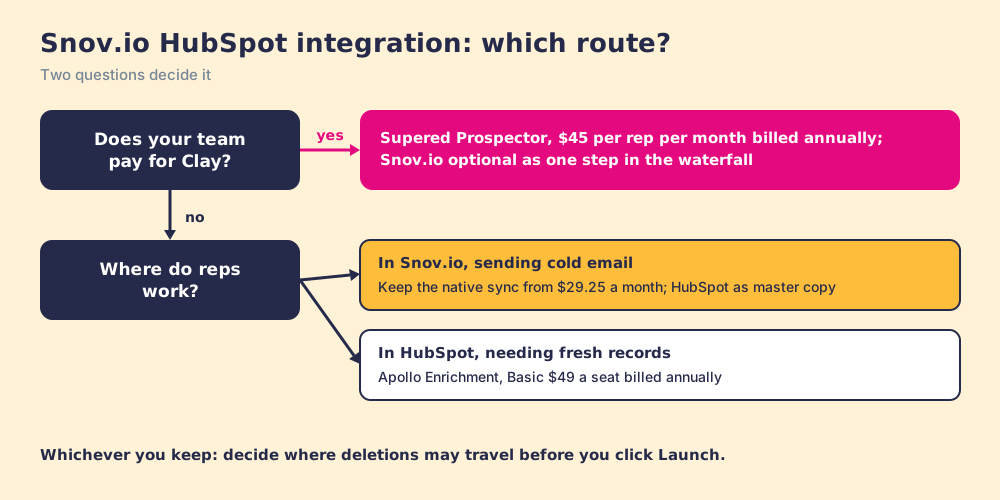
What we recommend: if you keep Snov.io, decide where the erasures may travel before you click Launch, because a deletion that crosses the street has to be found and put back by hand. If your team has Clay, stop mirroring a second contact book into HubSpot. Let the rep start at the record, ask every source at once, and watch each sourced list move toward closed. For the rest of the Snov.io picture, the Snov.io review grades the product and the Snov.io alternatives page ranks the field. A Prospector demo on your own Clay account shows the record-first route in HubSpot.
Frequently asked questions
Does Snov.io integrate with HubSpot?+
Is the Snov.io HubSpot integration free?+
Is Snov.io on the HubSpot App Marketplace?+
Does deleting a contact in Snov.io delete it in HubSpot?+
Does Snov.io integrate with Salesforce?+
What is the best alternative to the Snov.io HubSpot integration?+
Everything we have written on Snov.io
More on Snov.io
Looking past Snov.io? See Supered Prospector on your own Clay accountYour Clay waterfall, where reps already work.