HubSpot Notifications: What They Are, How to Configure Them, and Why Most Go Unanswered
HubSpot notifications surface real signals: email opens, deal changes, task reminders, the activity feed.
This guide covers how they work, how to configure them, and why a signal without a curated next step rarely produces the right behavior.
HubSpot notifications are real-time alerts and a running hubspot notification feed that surface buyer signals, deal changes, task due dates, and team activity inside your CRM, delivered via the in-app bell, email digest, browser push, or mobile app.
HubSpot notifications work. That is worth saying plainly before anything else, because most guides treat them as a footnote or skip an honest description of what they do. The system fires alerts when a prospect opens your email, when a deal changes stage, when a task comes due, when a teammate mentions you on a record. Each one is a real signal from the CRM. The hubspot notification feed collects them in the bell icon at the top of every page, and your hubspot notifications settings control which ones reach you, on which channel, at what frequency.
That much is useful. This guide explains how each notification type works, how to configure the settings, and then makes the turn that most guides skip: a notification surfaces a signal, but it does not curate the next step. That gap between seeing an alert and taking the right action is where most of HubSpot’s notification value disappears without a trace.
What are HubSpot notifications?
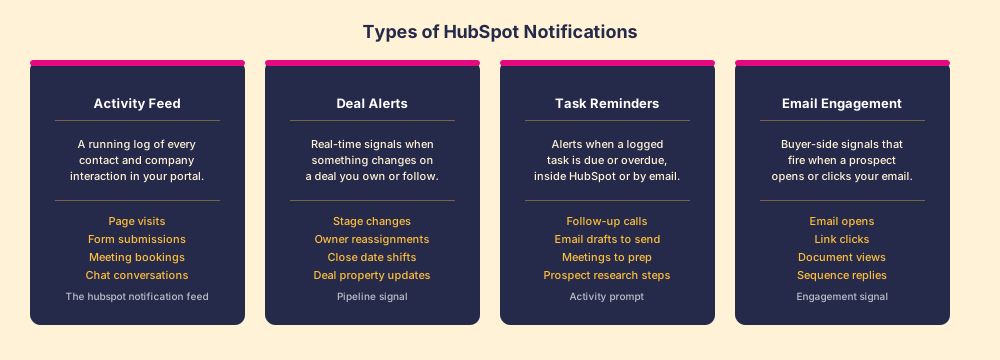
HubSpot notifications are real-time alerts delivered to a user when something relevant happens inside the CRM. They surface four categories of information:
Like a smoke detector, the alert tells you something changed. Whether you respond, and how, is a separate decision. That separation matters more than most teams realize.
Activity feed notifications. The running hubspot notification feed logs every interaction your contacts and companies have with your brand: page visits, form fills, chat messages, meeting bookings. These populate the bell icon and, if enabled, your email digest. They are volume-heavy because HubSpot tracks a lot. Most reps find they need to filter aggressively to keep the feed useful rather than overwhelming.
Deal alerts. When a deal you own or follow changes, HubSpot fires an alert. Stage advances, owner changes, close date adjustments, property updates from a workflow, a teammate adding a note: all of these can trigger a deal notification. This is the category most directly tied to pipeline accuracy, because it confirms the CRM record reflects what is happening in the pipeline.
Task reminders. When a logged task comes due or goes overdue, HubSpot sends a reminder via the channel you specify. These are among the highest-value notifications in the system because they represent a commitment the rep made to a next action. A task reminder is not a new signal from the buyer; it is the rep’s own process speaking back.
Email engagement signals. When a tracked email you sent is opened or a link clicked, HubSpot fires a notification. This is the category people refer to most when they say they want to know when a prospect is active. The signal is real but noisy: tracking pixels have accuracy limits, and a single open does not tell you whether the buyer is ready to move. More on that below.
How does the HubSpot notification feed work?
The notification feed lives in the bell icon in the top navigation bar. It is chronological, persists until you dismiss entries, and collects every in-app alert routed to your user regardless of type. You access the full feed by clicking the bell; recent entries appear as a dropdown. HubSpot marks unread notifications with a count badge, so you always know whether something new arrived since you last checked.
The feed is distinct from the activity timeline on a contact or deal record. The timeline shows everything that happened on that record, visible to everyone with access. The notification feed shows only what was specifically routed to you, based on ownership, following status, or an @mention. A deal that changed stage appears in the feed for the deal owner. A contact that visited your pricing page appears in the feed if you own or follow that contact. A teammate who @mentions you in a note on any record generates a mention notification that goes to your feed regardless of who owns the record.
HubSpot’s documentation on notification types and delivery settings covers the full catalog. The structure is stable, but the specific notification types available to you depend on your HubSpot subscription tier.
How do you configure HubSpot notifications settings?
Configuration lives at the user level, not the portal level. Each rep controls their own alert preferences. Go to the profile icon in the upper-right corner, select Profile and Preferences, and choose Notifications. The page groups notifications by category and lets you set three things independently for each one.
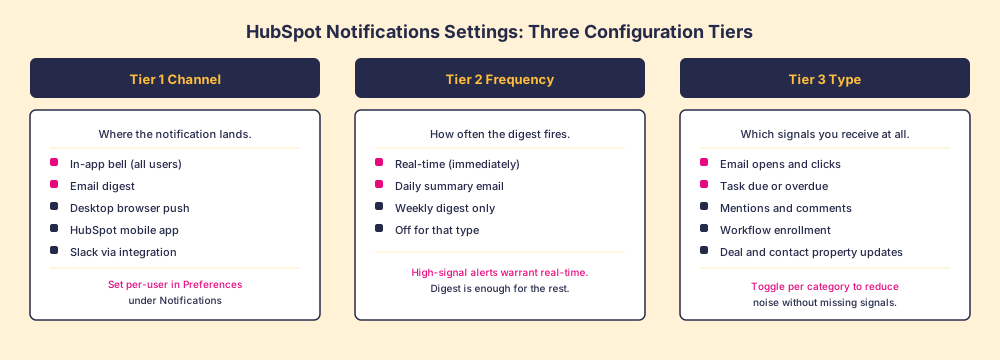
Channel. Where does the alert land? The options are the in-app bell (always on, no way to disable it per type), email digest, desktop browser push, and mobile push if you use the HubSpot app. If you have the HubSpot-Slack integration connected, certain alert types route to Slack as well. Teams that work primarily in Slack often find the Slack routing reduces the need to check the in-app feed separately.
Frequency. When does the email version of the alert arrive? Real-time means immediately, as a dedicated email per notification. Daily digest batches everything from the day into a single email, typically sent in the morning. Some notification types also allow a weekly digest. For most teams, real-time delivery makes sense for email open alerts and deal stage changes; daily digest is enough for task reminders and activity feed updates.
Type. Which categories fire at all? This is the first dial to tune. If email open notifications arrive for every tracked send and you send a hundred emails a day, the feed becomes unusable fast. Toggle off the categories that generate volume without generating action. The useful filter: would this alert change what I do in the next hour? If the answer is no for a given type, turn it to daily digest or off.
A practical configuration for most sales reps: email opens and clicks on real-time delivery via app and email; deal stage changes on real-time; task reminders via email at daily digest; activity feed updates off except in-app. That keeps the signal-to-noise ratio high enough that alerts stay meaningful.
Does seeing a HubSpot notification change what reps do?
Seeing it, no. Acting on it correctly, rarely without more structure than the notification provides.
This is the honest turn. A notification tells the rep that a buyer opened an email. It does not tell the rep what to do next, whether to call now or wait, what to say if they call, whether this deal is at the stage where an open signals urgency or the stage where it is routine follow-up behavior. The notification surfaces the signal. The rep decodes it alone.
That decoding problem is not small. In our survey of 198 sales leaders for The State of Sales Enablement, 89 percent of teams had a defined process and 36 percent saw it followed, and guidance in the flow of work split quota attainment from 15 percent to 49 percent. The guidance gap exists not because reps lack information but because the information does not arrive with a curated next step.
The notification is the edge of what HubSpot delivers. It tells the rep something happened. The process expectation, the specific next step tied to that signal, has to come from somewhere else or the signal evaporates.
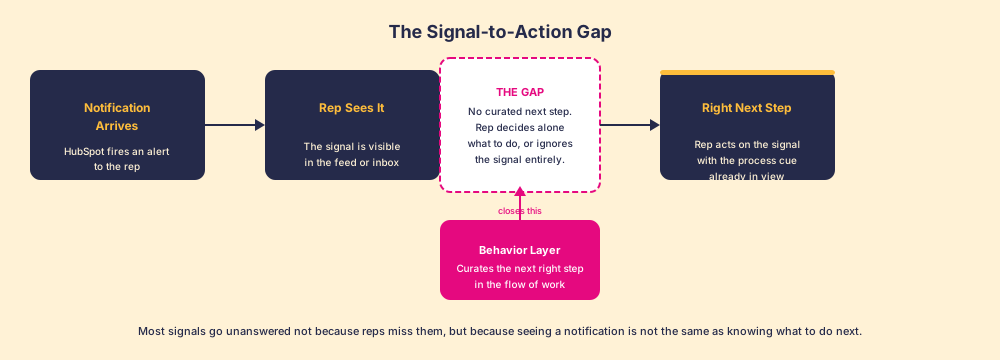
The gap is structural, not personal. Reps are not ignoring notifications because they are undisciplined; they are filtering because there are too many signals and too few cues about which ones require action right now. A rep who receives forty activity alerts, three deal stage change notices, and six task reminders in a morning is going to triage. The ones that come with a clear, process-defined next step are the ones that produce action.
What closes the gap between a notification and the right next step?
Three things, in order of impact:
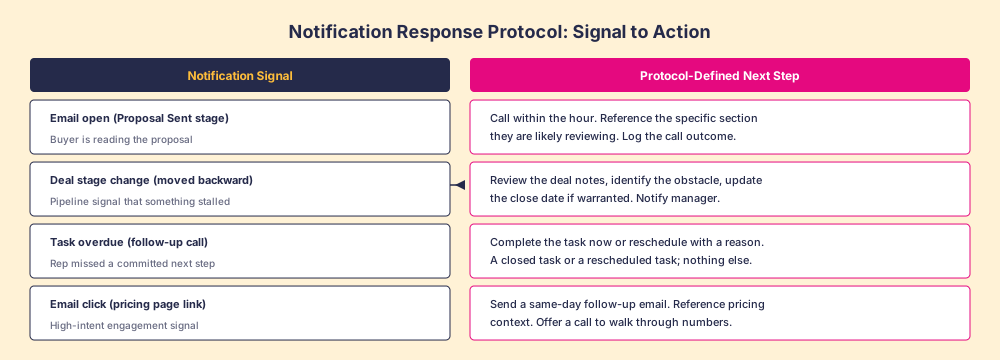
- A defined response protocol per notification type. If an email open fires on a deal in the Proposal Sent stage, the protocol is to call within the hour. Write that down, train to it, measure it. Without the protocol, the notification is ambient noise. With it, the notification becomes a reliable process trigger.
- Guidance surfaced in the flow of the work. The protocol has to reach the rep inside HubSpot, not in a training doc they will never re-read. The HubSpot Chrome extension is part of how guidance surfaces at the browser level. Supered’s Behavior Layer goes further: it attaches process expectations, next-step cues, and inspection criteria to the deal record itself, so the rep sees the guidance the moment they open the record that generated the notification.
- Measurement that confirms the response happened. A notification that fired and a next step that followed are only connected if you can verify the connection. Measurement at the deal level, whether the task was created, the call was logged, the stage updated correctly, is what confirms the notification produced the behavior rather than information the rep scanned and moved past.
A simple version of this protocol, applied to four common notification types, looks like this:
The sales process is where this lands. Notifications are one input to a well-run process; they are not a substitute for one. The teams that get the most value from HubSpot notifications are the teams that already have a defined process, because they have the protocol that tells each notification what action should follow it. For more on building that foundation, read sales process and CRM adoption.
What this comes down to, in a short list:
- Protocol before the alert fires. Define what each notification type should trigger before you configure the channel. A deal-stage-change alert that arrives without a protocol produces awareness, not action.
- Delivery channel matched to signal urgency. Email opens on active proposals warrant real-time delivery. Weekly pipeline roll-ups belong in a digest. Getting this wrong means high-urgency signals arrive in a noisy stream the rep stops reading.
- Process guidance in the same context as the record. The notification opens the deal record. The process guidance should be there when the rep lands, not in a separate tab they have to open.
- Inspection closing the loop. The notification system tells you a signal fired. Inspection tells you whether the signal produced a behavior. Without inspection, you have a notification feed and no way to know whether it is doing anything.
What to do with HubSpot notifications right now
Start by auditing the noise. Pull up your notification feed and count how many alerts arrived in the last week that you acted on versus the ones you dismissed or ignored. The ratio tells you whether your current hubspot notifications settings are calibrated for signal or for volume.
Then do the configuration pass. For each category, ask: what specific action should this notification trigger? If the answer is clear and consistent, the notification earns real-time delivery. If the answer is “it depends” or “I’ll check it later,” it belongs in a digest or off entirely.
Finally, connect the notification to the process. An email open alert is useful when it accompanies a protocol: call within an hour on deals in these stages, send a follow-up on deals in those stages. Without the protocol, it is ambient information. With it, it is a process trigger. That is the difference between a notification system that clutters a feed and one that produces behavior.
The sales enablement software question that sits behind all of this is whether HubSpot’s native notification system is enough or whether the process layer needs reinforcement. For most mid-market teams, the notifications themselves are fine. What is missing is the behavior layer that turns signals into steps. That is what Supered builds on top of the CRM you already run, and it is why teams that have both a tight process and a behavior layer close at rates that the notification feed alone cannot explain. Book a demo to see how it works inside HubSpot.
Frequently asked questions
What are HubSpot notifications?+
How do I change my HubSpot notifications settings?+
What is the HubSpot notification feed?+
Why do HubSpot email open notifications not always fire?+
Can I send HubSpot notifications to Slack?+
What is the difference between a HubSpot notification and an activity feed entry?+
Your process, running itself.