HubSpot Outlook Plugin: What It Does, How to Set It Up, and Where It Ends
The 2026 guide to the HubSpot Outlook plugin: which of the two add-ins to install, how to deploy it, what it does in Outlook, how it fits the wider HubSpot and Office 365 integration, why emails stop logging, and where the behavior layer takes over.
The HubSpot Outlook plugin, officially the HubSpot Sales Office 365 add-in, connects Outlook to HubSpot CRM so reps can track email opens, log emails to contact and deal records, insert saved templates, and view contact details without leaving Outlook.
Outlook users install the HubSpot add-in for three jobs: to see when an email gets opened, to stop logging activity to the CRM by hand, and to insert saved templates faster. The plugin handles all three. In 2026 there is a fourth reason people land on this page: HubSpot now has two Outlook add-ins, one of them in maintenance mode, and installing the wrong one is the most common setup mistake. This guide covers which one to install, how to deploy it, what it does, how it fits the wider HubSpot and Office 365 integration, how to fix logging when it stops, and the job it was never built to do.
The HubSpot Outlook plugin, officially the HubSpot Sales Office 365 add-in, connects Outlook to HubSpot CRM so reps can track email opens, log emails to contact and deal records, insert saved templates, and view contact details without leaving Outlook. It is an activity capture and inbox productivity tool, and it does that job well.

Which HubSpot Outlook add-in should you install?
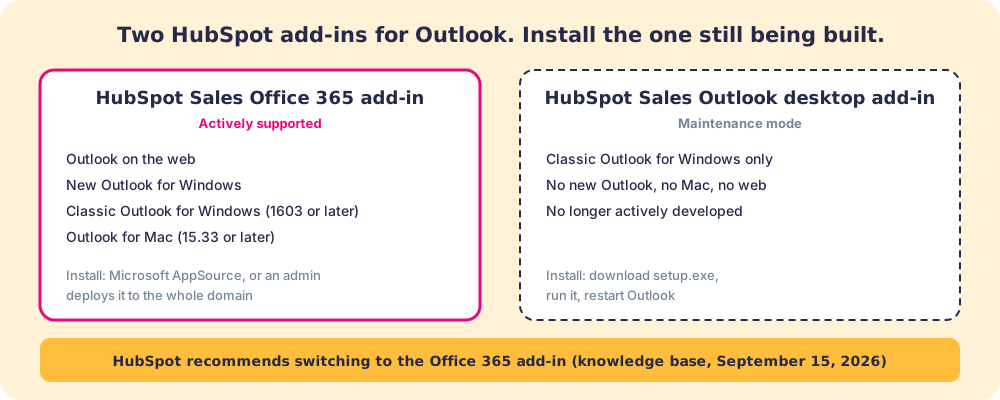
The HubSpot Sales Office 365 add-in. HubSpot’s install article (last updated September 15, 2026) lists two add-ins for Outlook, and only one of them is still being developed:
| HubSpot Sales Office 365 add-in | HubSpot Sales Outlook desktop add-in | |
|---|---|---|
| Status | Actively supported | Maintenance mode |
| Outlook on the web | Yes | No |
| New Outlook for Windows | Yes | No |
| Classic Outlook for Windows | Version 1603 (build 6769.0000) or later | Yes |
| Outlook for Mac | Version 15.33 or later | No |
| How it installs | Microsoft AppSource or admin deployment | Download and run setup.exe |
HubSpot’s wording on the older one is plain: it “will no longer actively develop or improve the HubSpot Sales Outlook desktop add-in,” and it recommends the Office 365 add-in instead. The practical trigger for switching is Microsoft’s own move to the new Outlook for Windows: a rep who upgrades Outlook and loses the HubSpot pane was almost certainly on the desktop add-in.
How do you install HubSpot for Outlook?
For one user, the Office 365 add-in installs in four steps from Microsoft AppSource:
- Find it. Open Microsoft AppSource and search for HubSpot Sales.
- Get it. Click “Get it now,” sign in to your Office 365 account, and confirm your details.
- Add it. Click “Add” in the dialog. The HubSpot icon appears in Outlook’s ribbon.
- Log in. Open the HubSpot pane in Outlook and sign in to your HubSpot account.
For a team, skip the per-rep install. A Microsoft 365 admin can deploy the add-in from the Microsoft 365 admin center with centralized deployment, and HubSpot notes that “all Microsoft 365 users on the domain will automatically get the add-in, with no additional steps required.” For a sales team of any size, admin deployment is the right default: it removes the rep who never got around to installing it.
Check four requirements before you roll it out. The mailbox must be hosted on Microsoft 365. The rep’s work inbox must be connected to HubSpot. Outlook must be a click-to-run install, not the Microsoft Store version. And the add-in does not support GoDaddy Microsoft 365 accounts or terminal server environments.
What does the HubSpot Outlook plugin do?
The add-in opens a pane inside Outlook that lets reps work with HubSpot data without switching to the browser. HubSpot’s get started article lists the add-in as available on “All products and plans,” with some tools gated by plan.
- Email tracking. With tracking on, the rep gets a notification when the recipient opens or clicks. The mechanics of the tracking pixel, and the reasons it misfires, are the same in Outlook and Gmail. Treat an open as a hint about interest, never as proof of it.
- CRM logging. The rep logs an outbound email to the matching contact, company, and deal records before sending, and it appears on each record’s timeline. Inbound replies can be logged from the pane too.
- Sales tools while composing. Templates, snippets, and meeting links insert from the pane on any plan (meeting links need a connected calendar). Documents and payment links need Starter or above. Enrolling a contact in a sequence needs a Sales Hub or Service Hub Professional or Enterprise seat (sales tools in the Office 365 add-in, last updated September 30, 2026).
- Contact pane. When the rep opens or writes an email, the pane shows the contact’s HubSpot profile, recent activity, associated deals, and open tasks.
The contact pane works like a well-briefed colleague who reads the file before a meeting and whispers the history as you walk in. The briefing is useful. The colleague does not decide what you say once the door opens.

What does the HubSpot Office 365 integration include?
“HubSpot Office 365 integration” covers three connections that work together, and the add-in is only one of them:
- The connected inbox. Connecting the rep’s Office 365 mailbox lets HubSpot send and log email from it. Sequences send through this connection, and an Office 365 inbox is capped at 1,000 one-to-one emails a day (sending limits).
- The calendar connection. Each user connects one calendar, and an Office 365 calendar syncs both ways: HubSpot scheduling pages read its busy time, and booked meetings are written back. The HubSpot meetings guide covers the details, including Exchange’s limited write-back.
- The Office 365 add-in. The HubSpot pane inside Outlook, covered above.
A rep with the add-in but no connected inbox gets a pane that will not log. A rep with a connected inbox but no add-in gets logging from HubSpot and none inside Outlook. Set up all three for a working hubspot outlook integration.
Why is the HubSpot Outlook add-in not logging emails?
Check the pane first. HubSpot’s get started article says “preferences set for tracking and logging emails are only applied when the HubSpot Sales sidebar pane is open when composing each email,” and recommends that you “pin the task pane open in your inbox to ensure your emails are always logged and tracked.” A rep who closes the pane to get screen space back stops logging without any warning.
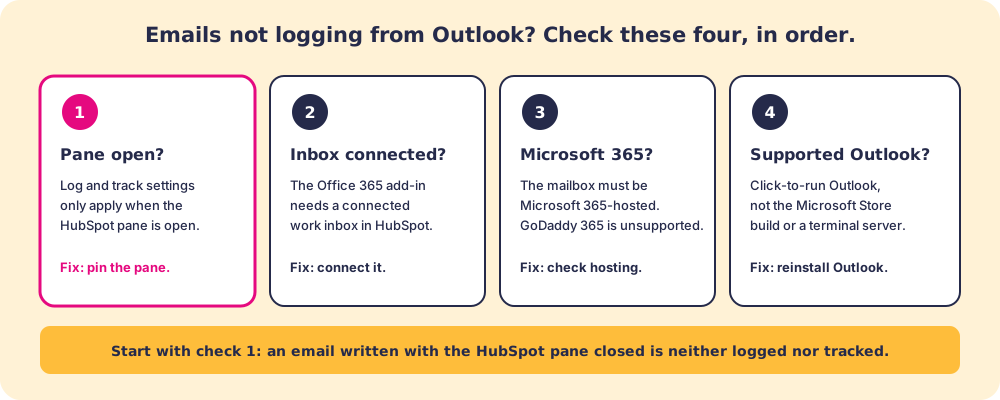
If the pane is pinned and logging still fails, work down the list: is the inbox still connected in HubSpot’s settings, is the mailbox on Microsoft 365 rather than GoDaddy’s version, and is Outlook a click-to-run install? A rep who logs in Outlook on the web but not on the desktop is usually on the Microsoft Store build or on the legacy desktop add-in.
What the hubspot outlook integration does well
The accounting:
- Inbox continuity. Reps who live in Outlook use HubSpot without leaving it. The pane sits inside the inbox.
- Automatic activity capture. Logging while composing removes the most common cause of CRM gaps, the rep with no time to enter activity after the send.
- Engagement signal. Open and click notifications give a rough read on interest before a reply arrives. One data point, and more than nothing.
- Template learning. Tracking which templates draw replies lets the team learn from what works instead of each rep rewriting outreach from scratch.
These are productivity gains. None of them change what the rep does next with the buyer.
Where does the HubSpot Outlook plugin end?
The plugin captures what the rep did. Whether the rep did the right thing is a different question.
A rep can log every email, track every open, and insert templates perfectly, and still skip the discovery questions that qualify the deal, move it to a stage it has not earned, and walk into the next call unprepared for where the buyer stands. The activity log is accurate. The process is still not being followed.
In our survey of 198 sales leaders for The State of Sales Enablement, quota attainment tracked where the guidance lived: 49 percent when it was embedded in the workflow, 24 percent when it lived in CRM fields or stages, and 15 percent when it sat in docs or wikis. Asked why reps skip the process, 12 percent blamed the process living in too many tools. An Outlook rep who has to leave the inbox to find the playbook is in that 15 percent bucket, however good the logging is.
The behavior layer is the name for the guidance job: surfacing the next step of the sales process in the flow of work and making adherence visible deal by deal, so managers coach instead of auditing activity logs. Supered is that behavior layer for HubSpot teams. Where the Outlook pane shows the contact’s history, Supered shows the step your process expects next for that deal, checks the deal against your rules, and flags it when the step is skipped. The plugin is a clean window into what happened. Supered is the map for what comes next.

A quick recap
- The add-in to install. The HubSpot Sales Office 365 add-in. The Outlook desktop add-in is in maintenance mode and runs only in classic Outlook for Windows.
- Installation. Microsoft AppSource for one rep; centralized deployment from the Microsoft 365 admin center for a team.
- What it costs. Free on all plans. Documents and payment links need Starter; sequence enrollment needs a Professional or Enterprise seat.
- The full integration. Connected inbox, connected calendar, and the add-in. The add-in alone is a third of the setup.
- The logging fix. Pin the HubSpot pane open; settings apply only while it is open.
- The limit. The plugin captures activity. It does not surface the next step of the process or show leaders where deals drift.
What we recommend
Install the HubSpot Sales Office 365 add-in if your team uses Outlook, deploy it from the Microsoft 365 admin center instead of asking reps to install it, connect each rep’s inbox and calendar in the same week, and tell every rep to pin the pane. If anyone is still on the desktop add-in, move them before they upgrade to the new Outlook and lose it.
Then look at the pipeline. If reps log consistently and the deal-to-win rate does not move, activity capture was not the constraint. The question becomes whether reps run the right plays in the right order, deal by deal. The HubSpot Sequences guide covers the follow-up that runs through this same inbox, the HubSpot Chrome extension guide covers the behavior layer inside HubSpot, and how Supered works explains the mechanics, or book a demo to see it run on your process.
Capturing what the rep did is the first layer. Guiding what they do next is where the number moves.
Frequently asked questions
What is the HubSpot Outlook plugin?+
Which HubSpot add-in should I install for Outlook?+
Is the HubSpot Outlook integration free?+
How do I install the HubSpot for Outlook add-in?+
Why is the HubSpot Outlook add-in not logging my emails?+
What does the HubSpot Office 365 integration include?+
Does the HubSpot Outlook plugin work on Mac?+
Does the HubSpot Outlook integration help reps run the sales process?+
Your process, running itself.