The HubSpot Gmail Integration: Setup, Google Workspace, and Where Logging Stops
How the HubSpot Gmail integration works in 2026: the inbox connection, the Sales Chrome extension, the Google Workspace pieces, what each plan unlocks, how to fix it when it breaks, and the job it leaves undone.
The HubSpot Gmail integration is the pair of connections, a connected inbox plus the HubSpot Sales Chrome extension, that lets reps log, track, and template Gmail messages against HubSpot records without leaving their inbox.
The HubSpot Gmail integration is the pair of connections, a connected inbox plus the HubSpot Sales Chrome extension, that lets reps log, track, and template Gmail messages against HubSpot records without leaving their inbox. Two pieces, one job. Teams that install only one of them are usually the teams asking why half their email never reached the contact timeline.
Salesforce’s sixth State of Sales report, a survey of 5,500 sales professionals published July 25, 2024, found reps spend 70% of their time on non-selling tasks (Salesforce). Copying an email thread into a CRM is the purest example of that 70%. The integration removes it. What it cannot remove is the harder half of the job, deciding what to send next, and the setup choices you make in the first hour decide how much of either problem you end up with.
What does the HubSpot for Gmail extension do?
The extension, officially the HubSpot Sales Chrome extension, puts five capabilities inside the Gmail window:
- Email logging. A sent message goes to the matching HubSpot contact and its associated deals and companies. Set logging on by default and reps opt out for personal mail, or off by default and they opt in. Pick one policy for the whole team; a mixed policy gives you a timeline the manager cannot trust.
- Open and click tracking. A notification fires when a tracked email is opened or a link is clicked, and the event posts to the contact’s timeline. Apple Mail Privacy Protection and corporate image scanners trigger opens that no human made, so read why a tracked open is not always a real open before you build a follow-up rule on it.
- Templates and snippets. Approved copy drops into the Gmail compose window in one click, with personalization tokens filled from the contact record.
- Sequences. A rep can enroll a contact in a HubSpot sequence from inside the thread. HubSpot lists sequences for Sales Hub and Service Hub Professional and Enterprise only (HubSpot, updated August 17, 2026).
- CRM sidebar. Deal stage, recent activity, open tasks, and notes sit beside the email, and a rep can create a task or update a property without opening HubSpot.
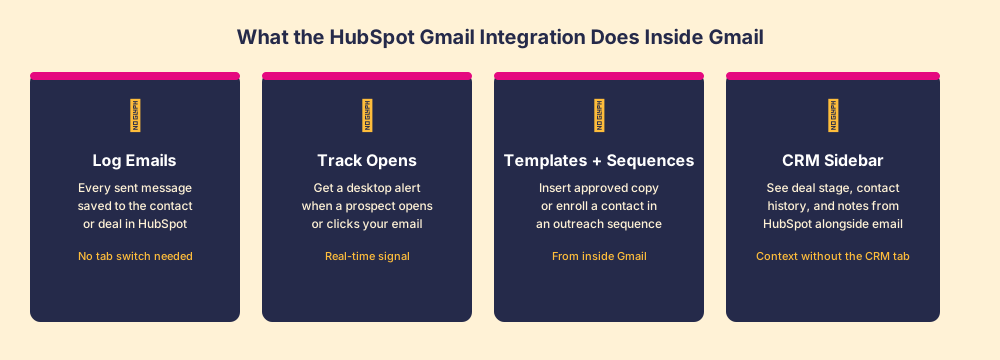
You still write in Gmail. You see the CRM while you do it, and the CRM sees what you sent.
Does HubSpot integrate with Google Workspace (G Suite)?
Yes. A HubSpot G Suite integration is four separate connections, each with its own setup and its own plan requirement, and the search results tend to blur them into one. Think of Google Workspace as a house and HubSpot as a neighbor who needs to get in. There is no single front door. There are four doors, each opening onto a different room, and you can hand over one key without handing over the rest.
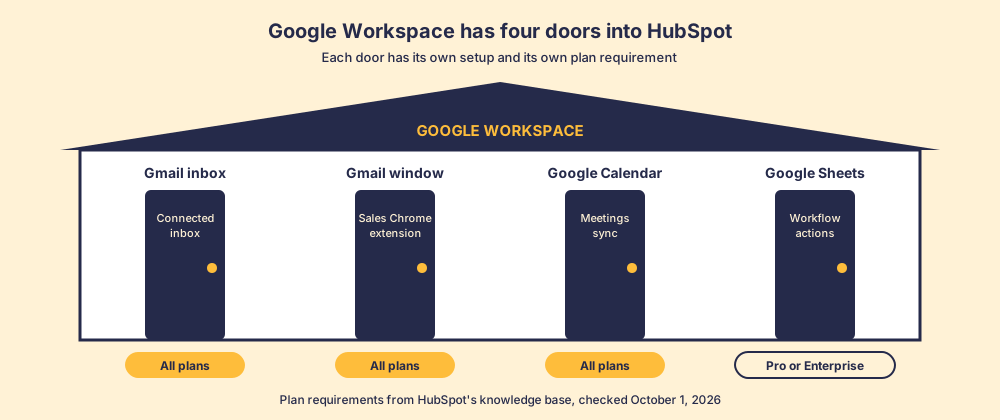
- The connected inbox. HubSpot connects to a Gmail or Google Workspace mailbox by OAuth so reps can send, receive, schedule, and log email from inside HubSpot. Available on all products and plans (HubSpot, updated August 3, 2026). The native Gmail connection asks for access to contacts, email, calendar, and distribution lists; an IMAP connection asks for less and gives less.
- The Sales Chrome extension. The Gmail-side sidebar described above. Also all plans, Chrome only, and not compatible with Google’s Rapid Release track (HubSpot, updated September 15, 2026).
- Google Calendar. Connect the calendar and HubSpot Meetings reads real availability, writes booked meetings back, and logs them to the contact. HubSpot’s own partner page describes it as syncing “meetings from your Google Calendar into HubSpot CRM” (HubSpot).
- Google Sheets. Workflow actions can add or update rows in a Google Sheet. Those actions need a Professional or Enterprise subscription on Marketing, Sales, Service, Data, Smart CRM, or Revenue Hub (HubSpot, updated September 8, 2026).
One door is worth a warning. The HubSpot app in the Google Workspace Marketplace shows 324,000+ installs, but its listing was last updated September 9, 2021 (Google Workspace Marketplace). HubSpot’s current install documentation points only to the Chrome extension, one of several HubSpot Chrome extensions reps run. If an admin is deciding which one to approve for the domain, approve the extension and the inbox connection.
How do you connect Gmail to HubSpot?
Order matters, because the extension assumes the inbox is already connected. Six steps, about ten minutes per rep:
- Inbox first. In HubSpot, open Settings, then General, then the Email tab. Click Connect email account and choose Gmail. Sign in with the Google account the rep sells from.
- Admin approval, if your domain locks things down. If Google Workspace manages Chrome extensions centrally, the admin allowlists the HubSpot Sales extension before reps can install it. Do this before the rollout email goes out, or the first day of the rollout becomes a day of help-desk tickets.
- The extension. In the Chrome Web Store, confirm the signed-in Gmail account in the top right, click Add to Chrome, then Add extension.
- The login. Sign in to HubSpot when the prompt appears. The extension binds to that HubSpot account.
- The logging default. Open the extension settings and set the team policy: log by default or log by choice, plus a never-log list for internal domains so colleague email stays off customer timelines.
- The test. Send one tracked email to a colleague outside the never-log list, open it, and confirm the email and the open both appear on the contact record.
Step six is the one that gets skipped, and it is the cheapest insurance in the whole rollout. A rep who discovers in week three that nothing logged has three weeks of timeline to rebuild by hand.
Why isn’t the HubSpot extension showing or tracking in Gmail?
When the sidebar disappears or opens stop registering, the cause usually sits in the browser. HubSpot’s troubleshooting guide, updated September 10, 2026, lists the culprits (HubSpot). Work them in this order, cheapest first:
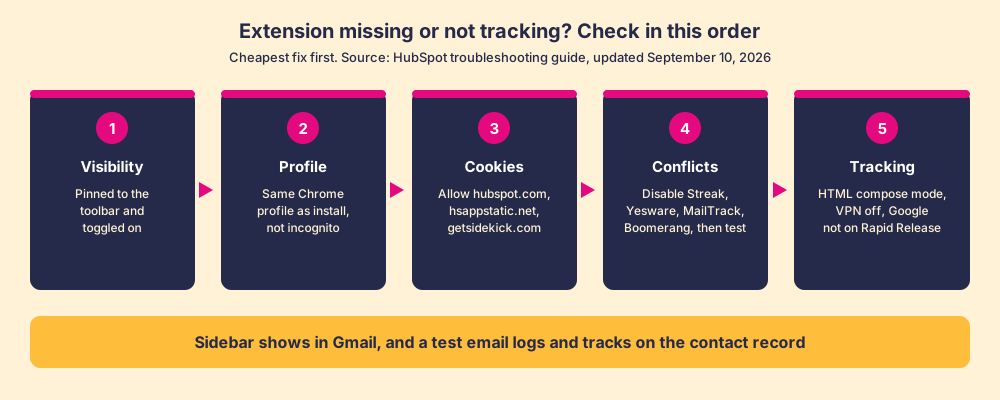
- Visibility. The extension is unpinned or toggled off in Chrome’s Manage Extensions page.
- Profile. The rep is in a different Chrome profile from the one where the extension was installed, or in an incognito window.
- Cookies. Chrome is blocking third-party cookies. Allow hubspot.com, hsappstatic.net, and getsidekick.com, subdomains included.
- Conflicts. Another email extension is fighting for the compose window. HubSpot names AdBlock, Apollo, Boomerang, DuckDuckGo, Ghostery, MailTrack, Privacy Badger, Streak, and Yesware. Disable them all, test, then add them back one at a time.
- Tracking specifics. Plain-text compose mode cannot carry a tracking pixel, so switch to HTML. VPN software can block the tracking call. The Rapid Release track is unsupported.
Where does the HubSpot Gmail extension stop?
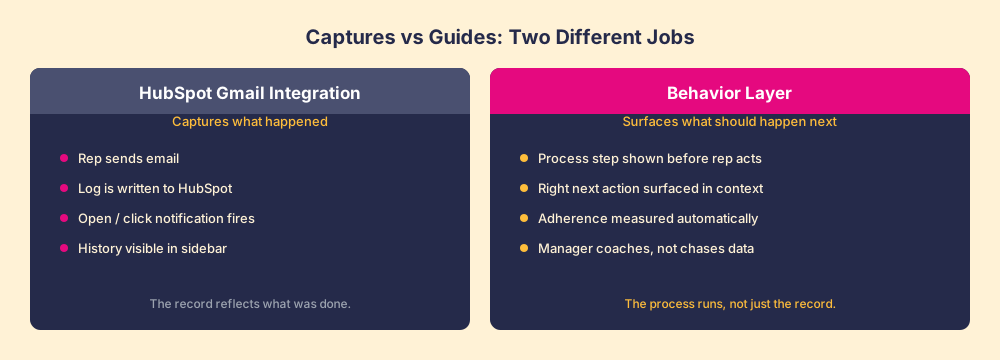
The integration is a ship’s logbook: it records with perfect fidelity what the crew did, which port, which hour, which cargo. A logbook never once tells the helmsman where to steer.
The sidebar shows a rep that the buyer opened the proposal three times. It does not tell the rep that the deal has no decision maker attached, that the close date passed last week, or that the recap from Tuesday’s call was never sent. Those are the misses that cost deals, and they are invisible to a tool whose job is recording.
In our survey of 198 sales leaders for The State of Sales Enablement, 89% of teams had a defined process and 36% saw reps follow it. Guidance that reached reps inside their workflow lined up with 49% quota attainment; guidance kept in documents and wikis lined up with 15%. A cleaner timeline does not close a 53-point gap between the process on paper and the process in practice. Something has to put the next step in front of the rep while the thread is open.
Does the Gmail integration fix process adherence?
No, and nothing in HubSpot’s documentation claims it does. The extension was built to remove the copy-paste between inbox and CRM, and it does that well. Teams get into trouble when they treat a fuller activity log as proof the process is running.
The distinction matters most in the gap between a call and the email that should follow it. On my own deals, I keep a Supered process board of 22 rules against my open HubSpot deals: close date in the past, no amount past Discovery, overdue tasks, no pre-call email within 24 hours, no recap sent, no decision maker. One night it showed 11 violations. With Supered, HubSpot, and Gmail connected to Claude, I asked it to fix the violations and draft any email the rules required. It updated the fields from context and saved the recap and pre-call emails as Gmail drafts for me to review. About 10 minutes. By hand it would have been about 45. One example from one pipeline proves no average, but it shows where the Gmail integration sits: it logged every one of those emails once they went out. The rules decided which emails had to exist in the first place.
- Logging. Records the email after it is sent. The Gmail integration owns this.
- Rules. Define what should exist on a deal at each stage: the recap, the next meeting, the decision maker. A process ruleset owns this.
- Inspection. Checks every deal against the rules, every day, so a manager coaches the exceptions instead of auditing the whole pipeline. A process board owns this.
How should the HubSpot Gmail integration fit your stack?
Install it. For a HubSpot team that sells from Gmail it is free, it takes ten minutes a rep, and it removes a slice of the 70% of rep time that goes to non-selling work. That part is settled.
| Your problem | What fixes it | Plan needed |
|---|---|---|
| Reps copy email into HubSpot by hand | Connected inbox plus the Sales Chrome extension | Any plan, including free |
| Reps need to know when to follow up | Open and click tracking in the extension | Any plan |
| Reps rewrite the same follow-up | Templates and snippets; sequences for multi-step cadences | Sequences need Sales or Service Hub Professional or Enterprise |
| Meetings booked by email ping-pong | Google Calendar plus HubSpot Meetings | Any plan for a personal link |
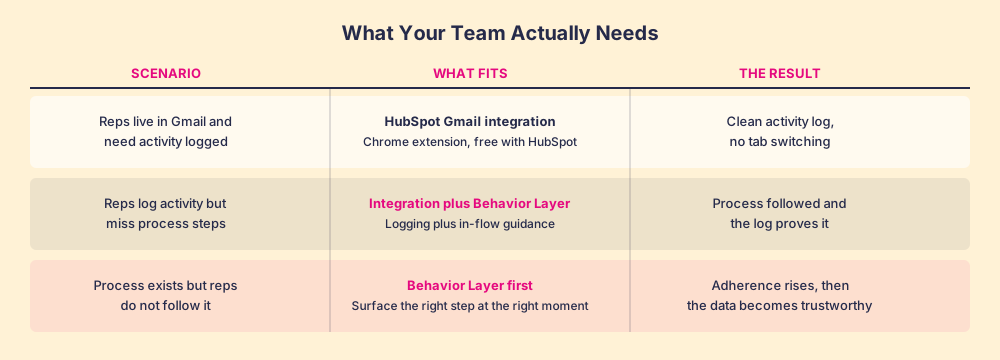
| Reps skip steps the process requires | Rules checked against every deal, surfaced where the rep works | A behavior layer such as Supered |
The last row is the one the integration cannot touch. Supered is the behavior layer for HubSpot: the rules for each stage live in Supered, the next step reaches the rep inside HubSpot, Gmail, or the AI assistant they already use, and a process board shows the manager which deals are off the rules today. The integration keeps the record accurate about the past. The rules keep the next email from going unwritten. If you are still deciding how much of this to automate, our guide to the HubSpot Claude integration walks through what an assistant can change in HubSpot and what it should leave for the rep.
For the configuration layer underneath all of this, the HubSpot implementation guide covers properties, pipelines, and permissions, and the HubSpot Chrome extension guide maps the other surfaces the same extension family reaches, LinkedIn included (where a rep’s path from a profile to the CRM starts). The fields the logging cannot fill, the missing phone or the stale title, are a separate job: HubSpot data enrichment. And if your team lives in Outlook instead, the HubSpot Outlook plugin covers the same ground for Microsoft 365.
Want to see the rules run against your own HubSpot deals and Gmail threads? Book a demo of Supered.
Frequently asked questions
What is the HubSpot Gmail integration?+
Does HubSpot integrate with Google Workspace (G Suite)?+
How do I connect Gmail to HubSpot?+
Is the HubSpot Gmail extension free?+
Why is the HubSpot extension not showing in Gmail?+
Do I need the HubSpot Gmail integration if I use Supered?+
Your process, running itself.