How to Log a Call in Salesforce: Four Ways, One That Does It for You
Four ways to log a call in Salesforce: Activity Timeline, Quick Action, Mobile app, and Einstein Activity Capture.
Steps for each, plus why the best log is one that happens automatically.
To log a call in Salesforce means creating a completed Task record tied to a contact, lead, account, or opportunity, capturing what was discussed and what happens next.
When a call ends, there is one question every rep faces before moving on: did that get logged? To log a call in Salesforce, you create a completed Task record that ties the conversation to a contact, lead, account, or opportunity. Salesforce gives you four standard ways to do that. This guide walks through each one accurately, then makes the case that the best logging system is the one that makes the chore disappear entirely.
The stakes are real. Salesforce’s seventh State of Sales report found that reps spend 60 percent of their time on non-selling tasks, with manual data entry named among the culprits (Salesforce, May 6, 2026). A log that takes 90 seconds and requires context-switching is a tax. Four times a day, that tax compounds.
How do you log a call in Salesforce using the Activity Timeline?
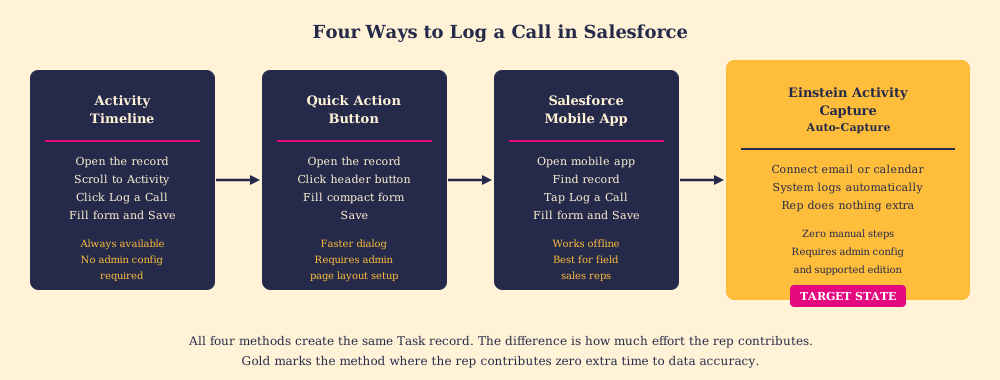
If you are searching for how to log a call in Salesforce for the first time, the Activity Timeline is the place to start. It is the baseline method. It works on every contact, lead, account, and opportunity record, requires no admin configuration, and is available to every Salesforce user regardless of edition.
Steps:
- Open the record: go to the contact, lead, account, or opportunity you called.
- Scroll to the Activity section of the record page.
- Click the “Log a Call” button inside the timeline.
- Fill in the Subject (a short description of the call), Description (notes on what was discussed), Status (set to Completed for a call that already happened), and any Related To records you want linked.
- Click Save.
Salesforce creates a Task object with Type = Call and Status = Completed. The Task appears immediately in the activity timeline, timestamped and linked to the record.
The small friction point: you have to be on the record to log the call, which means opening Salesforce, finding the right contact or opportunity, and then opening the form. That switching cost is low when the rep already has Salesforce open. It is higher when the rep is in an email thread or on a dialer and the call has ended moments before.
How do you log a call in Salesforce using Quick Actions?
The Quick Action path is faster but depends on your admin having set it up. On the record header at the top of any contact, lead, account, or opportunity page, there is an action bar. If the admin has added the Log a Call quick action to that bar, a button appears near the top of the page.
Steps:
- Open the record.
- Find the action bar at the top of the record (the row that typically contains buttons like New Task, New Event, Log a Call, or Send Email).
- Click “Log a Call.”
- Fill in the Subject, Description, and Status in the smaller dialog that opens. It pre-links to the current record automatically.
- Click Save.
The dialog is more compact than the Activity Timeline form, which makes it faster to fill. The underlying Task record it creates is identical. If your org does not show the button, ask your Salesforce admin whether the Log a Call quick action is included in your page layouts.
Can you log a call in Salesforce from a mobile device?
Yes, and for field sales reps this is often the most practical path. The Salesforce mobile app supports activity logging on both iOS and Android, including offline. A rep who finishes an in-person visit or steps off a call in a location with poor connectivity can log immediately and the record syncs when connectivity returns.
Steps:
- Open the Salesforce app on your phone.
- Find the related contact or opportunity using search or recent records.
- Tap the Activity section.
- Tap “Log a Call.”
- Fill in Subject, Description, and Status, then save.
The fields match desktop. Because the app works offline, the rep does not have to wait for a signal to capture the conversation while it is still fresh. For a rep whose work takes them away from a desk, it is the most reliable manual method.
How do you log a meeting in Salesforce?
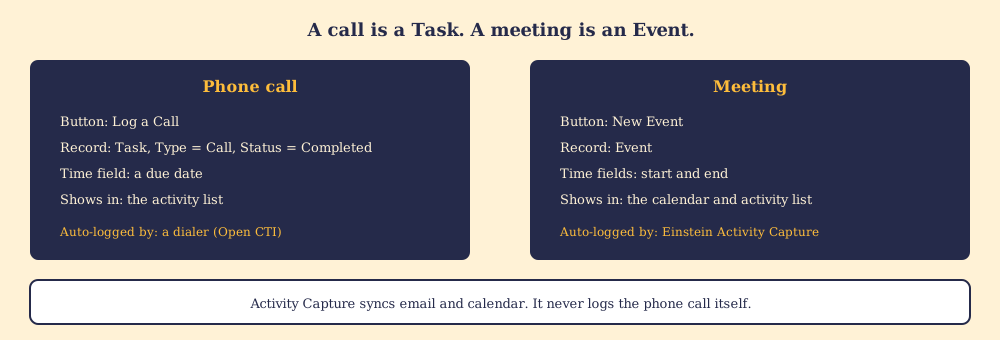
A meeting is an Event, while a call is a Task, and that difference decides where it shows up. An Event has a start and end time and sits on the calendar; a Task has a due date and sits in the activity list. Log a meeting that already happened as an Event with past dates:
- Open the contact, lead, account, or opportunity the meeting was about.
- In the Activity section, choose New Event.
- Enter the Subject, set the start and end to when the meeting took place, and fill the Name and Related To fields so it attaches to the right person and deal.
- Add the notes in Description, then save.
Two shortcuts change this. If your admin added Meeting as a value on the Task Type picklist, reps can use Log a Call and pick Meeting, which records it as a completed Task rather than an Event; pick one convention for the team or your activity reports will split in two. And if Einstein Activity Capture is syncing the rep’s Google or Microsoft calendar, the Event arrives on its own, so the rep only adds notes.
How do you log calls in Salesforce automatically?
Two automation paths exist, and they cover different activity. Einstein Activity Capture (EAC) handles email and calendar. When it is configured and a rep’s Gmail or Outlook account is connected to Salesforce, EAC monitors email and calendar events and automatically syncs them to the Salesforce activity timeline. The rep does not manually log; the system observes and records.
For calls specifically: if a call is placed through a Salesforce-integrated telephony tool or a connected dialer (many CRM dialers surface directly inside Salesforce or sync via API), EAC or the dialer integration can post the call log automatically. A standalone phone call that Salesforce has no way to observe will not appear without a manual log.
Phone calls need a dialer that writes to Salesforce. Salesforce’s own Sales Dialer writes each call to the activity timeline automatically, but Salesforce has marked it for retirement with no new features, and as of September 2026 no end-of-life date had been published; Salesforce points customers to Salesforce Voice with Telephony Providers, formerly Service Cloud Voice, which runs $50 to $200 per user per month by tier (CloudTalk, September 7, 2026, a competing dialer vendor). Third-party dialers connect through Salesforce’s Open CTI API and log calls as Tasks the same way.
Three constraints decide which path you get:
- EAC setup. It needs admin configuration, a supported edition, and authorized email and calendar accounts.
- Call capture. It comes from the telephony integration, never from EAC alone.
- Dialer choice. Building on Sales Dialer today means building on a product with a retirement notice.
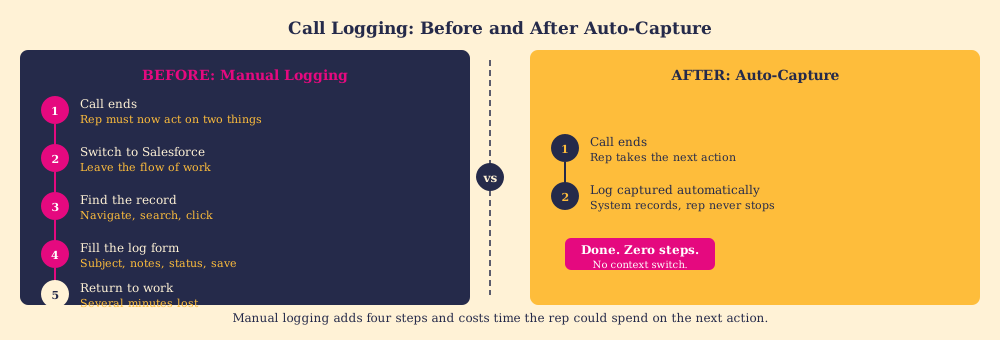
When it is set up correctly, EAC is the most powerful of the four methods because the rep contributes zero extra time to data accuracy. The activity timeline fills itself as a byproduct of the work.
Why are call notes not being logged in Salesforce?
When a rep swears they logged the call and the timeline says otherwise, one of six causes is usually behind it. Work down the list:
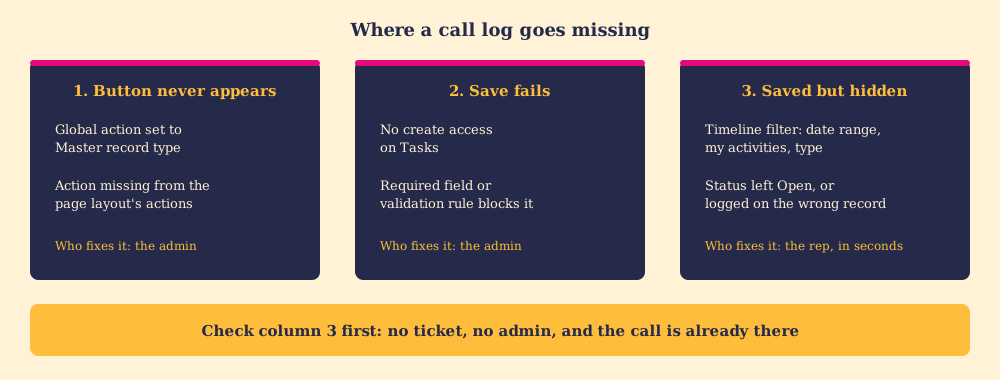
- Missing button, record type. If your org uses Task record types and the Log a Call global action still points to the Master record type, the button does not appear in the Activity tab. Salesforce’s fix is to edit the action under Setup, Global Actions and assign a custom record type (Salesforce Help).
- Missing button, layout. The action is not in the Salesforce Mobile and Lightning Experience Actions section of that object’s page layout. It explains “unable to log a call in Lightning” on one object while the button works on another.
- Failed save, permissions. The rep’s profile or permission set lacks create access on Tasks, so the form opens and the save fails.
- Failed save, validation. A required custom field or a validation rule on Task rejects the record. Reps often close the error and assume the call saved.
- Hidden log, timeline filters. The activity timeline filter is set to a date range, to the rep’s own activities, or to exclude calls. The Task exists; the view hides it.
- Hidden log, status or record. A call saved with Status Open shows under upcoming activity instead of past activity, and a call logged against the wrong contact or opportunity lands on that record’s timeline.
The last two causes involve no bug at all, so check the filter before calling the admin.
Which method is right for your team?
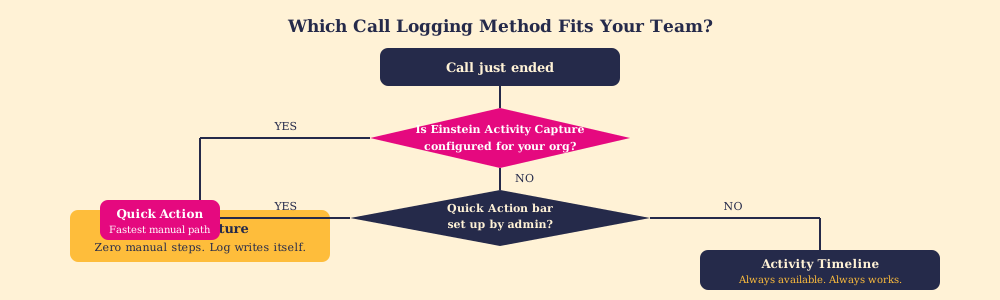
The right method depends on what your org has configured and what the rep’s daily workflow looks like. A decision guide:
- Einstein Activity Capture plus a dialer integration. Use this if your admin has EAC configured and your team uses a supported telephony tool. Zero manual steps, continuous data, and the rep stays in the flow of work. Aim here.
- Quick Action button. Use this if EAC is not available but your admin has configured the quick-action bar. It is the fastest manual path: one click, a small form, done.
- Activity Timeline button. Use this if neither of the above applies. It is always available, always reliable, and produces the same Task record as every other method.
- Salesforce Mobile App. Use this for field reps or anyone logging immediately after an in-person call or visit, especially in low-connectivity environments.
A note on Salesforce Chrome extensions: if your team wants to Salesforce log a call without switching browser tabs, a Chrome extension can bring the log form into the rep’s current context, whether that is an email thread, a LinkedIn profile, or a web page. The best Salesforce Chrome extensions include options that reduce the navigation cost of the Activity Timeline method without requiring admin changes to your Salesforce org.
Why the best log is the one the rep does not have to do
All four methods above work. The first three put the logging task on the rep. The fourth removes it.
This matters more than it sounds. Think of the call log the way a ship’s navigator treats position fixes. The navigator does not log position after every maneuver because it is policy; they log it because an unrecorded position is a liability that compounds with every hour. But if the ship had a GPS system that recorded position automatically, the navigator would not choose the manual method out of discipline. They would use the automatic one and spend the reclaimed attention on reading the charts.
The rep is no different. The call happened. The open question is whether capturing it costs work. A log entered manually is accurate when the rep has time, memory, and motivation. A log captured automatically is accurate regardless of all three.
Our survey of 198 sales leaders for The State of Sales Enablement found 89 percent of teams had a defined process and 36 percent saw it followed. When guidance and logging live in the flow of work, quota attainment split from 15 percent to 49 percent. The behavior the team wants from reps, accurate activity capture, is far more reliable when the system captures it automatically than when it depends on the rep remembering to complete a form after the call.
The principle underneath this is what Supered calls the Behavior Layer: guidance and capture that happen in the moment of work instead of in a separate step afterward. Supered is the behavior layer that rides alongside Salesforce: it holds the rules for each stage of your process, flags the deal where the call was never logged or the follow-up never sent, captures the CRM update as a byproduct of the call rather than a chore added after it, and gives managers adherence data without requiring a manual reconstruction in the next pipeline review. A rep who has to choose between taking the next action and logging the last one will usually choose action. The best logging system removes that choice by making the log a byproduct of the call itself.
What happens when logging is still a chore?
The gap shows up in a familiar form: a weekly pipeline review where half the opportunities have no activity in the last ten days, followed by a manager asking each rep to reconstruct what happened from memory. The rep guesses. The board gets updated. Nothing changed about the underlying pattern.
CRM adoption research is consistent on this point: reps who skip the log rarely disagree with the policy; logging costs effort they cannot easily justify when the next call is already queued. Another reminder or required field adds cost. The fix is to make logging cheaper than skipping it.
The same logic argues for auto-capture and, more broadly, for digital adoption platforms and behavior-layer tools that surface the right action in the moment of work. When the cost of doing the right thing is zero, the right thing gets done.
The four methods above are all valid. Start with the one your org has available. Then build toward the one that removes the step entirely.
Ready to see what the Behavior Layer looks like inside Salesforce? Book a demo or explore how Supered works.
Frequently asked questions
How do you log a call in Salesforce?+
What is the difference between the Log a Call quick action and the Activity Timeline button?+
Does Einstein Activity Capture log calls automatically?+
Can you log a call in Salesforce from a mobile device?+
Why should call logs be captured automatically rather than entered manually?+
How do you log a meeting in Salesforce?+
Why are my call notes not being logged in Salesforce?+
What is a Task record in Salesforce and how does logging a call create one?+
Your process, running itself.